Tutorial — Pointer & scroll inputs
This is the no-code version of driving Rive from JavaScript: map a live page signal — the pointer or scroll — straight into a Rive Number input, entirely from the builder. It's the scroll-gauge demo, where a bar tracks your scroll position.
What it drives
A State-Machine Number input (design the SM to blend / rotate / fill on it), or — if there's no matching input — a View-Model number property of the same name. So the same feed works whether the file exposes a number input or a data-bound number.
Step 1 — Know the target
From the Rive editor, note the Number input (State Machine) or number property (Data panel) you want to drive, and the range it expects — e.g. a lookX input from -100 to 100, or a change number from -40 to 200.
Step 2 — Add a Live-input row
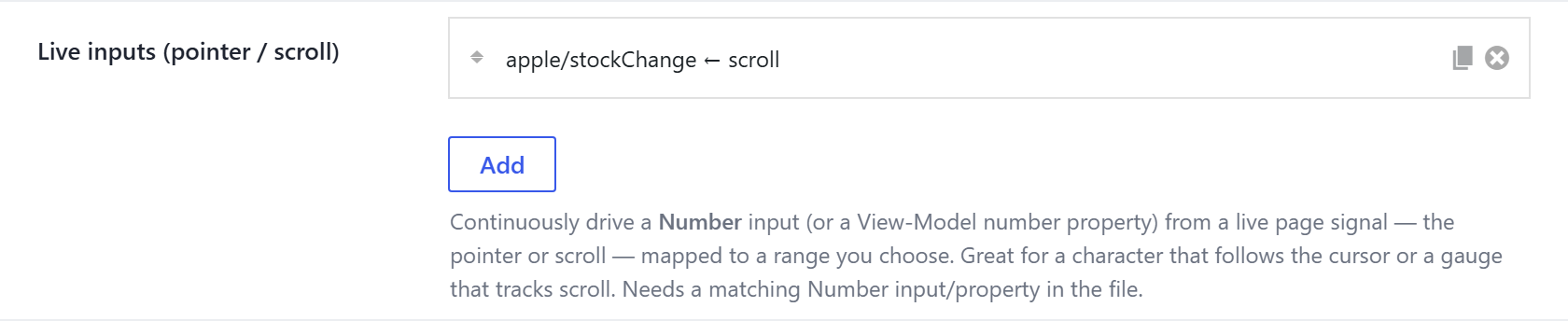
On the element's Animation tab, open Live inputs (pointer / scroll) and add a row:
| Field | What to enter |
|---|---|
| Number input / property | The target name (nested uses /, e.g. item/change). |
| Driven by | Pointer X (left→right) · Pointer Y (top→bottom) · Pointer distance (near→far, from the element's centre) · Scroll (through the element). |
| Maps to — min / max | The value at signal 0 and at signal 1. The signal is always normalised 0–1; you choose what that means for the input. |
| Smoothing | 0 = snaps instantly · higher = eases toward the target (floaty). |
The scroll-gauge demo uses one row: apple/stockChange, driven by Scroll, mapped −40 → 200, smoothing 0.12.
Recipes
Cursor-follow character — a file with lookX / lookY number inputs the artboard rotates the head/eyes on:
| Input | Driven by | Min | Max |
|---|---|---|---|
lookX | Pointer X | -100 | 100 |
lookY | Pointer Y | -100 | 100 |
Scroll gauge / progress — a bar, ring or needle that fills as the reader scrolls:
| Input | Driven by | Min | Max |
|---|---|---|---|
value | Scroll | 0 | 100 |
Proximity — grows / lights up as the cursor nears the element: use Pointer distance (0 when the cursor is on it, 1 far away), so map min = the "near" value.
Notes
- Runs in an animation-frame loop that pauses off-screen and when the tab is hidden, and is skipped under reduce motion — so it never fights accessibility settings.
- The State Machine must be running for inputs to take effect — use Plays → Autoplay (or On view) so it's live while on screen.
- For anything beyond pointer/scroll (a value from your app, audio levels, time), use
setInput()/setBinding()from the JavaScript API instead.