Steps
A numbered sequence of steps with markers and connectors. Like every block in the library, it is a second authoring surface, not a second renderer: the canvas preview and the front end are both produced by the steps element — the same server-side code as the page builder — so the output is identical either way.

Configure it
Select the block and open the Settings (block) tab. The whole sidebar is generated from the element’s option schema, so it stays in step with the page builder.
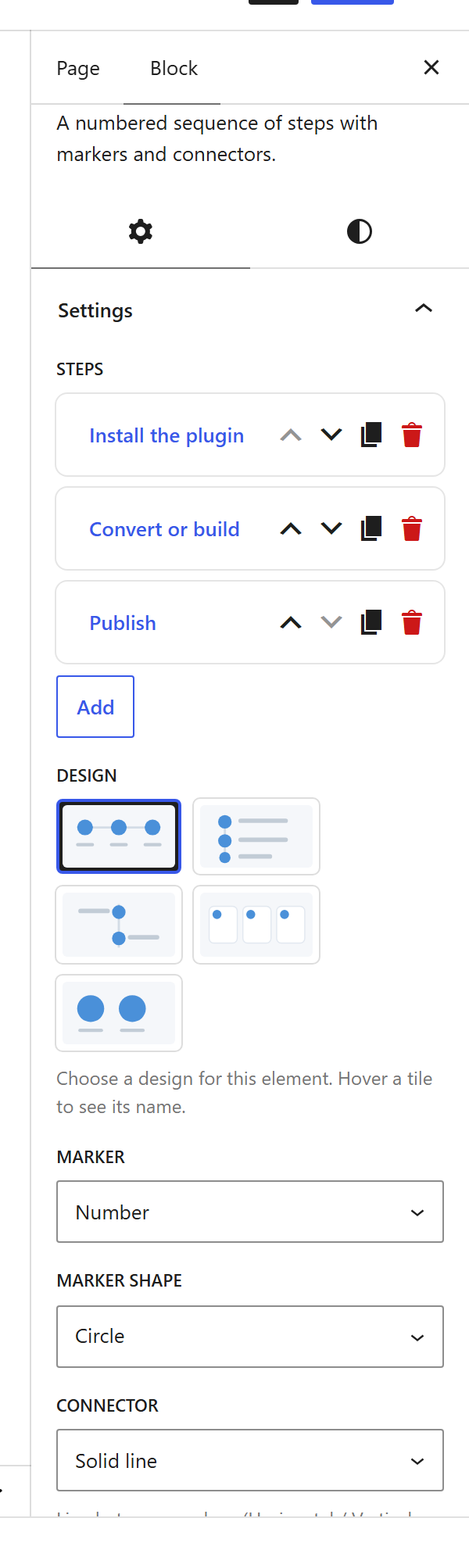
Options
| Option | What it does |
|---|---|
Steps (steps) | Each with a Title, rich-text Content, and an optional Icon. |
Design (design) + Marker (marker, marker_shape) | Numbers or icons in a circle or square. |
Connector (connector) | The line that joins one step to the next. |
Title tag (title_tag) | Heading level for each step title. |
Icon badge (icon_badge_preset) + Accent (accent_color) | A badge behind the marker, and the accent colour. |
Colours (marker_text_color, title_color, text_color) + Font size (font_size_preset) | Per-part colours and a preset size. |
The block also opts into WordPress Margin / Padding (and, where it makes sense, alignment), which inherit the site’s design system from theme.json.
Sample content
A block stores only what you change as one upOptions object; the element’s declared defaults fill in the rest at render time. The demo above is:
<!-- wp:unysonplus/steps {"upOptions":{"steps":[{"title":"Install the plugin","content":"<p>Upload the free plugin and activate it.</p>","icon":{"type":"icon-font","icon-class":"fa-solid fa-download"}},{"title":"Convert or build","content":"<p>Point the Site Converter at a URL, or build from scratch.</p>","icon":{"type":"icon-font","icon-class":"fa-solid fa-wand-magic-sparkles"}},{"title":"Publish","content":"<p>Your editable WordPress site is ready.</p>","icon":{"type":"icon-font","icon-class":"fa-solid fa-rocket"}}]}} /-->
The steps element
The block and the page builder’s Steps element are two doors onto the same code. Its full option, markup and behaviour reference is documented there.