Contacts
A contact is one person you deal with: a lead, a customer, a supplier or a subscriber. The Unyson+ CRM keeps everything about them on one page inside WordPress: their details, your own fields, what happened and when, the companies they work at, the deals they are on, their tasks and files, and whether they agreed to your emails.
The contacts list
Open CRM → Contacts to see everyone, with their stage, company, email status, lists, tags and last activity.
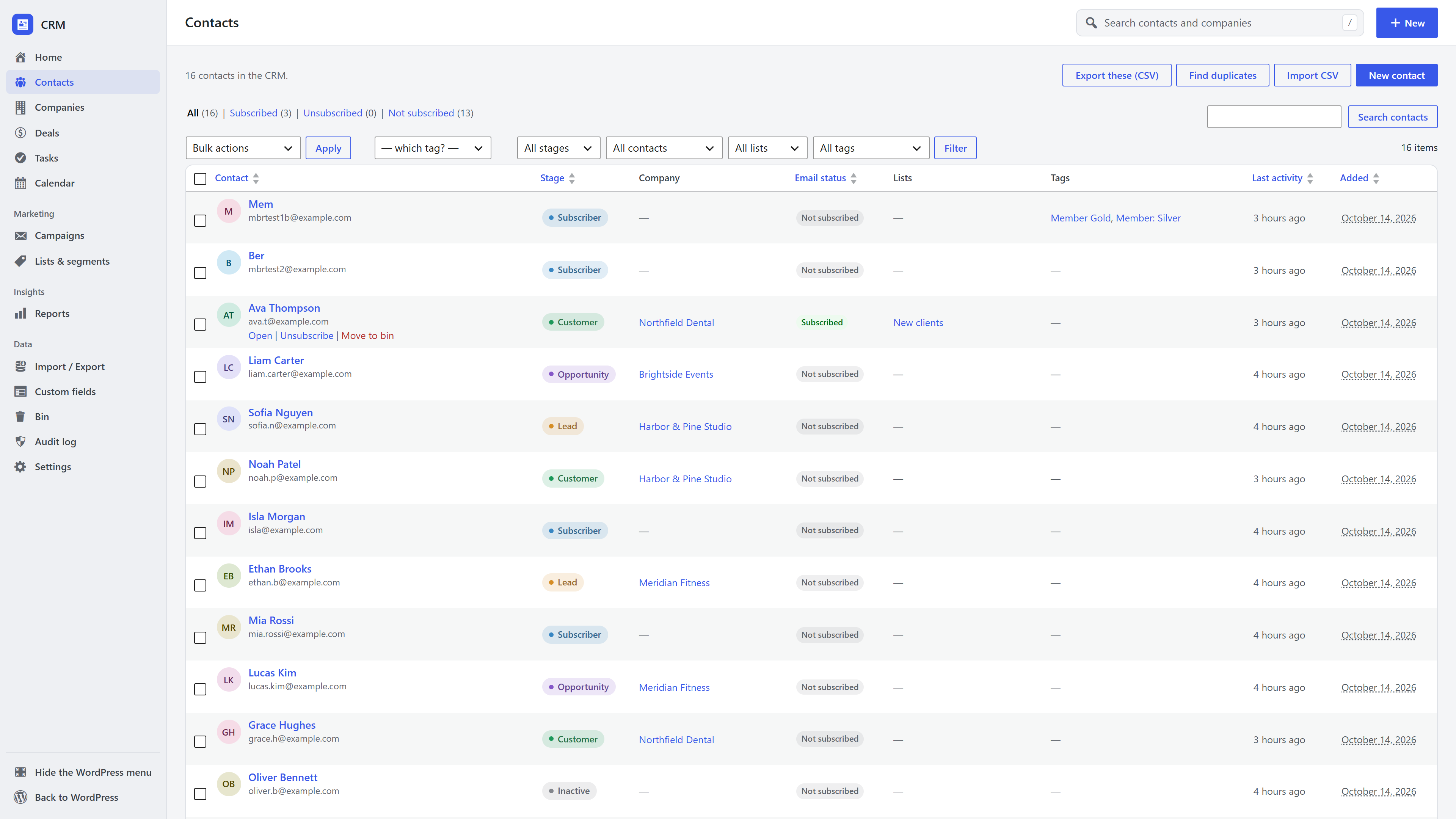
- Search by name, email or phone.
- Filter by lifecycle stage, email status, list, tag or a saved segment.
- Save as segment keeps the current filters as a segment you can reuse and email.
- Bulk actions: subscribe or unsubscribe from a list, add a tag, or move to the bin.
- Export the current filter to CSV (see Import and export).
Add a contact
Click New → Contact in the top bar, or Add contact on the list. An email address is optional: a lead you only have a phone number for is still a contact. If the email already belongs to a contact, you are taken to that contact instead of creating a duplicate.
Adding someone by hand never subscribes them to your emails. See Consent and privacy.
The contact page
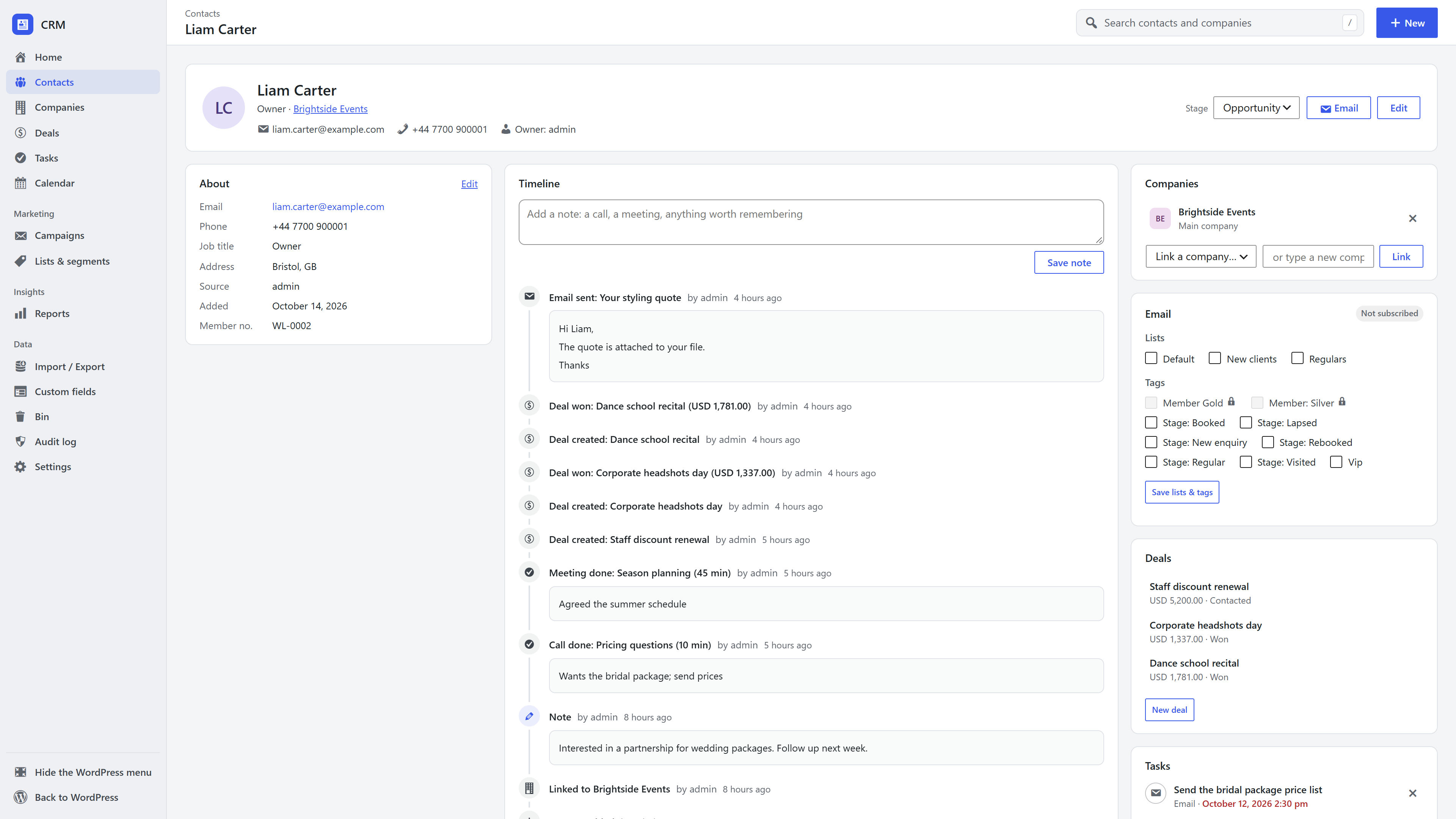
| Part | What it holds |
|---|---|
| Header | Name, job and company, email, phone, owner, the Stage picker and the Email button |
| About | Email, phone, job title, address, source, date added and your custom fields. Click Edit to change them in place |
| Timeline | Notes you add and everything that happened: signups, form entries, emails sent and received, calls and meetings, deals, tags and lists, files, merges |
| Companies | The companies they work at, the main one first. Link an existing company or type a new one |
| Their email status, the lists they are on (with when and how they joined or left), and their tags | |
| Deals, Tasks, Files | Their deals, tasks, calls and meetings and files |
| Consent | Every time they agreed or withdrew, with the exact wording they saw |
Lifecycle stages
Each contact has a stage: Subscriber, Lead, Opportunity, Customer or Inactive. Change it from the picker in the header. Every change is written to the timeline, and Home shows how many contacts are at each stage.
Owners
Each contact can have an owner, the person on your team responsible for them. A sales rep sees the contacts they own; a manager sees everyone. See Team roles.
Notes
Type in the box at the top of the timeline and click Save note. Notes are kept with the date and who wrote them; the author or a manager can edit or delete them later.
Linking a contact to a WordPress user
A contact is a light record, not a WordPress account. When someone needs to log in (a member, a customer with an account), the contact is linked to their WordPress user. Extensions such as Membership do this for you.
Delete and restore
Move to bin at the bottom of a contact's page hides them everywhere: lists, search, segments and email audiences. Restore them from CRM → Bin within 30 days, after which they are deleted for good. See Bin and audit log.
Frequently asked questions
Can two contacts have the same email address? No. An email address belongs to one contact, so signups, imports and forms always update the same person. Contacts without an email are allowed, and duplicate merging finds people entered twice by name or phone.
Does every contact count against a limit? No. There are no plan limits: contacts are rows in your own database.
Can I add my own fields, such as a membership number or a birthday? Yes. See Custom fields.