Leads from your forms
The people who fill in your site's forms become contacts in the CRM: an enquiry, a booking request, a quote request or a newsletter signup. You choose which answers are saved on the contact, and the whole submission is kept on their timeline.
The Newsletter element
Signups from the Newsletter element always reach the CRM. The person becomes a contact with their name, joins your default list (or the list the element names), and is subscribed to your emails. With double opt-in on, they count as subscribed once they click the confirmation email.
Contact forms
A contact form reaches the CRM when you switch it on, form by form. Open the form in the page builder, go to Settings → Actions → Add to the CRM, and switch on Add the sender to the CRM.
From then on, every submission with an email address:
- creates the contact, or updates them if that email address is already in the CRM;
- saves the answers you chose on the contact (below);
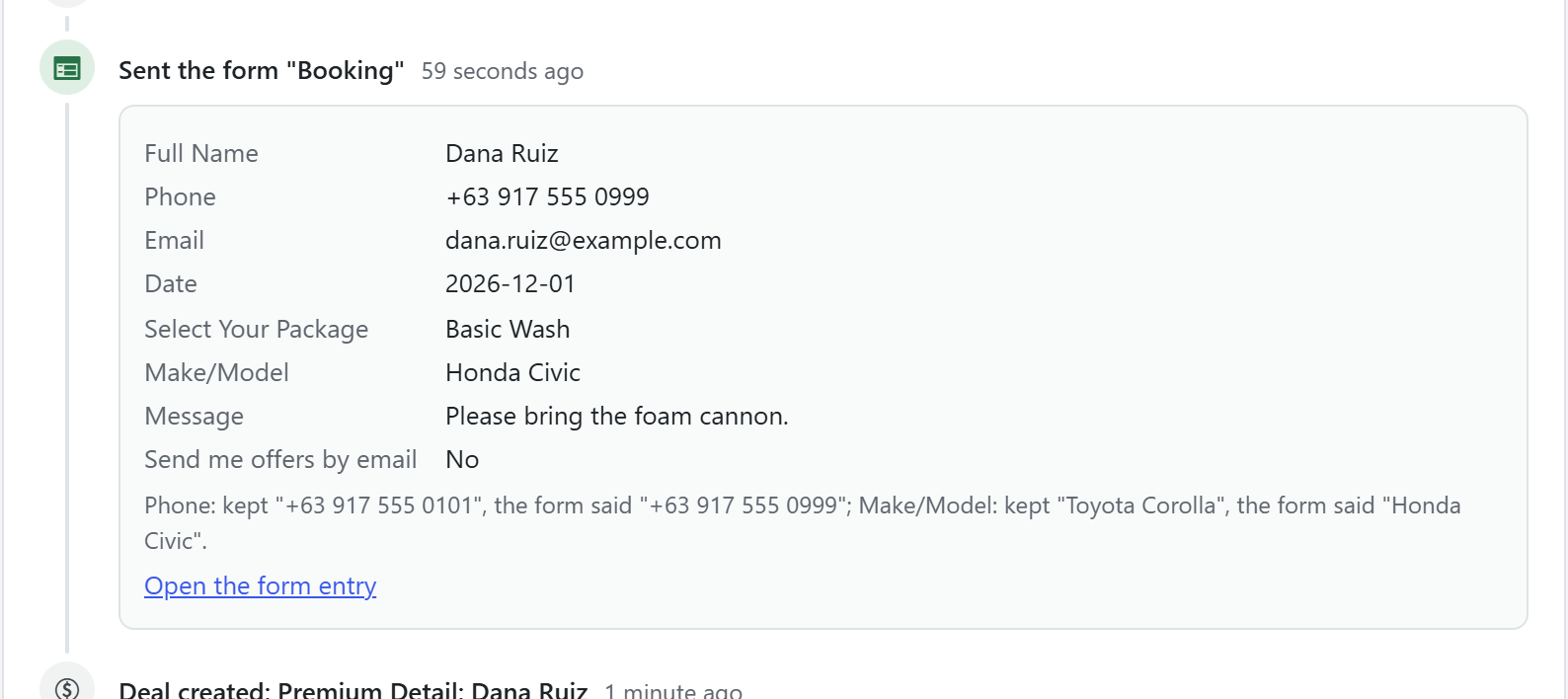
- puts the whole submission on the contact's timeline, every answer, with a link to the entry under Form Entries;
- adds the form's tags, so you can see and segment people by the form they came from;
- and, if you ask it to, creates a deal or a meeting from the submission.
It never subscribes anyone to your emails. A contact added by a form is in the CRM but not on your mailing list. To let people subscribe, add a Consent field set to "Newsletter" and switch on Subscribe them to the newsletter when they tick consent: only the people who tick it are subscribed, with double opt-in if it is on.
The form needs an Email field: the CRM finds and creates contacts by email address.
Choose where each answer goes
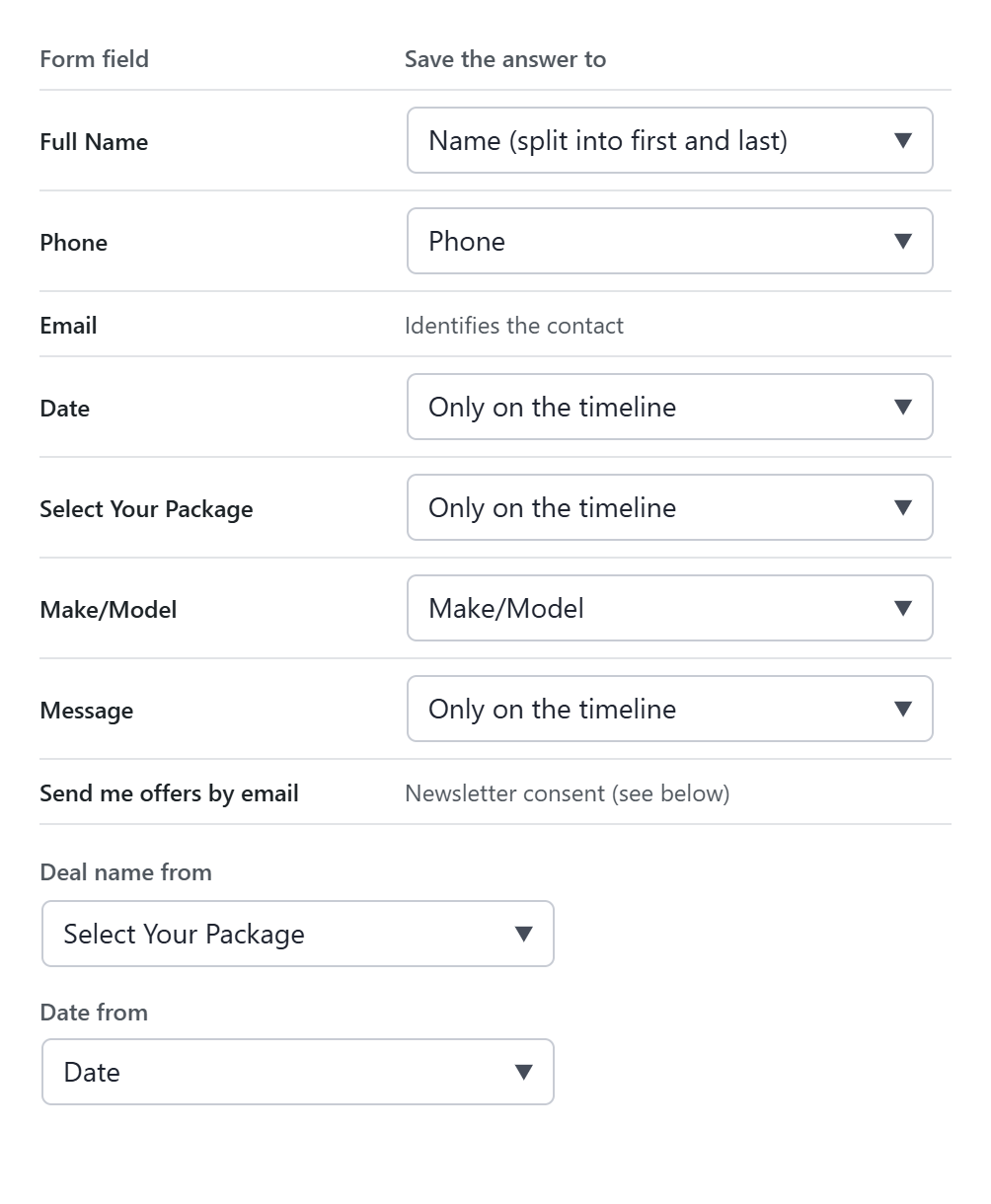
Under Save the answers, every field of the form is listed with a choice of where its answer goes:
| Choice | What happens |
|---|---|
| Only on the timeline | The answer is kept with the submission, not on the contact. Best for anything that changes every time: a booking date, a chosen package, a message. |
| A contact field | Name (split into first and last), first name, last name, phone, job title, company, street, city, region, postcode, country. A company is found by name, or created, and linked. |
| An existing custom field | Any contact custom field. |
| + New custom field | The CRM creates a custom field for this answer when you save the page: same name, and the matching type. A dropdown or single choice becomes a choice field with the same options, a multiple choice a multiple-choice field, a date a date field. |
It fills itself in for you. Email identifies the contact; fields called name, first name, last name, phone, company, job, address, city, postcode or country go to those contact fields; a field with the same name as an existing custom field goes to that field; everything else starts as Only on the timeline.
A new custom field stays linked to its form field, even if you rename the form field later. Options you add to a dropdown later are added to the custom field too. Anti-spam, Recaptcha, Hidden, File Upload and Password fields are never saved on the contact.
Which answers belong on the contact? The ones that describe the person and stay true: their phone, their company, their car's make and model. Keep answers about one request (a date, a package, a message) on the timeline, where every submission keeps its own. Saving them on the contact would overwrite the previous one.
When the person is already in the CRM
When the contact already exists decides what happens to their details:
- Fill empty fields only (the default): new answers fill gaps, and what your team typed is never overwritten. When an answer differs from what is stored, the timeline says so.
- Replace their details with the newest answers.
A contact in the bin who sends a form again is restored.
Turn bookings into deals or meetings
Also create makes each submission into something your team follows up:
- A deal in the sales pipeline (Sales pipeline module). It is named after the answer you pick under Deal name from (by default the first dropdown, such as the package) and the person's name, and starts in the first stage of the pipeline you choose. Date from sets its expected close date. If the chosen package has the same name as one of your products, it is added as the deal's line, so the deal gets the product's price as its value.
- A task, call or meeting on the date the person chose, attached to the contact, with their answers in its notes. It appears on the calendar and in Tasks.
Form Entries keeps every submission too
Whatever you switch on, every submission is also kept under Unyson+ → Form Entries with all of its fields, as long as Keep every submission as an entry is on (it is by default). New fields you add to a form appear there automatically, and the CSV export has a column for each.
For developers
- Action
unysonplus_crm_form_submitted( $contact_id, $ctx, $created )runs after a submission reaches the CRM. - The webhook event
form.submittedsends the contact and every answer to another app, for example a booking system. - The automation event is
crm.form_submitted. - The filter
unysonplus_crm_form_targetsadds contact fields to the Save the answers choices.