Getting started with the CRM
The Unyson+ CRM runs inside your own WordPress site: no outside service to sign up to and no per-contact fees. This page takes you from a fresh install to a working CRM: turning it on, picking the parts you need, adding your team and getting your first contacts in.
1. Turn the CRM on
- In WordPress, open Unyson+ → Extensions and activate CRM.
- Open Unyson+ → CRM. The CRM opens as an app of its own, with its own sidebar and search.
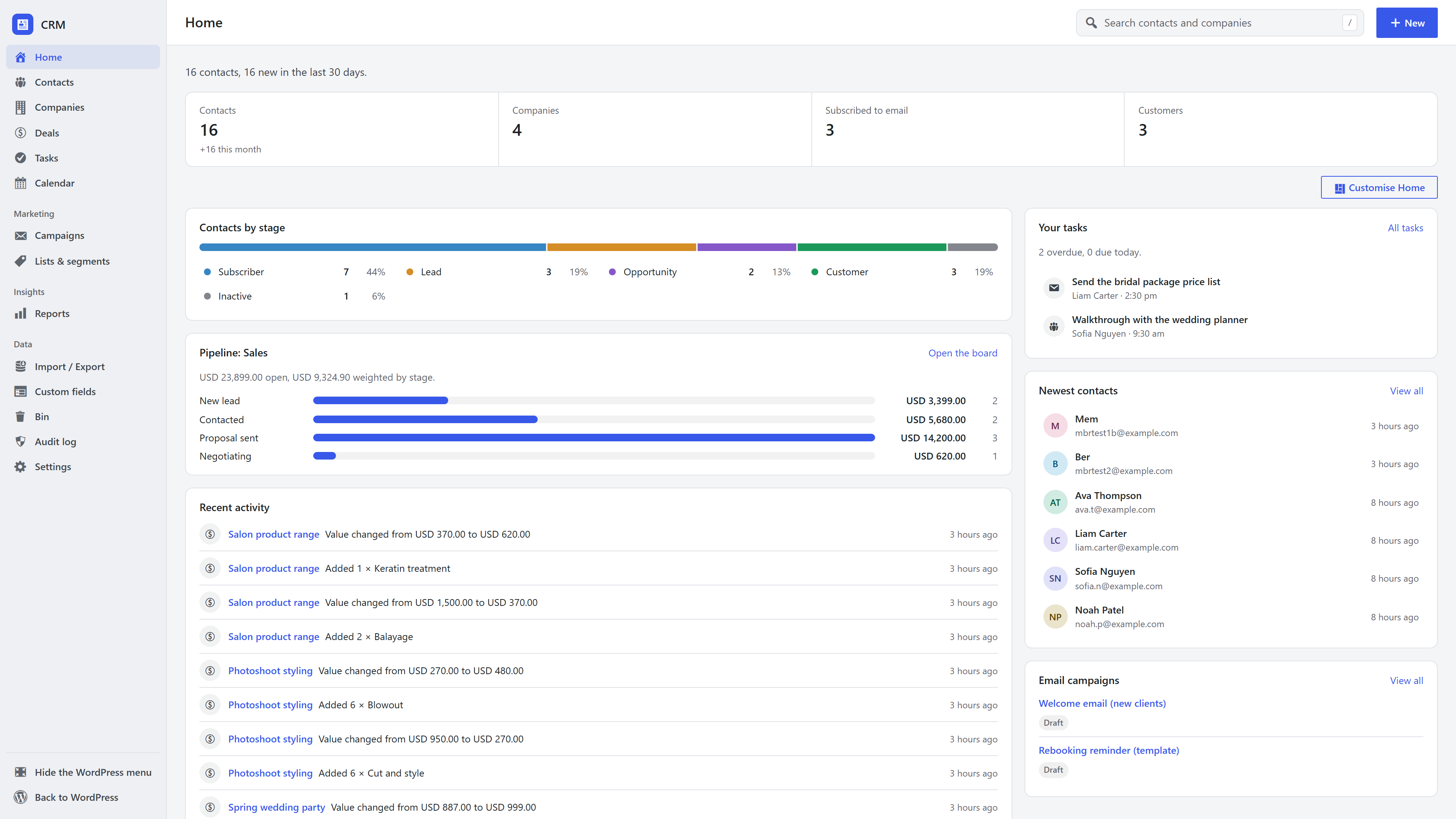
The first time it opens, Home shows the three ways contacts arrive: added by hand, imported from a spreadsheet, or collected by a form on your site.
2. Choose the modules you need
The first time a CRM manager opens the CRM, Home asks What will you use the CRM for? Tick what fits and press Set up my CRM; only the modules behind your answers are switched on. Skip, keep it simple starts with the core alone.
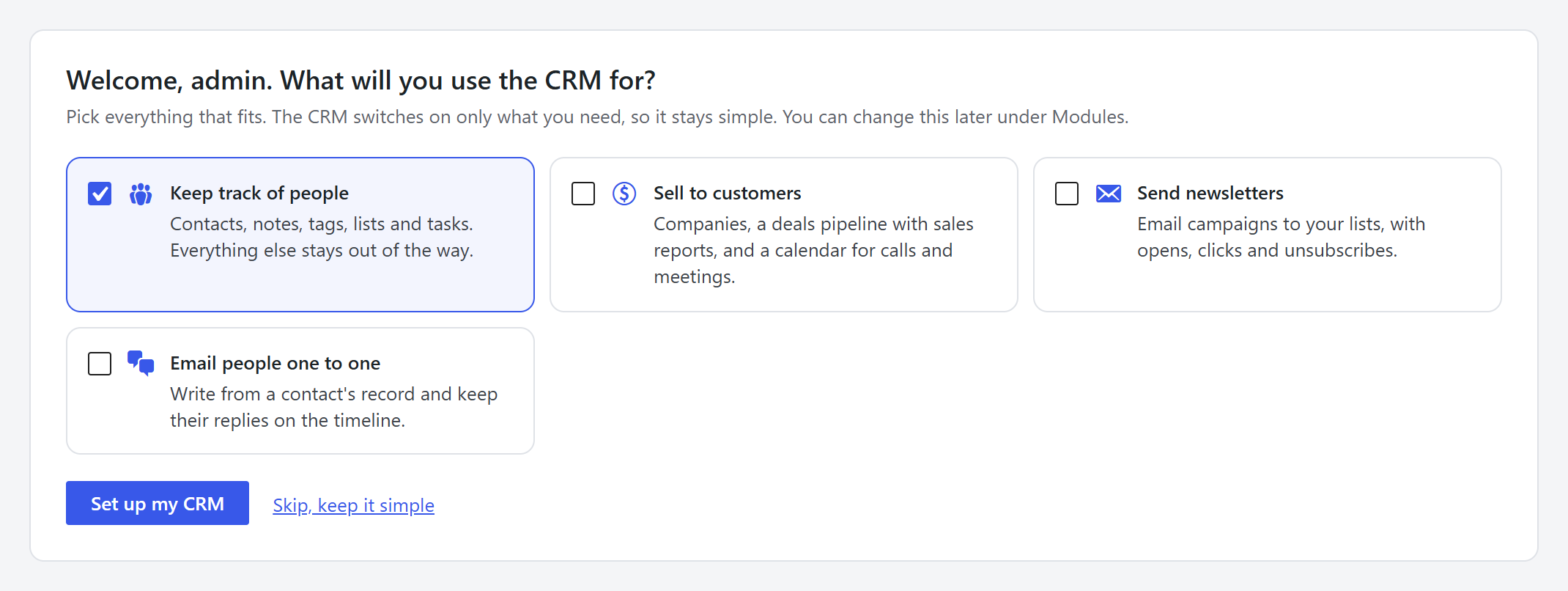
| Answer | Switches on |
|---|---|
| Keep track of people | Nothing extra: contacts, notes, tags, lists, segments, tasks, files and import are always there |
| Sell to customers | Companies, Sales pipeline and Calendar |
| Send newsletters | Email marketing |
| Email people one to one | Email conversations |
Change your mind at any time under CRM → Modules. A module that is off loads no code and adds no menu items, and its data stays until you turn it back on. See Modules and settings.
3. Add your team
Give each person a WordPress account with one of the CRM roles:
- CRM Manager: sees and edits everything, runs campaigns, imports and exports, and changes settings.
- Sales Rep: sees and works the contacts, companies, deals and tasks they own.
Administrators always have full access. See Team roles.
4. Get your contacts in
- Import a spreadsheet. CRM → Import / Export reads a CSV file, guesses which column is which, and lets you check the whole file before anything is saved. Every import can be undone. See Import and export.
- Add people by hand with New → Contact in the top bar.
- Collect them from your site. Newsletter element signups become contacts, and any contact or booking form can add its senders, with the answers you choose. See Leads from your forms.
Adding or importing someone never subscribes them to your emails. Email consent only comes from the person (a signup form, a confirmed opt-in), or from an import where you confirm everyone agreed.
5. Set up your sales process (optional)
If you turned on the sales pipeline, open Deals → Edit pipelines and rename the stages to match how you sell. A first "Sales" pipeline is ready to use: New lead, Contacted, Proposal sent, Negotiating, Won and Lost. Add your products under Deals → Products so deal values add themselves up. See Pipelines and deals.
6. Make it reliable on your host
WordPress runs scheduled jobs (task reminders, sending, checking a mailbox for replies) when someone visits
the site. On a quiet site that can be late. If your host offers cron jobs (cPanel and most others do), add
one that calls wp-cron.php every five minutes and the CRM's background jobs run on time.
Frequently asked questions
Is the CRM free? The CRM is part of Unyson+. There are no per-contact or per-user fees: your contacts live in your own WordPress database.
Do I need a separate email service? No for one-to-one email and reminders, which go through your site's mail set-up. For newsletters to many people, an SMTP or email service is strongly recommended, because shared hosts limit how much a site may send.
Can I try it on a staging site first? Yes. Everything is stored in your WordPress database, so a staging copy of your site carries the CRM with it.