Email and replies
Write to a contact without leaving the CRM, and see their answer on the same timeline. This is the Email conversations module: switch it on under CRM → Modules.
Write a one-to-one email
Click Email in the header of a contact, company or deal.
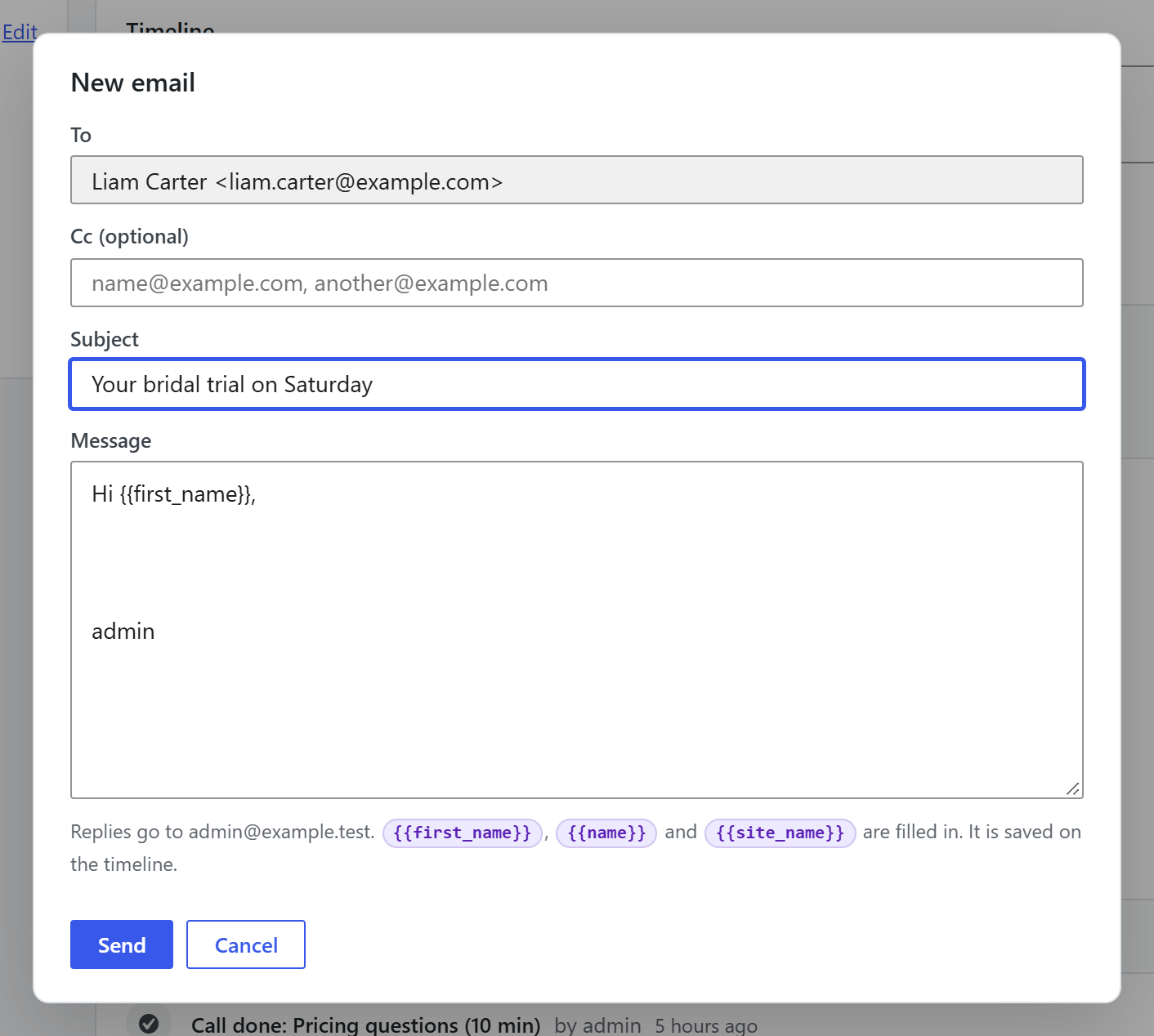
- To: the contact, or one of the company's people or the deal's contacts.
- Optional Cc addresses, separated by commas.
- A subject and the message.
{{first_name}},{{name}}and{{site_name}}are filled in. - Send.
How it is sent:
- Through your site's mail set-up (the Unyson+ Mailer extension, or any SMTP plugin), so it comes from your domain.
- Your name is shown as the sender ("Alex at Your Business") and replies come back to your own address.
- It is a personal email, not marketing: no unsubscribe footer and no tracking, and it reaches people who unsubscribed from your lists.
- It is saved on the contact's timeline, and on the deal's when written from a deal.
- If sending fails, the reason is shown and the message reopens so nothing you typed is lost.
Replies on the timeline
When a contact answers, the reply can land on their timeline as Email received, without the quoted history below it, and on the deal it was about. Set it up under CRM → Settings → Replies on the timeline, with either or both of these:
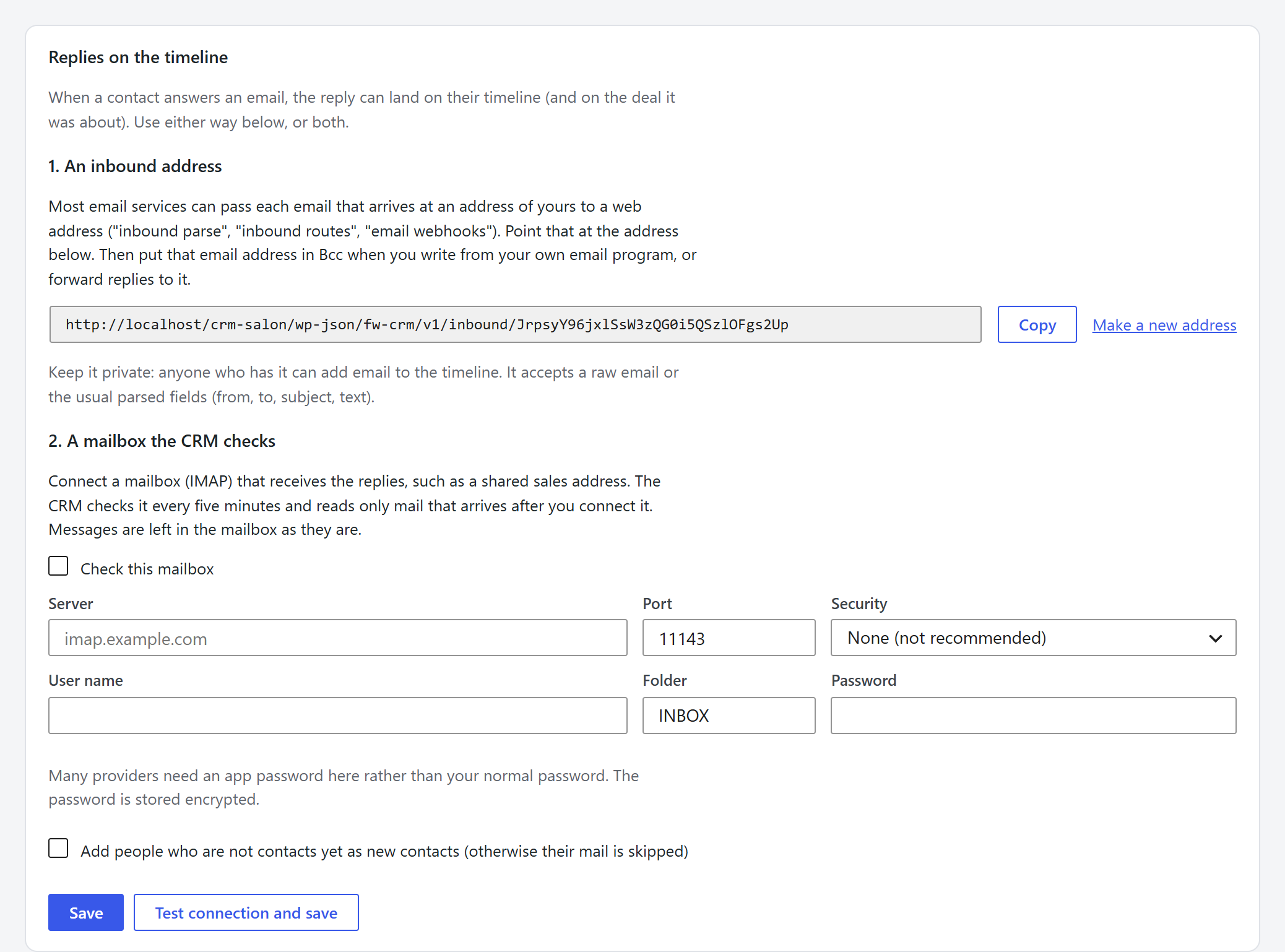
1. An inbound address
The CRM gives you a private web address. Most email services can pass every email that arrives at one of your addresses to a web address: look for "inbound parse", "inbound routes" or "email webhooks" in services such as Mailgun, Postmark, SendGrid or Cloudflare Email Routing. Point that at the CRM's address. Then:
- Bcc that email address when you write from your own email program, and the email is logged as sent to the contacts it went to; and
- forward replies to it (or have replies arrive there), and they are logged as received.
Keep the address private: anyone who has it can add email to the timeline. Make a new address replaces it.
2. A mailbox the CRM checks (IMAP)
Connect a mailbox that receives replies, such as a shared sales address. Enter the server, port, security, user name and password, then Test connection and save. Typical settings:
| Provider | Server | Port | Security |
|---|---|---|---|
| Gmail / Google Workspace | imap.gmail.com | 993 | SSL/TLS (with an app password) |
| Outlook / Microsoft 365 | outlook.office365.com | 993 | SSL/TLS |
| Most cPanel hosts | mail.yourdomain.com | 993 | SSL/TLS |
The CRM checks the mailbox every five minutes and reads only mail that arrives after you connect it; nothing older is imported, and nothing in the mailbox is changed, moved or deleted. The password is stored encrypted. Check now runs a check immediately and shows what it found.
How messages are matched
- From a contact: logged as Email received on their timeline, and on the deal when it answers an email written from that deal.
- From someone on your team (your Bcc or a forward): logged as Email sent on each contact it went to.
- From someone unknown: skipped, unless you tick Add people who are not contacts yet as new contacts.
- Each message is handled once, even if it arrives both ways.
A reply also tells future automations that the person answered, so a follow-up sequence can stop.
Frequently asked questions
Why did my email not send on my local test site? Local installs usually have no mail set-up. Configure the Mailer or an SMTP plugin and it sends normally.
Does the CRM read my whole inbox? No. Only messages that arrive after you connect the mailbox, and only to log them; it never changes the mailbox.
Can I track opens and clicks on one-to-one email? No. Personal emails are not tracked. Open and click tracking is part of email campaigns.