Tasks, calls and meetings
Tasks keep follow-ups from slipping. A task is a to-do, a call, a meeting or an email with a due time and an owner, on a contact, a company or a deal (or on nothing, as a personal to-do).
Your tasks
CRM → Tasks shows your tasks grouped as Overdue, Today, Upcoming and Done recently. A manager can switch to anyone's tasks, or everyone's. Home shows a Your tasks card with what is overdue and due today.
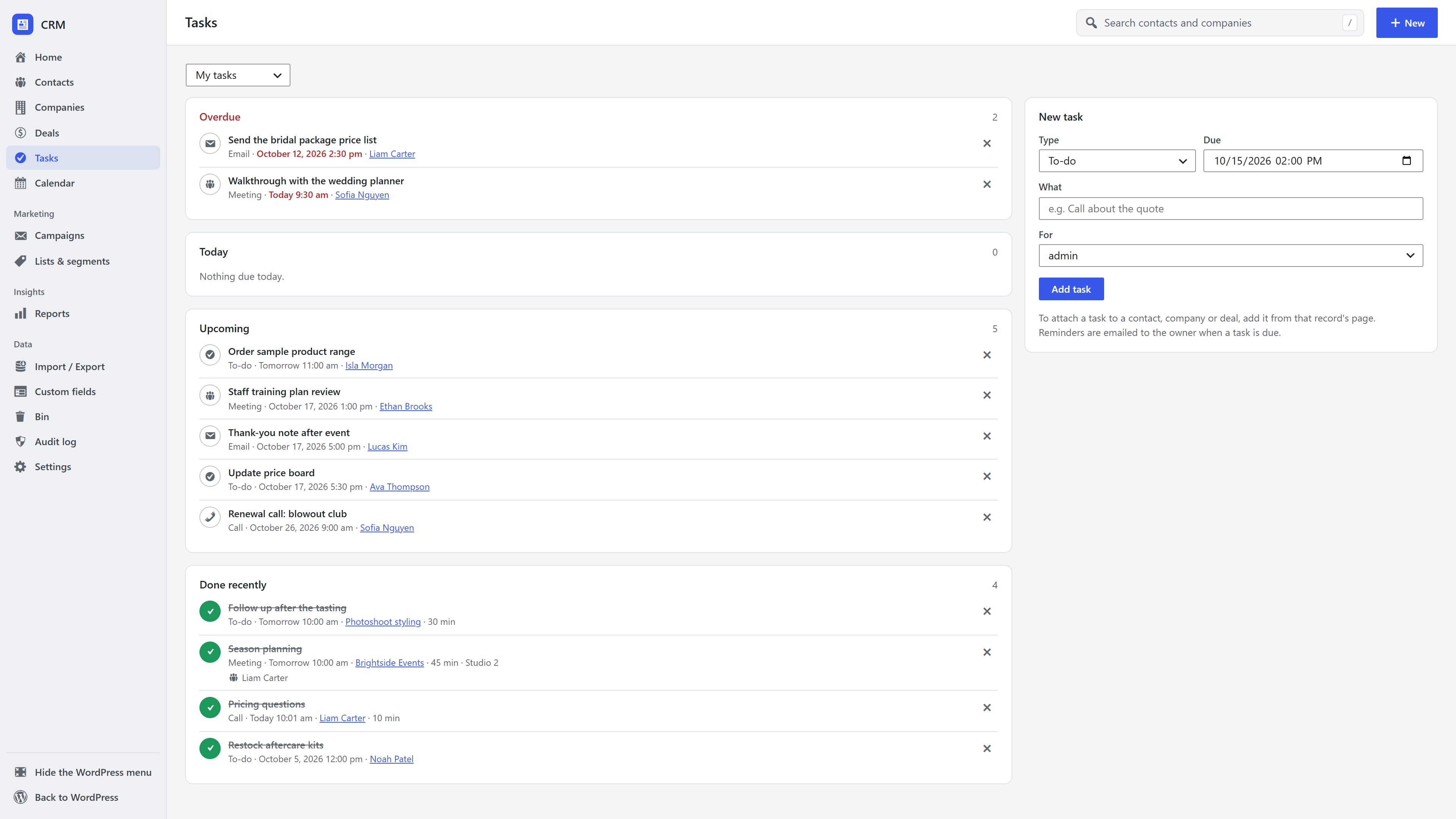
Add a task
On any contact, company or deal page, open Tasks → Add a task:
- Choose the type and the due date and time.
- Say what it is, such as "Call about the quote".
- For a call or meeting, set how long it should take; for a meeting, where and with whom (the contact, a company's people or a deal's contacts).
- Managers can assign it to someone else with For.
You can also add a task from the calendar by clicking + on a day.
Reminders
An hourly job emails each person one reminder listing their tasks that are due within the hour or overdue. Each task is reminded about once; changing its due time earns a new reminder.
Ticking off a task
Click the circle next to a task to mark it done. For a call or meeting, the CRM asks how it went (an outcome) and how long it took. The entry lands on the record's timeline, such as "Meeting done: Quarterly review (45 min)", and on each attendee's timeline.
Log a call or meeting that already happened
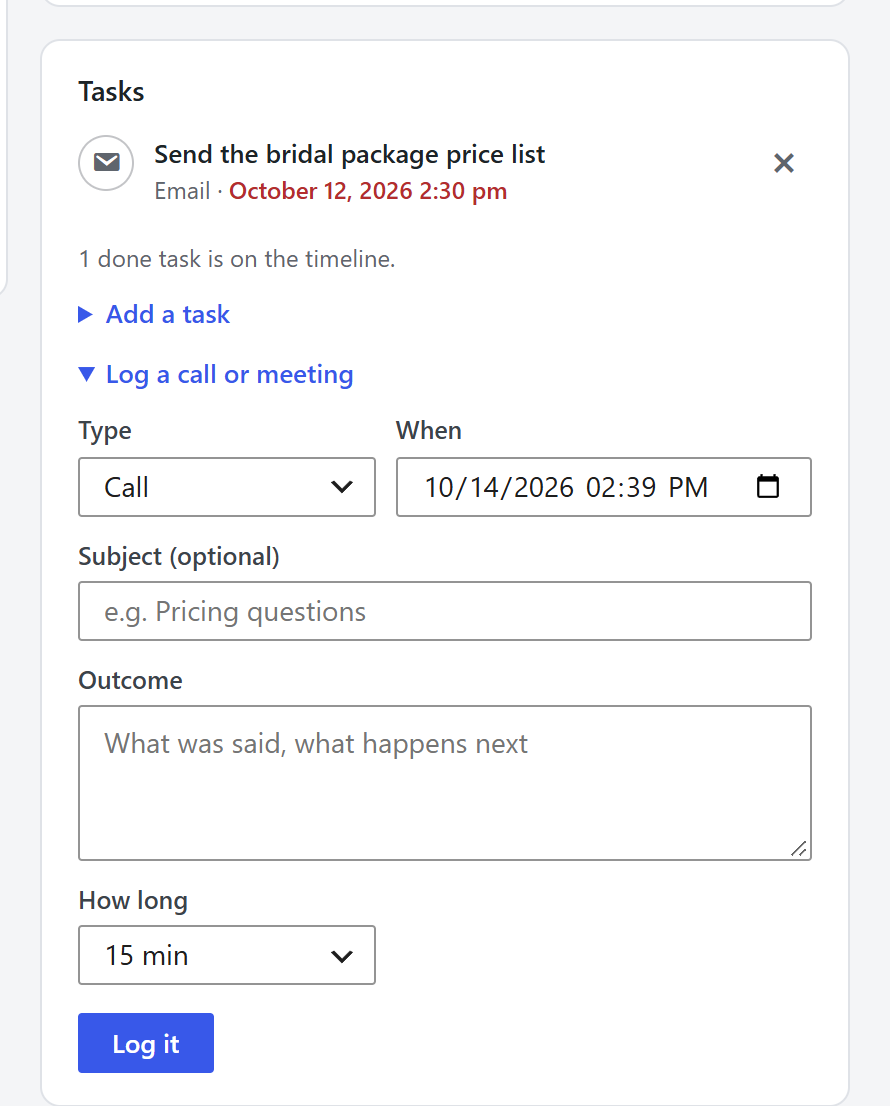
Use Tasks → Log a call or meeting on a record: choose call or meeting, when it happened, an optional subject, the outcome and how long it took. It is saved as done and logged on the timeline straight away.
Frequently asked questions
Who gets reminders? The task's owner, by email, through your site's mail set-up.
Can a sales rep give tasks to others? No. A rep's tasks are their own; managers can assign tasks to anyone.
Can I see tasks on a calendar? Yes. See Calendar.