Modules and settings
CRM → Modules and CRM → Settings are for CRM managers and administrators.
Modules
The CRM starts small. Its core is always on: contacts, notes and the timeline, tags, lists and segments, tasks, files, import and export, custom fields and the bin. Everything else is a module you switch on when you need it, so the CRM only shows the tools your business uses.
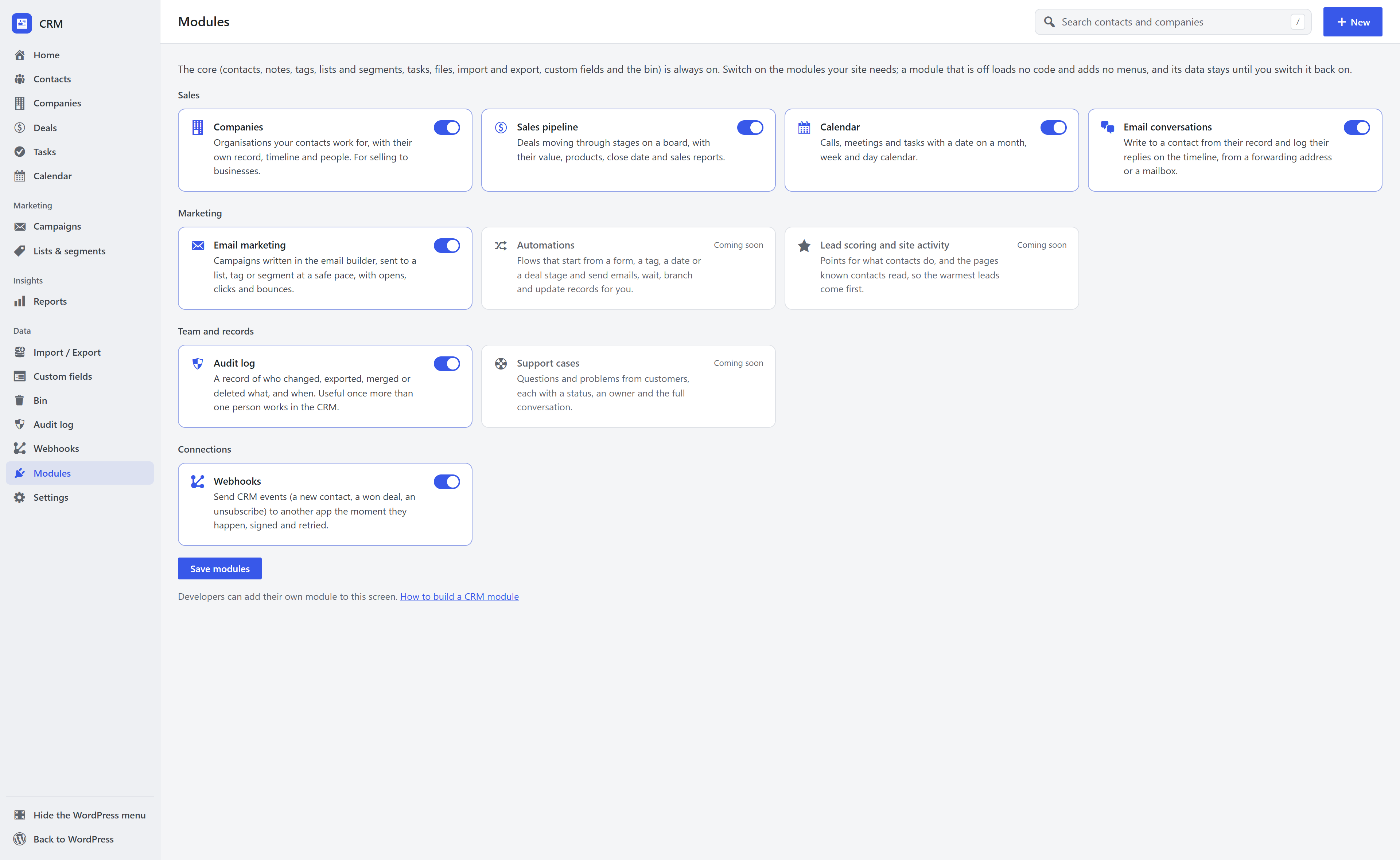
| Module | Switch it on if you… |
|---|---|
| Companies | sell to businesses and want each organisation as a record, with its people and timeline |
| Sales pipeline | track deals, quotes or bookings through stages, with products and sales reports |
| Calendar | schedule calls and meetings and want them on a month, week or day view |
| Email conversations | write to contacts from their record and keep their replies on the timeline |
| Email marketing | send newsletters and campaigns to lists, tags or segments |
| Audit log | have more than one person in the CRM and want a record of who changed what |
| Webhooks | want other apps to hear about new contacts, won deals and other events (developer guide) |
Automations, lead scoring and support cases are listed as Coming soon (see the roadmap).
Flip a switch and press Save modules. What happens:
- A module that is off loads no code and adds no menus. Its sidebar items, buttons, panels and REST routes disappear. Someone who opens an old link to it sees "… is turned off" with a button to this screen.
- Nothing is deleted. Its data waits, and switching the module back on brings everything back as it was. Companies, for example, stay linked to their contacts while the Companies module is off.
- Email marketing cannot be switched off while a campaign is sending or scheduled. Pause or finish the campaign first.
- Bounces and spam reports for campaigns use the same incoming-mail setup as replies, so the replies settings stay available while either Email conversations or Email marketing is on.
Other plugins can add their own modules to this screen. See Create your own CRM module.
The first-run question
On a new site, the first time a manager opens the CRM, Home asks What will you use the CRM for? The answers switch on the matching modules (see Getting started). A site that already used the CRM before modules were introduced is never asked: every module it has data for stays on.
Settings
Replies on the timeline
The inbound address and the mailbox the CRM checks for replies (Email conversations or Email marketing). See Email and replies.
Signups and email
- Default list for new signups, and whether a form can create new lists.
- Double opt-in: send a confirmation link before a signup counts, with the confirmation email's subject and text.
- Welcome email after someone confirms.
- Notify the site admin of new signups.
- Privacy: store the signup IP address or not, and shorten it.
Remove all data
At the bottom of Settings, Remove all data deletes every CRM table and setting after you confirm. It is never done automatically, not even when the extension is deactivated.