Security
A few measures that work, and no pretending about the rest.
Login throttling, two-factor sign-in, XML-RPC and header hardening, a custom login address, and checks in Site Health — each one off until you choose it, each one telling you what it does not do.
Most security plugins are judged by the length of their feature list, and many of the items on those lists stop nothing. Security ships only measures that stop a specific attack, plus checks that tell you the truth about settings a plugin cannot enforce. Every option says, in its own description, what it does not protect against — because a switch that implies more safety than it gives is how people skip the measures that matter.
It is off by default and has to be installed and activated on purpose, from Unyson+ → Extensions. After activation, only read-only checks run. Nothing about how people sign in changes until you switch a measure on. Settings live at Unyson+ → Security.
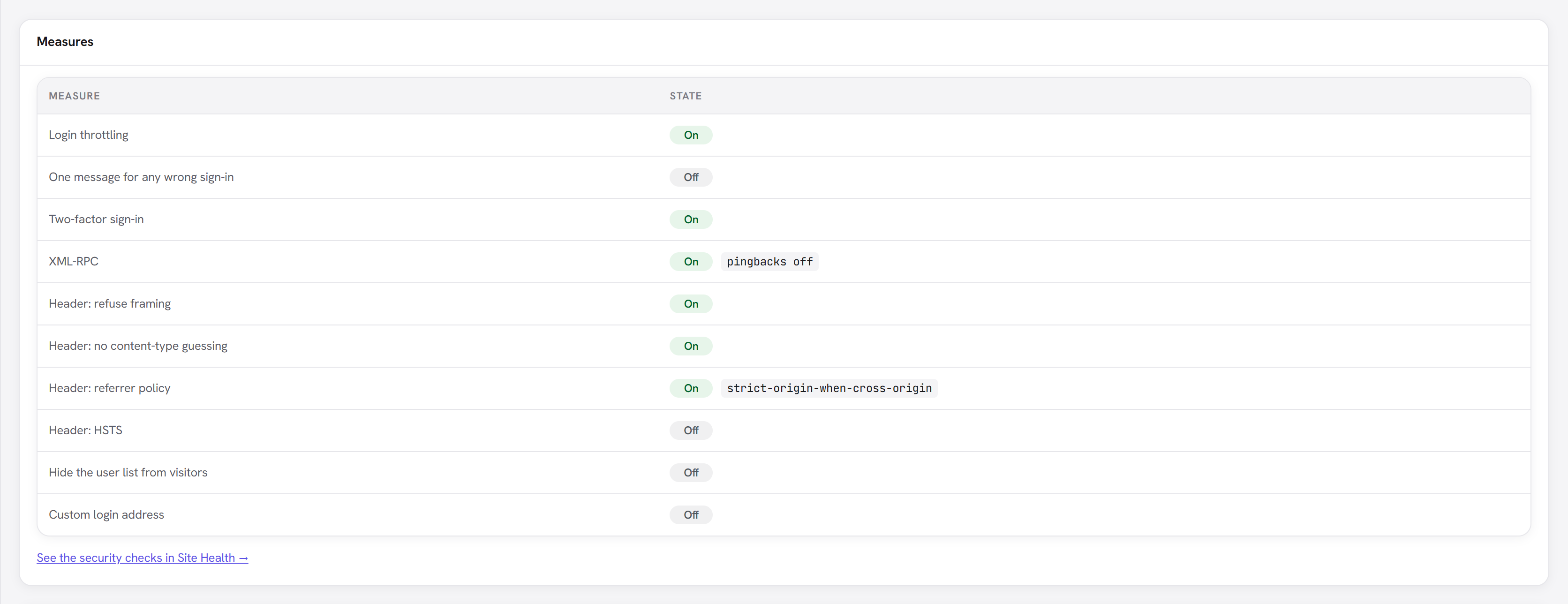
What each measure does — and does not do
| Measure | Stops | Does not stop |
|---|---|---|
| Login throttling | Password guessing from one place, on the login page, XML-RPC and application-password sign-ins | Slow guessing spread across many addresses (two-factor sign-in does) |
| Two-factor sign-in | Signing in with a leaked, reused or guessed password | A session that is already signed in; application passwords (by design) |
| One message for any wrong sign-in | The login form confirming which usernames exist | Usernames shown elsewhere — author pages, the lost-password form |
| XML-RPC: pingbacks off / block | Your site being used to send requests to other sites | Much password guessing — WordPress already limits that on XML-RPC |
| Security headers | Clickjacking, content-type guessing, leaking full URLs to other sites; HSTS stops HTTPS being downgraded | Cross-site scripting — that needs a Content-Security-Policy, which is not auto-generated |
| Hide the user list from visitors | Automated tools listing your usernames | Usernames that bylines and author pages already show — this is noise reduction |
| Custom login address | Bots hammering wp-login.php — less log noise, less server work | A determined attacker: it is obscurity, not protection |
| Log everyone out | Someone still using a stolen login cookie | Someone who has the password — pair it with password resets |
Login throttling
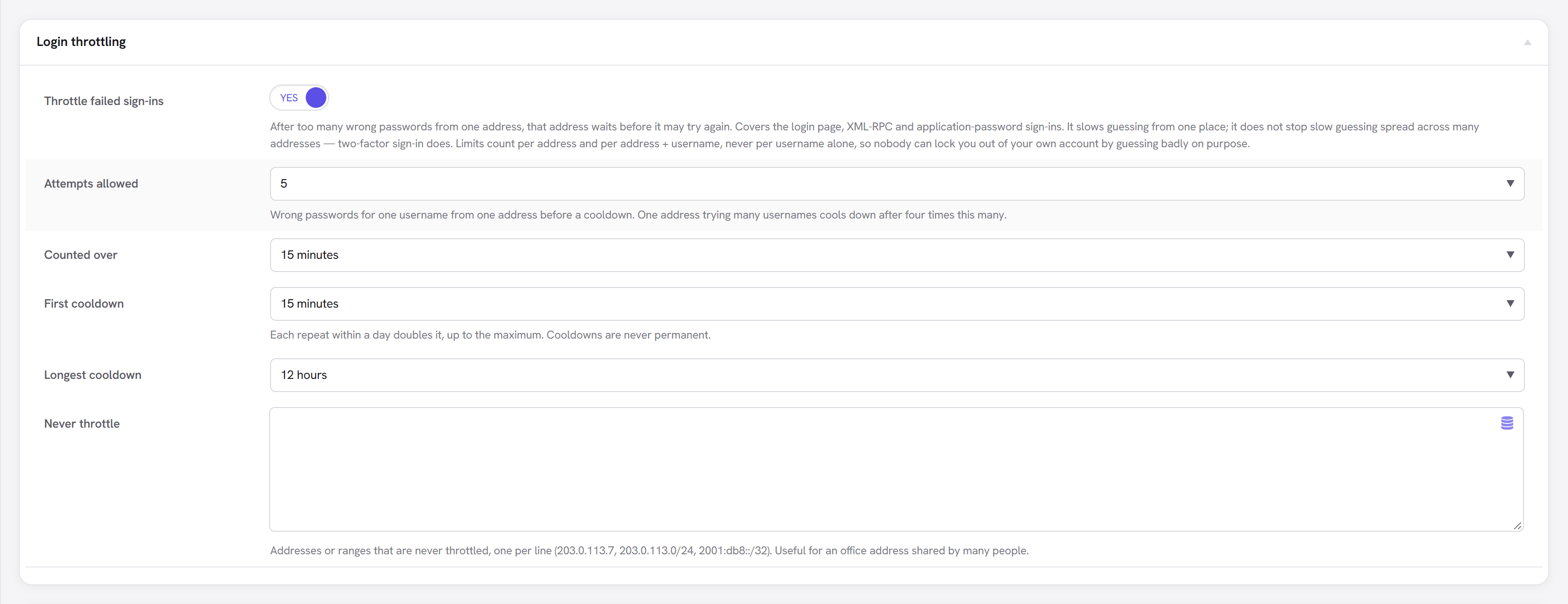
After too many wrong passwords from one address, that address waits before it may try again. The wait doubles each time within a day, up to a maximum you set, and is never permanent.
- Counted per address, and per address + username — never per username alone. Otherwise anyone could lock you out of your own account by guessing badly on purpose.
- While an address is cooling down, even the right password is refused. Letting it through would tell an attacker exactly when a guess was right.
- Never throttle takes addresses or ranges (
203.0.113.0/24) — useful for an office where many people share one address. - Current lockouts are listed on the Status tab, with an Unlock button. Addresses are shown with the last part hidden; the full address is never stored.
:::caution Behind a proxy or CDN? Then every visitor reaches WordPress from the same address — the proxy's — and one attacker would lock everyone out. Security detects this and refuses to switch throttling on until you tell it where the real visitor address comes from (Visitor addresses behind a proxy or CDN). A header is only believed when the request comes from a proxy you trust, because anyone can send one. :::
Two-factor sign-in
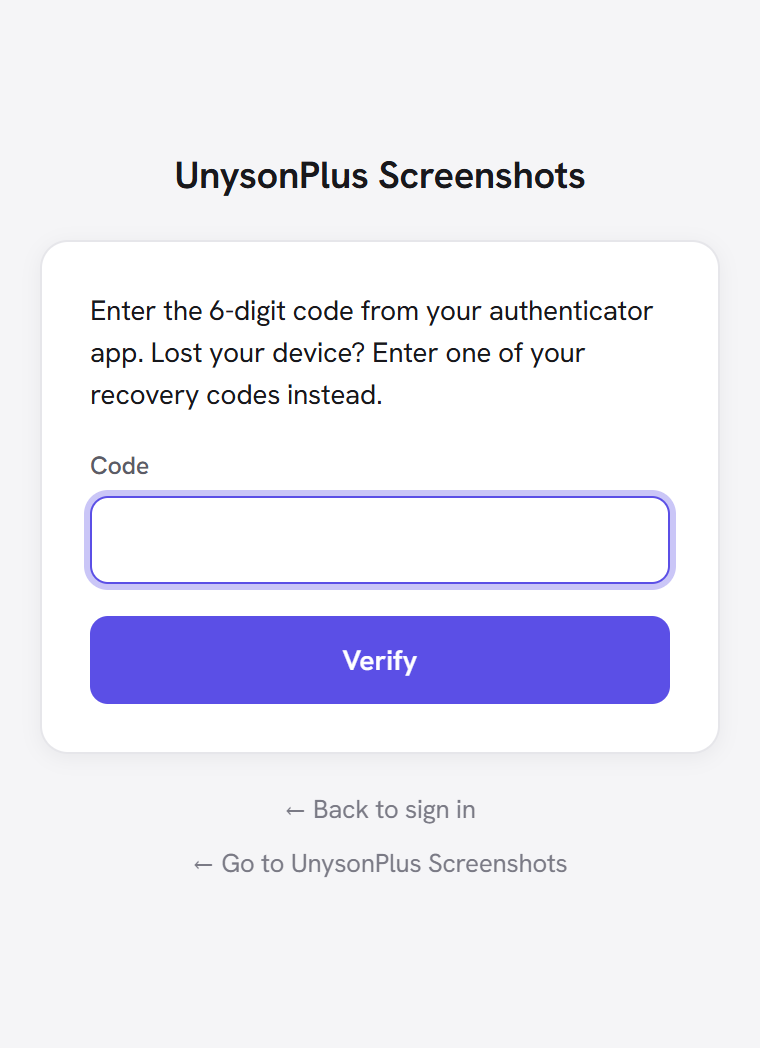
Switch on Offer two-factor sign-in, then each person sets it up from their own profile (Users → Profile). After their password, they enter a 6-digit code from an authenticator app on their phone.
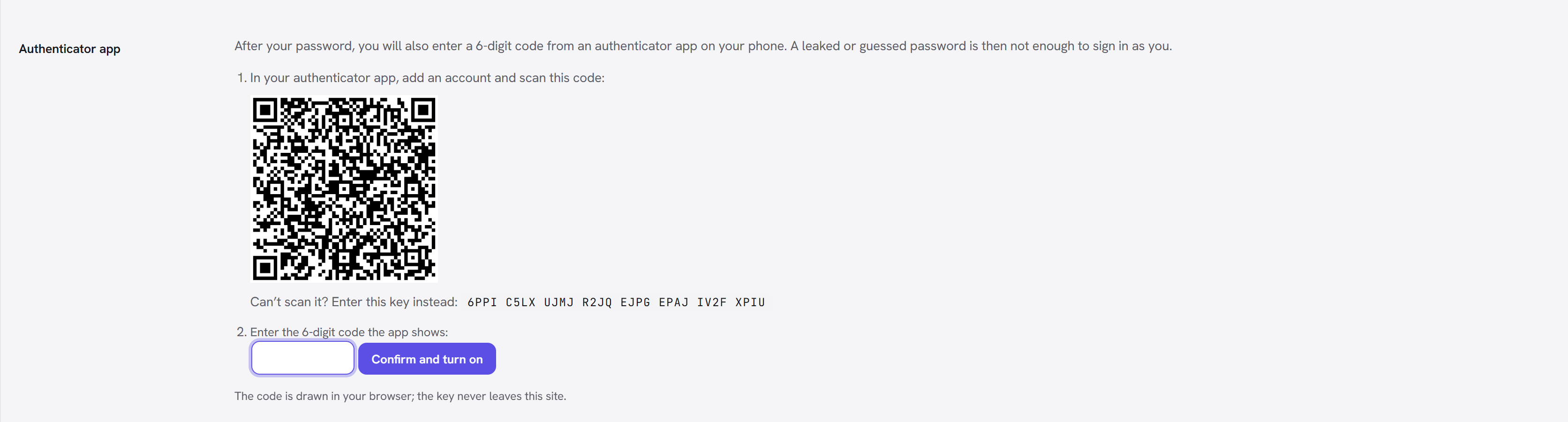
- The QR code is drawn in your browser. The key is never sent to another service.
- Setup ends with ten recovery codes, shown once. Each works one time in place of an app code.
- Turning it off, or making new recovery codes, needs a current code — so a session left open on a shared computer cannot remove your second factor.
- An administrator can Reset two-factor sign-in for someone who has lost both their phone and their codes (on that user's edit screen).
What it does not cover: application passwords (used by programs, not people) are not asked for a code — they are limited to what they were created for and can each be revoked. XML-RPC password sign-ins are refused for anyone who has two-factor sign-in on, so that door does not stay open.
By default the secrets are stored in the database unencrypted. To encrypt them, add a random key of
32 or more characters to wp-config.php before anyone sets up two-factor sign-in:
define( 'UPW_SECURITY_2FA_KEY', 'paste-a-long-random-string-here' );
Changing or removing that key later means existing users need a recovery code to get back in.
Hardening
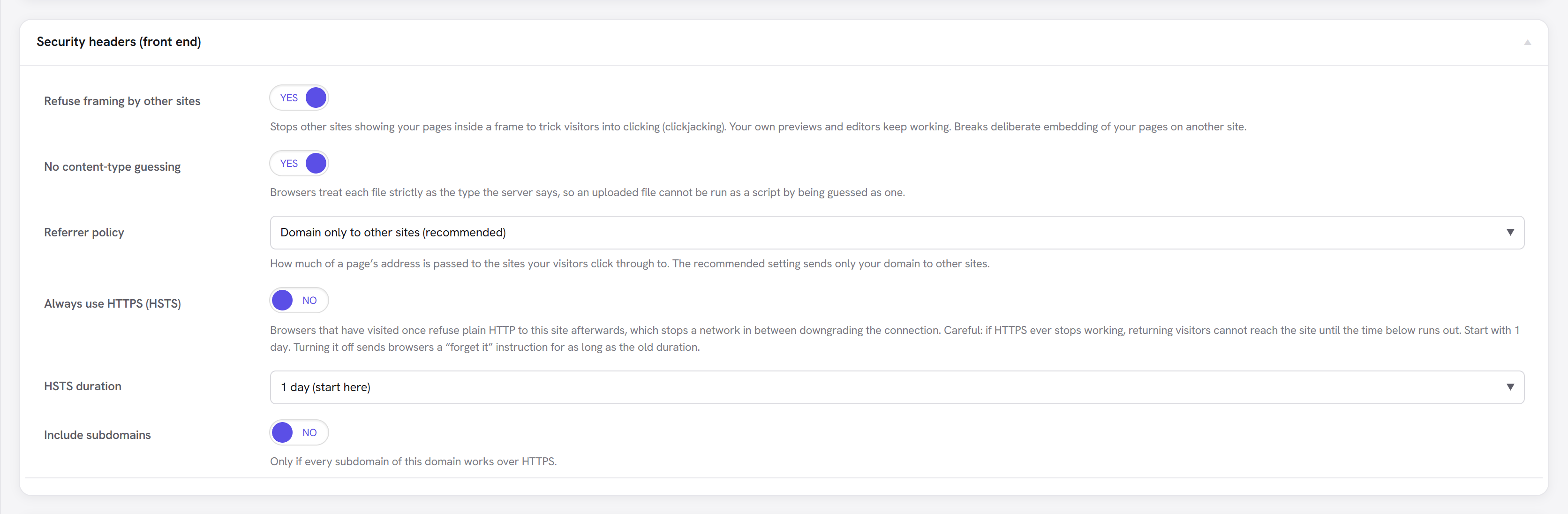
- XML-RPC — Pingbacks off removes pingbacks and keeps the rest of XML-RPC. Block refuses every XML-RPC request; remote-publishing tools and older mobile apps that use it stop working. (Theme Settings → Misc → Performance has a Disable XML-RPC logins switch. It only turns off the methods that need a login — pingbacks keep working.)
- Security headers — framing protection, no content-type guessing, and a referrer policy, on the front end (WordPress already sends the first and last on the login and admin screens). HSTS needs HTTPS and deserves care: if HTTPS ever stops working, returning visitors cannot reach the site until the duration runs out. Start with one day. Switching HSTS off tells browsers to forget it.
- Hide the user list from visitors — for logged-out visitors, stops the REST API user list,
?author=links and embed data from listing usernames. A separate front end that reads the user list without signing in would lose it.
Headers sent by WordPress do not reach static files or page-cached pages. Your web server or CDN is the more reliable place for them; the Site Health check reports what visitors actually receive.
Custom login address

Enter a name and the login page moves to https://your-site/that-name. wp-login.php and logged-out
visits to /wp-admin/ then show your theme's 404 page. Every link WordPress generates — log out,
lost password, the reset email, password-protected pages — follows automatically.
Be clear about what this buys. It cuts automated login attempts and log noise. It does not hide your site from anyone determined: the REST API, admin-ajax and XML-RPC stay reachable, and any login link on your site reveals the address. Throttling and two-factor sign-in are the protection.
Before a new address is saved it is checked: it cannot be a WordPress path, one of the first names
bots try (login, admin…), or anything your site already uses — a page, a post in any status, a
category, an archive. Then the site requests the new address itself, and if the login form does not
appear, the previous address is put back. The new address is emailed to the site admin address.
It needs permalinks other than Plain, and it is not available on multisite yet.
If you are locked out
None of these needs the admin screen:
| Situation | Do this |
|---|---|
| Anything Security does is in the way | Add define( 'UPW_SECURITY_SAFE_MODE', true ); to wp-config.php — every measure is off until you remove it |
| Lost the custom login address | Add define( 'UPW_SECURITY_LOGIN_SLUG', false ); to wp-config.php, or check the admin email |
| Locked out by throttling | Wait it out, sign in from another address, or run wp upw-security unlock --all |
| Lost your phone and recovery codes | Another administrator resets it on your user screen, or run wp upw-security 2fa reset <user> |
| Want it gone entirely | Deactivate Security in Unyson+ → Extensions — WordPress is back to normal immediately, because nothing is written outside the extension's own settings |
The command-line tools:
wp upw-security status
wp upw-security disable <throttle|errors|2fa|xmlrpc|headers|user-listing|login-url>   # or --all
wp upw-security unlock --ip=<address>        # or --all
wp upw-security 2fa reset <user>
wp upw-security login-url get | reset | set <name>
wp upw-security logout-all
Tools and checks

- Log everyone out — after a suspected break-in, ends every signed-in session at once, yours included.
- Check whether PHP runs in uploads — writes a harmless test file into the uploads folder, requests it, and deletes it. If PHP runs there, an upload that slips past a check becomes code on your server; the result tells you how to turn it off for your web server.
- Remove all security data — every setting, lockout and two-factor enrolment.
Tools → Site Health gains checks WordPress does not already run: the file editor constants, security keys, a debug log anyone can download, a browsable uploads folder, which security headers the home page actually sends, an unconfigured proxy, administrators without two-factor sign-in, and more. A check that cannot run says could not check — never a pass.
What Security deliberately does not do
Some popular features are left out on purpose. A request "firewall" inside WordPress runs after the
site has already loaded and would block the page builder's own saves, which legitimately contain
HTML and scripts. A malware scanner on the same server an attacker controls can be edited by that
attacker. Hiding the WordPress version, renaming the database prefix or moving wp-content stop
nothing. And the extension never edits wp-config.php or .htaccess — measures that belong there
are reported with the exact line to add, so switching Security off can never leave your site broken.