The capture service
The capture service is a small Node program that renders a page in real Chrome on your machine
and returns a conversion bundle. It powers Convert from a URL and — when running — Convert
from a file too. It requires no AI API and no account; its only dependency is playwright-core
(which drives your system Chrome).
Install once
-
Prerequisites — Node.js 20+ and Google Chrome. Confirm Node:
node -v -
Go to the service folder (in the
UnysonPlus-Capture-Serviceclone):cd tools/design-capturenpm install # first time only -
Start it (leave the terminal open while you convert):
node serve.mjsIt serves
http://localhost:8787. The status next to the Analyze & convert button turns green once detected. Need a different port? SetPORTbefore starting. -
Allow the browser to reach it. The first time the Convert page checks for the service, Chrome asks whether your site may "Access other apps and services on this device" — that is the browser's local-network permission, needed because the wp-admin page (on your site's domain) is calling the service on
localhost. Click Allow: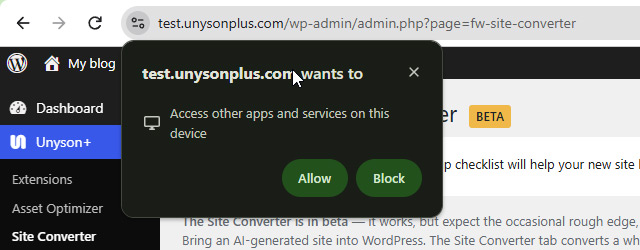
If you click Block by mistake, the status stays on "service not detected" even though the service is running. Reset it from the site-info icon at the left of the address bar (or Chrome's Site settings), then reload the Convert page.
You can still convert a file offline (lower fidelity), and you can import a pre‑built bundle
.zip under Manual tools. The capture service is only needed to render live URLs (and to
render file uploads at full fidelity).
Endpoints
The service exposes a few CORS‑enabled endpoints (your admin browser calls them directly):
| Endpoint | Purpose |
|---|---|
GET /health | { ok, service, version, aiReady, aiBackend } — used to detect the service + show AI status |
GET /capture?url=<url> | Render a live URL → convert-bundle.zip |
POST /capture-file | Render an uploaded Stitch .zip or raw HTML body → convert-bundle.zip |
POST /ai-convert | (Optional) the AI refines a draft mapping — see AI assist |
GET /capture?url=<url>&target=block-theme | Render a live URL → block-bundle.json for the Block theme output |
GET /mirror?url=<url>&zip=1 | Mirror a page verbatim (for Duplicate as landing page) → a .zip of index.html + assets/ |
POST /local-ai/tool-chat | One tool-calling turn on your local model — used by the AI Assistant's free local AI |
POST /local-ai/import | Registers a .gguf model file from this computer with the local model runner (see Local AI models) |
POST /local-ai/check | Grades a local model on a small task in the shape the converter and the AI Assistant use: Ready, Weak or Not suitable |
POST /local-ai/agent | Runs your signed-in command-line AI agent (your subscription) as the AI Assistant's agent against your site — used instead of the local model when one is signed in on this computer |
Works with a hosted site. Every call goes from your admin browser to the service, and the browser
hands the result to WordPress. The WordPress server never has to reach your computer — which it could
not do from a web host, where localhost means the server itself. (Block-theme output and Duplicate as
landing page used to ask the server to fetch from the service, which only worked when WordPress ran on
the same machine; since Site Converter 1.10.15 the browser fetches and uploads them too, and the old
server-side request remains only as a fallback.) The optional AI refinement of entrance animations and
preloaders still runs during the server-side build, so on a hosted site those fall back to the
rule-based result.
How /capture-file works
The body is the raw file bytes. The service detects a .zip (PK signature) vs HTML, lays the files
out in a temp folder (so any relative assets resolve), then opens the main code.html in Chrome via
a proper file:// URL and runs the same extractor as /capture. This is what gives a file
upload the full URL‑path quality.
Rendering robustness
Two engine details make CDN‑driven exports (e.g. the Tailwind Play CDN that Google Stitch uses) capture correctly:
- Retry on context loss — a late client re‑render can destroy the page's execution context mid‑extraction; the extractor retries.
- Wait until styled — Tailwind compiles its CSS after the network is idle, so the extractor waits until styling is actually applied (a substantial stylesheet exists / the real font is in use) before reading the page. Normal sites pass this instantly.
Local AI models
The dashboard's Settings → Local AI models lists recommended models to download with one click. You can also bring your own:
- Add a model by its name in the local model runner's library, by pasting its library page, or by
pasting a public model-hub link to a GGUF model (optionally with a quantization such as
:Q4_K_M). It downloads with the same progress bar. The setup guide shows the exact formats. - Import a
.gguffile already on your computer by pasting its full path (and, optionally, a name). The model runner keeps its own copy in the kit's model folder, so you need that much free disk space. Nothing leaves your computer. Only.gguffiles are accepted: they hold model data, not code. - Added models carry a custom badge, and are selected and deleted like the others.
Models differ a lot in how well they follow instructions, so every downloaded model has a Check button. It gives the model one small task in the exact shape the converter and the AI Assistant use (pick the right tool, then fill in a two-question FAQ word for word) and grades the answer:
| Result | Meaning |
|---|---|
| Ready | Right tool, every question and answer correct. Good to use. |
| Weak | Valid answer, wrong content. It will run, but expect poor results. |
| Not suitable | It could not answer in the required format at all. |
In testing, a very small model (135 million parameters) came back Weak while the recommended 8B model came back Ready. The licence of any model you add is yours to check.
Security & privacy
- Everything runs on your machine. Your admin browser talks to
localhost; the WordPress server never reaches out. - The service makes only one outbound connection: to the page you're capturing (to load it in Chrome). Nothing about your site is sent anywhere.
- If you enable AI, your AI subscription / API key stays in the local service — it is never sent to or stored in WordPress.
Troubleshooting
| Symptom | Fix |
|---|---|
| "service not detected" | The service isn't running, or the Service URL/port doesn't match. Start node serve.mjs and check the port. Also make sure you clicked Allow on Chrome's "Access other apps and services on this device" prompt (see step 4 above) — a blocked prompt hides a running service. |
| A capture renders blank / 0 sections | A CDN style runtime hadn't applied yet — update to the latest service version (it waits for styling). On Windows, the service uses a correct file:// URL automatically. |
| Capture is slow | First run downloads/launches Chrome; subsequent runs are faster. Heavy pages take longer to settle. |
| AI shows "no AI backend" | Sign in the command-line AI agent, set a provider API key, or select a local model, then restart the service. See Set up AI for Unyson+. |
| Want a cap on AI runtime | The AI step has no timeout by default; set AI_TIMEOUT_MS (milliseconds) to impose one. |
The Diagnostics tab in Unyson+ → Convert has a live Check now button that pings
/health.