Site Migration
Move a whole site, without ever downloading it.
The destination shows a key, you paste it into the source, and the site walks across — database, uploads, themes and plugins — in resumable background slices. No archive, no FTP, no upload limit.
The Site Migration extension moves an entire WordPress site to another WordPress install. There is no archive to create, download and re-upload: the two sites talk to each other directly over signed HTTP requests, and the work runs in the background in resumable slices, so a PHP timeout costs one slice rather than the migration.
Enable it under Unyson+ → Extensions → Site Migration on both sites, then open Unyson+ → Site Migration.
Moving a site to a new domain or URL structure doesn't just move files — every bookmark, backlink and search-result entry still points at the old address. Set up permanent (301) redirects from old URLs to their new equivalents so visitors and search engines land in the right place instead of a 404, and keep the redirects in place for a good while after the move. Google: Site moves with URL changes
:::info Backups extension vs. Site Migration The Backups extension can also move a site — back up here, restore there — and that is the right tool when you want a file you can keep, inspect or restore later. Site Migration is for when you just want the site over there: nothing is written to disk as an archive, so there is no download, no upload, and no archive big enough to exceed a host's limits. :::
How it works
A migration has a source (the site being copied from) and a destination (the site being copied to). Both run the same extension, and each screen has both tabs — a site can be either role, just not both at once.
The direction of setup is deliberately backwards from what people expect:
- The destination hands out a connection key.
- You paste that key into the source.
- The source pushes everything to the destination.
The key is what makes the destination willing to accept data, so it is generated by the site that has something to lose. Every request the source makes is signed with it, and the destination verifies the signature before doing anything at all.
Step 1 — get the key from the destination
On the site you are migrating to, open Unyson+ → Site Migration and switch to the Destination tab.

The grey line is the whole connection: the site's address and its key, separated by a space. Copy the entire line.
:::warning Treat it as a password Anyone holding that line can write to this site's database. Send it the way you would send a password — not in a public channel, not in a ticket. Reset key invalidates it and issues a new one, which is worth doing after a migration you do not intend to repeat. :::
Step 2 — paste it into the source
On the site you are migrating from, open the same screen. The Source tab asks for exactly one thing:

Paste the line and press Connect. The source calls the destination once, verifies the key, and reads back what it is dealing with.
Step 3 — check what you are about to do, then migrate
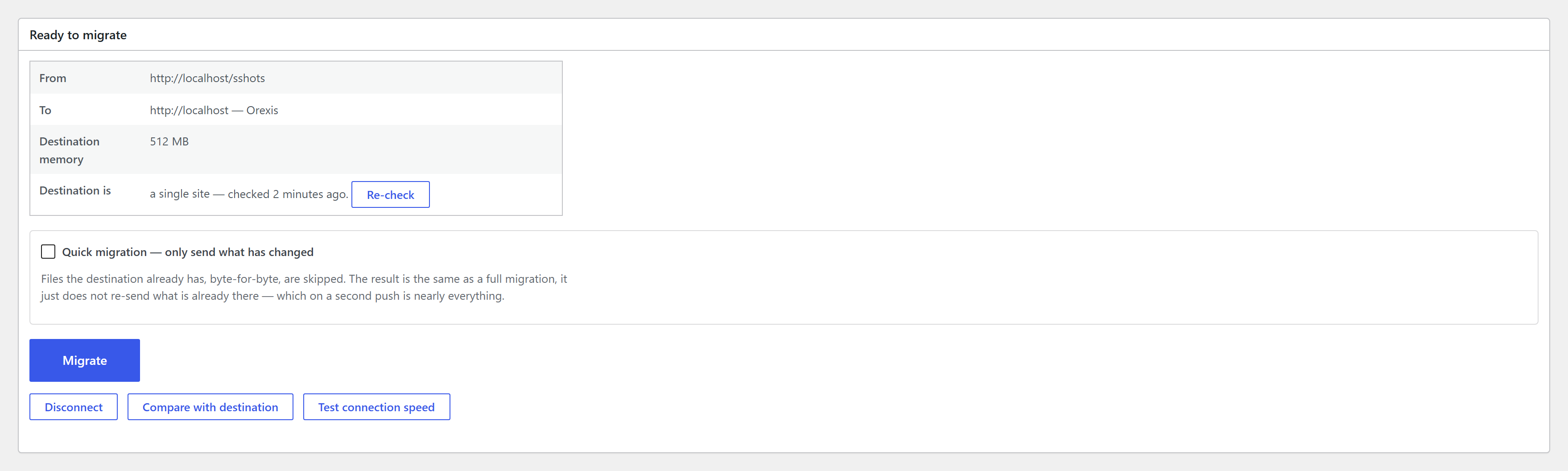
Before you press anything, the panel tells you the four things worth knowing:
| Row | Why it is there |
|---|---|
| From / To | The two addresses, so a migration in the wrong direction is visible before it happens rather than after. |
| Destination memory | How much memory the far end has. See Requirements — this is the single biggest influence on how fast a migration runs. |
| Destination is | Single site or network, and when that was last checked. Re-check asks again, for when you have just converted the destination to multisite. |
Migrate starts it. The migration then runs in the background: you can close the tab, and the progress screen picks it up again when you come back.
:::danger A completed migration cannot be undone The destination's database is replaced by the source's. Anything the destination recorded since your last copy — orders, comments, form entries, new users — is replaced, not merged. Take a backup of the destination first if any of that matters. :::
What travels
| Stage | What it covers |
|---|---|
| Database | Every table the site owns. URLs and file paths are rewritten as the data is written, with a serialization-aware replacer, so serialized and JSON values survive the change of length. |
| Media uploads | The uploads directory. On a network, only the site being migrated. |
| Themes | The whole themes directory. |
| Plugins | The whole plugins directory. |
| Must-use plugins | The mu-plugins directory, minus host-injected drop-ins the destination provides itself. |
| Other wp-content files | Anything else in wp-content that the stages above do not already own. |
Some things are deliberately left behind: node_modules, .git, editor folders, logs, and caching
plugins whose configuration is bound to the source host. The destination keeps its own address,
its own active plugins, and its own copy of this extension's settings — an import is not a
domain change.
Quick migration
A full migration sends everything. Quick migration sends only what the destination does not already have, byte for byte, which on a second push to the same destination is almost nothing.
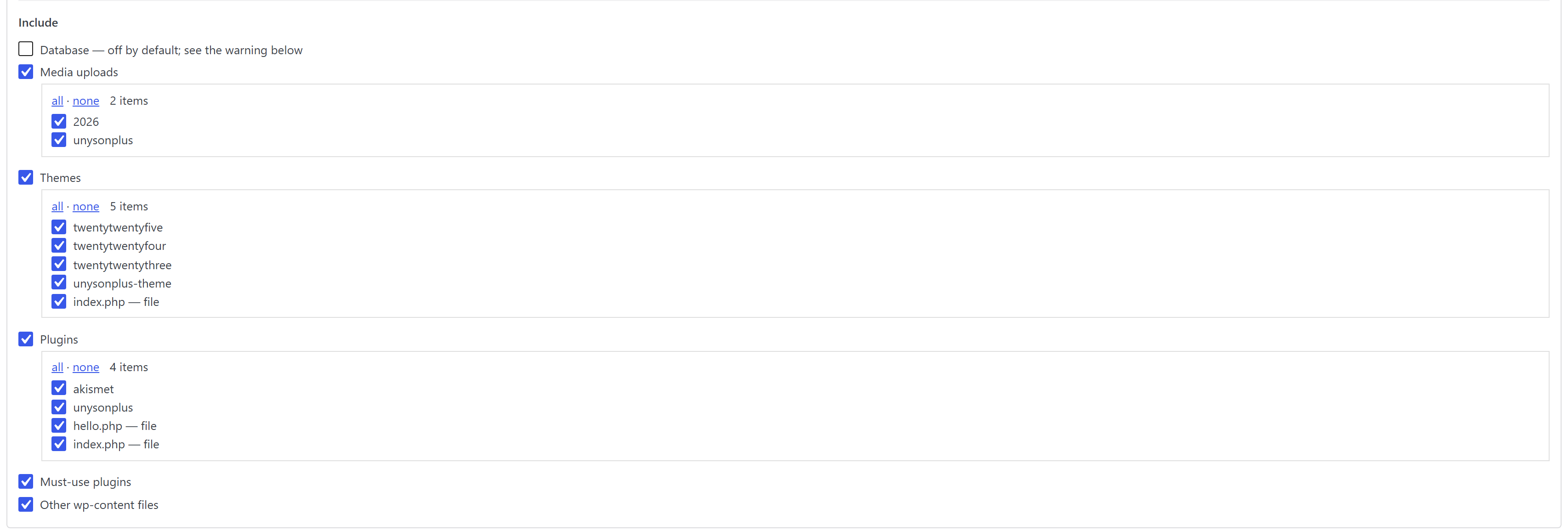
It is built for the dev → live update loop: you work locally, then push the changes up.
- Per stage — the six checkboxes decide which stages run at all. Database is off by default, because pushing a database to a live site replaces what that site has recorded since your last copy. For pushing design or code changes, leave it unchecked.
- Per folder — each file stage expands into its own top-level folders: individual plugins, individual themes, upload years. Deselecting a folder means it is never even scanned.
That last distinction is the point of the folder list. Quick migration still walks every file to prove it does not need to send it — on a real site that is thousands of files hashed to conclude nothing changed. Unchecking the plugins you are not working on skips the work rather than optimising it.
:::tip Selection belongs to Quick migration The folder lists only appear when Quick migration is ticked. A plain migration moves the whole site — that is what makes it a migration rather than a partial copy — so the selection is part of the "pushing an update" mode, not the "moving a site" one. :::
Multisite
Both sides report whether they are a network, and the extension supports four shapes:
| Source | Destination | What happens |
|---|---|---|
| Single site | Single site | Everything with the base table prefix. |
| Whole network | Whole network | Every site, plus the network tables (wp_blogs, wp_site, wp_sitemeta…). |
| One site of a network | Single site | That site's tables, promoted to the base prefix, plus users — a site nobody can log into is not a site. |
| Single site, or one site of a network | A network | The site's tables only, renamed into a new subsite. No users and no network tables — the destination network already has its own, and merging them would collide on IDs. |
When the destination is a network, an extra field asks for the address on the destination network — the sub-directory or subdomain the incoming site should take. It fills itself in from whichever site you pick, and stops following the picker as soon as you type in it.
Anything outside those four shapes is refused with a reason rather than attempted.
Diagnostics
Two read-only tools, both safe to run at any time, neither of which changes anything.
Test connection speed
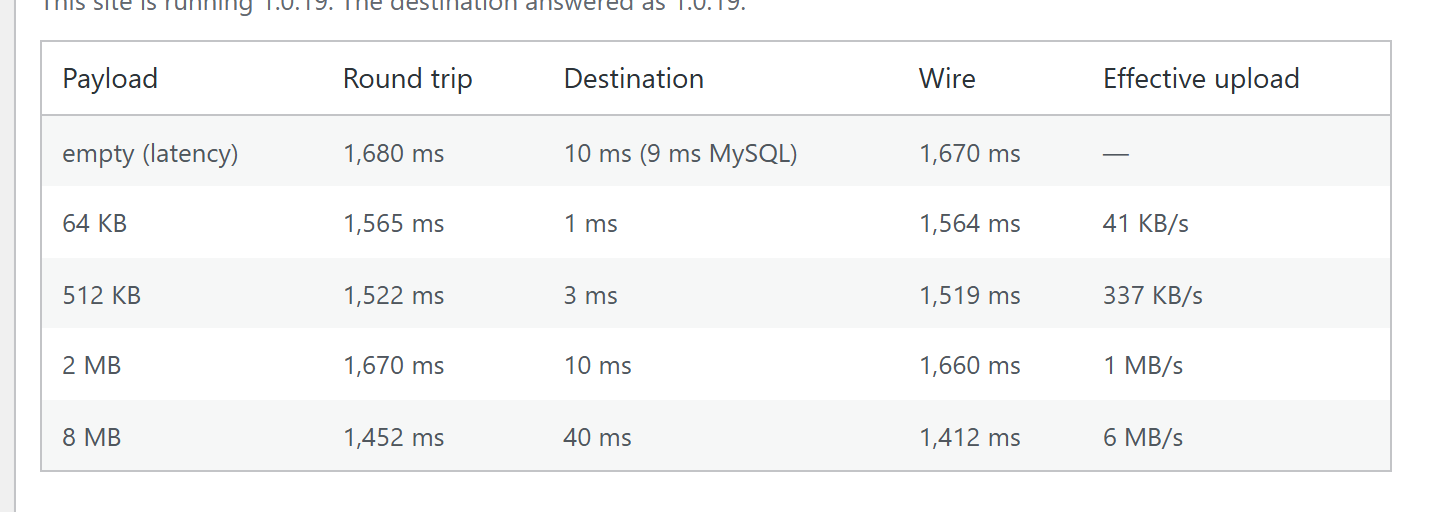
Sends payloads of increasing size and times each round trip, subtracting the destination's own reported processing time to isolate the network. Read it like this:
- The empty payload is pure latency — what every request costs before carrying anything.
- If round trips stay slow as the payload grows, the link is the limit.
- If the Destination column dominates, the far end is.
- If effective upload is far below your connection's real speed, something between the two is throttling.
It also measures whether several connections move more than one. Over a long round trip a single connection spends most of its time waiting for acknowledgements, so opening more can multiply throughput — and the file stages then open exactly as many as the measurement justified, and no more.
Compare with destination
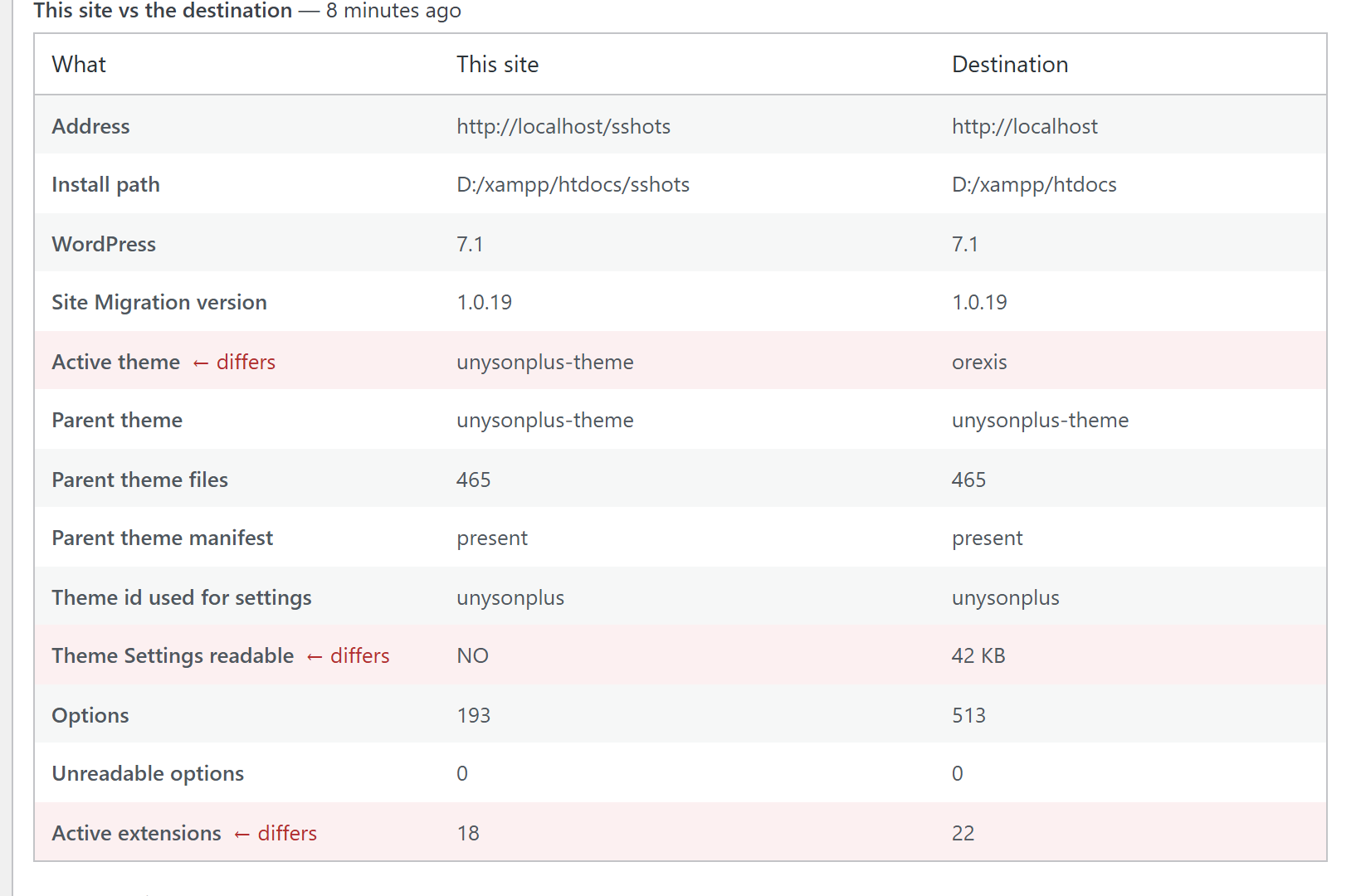
Runs the same snapshot on both sites and shows them side by side. Rows that differ are highlighted — except the ones that are supposed to differ, like the address and the install path, which would otherwise bury the real signal.
This answers the question a progress bar cannot: the migration finished, so why does the site look wrong? It reports the active theme, whether the parent theme's files are actually present, the theme id used for settings, which Theme Settings keys exist and whether they are readable, options that no longer unserialize, and any table whose row count differs.
Requirements
Both sites need the extension active, and the destination needs to be reachable over HTTP from the source (a site behind HTTP auth, a firewall or an IP allow-list will refuse the connection).
memory_limit on the destination is the setting that matters most. 256 MB or more is
recommended for a live site; more is better. Below that a migration still works — batches shrink
themselves to fit — it is simply held back by how little each request can carry. The connected panel
shows the destination's limit so you can see it before you start.
If something goes wrong
A migration that stops is resumable: it picks up where it left off rather than starting again.
- The database is atomic. Rows load into staging tables and are swapped into place only when the migration finishes, so an interrupted migration leaves the destination's data untouched.
- Files that replace an existing file are held back in the same way and put in place together at the end. Files the destination does not have yet are written as they arrive, which is harmless — nothing references them until the code that uses them is swapped in.
If a migration fails, the log on the Details panel names the reason, and the support report button below it produces a plain-text summary of both sites — versions, PHP limits, every stage's progress and the full log — that can be pasted into a support request.
Common causes, and what they look like:
| What you see | What it usually means |
|---|---|
| "The destination returned something unexpected (HTTP 500)" | The far end hit a fatal error. Most often its memory_limit; the extension halves its batches and retries automatically, so persistent failures point at something else. |
| "The destination discarded a … request because its post_max_size is …" | PHP threw the request away before any code ran. Raise post_max_size on the destination. |
| "The destination does not recognise this request" | The two sites are running different versions of the extension. Update both so they match. |
| "The connection information is wrong or has been reset" | The destination has issued a new key since you connected. Copy the line again. |
| "The request was rejected as too old" | The two servers' clocks disagree by more than 15 minutes. |