How visitors found you
Keywords
The words people searched before they arrived, for each landing page.
The big search engines stopped passing search words to websites years ago, so no analytics tool can read them from a visit. Visitor Insights gathers them from the places that still have them and says which is which:
| Source | What it gives you | What you need |
|---|---|---|
| Search Console | Search terms with clicks, how often the page was shown, and average position | Connect it in the SEO extension |
| Search engines that pass the words | The words on the visit itself | Nothing |
utm_term on campaign links | The term you set on the link | Campaign links that carry it |
Connect Search Console
- Activate the SEO extension under Unyson+ → Extensions.
- Go to SEO → Search Console and connect the Google account that can see your site.
- Choose your site's property, then open Keywords.
Results are kept for 12 hours so the page stays quick. Fetch again gets fresh numbers. Search Console figures are usually two or three days behind, and the view shows which dates it covers.
Opportunities
With Search Console connected, the Keywords view also shows where to act:
- Climbing and falling terms: search terms that gained or lost clicks against the period before.
- Almost on the first page: pages shown at an average position of 8 to 20, with at least 10 impressions, and the search term to work on. These are already being seen, so a better title or a stronger section is often enough to move them up.
Limits
- Search Console keeps 16 months of history. On a long range the period before can reach past that, so rising and falling terms are hidden rather than shown wrongly. Choose a shorter range.
- Up to 5,000 rows are read for a period. A very large site may not see its rarest terms.
- If something goes wrong, the view says what: the account cannot see the site, the connection was revoked, Google's limit was reached, or the network failed.
Referring pages
The sites that sent visitors, and the exact page they clicked from when the referring site shares it, with the page they landed on.
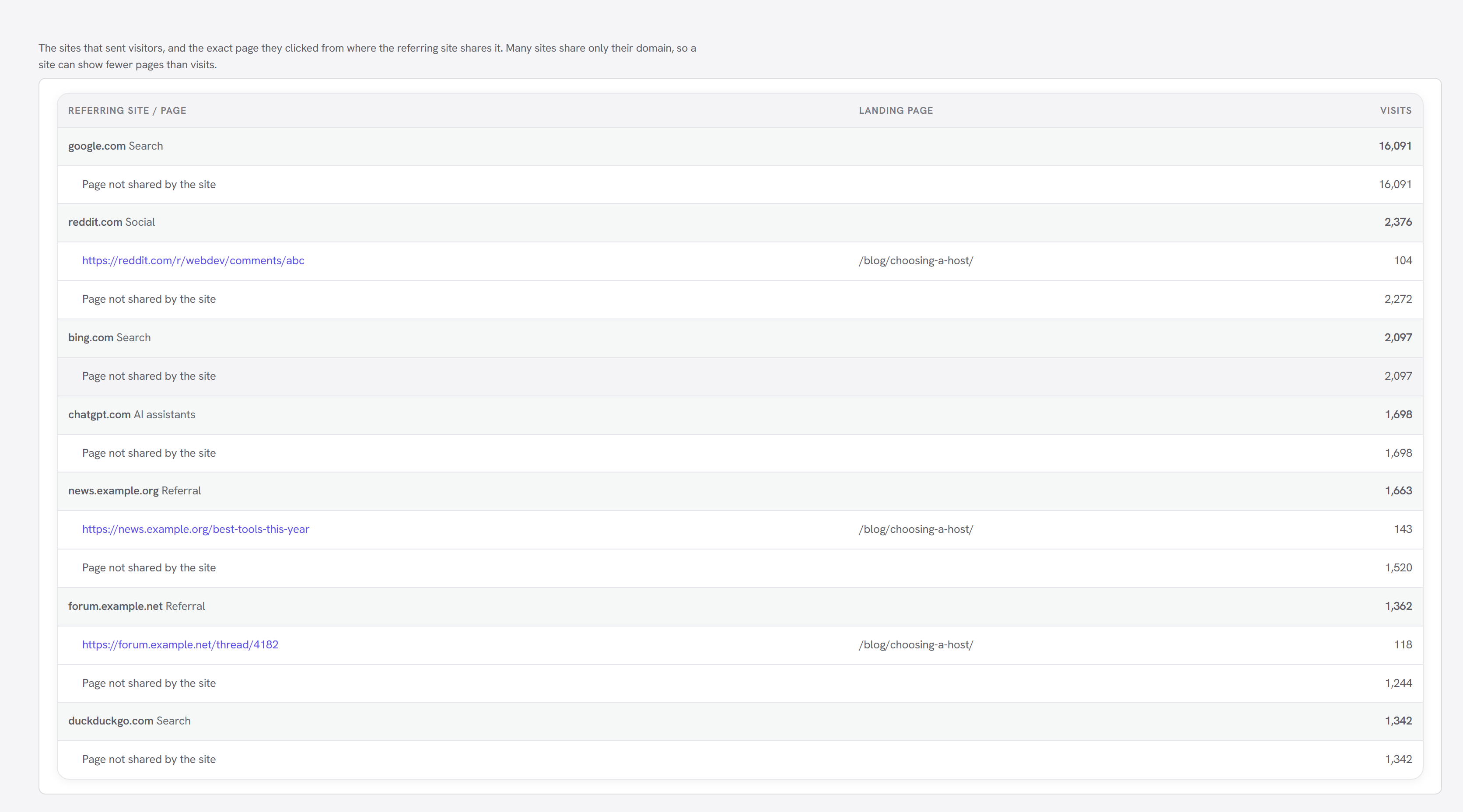
Many sites share only their domain, so those visits are grouped under the site as Page not shared by the site. That is the referring site's choice, and nothing on your side can reveal it.
Visitor paths
A log of recent visits, each as a path: when it happened, where it came from, the region and city, the device, new or returning, every page in order, and the link or download it left by.
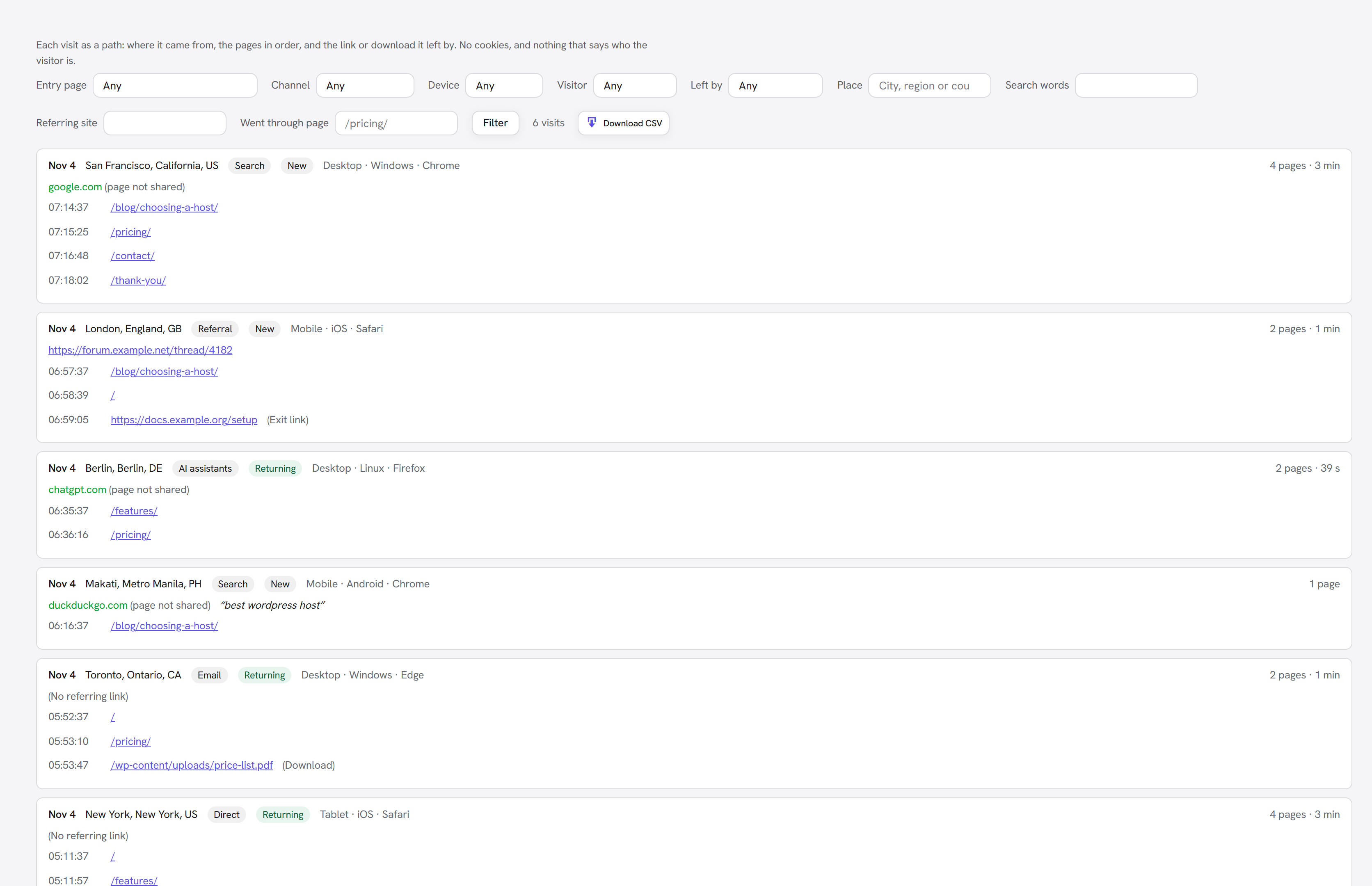
It carries no cookies, no IP addresses and nothing that says who the visitor is.
Filters
| Filter | Shows visits… |
|---|---|
| Entry page | that started on this page |
| Channel | from this channel |
| Device | on this device |
| Visitor | that were new or returning |
| Left by | that ended with a download, an exit link, or neither |
| Place | from this city, region or country |
| Search words | that carried these words |
| Referring site | from this site |
| Went through page | that included this page anywhere |
Download CSV gives you the filtered list, up to 50,000 visits.
Good to know
- The log is kept for 7, 14, 30 or 90 days (Settings → Keep visit paths, 30 by default).
- A gap of more than 30 minutes starts a new visit. A visit keeps up to 200 steps.
- New and Returning appear only for visitors who gave statistics consent, because telling them apart needs a note on the device.
- Visit paths never leave the site in an export.
Visitor map
Countries shaded by page views, and cities as dots, for any period.
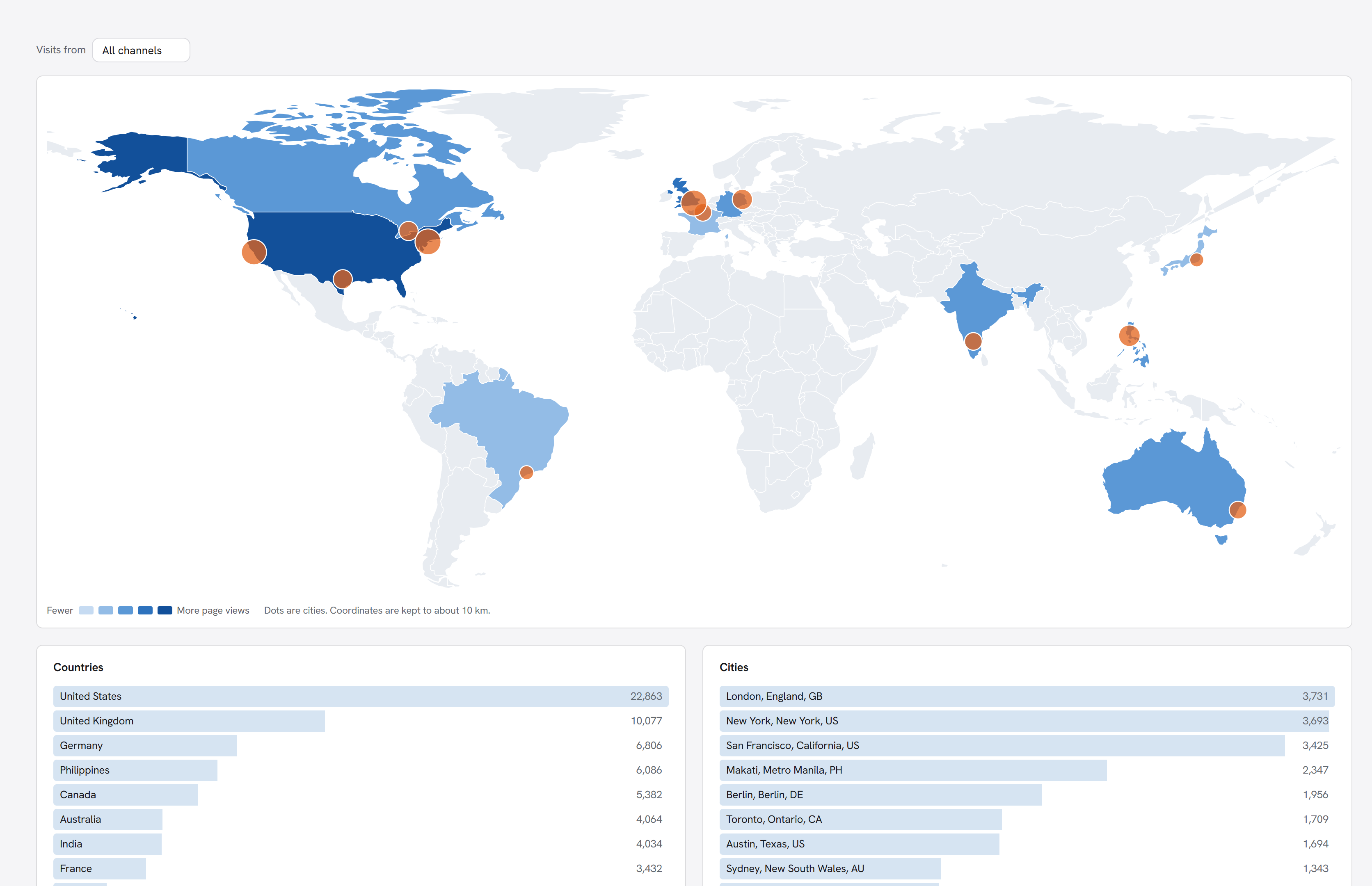
Hover a country or a dot for its number. Visits from narrows the map to one channel; that view is built from the visit log, so it reaches back only as far as the log does.
The outline ships with the extension (Natural Earth, public domain), and no map service is called. City coordinates are kept to about 10 km.
Regions and cities
Countries come from your CDN's location headers or the city database. Regions and cities need one of:
- CDN location headers, which some hosts and CDNs add on their own; or
- a location database on your site. Go to Settings → City database and download the free DB-IP database (about 60 MB to download, 130 MB on disk), or add a GeoLite2 City file by hand.
The address is looked up on your own server and then discarded. Only visits from then on get a region and city; earlier visits are not filled in. Switch the whole feature off under Settings → Regions and cities.