Settings
Everything the extension controls lives on one page: Unyson+ → WooCommerce.
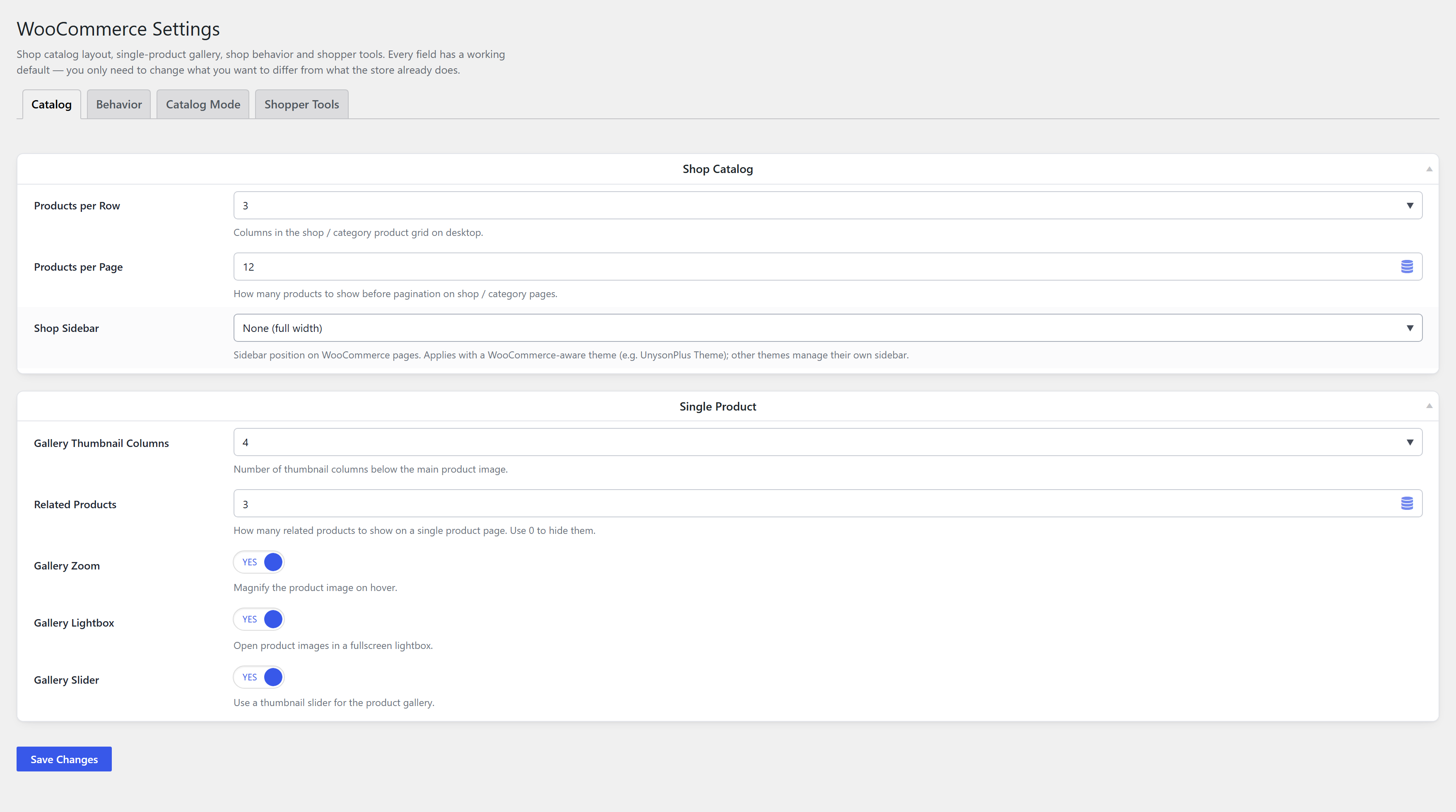
The settings are grouped into four tabs:
| Tab | What's in it |
|---|---|
| Catalog | Shop grid, sidebar, and the single-product gallery |
| Behavior | Sale badges, AJAX cart, breadcrumb, sticky add-to-cart |
| Catalog Mode | The lookbook / closed-shop switches — see Catalog Mode |
| Shopper Tools | Wishlist, compare, back-in-stock, swatches, size guide — see Shopper tools |
Every tab is part of one form, so switching tabs never loses an edit and Save Changes covers the whole page. The open tab is written to the URL hash, so a particular tab can be linked or bookmarked.
Within a tab, only the first box is expanded on load — click a box title to open the others (that's the framework's standard behavior for option boxes, not something specific to this page).
These settings drive the shop / category archives and single product pages site-wide. They do not override a page-builder element's own options — a Products element placed on a page has its own columns and query settings, and uses those. The one exception is Catalog Mode, which is deliberately store-wide and reaches the elements too.
Shop Catalog

| Setting | Default | What it controls |
|---|---|---|
| Products per Row | 3 | Columns in the shop / category product grid on desktop. Choose 2–6. |
| Products per Page | 12 | How many products show before pagination on shop / category pages. |
| Shop Sidebar | None (full width) | Sidebar position on WooCommerce pages: None, Left or Right. |
Sidebar placement is a theme decision — the extension can only ask for it. With the UnysonPlus
Theme (or any theme implementing the unysonplus_woocommerce_sidebar filter) this works as you'd
expect. Under any other theme the setting is ignored and the theme's own sidebar handling applies.
Single Product
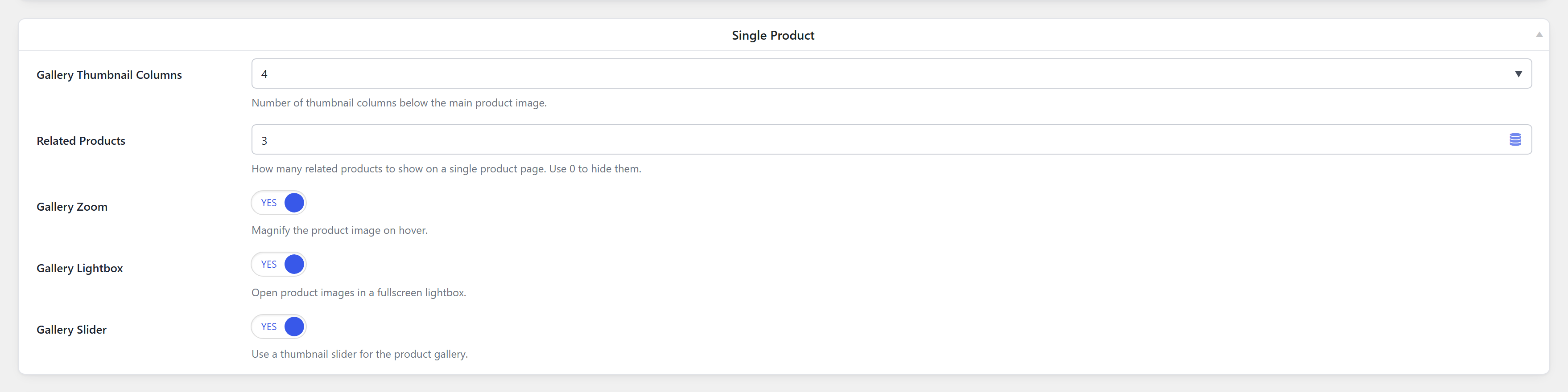
| Setting | Default | What it controls |
|---|---|---|
| Gallery Thumbnail Columns | 4 | Number of thumbnail columns below the main product image. |
| Related Products | 3 | How many related products show on a single product page. Use 0 to hide them entirely. |
| Gallery Zoom | On | Magnify the product image on hover. |
| Gallery Lightbox | On | Open product images in a fullscreen lightbox. |
| Gallery Slider | On | Use a thumbnail slider for the product gallery. |
The three gallery switches map to WooCommerce's own theme-support features
(wc-product-gallery-zoom, -lightbox, -slider). Turning one off removes that theme support, so
the corresponding script is never loaded — this is a real page-weight saving on product pages, not
just a visual toggle.
These apply when the extension declared WooCommerce support (i.e. your theme didn't). A theme that declares the gallery features itself keeps control of them; the extension will not remove a feature the theme explicitly asked for unless the corresponding setting is off.
Shop Behavior
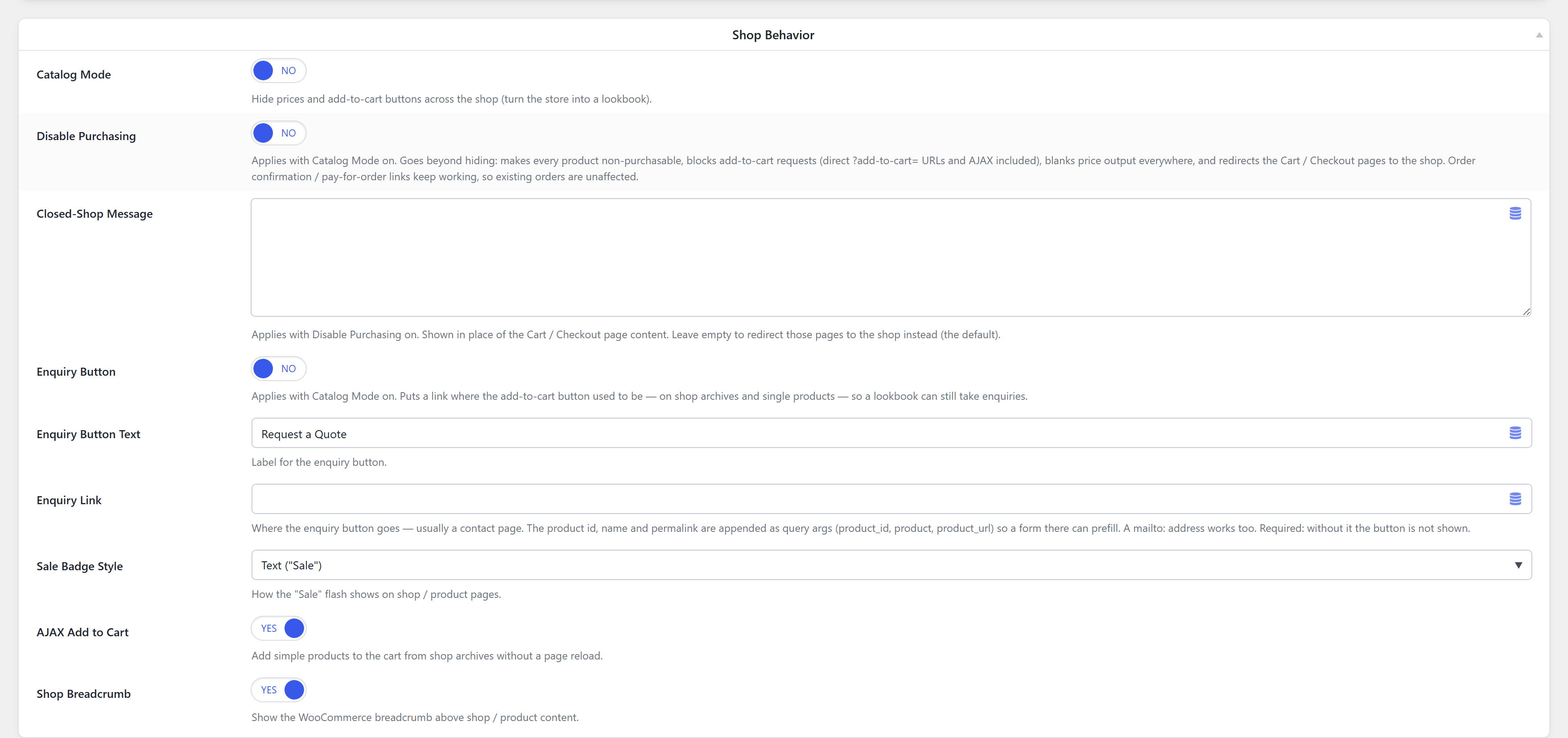
| Setting | Default | What it controls |
|---|---|---|
| Sale Badge Style | Text ("Sale") | Whether the sale flash reads “Sale” or a percentage (“-25%”). |
| AJAX Add to Cart | On | Add simple products to the cart from shop archives without a page reload. |
| Shop Breadcrumb | On | Show the WooCommerce breadcrumb above shop / product content. |
Sticky Add to Cart
Also on the Behavior tab. A compact buy bar that slides in on single products once the real add-to-cart has scrolled away — see Shopper tools → Sticky add-to-cart.
| Setting | Default | What it controls |
|---|---|---|
| Sticky Add to Cart Bar | Off | The feature switch. |
| Bar Position | Bottom | Where the bar appears once it slides in. |
| Show Product Image | On | Include a thumbnail in the bar. |
Sale Badge Style
Text leaves WooCommerce's own “Sale!” flash alone. Percent replaces it with the actual discount,
computed per product from its regular and sale prices — a product at 200 reduced to 150 shows
-25%. Products without a valid sale price are untouched.
AJAX Add to Cart
This overrides WooCommerce's own “Enable AJAX add to cart buttons on archives” option (WooCommerce → Settings → Products). Leave it on unless the theme does something custom with the loop button. It has no effect on single product pages, which always post the form.
Shop Breadcrumb
Off removes woocommerce_breadcrumb from woocommerce_before_main_content. If your theme renders
its own breadcrumb (the UnysonPlus Theme does, via the
Breadcrumbs extension), turning this off avoids showing two.
Catalog Mode
The lookbook and closed-shop switches, plus the enquiry button. They are one feature with several dials, so they have a page of their own: Catalog Mode.
| Setting | Default |
|---|---|
| Catalog Mode | Off |
| Disable Purchasing | Off |
| Closed-Shop Message | (empty) |
| Enquiry Button | Off |
| Enquiry Button Text | Request a Quote |
| Enquiry Link | (empty) |
Shopper Tools
Wishlist, compare, back-in-stock notifications, variation swatches and the size guide. Each is covered in Shopper tools.
| Setting | Default | What it controls |
|---|---|---|
| Wishlist | Off | The heart button and saved lists. |
| Wishlist Page | (empty) | URL of the page holding your Wishlist element. |
| Compare | Off | The compare toggle, bar and table. |
| Compare Page | (empty) | URL of the page holding your Compare element. |
| Maximum Products | 4 | How many products can be compared at once (2–6). |
| Back-in-Stock Notifications | Off | Email sign-up on out-of-stock products. |
| Sign-up Heading | Email me when this is back | Above the email field. |
| Notification Subject | {product} is back in stock | {product} is replaced with the name. |
| Variation Swatches | Off | Swatches in place of the variation dropdowns. |
| Swatches on Product Cards | Off | Also show them on shop / grid cards. |
| Swatch Shape | Circle | Circle or square colour / image swatches. |
| Size Guide | Off | A size-guide link and modal on single products. |
| Link Text | Size guide | The link's label. |
| Default Size Guide | (empty) | Used for any product without its own. |
Saving
The page saves on Save Changes and reloads with a confirmation notice. Values are merged over what's already stored rather than written wholesale, so a setting that isn't on the form keeps its value.
All of it is stored as the extension's settings option, readable anywhere with
fw_get_db_ext_settings_option( 'woocommerce', '<key>' ). The
developer reference lists every key. The Extensions-manager
card's Settings link points at this same page, so there is one screen rather than two that can
disagree.