How to convert an AI-generated static HTML site to WordPress
AI site builders — v0, Lovable, Bolt, Google Stitch, Cursor, Claude and ChatGPT — are brilliant at producing a polished static HTML/Tailwind page in seconds. What they don't give you is a real website you can run: no CMS, no editing UI for a client, no blog, no forms, no SEO plugins — and hand-porting that markup into WordPress by rebuilding every section is slow and brittle.
This guide shows how to do it quickly and for free: use the Site Converter (a free Unyson+ extension) to turn that AI-generated HTML into a native, fully editable WordPress site — real page-builder pages, a matching theme, menus and Media Library — in just a few clicks, in minutes, with no cost and no coding. It's a rebuild into editable content, not a static screenshot import.
A complete conversion, start to finish: an AI-generated landing page becomes an editable WordPress site. The written steps below cover the same ground.
Install Unyson+ (free) → activate Site Converter → Unyson+ → Convert → upload your AI export (or paste its URL) → Convert to WordPress. Every page comes out editable in the visual builder.
It converts most sites well, but results vary by source — always review the generated theme and pages, and keep a backup before going live. Fidelity is actively being improved.
Why move an AI site to WordPress at all?
| AI tool output (static HTML) | The same site on WordPress |
|---|---|
| Great-looking, but not editable without touching code | Edit any section visually in the page builder |
| No CMS — no posts, categories, users, roles | A full CMS: blog, custom fields, post types |
| No forms, SEO, analytics, e-commerce | The whole WordPress plugin ecosystem (Woo, Yoast, forms…) |
| Static file you have to redeploy to change | Hosted, database-backed, editable in the browser |
You keep the design; you gain a real, maintainable site.
What you'll need
- WordPress (any host, or local).
- Unyson+ — the free framework (page builder + theme).
- Site Converter — activate it from Unyson+ → Extensions.
- (Optional, recommended) the capture service — a one-time local setup that unlocks full-fidelity conversion (see Fidelity below).
Step 1 — Get your AI site as HTML (or a URL)
The converter accepts three inputs; use whichever your tool gives you most easily:
- A single HTML file — Cursor, Claude and ChatGPT hand you the markup directly. Save it as
index.html(keep any CSS it references alongside it). - A
.zipof the export — Google Stitch exports a.zip(single frame or a whole multi-screen project) and is fully supported; any other plain-HTML export (v0, Bolt, a downloaded project) zips up the same way. - A live URL — if you've already deployed the AI site (v0/Lovable/Bolt all give you a preview or published link), just point the converter at that URL.
Step 2 — Install Unyson+ and activate Site Converter
- Install and activate the Unyson+ plugin (installation guide).
- Go to Unyson+ → Extensions and activate Site Converter.
- A new Unyson+ → Convert screen appears.
Step 3 — (Recommended) start the capture service
The capture service opens your HTML in a real Chrome and reads the computed CSS — the actual colors, spacing, fonts and layout — so the rebuild matches the source closely. It's a one-time local setup and it's what makes AI/Tailwind conversions look right. See Capture service. You can skip it and use offline mode, but fidelity is lower (details below).
Step 4 — Convert to WordPress
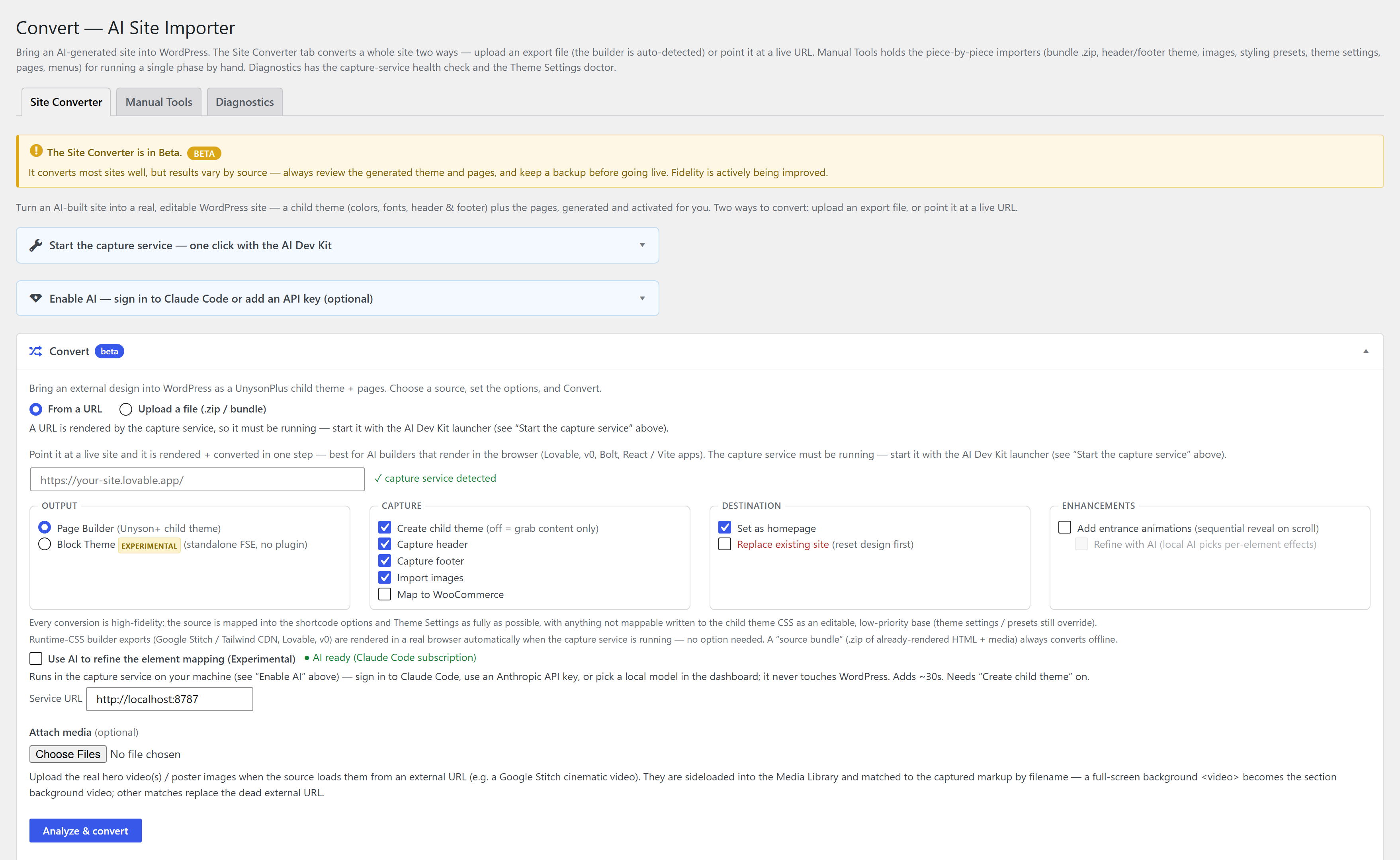
- Open Unyson+ → Convert.
- Choose your input:
- Upload a file (.zip) — pick your Stitch/HTML
.zip; or under Advanced options paste a single screen'scode.html. - From a URL — paste your deployed AI site's link (see Convert from a URL).
- Upload a file (.zip) — pick your Stitch/HTML
- Set the options: Create child theme, Capture header/footer, Import images, and optional AI assist (an optional Claude pass that only refines the section mapping — the design is always reproduced deterministically).
- Click Convert to WordPress for one-click, or Review mapping first to confirm what each section becomes.
- If you chose Review, approve the mapping, then Build the site from this mapping.
Site Converter runs every phase it can — media → design presets → theme settings → pages → menus — and reports a per-phase summary. If the export includes a design, it also generates the matching child theme (header/footer styling); just activate it.
Step 5 — Edit it like any WordPress site
Every imported page is fully builder-editable. Site Converter writes the page-builder content and lets the plugin regenerate the markup, so you open the page in the visual builder and tweak sections, swap text and images, add a blog or a form — no code. From here it's a normal Unyson+ site.
Fidelity: rendered vs. offline
How closely the result matches the source depends on the capture service:
| Mode | When | Fidelity |
|---|---|---|
| Rendered | The capture service is running | Full — your HTML is opened in real Chrome and run through the same engine as a live URL: live computed CSS, real colors/fonts, dynamic header/footer |
| Offline | No capture service | Basic — a PHP parser reads the static Tailwind markup; works with no Node/Chrome, but can't resolve computed styles, so the result is more generic |
The Convert screen detects the service automatically and uses rendered mode when it's up. For an AI/Tailwind page especially, rendered mode is worth the one-time setup — a static parser sees the utility classes, but only a browser sees the resolved CSS.
FAQ
Is it free? Yes — Unyson+ and the Site Converter are completely free, no pro tier.
Do I need to write code? No. The conversion is point-and-click, and the result is edited visually in the page builder.
Which AI tools work? Anything that produces static HTML/CSS — v0, Lovable, Bolt, Cursor,
Claude, ChatGPT, and Google Stitch (natively supported as a .zip). Tailwind and Bootstrap
pages convert well.
Is it just a static import (an iframe or screenshot)? No — it rebuilds the design as native, editable Unyson+ page-builder pages. Nothing is hand-coded or locked.
Can I keep editing after converting? Yes — every page stays fully editable in the visual builder, and you can add posts, forms, WooCommerce and any WordPress plugin.
What about my header, footer and menus? The converter can capture the header/footer into a matching theme and rebuild real WordPress menus and footer widget areas.
See also
- Site Converter — the full reference: bundle format, phases, theme generator.
- Convert from a file and Convert from a URL — the two input paths in detail.
- Capture service — the one-time setup for full fidelity.
- Convert an existing website to WordPress — the general version of this guide (any site, not just AI-generated).
- Page Builder — where you edit the result.