How to convert your Webflow site to WordPress
Webflow is a polished visual design tool, but the site it produces is a hosted, subscription platform — your pages, CMS and hosting all live inside Webflow, and its code export is a bundle of static HTML with no CMS and no plugins. Moving to WordPress gives you a self-hosted site you fully own: a real CMS, thousands of plugins, your own SEO and forms, and no monthly platform fee.
The free Site Converter rebuilds your Webflow design into a native, fully editable WordPress site — real page-builder pages, a matching theme, menus and Media Library — so you keep the look and get all of WordPress underneath.
The reliable path is to convert from your published URL: the converter opens the live page in real Chrome and reads the computed styles, so it reproduces the real design rather than guessing at it.
Step 1 — Publish your Webflow site (get a URL)
In Webflow, Publish your project so it's live on your *.webflow.io staging address or your
custom domain. Make sure the page you want to convert is publicly reachable.
Step 2 — Install Unyson+ and Site Converter
- Install and activate Unyson+ (free).
- Unyson+ → Extensions → activate Site Converter.
- Start the capture service — for a URL conversion this is what renders the page in Chrome and captures the real colors, fonts and layout. (One-time local setup.)
Step 3 — Convert from the URL
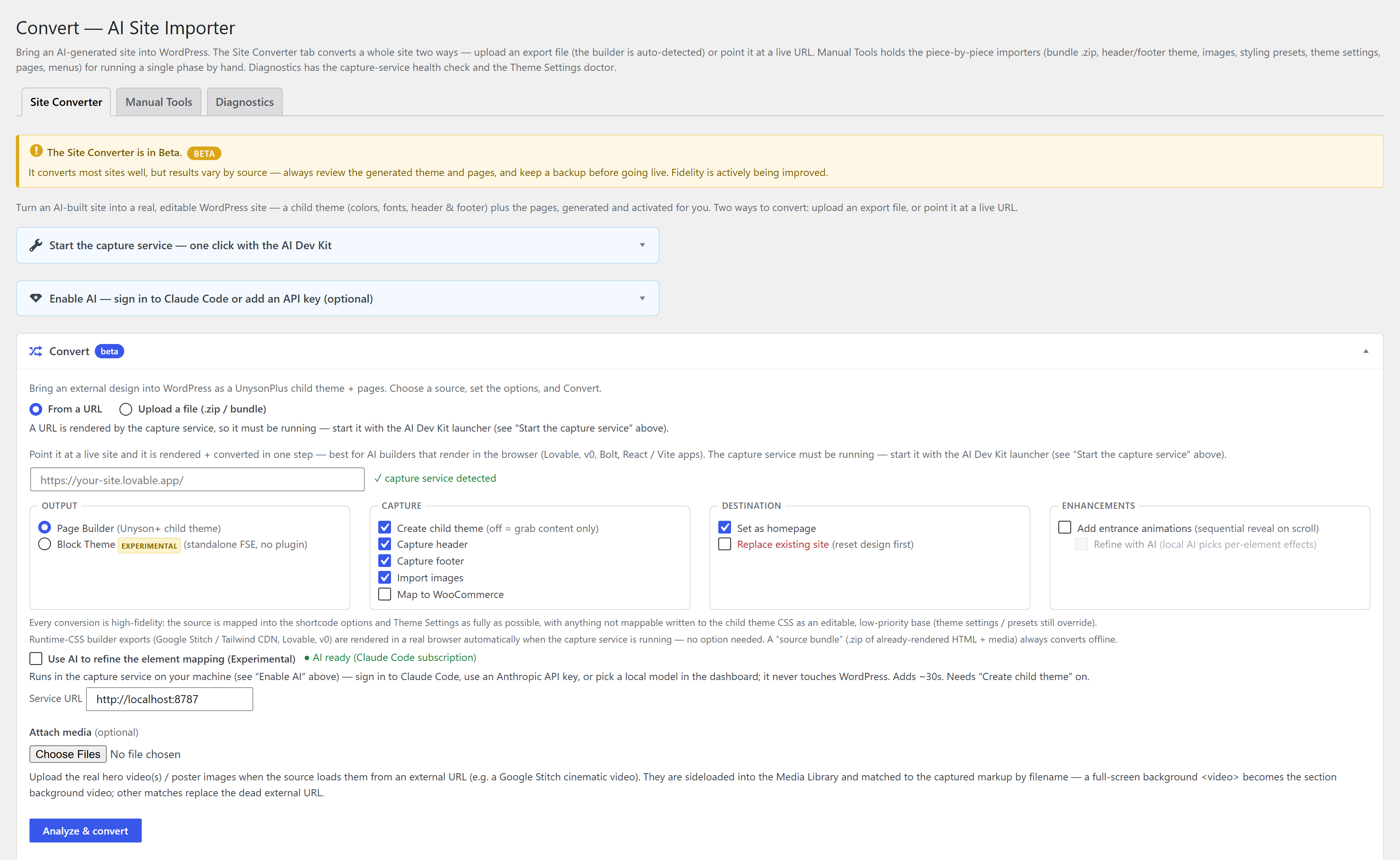
- Unyson+ → Convert → Convert tab → From a URL.
- Paste your published Webflow URL.
- Set options — Create child theme, Capture header/footer, Import images, optional AI assist (an optional Claude pass that only refines the section mapping; the design is always reproduced deterministically).
- Click Convert to WordPress, or Review mapping first, then Build the site.
Full walkthrough: Convert from a URL.
Step 4 — Edit in the builder
Every page comes across fully editable in the page builder — tweak sections, swap content, then add the things Webflow charged extra for or couldn't do: posts, forms, WooCommerce, SEO plugins. It's a normal WordPress site now, on hosting you choose.
Convert each page from its own published URL. Menus and the footer are rebuilt as real WordPress menus and widget areas, so your navigation carries over.
An automatic conversion is a close, editable starting point — not always pixel-perfect. To get it the rest of the way, hand it to an AI agent like Claude: it runs the conversion, compares the result to your original section by section, and refines it until it matches. See Convert a site to WordPress with an AI agent.
FAQ
Does Webflow export to WordPress? Not natively — Webflow's own export is static HTML with no CMS. Converting from the live URL rebuilds the design as native, editable WordPress pages instead.
Is it free? Yes — Unyson+ and the Site Converter are free, with no pro tier.
Do I lose the CMS? You gain one. Webflow CMS collections become ordinary WordPress content you manage with posts, pages and custom fields.
Is it a static copy? No — it rebuilds the design as editable Unyson+ pages, not a screenshot or an iframe.