AI
The AI runs through the AI Dev Kit on your own computer, using your own AI subscription (Claude through Claude Code, ChatGPT through Codex, Cursor) or a local model. The Studio sends the request to the kit and the kit sends a scene back. The Studio's server needs no AI keys and runs no AI calls, so there is no per-use cost to cover.
The AI writes a scene file, not code. It chooses presets from the catalogue and fills in their settings, so everything it makes lands on the timeline as ordinary clips you can move, trim and change by hand. It never writes a custom code clip.
AI assist
The ✦ AI assist button at the bottom right of the stage opens the chat.
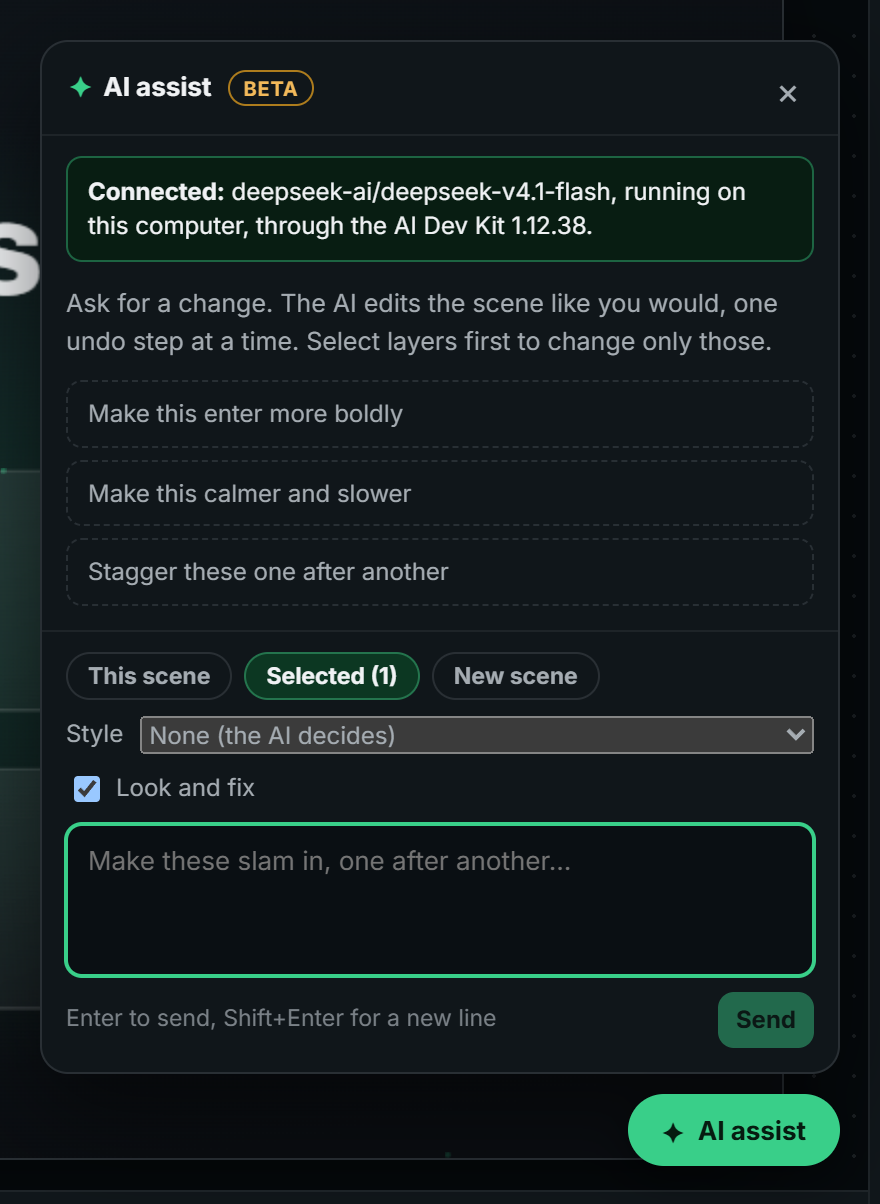
- What to change: This scene, Selected (only the layers you selected) or New scene.
- Style: a style for it to follow, or none (the AI decides).
- Look and fix: after building, the kit renders key frames and the AI fixes what it sees (below).
- Every answer is one undo step, with a Go back to before this link and a Check scene count; Fix with AI in the Check tab sends its findings to the AI.
- The rules the AI follows and the rules Check scene measures are the same, so its scenes start close to clean.
Connecting. Start the AI Dev Kit (start.bat or start.command). Browsers ask before a website may reach apps on your own computer ("…wants to access other apps and services on this device"): choose Allow once. The kit answers only the Studio's own address, so other websites cannot use your AI. The panel names the AI at work.
Plan first
Turn on Plan first for a new scene and choose what you are making:
- Storyboard: the hook in the first two seconds, each act (its length, what appears, its layout, its entrance and transition), the ending and the sound.
- Explainer: the narration, split into segments, each naming what the screen shows.
- Tutorial: the same, naming the exact code typed or changed in each segment.
Adjust the plan in the chat, then Build it. When the request names a length ("a 20 second explainer"), the script is kept to what fits in it (about 2.6 spoken words a second).
Explainers with a voice-over
For an explainer or a tutorial, Build with a voice-over has a free voice on your computer speak the approved script (installed once, about 60 MB), times every word, and builds the scene on that clock, so each picture lands just before the words that describe it. The voice-over stays editable in the scene's Voice-over from a script section.
Look and fix
With Look and fix on, after building or changing a scene the kit renders the settled frame of every act and the middle of every transition, and the AI looks at them with the Check scene report: cramped or unbalanced layouts, things overlapping or cut off, text too small or too long, low contrast, an empty or cluttered frame, a muddy transition, a weak ending. It returns only the layers it changes, and the result is checked again before you see it.
A quick scene from a website
In a new scene, paste a website address under Or start from a website. The kit reads the site's real words, colours, fonts and button labels and takes two screenshots; the AI builds an editable scene that shows the product in use, ending on one of its real calls to action. Nothing is invented.
Edit my video
With footage in the scene, Edit my video takes the footage's sound out and transcribes it (if it isn't yet), then the AI adds captions and places 5 to 10 effects on the moments that suit them, each landing on its word: a hook in the first two seconds, a snap zoom on a punchline, a grade on a change of mood, ticks on a list, the comment box at the end. Footage, timing and sound stay exactly as they are; it only adds. Type what you want first to steer it.
It returns only what it adds, so the answer is short; how long the AI itself takes depends on the model chosen in the AI Dev Kit (a faster model brings it under a minute).
In video mode
AI assist follows the video rules: the hook by two seconds, words out of the app's covered areas, captions for a voice-over, a length that suits the platform, one camera move across every cut. A video it changes stays a video, in the same formats.
A skill for any AI
The workflow, the scene format, every preset, the motion rules and a checklist are published at
kinetic-scenes.unysonplus.com/skill (and llms.txt), generated from the
Studio's own code so they never go stale, and copied into the AI Dev Kit. Any AI that can read a page can write a scene.
Tools for agents
An agent such as Claude Code, Codex or Cursor can write a scene file directly and use the kit's scene tools to check it, without the Studio open:
cd <kit>/assembled/UnysonPlus-Capture-Service/tools/design-capture
node studio-cli.mjs check scene.json          # validate + Check scene
node studio-cli.mjs inspect scene.json        # layers and clips in time, sound, key moments
node studio-cli.mjs stills scene.json         # frames at the key moments, to look at
node studio-cli.mjs render scene.json --out scene.mp4   # --format webm|mov, --transparent, --cover
node studio-cli.mjs beats music.mp3           # tempo, beats and the strongest moments
node studio-cli.mjs transcribe voice.mp3      # every word with its time
Add --json for machine-readable output. The same tools are a local MCP server, so the agent calls them as tools
(scene_stills returns the frames as images it can look at). The server adds three more: scene_guide (the scene
format and the presets, so the AI writes valid scenes), scene_link (a Studio link that opens the scene in the
browser) and scene_save (writes a scene to a file). Every scene tool takes either a file path or the scene itself, so an
app without file access can still use them:
claude mcp add kinetic-scenes -- node <kit>/assembled/UnysonPlus-Capture-Service/tools/design-capture/studio-mcp.mjs
In Claude Desktop (or any MCP app), add the server to its MCP settings (claude_desktop_config.json):
{
  "mcpServers": {
    "kinetic-scenes": {
      "command": "node",
      "args": ["<kit>/assembled/UnysonPlus-Capture-Service/tools/design-capture/studio-mcp.mjs"]
    }
  }
}
Then ask for a scene in the conversation: it reads the guide, writes the scene, checks it, looks at the stills and gives you a link that opens it in the Studio.
An AI inside the open Studio
Where the browser offers it (WebMCP), the Studio registers its own tools, so an AI in the browser can work on the scene in front of you: look at the scene, add and change layers and clips, seek and select, change by change, each with undo.