Videos from a spreadsheet
One design, many videos. Put placeholders such as {{product}} and {{price}} in a scene; give a spreadsheet with a
column for each; Kinetic Scenes makes one video per row. Typical uses: a reel for every product in a shop, every
property listing, every speaker at an event, every city a service covers.
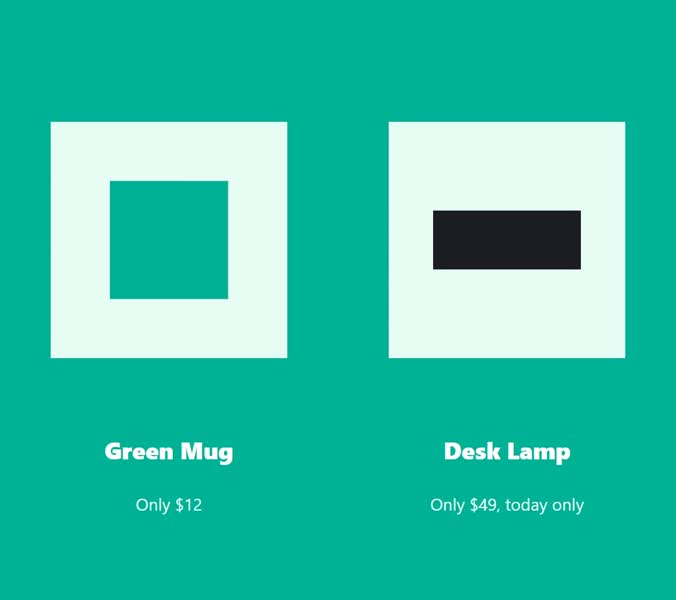
1. Put placeholders in the scene
A placeholder is a column name in double braces. It works anywhere the scene has words or addresses:
- Text layers:
{{product}}, or inside a sentence:Only {{price}}. - Pictures and footage: set the layer's address to
{{photo}}; the column then holds a picture's address (https://…/mug.jpg) or its file name (mug.png, see step 3). - Anything else written as text: a layer's alt text, a button's link, the scene title.
Names ignore capitals and spaces: {{Product}}, {{ product }} and a column called product all match.
2. Make the spreadsheet
Any spreadsheet app can save it: File › Save as / Download › CSV. The first row names the columns; each row after it is one video:
Product,Price,Photo
Green Mug,$12,mug.png
Desk Lamp,"$49, today only",lamp.png
Values with a comma go in quotes (spreadsheet apps do this for you). A semicolon-separated file, as some regional settings save, works too.
3. Open it in the Studio
Tools › Videos from a spreadsheet…
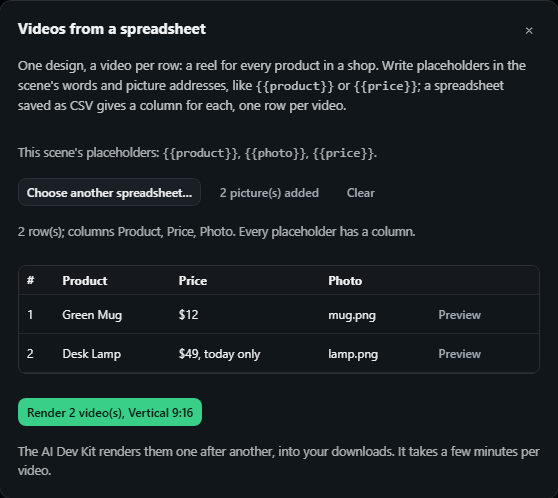
- Choose a spreadsheet (CSV) reads it and shows every row. It says which placeholders have a column; one without a column stays as it is, braces and all, so a missing column is easy to see in the preview.
- Add the pictures it names is for a column of file names (
mug.png): pick those files and they are matched by name. A column of web addresses needs nothing. - Preview shows that row on the stage. A bar above the stage says which row you are looking at, steps to the previous and next row, and Back to the design returns to your placeholders. The preview never changes your scene: keep editing the design and every row follows.
- Render makes one MP4 per row, in the scene's first video format, saved to your downloads as
01-green-mug.mp4,02-desk-lamp.mp4… (named after the first column). It needs the AI Dev Kit running, renders the rows one after another (a few minutes each), and can be stopped; a row that fails is listed and the rest carry on.
Limits
- Each row is the same design: the same length, layers and timing. Text that is much longer in one row than another can wrap differently: preview the longest row before rendering.
- Placeholders fill text only; they don't add or remove layers. For a row without a picture, leave the cell empty and the layer shows nothing.
- The spreadsheet and pictures stay in this browser tab; load them again after a reload.
For AI agents and scripts
The AI Dev Kit does the same from the command line, with picture files found next to the spreadsheet:
studio-cli batch scene.json --data products.csv --check            # the placeholders, the columns, what is missing
studio-cli batch scene.json --data products.csv --name Product     # renders every row into videos/ beside the CSV
studio-cli batch scene.json --data products.csv --rows 1-3,7 --out out/
The MCP tool is scene_batch (render: true only when the person asks for the videos).