Export and WordPress
Export in the top bar opens the export window.
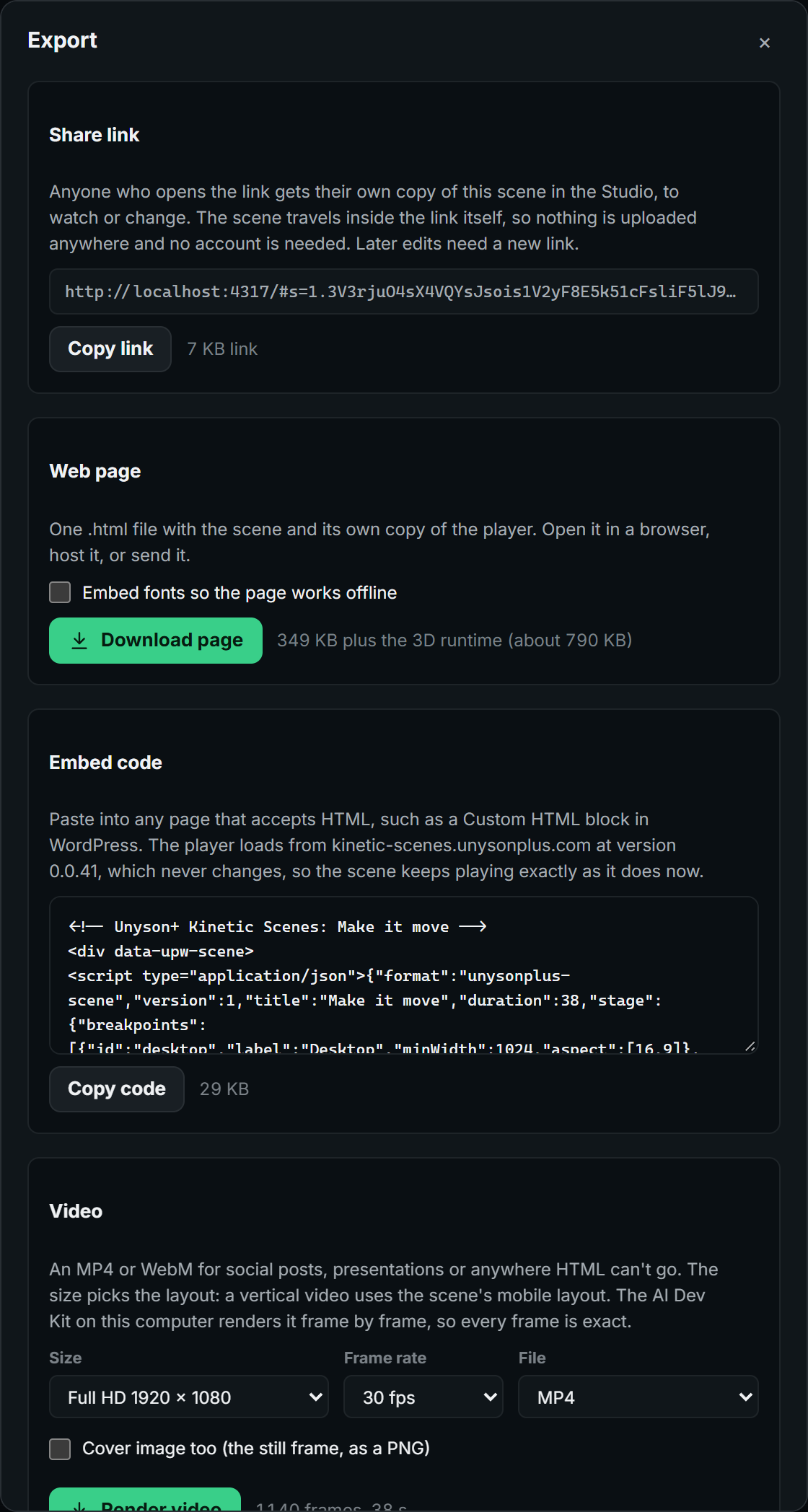
A page or an embed
- Download page: one
.htmlfile with the scene and its own copy of the player. Open it in a browser, host it, or send it. Embed fonts packs the scene's fonts into the file so it works offline. Scenes with a 3D layer add the 3D runtime (about 790 KB). - Embed code: a snippet to paste into any page. It loads the player from kinetic-scenes.unysonplus.com at a fixed version that never changes, so the scene keeps playing exactly as it did. Uploaded images make embeds heavy; image addresses keep them small.
- Both include the scene's words as text for search engines and screen readers, and keep links working.
- A scene with custom code clips turns them on in its own downloads and embeds (
data-upw-allow-code); the window says so.
Every export records the player version it was made with, so later changes to a preset never alter a scene that is already published.
Share links
Share link puts the whole scene inside a link. Whoever opens it gets their own copy in the Studio, to watch or change; their own work comes back with Undo. Nothing is uploaded and no account is needed. Scenes with uploaded images make long links (image addresses keep them short); footage can't travel in a link.
The Kinetic Scene element in WordPress
The Unyson+ page builder has a Kinetic Scene element (in the Animation Engine extension) that plays a scene inside a page. It carries its own copy of the player, so no request leaves the site.
- Open in Kinetic Scenes opens the element's scene in the Studio; Save to page sends it back. The two windows only talk to each other.
- It writes the scene's words into the page's HTML for search engines and screen readers.
- The element offers the same playback choices (on load, in view, as the page scrolls, with its own scroll length).
- Breakpoints follow the element's width, not the screen's: in a half-width column a scene uses whichever layout fits.
Video
Export → Video renders an MP4, WebM or ProRes file, frame by frame, so every frame is exact (3D and footage included), however slow the machine.
- A web scene: pick a size (Full HD, HD, 4K, vertical 1080 × 1920 or square); the size picks the layout, as a screen that size would.
- A video scene: its formats, one or all of them in one go.
- Frame rate 24, 25, 30, 50 or 60; see-through background (WebM or ProRes 4444), reference footage in the full composite, and a cover image. See Video mode.
With the AI Dev Kit (the default): the kit on your computer renders it in a headless browser and encodes it with ffmpeg, mixed to -14 LUFS. The Studio tells you how to install ffmpeg if it is missing.
Without the kit: where the browser can draw part of a page into a picture (HTML-in-Canvas, in Chrome behind an experimental setting today and on by default once it ships), Export offers Render in this browser: the same exact, frame-by-frame MP4 with its sound, rendered and encoded by the browser itself (H.264 and AAC), with nothing installed. See-through and ProRes exports still need the kit.