Layers
A scene is a stack of layers, drawn bottom to top in the order of the timeline's rows (the top row is drawn last, in front). Each layer has a box (where it sits and how big it is), clips (the presets that animate it) and, optionally, an in and out point, opacity, a link, a hover effect, a depth for parallax and layout overrides per screen size. Add layers with the + buttons on the timeline.
Position, size and units
- X and Y are where the layer's anchor sits, in % of the stage's width and height. The anchor (one of nine points) defaults to the centre.
- Width is a % of the stage width; height a % of the stage height, or a ratio (width ÷ height) that keeps circles round on every screen shape.
- Sizes of type and strokes are in stage units (su): 10 su is a tenth of the stage width. A 6 su headline is 6% of the stage width on every screen, so the design scales instead of reflowing.
- Pin to the stage: a top-level layer or group can be placed against the stage itself rather than the picture (a corner badge, a logo): its X and Y become % of the stage, and the camera leaves it where it is.
- Per screen size: with a smaller screen size chosen above the stage, changes to position, size, type size, text and visibility are saved for that layout only; the Inspector says which layout you are editing.
Text
Words, set in any Google Font added to the scene. Text (Enter for a new line), font, size, weight, line height, letter spacing, alignment, colour, capitals, italic, and a width (without one the text stays on a single line; with one it wraps).
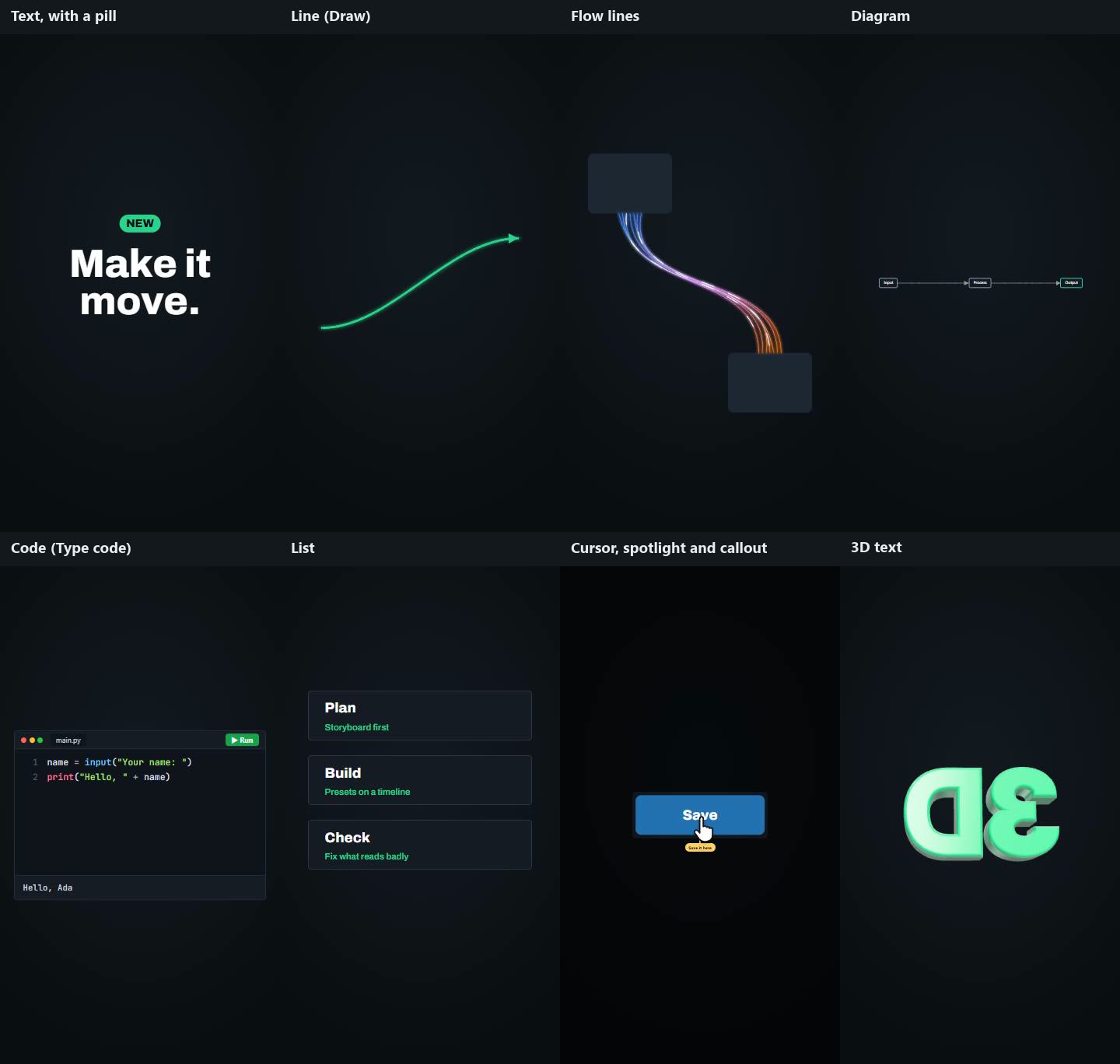
- Pill around it: a pill or tag sized to the words, with its own fill, outline, padding and corner radius (a status label, a badge, a "NEW").
- Text presets animate letters or words: Rise, Slam, Typewriter, Gravity drop….
Shape
A rectangle or an ellipse: fill (a colour or any CSS gradient), outline colour and width, corner radius, and a dashed outline (dash and gap lengths) for drop zones and progress rings (Marching outline and Make solid animate it).
Image
A picture (uploaded, or an https address): description for screen readers (empty if decorative), fit (fill the box or fit inside it), corner radius and a frame: phone, browser window, polaroid, film strip or card.
- Split into layers (through the AI Dev Kit): the picture becomes stacked transparent layers in exactly the same place. With your own fal.ai key an AI splits it into several layers; without one, the kit cuts the subject out on your computer and fills the background in behind it. Give each layer a depth and a camera move becomes a 2.5D shot.
- Cut a piece out: a button, panel or row of a screenshot becomes its own layer in the same place, ready to press, slide or glow, with the gap behind it filled from its surroundings.
Footage
A video on the timeline (+ Footage): to design against, to show, or both. Start the file at (trim its start), speed (0.25× to 4×), fit, corner radius, frame, Reference only (shown while you design, left out of a graphics-only export), its own sound (its volume in video exports) and a description. The layer's in point on the timeline is where the file starts playing; its out point trims the end. Footage tools cut the person out, follow the face and take the sound out; see Video editing effects. Footage is kept in your browser, not in the scene file.
3D
+ 3D adds a 3D object: 3D text with rounded edges, a shape (rounded box, sphere, ring, knot, cylinder, crystal), your logo extruded from an SVG, or a glTF / GLB model. Pick a finish (matte, satin, glossy, metal, chrome), a resting pose and the light; it is lit by a built-in studio environment with real reflections. The 3D presets (Spin 3D, Tumble in, Orbit, Camera push) turn it and move its camera; the usual presets (Fade, Slide, Pop…) work on it too. The 3D engine (three.js) loads only for scenes that have a 3D layer.
Group
Layers kept together (select several, Ctrl+G). Children keep their places; the group's frame is measured from them, so presets on the group (Fade, Slide, a transition) move the whole group. A group has its own clock: its clips and its children's clips run from the group's start, so moving the group moves its whole animation. Groups are how a scene is split into acts or slides; transitions hand one act over to the next. Turn into a list makes a group the item of a List.
Line
A curve, an arrow, an underline swoosh or any SVG path (+ Line). Its coordinates run from 0 to 100 across and down its box, so it stretches with the box while its stroke width stays the same. Choose a ready-made shape or paste path data; give it arrowheads, a glow or dashes; Draw draws it on. Any layer can travel along it with Follow path, leaving a fading trail for a comet.
Flow lines
A bundle of glowing curves joining two layers (+ Flow), worked out every frame from where those two layers are, so they stay attached however either moves (with the camera too). How many lines, how far they spread at the ends and pinch in the middle, how much they sway, their colours, width and glow, which sides they leave and arrive at, and light pulses running along them. Draw draws them on; Follow path sends an icon along one.
Diagram
Nodes and connections as data (+ Diagram), for flowcharts, architecture diagrams and branch graphs.
- Nodes are boxes, pills, circles, dots (a commit, with its label beside it) or value boxes (a variable's name above and its value inside). Each has a label, an optional second line and colour, and can appear at its own moment and move to new places (its connections bend along).
- Connections are curves, straight lines or steps, optionally labelled, dashed or arrowed, and can appear at their own moment (they draw themselves).
- A tag (such as HEAD) can travel from node to node at set times.
Code
An editor window or a terminal (+ Code) showing real code with syntax colours (from the file name, or a language you pick), line numbers and an optional Run button. Its clips draw it: Type code, Change code (edits it the way a person would), Highlight code, Code note and Run code. See Product tours and code.
List
One designed row or card, copied for every entry (+ List, or Turn into a list on a group). The item uses
{{field}} placeholders in its words ({{title}}, {{price}}); the entries fill them in. Lay the copies out in a
row, a column or a grid, with a stagger so they arrive one after another. Change the list and every copy
follows; Unpack into layers turns it back into ordinary layers.
Captions
The words of a transcribed voice-over, a few at a time (+ Captions), in your type and colours. Words from (which voice-over), most words at once, Words arrive (a few at a time with a pop; each slams in, for giant captions; each drops in, for viral captions), Light up (the word being said, every word said so far, or nothing), the highlight colour, a box behind the words, capitals. See Sound, voice and captions.
Cursor
A pointer for product tours (+ Cursor), drawn big enough to read in a video. Its box's X and Y are where its tip starts: put it off the stage and it enters. Move to and Click drive it; it turns into a pointing hand over links, and always draws on top. Shape (auto, arrow, hand), theme and ring colour. See Product tours.
On every layer
- In and out points (Starts at, Disappears): when the layer is on screen.
- Opacity.
- Link: an address, a page on the site, an anchor,
mailto:ortel:, optionally in a new tab, or play from a marker (a hotspot). See Links. - Hover: lift, grow, glow, brighten, shine, underline or a colour change, for visitors with a mouse.
- Depth: -1 (far) to 1 (near). With a camera pan or zoom, near layers move and grow more than far ones (parallax).
- Lock (the padlock on its row) stops it being selected on the stage.