Screencasts and product demos
Real footage of a product working reads as genuine in a way generated graphics alone do not. With the AI Dev Kit, a short list of steps becomes a sharp, zoomed, captioned video: a real browser carries out the steps, the recording is framed around each action, and the result is an ordinary Kinetic Scenes scene you can change and export.
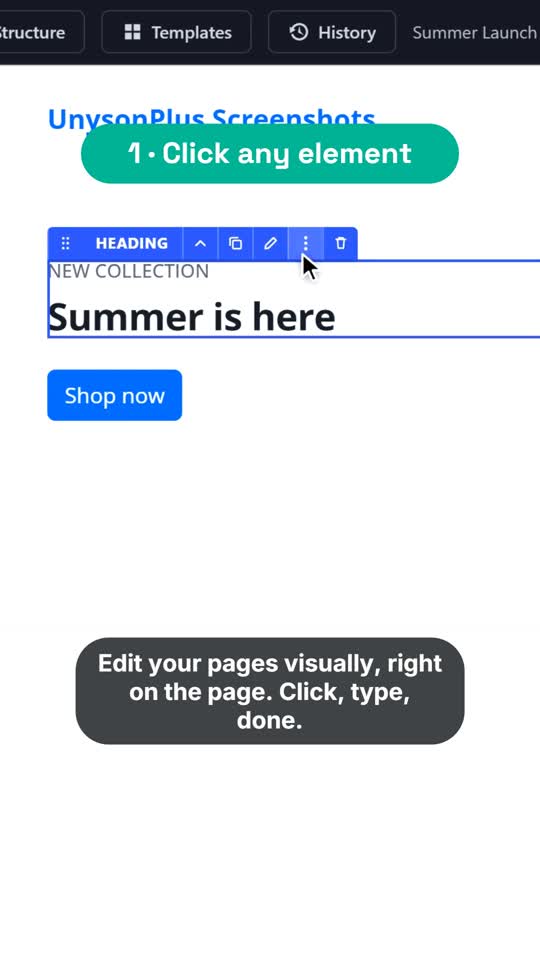
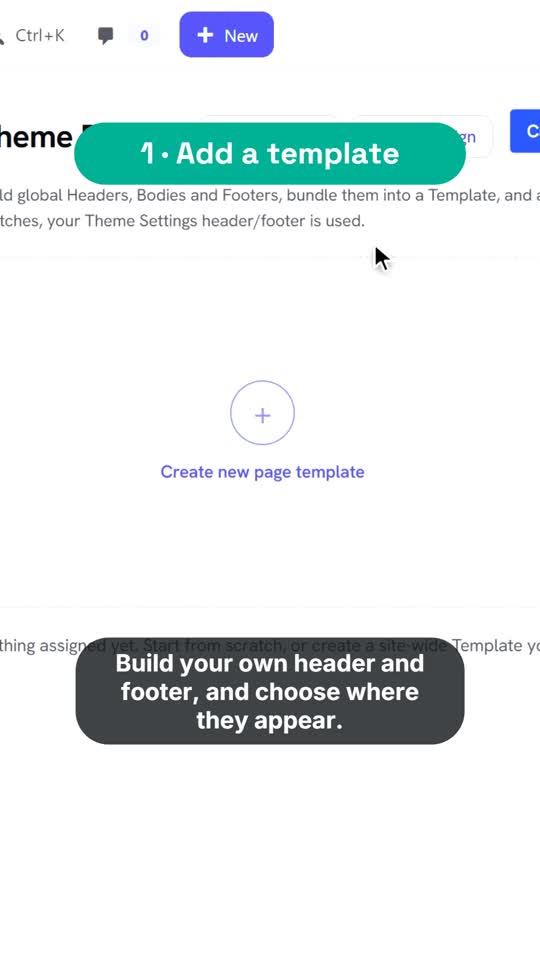
Your AI agent does all of this for you when you ask for a demo video (see AI agents and projects); the
commands below are what it runs, from the kit's tools/design-capture folder.
1. Record the steps
node studio-cli.mjs record steps.json --out recording
steps.json names the site, the login, where to start and what to do:
{ "site": "http://localhost/mysite", "login": { "user": "admin", "pass": "…" },
  "start": "/wp-admin/admin.php?page=fw-theme-builder", "viewport": [1600, 900], "scale": 2,
  "steps": [
    { "do": "click", "target": { "text": "Add Template" }, "label": "Add a template" },
    { "do": "type", "target": "#fw-option-name", "text": "Whole site", "label": "Name it" },
    { "do": "select", "target": "#fw-option-tb_header_id", "option": "Centered Header", "label": "Pick a header" },
    { "do": "click", "target": { "role": "button", "name": "Save Template" }, "label": "Save" }
  ] }
The browser moves a visible cursor in natural curves, clicks with a ripple, types letter by letter and drags for real.
It records at twice the screen's resolution, and it cuts out the waiting while pages load, so the video only shows
things happening. The result is video.mp4 plus actions.json (when and where each step happened).
Steps:
| Step | Does |
|---|---|
click, dblclick, hover | on a target |
type | text, into a target if given (clear empties it first) |
select | picks an option (or value) in a dropdown |
press, scroll, drag, wait, goto, mark | a key, a scroll, a drag from → to, a pause, another page, a labelled moment |
wp.title, wp.saveDraft, wp.preview, wp.publish, wp.view | WordPress: name a page, save, preview, publish (waits for the confirmation), open the published page |
pb.addSection, pb.add, pb.edit, pb.set, pb.save | the Unyson+ page builder: add a section, drag in an element by its name, open its settings (one click), fill a field, save |
le.select, le.edit, le.device, le.save | the Unyson+ Live Editor: click an element on the page, open its settings, switch to Desktop / Tablet / Mobile, save |
A target is a CSS selector, { "text": "…" }, { "role": "button", "name": "…" }, { "label": "…" }, or, inside
the Live Editor's page, the same with "frame": true. Each step's label becomes its caption in the video.
2. Frame it
node studio-cli.mjs screencast recording --format 9x16 --title "A free Theme Builder" --voice recording/voice.json
This writes a scene beside the recording. Its camera zooms to each action where it happens (close enough to read on a phone in 9:16), holds through it, and pulls back between steps; page changes show the whole screen. Each step label becomes a numbered caption, and each voice line a subtitle placed clear of the action.
Options: --format 9x16 | 16x9, --title and --intro (an opening card and its length), --end and --cta (an end
card), --music, --voice (lines with their times: a voice clip and a subtitle each), and the look: --accent
(caption colour), --bg (a picture behind the recording), --title-bg and --end-bg. Put the scene into a
project to preview it in the Studio; render only when it is right.
In the Studio, File › New from a screencast… does the same from a recording's video.mp4 and actions.json; the
camera's keys are on the Camera row, to change by hand.
3. Screenshots
node studio-cli.mjs shot shots.json --out shots
Sharp 2x pictures of a page or one element, with optional annotations drawn on the page itself: highlight (a ring),
callout (a label beside a target), arrow (pointing at a target from a side, stopping just outside it) and blur
(hide personal details). The crop widens to take in the annotations. steps set the page up first (click, type, hover).
4. A demo site worth ending on
A demo looks best when it ends on a real, styled site rather than a bare theme with "assign a menu" notices. The simplest way is a copy of a site you already designed, kept only for demos:
- Copy the site's files and database to a new local install (a new database, the addresses rewritten, including the
page builder's escaped
http:\/\/form; delete the generated CSS caches afterwards so they rebuild). - Take a snapshot of its database and uploads.
- Reset to the snapshot before (or after) each recording: demos publish and edit pages, and the next demo should start from the same clean site.
Keep the plugin and theme files out of the snapshot, so a reset never rolls back code.
Tips
- Keep a video to one task; give steps short, verb-first labels ("Pick a header").
- In 9:16, act on things near each other, so the camera does not travel far.
- Say "live" only after
wp.publish: a preview of a draft is not live. - Before handing a video over, check the narration with the video tools: the voice check for every line, the timeline for the whole stretch, and the video check after the render.