Sound, voice and captions
Audio on the timeline
+ Audio adds a voice-over, music or a sound effect (MP3, WAV, OGG or M4A, up to 15 MB; longer files by address). Audio sits on its own rows below the layers, with a waveform, so you can line up words and motion by eye.
- Drag to move, drag an edge to trim; set volume, fade in and fade out, and its role (voice, music or sound effect) in the Inspector.
- A voice-over longer than the scene makes the scene as long as it.
- On a web page a scene with sound starts muted with a small Tap for sound button, because browsers block sound until the visitor interacts. Presentations and full screen play sound from the first click, and video exports mix it in.
Mixed like a sound designer would
- A sound attached to a clip's end (a landing), and any big hit or riser, starts early by its own attack so the hit lands on the frame.
- The same sound repeated within two seconds gets softer each time.
- Music is lowered under the voice while it speaks (to 35%), in the Studio, on the page and in video.
- Video exports are mixed to -14 LUFS with peaks under -1 dB, the loudness the platforms play at.
Built-in sounds
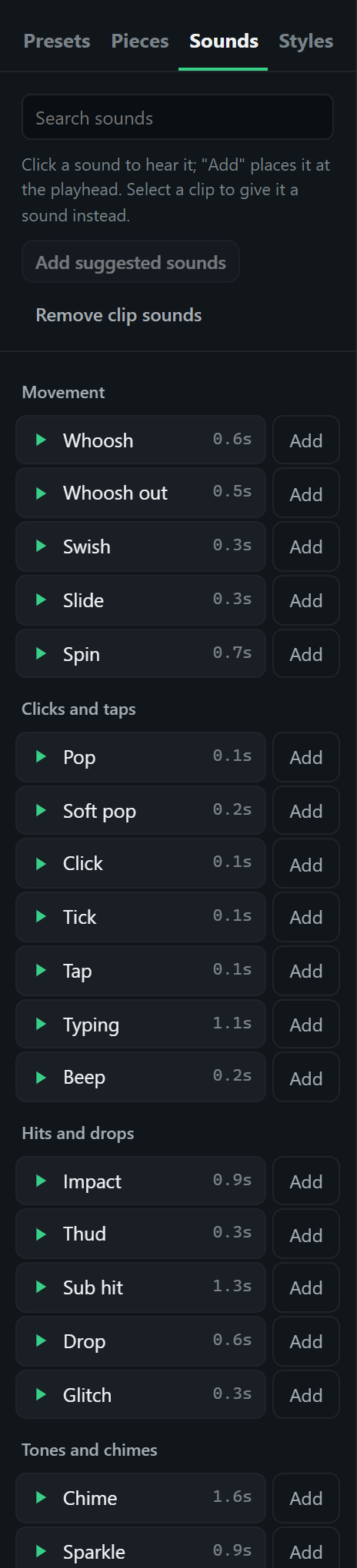
The Sounds tab holds 25 built-in sounds in five groups: movement (whoosh, swish, slide, spin), clicks and taps (pop, click, tick, tap, typing, beep), hits and drops (impact, thud, sub hit, drop, glitch), tones and chimes (chime, sparkle, success, notify) and textures and swells (riser, swell, shimmer, reveal). The player makes them itself from a few lines of code, so there is nothing to download or license, and they sound the same in the Studio, on your pages and in video. Click one to hear it.
Sounds on clips
Select a clip and pick a sound in its Sound section (or click Add in the Sounds tab). It plays when the clip starts, or on its last frame for a landing, and moves with the clip whenever you move or stretch it. Offset, volume and pitch fine-tune it; a small speaker on the clip shows it has one.
- Add suggested sounds gives a scene's key moments the sound that suits each preset (a slam an impact, a wipe a swish, a typewriter typing), about one every second and a half at most, so sound supports the motion instead of piling up.
- With no clip selected, Add puts the sound on the audio rows at the playhead, like a sound file.
More sounds
With the search box empty, the bottom of the Sounds tab offers two more ways to get a sound. Both run through the AI Dev Kit, so it needs to be running.
- Make a sound. Describe it ("a soft paper swoosh, 0.6 s") and click Make. With an ElevenLabs key in the kit, the sound is generated; otherwise the AI writes a synth recipe (oscillators, noise, a filter and envelopes) that the Studio renders into a WAV right in the browser. The result is added at the playhead as a sound effect.
- Search Freesound. Paste your free Freesound API key once, then search its public-domain (CC0) sounds: no credit needed, free to use anywhere. Click a result to hear it and Add to put it at the playhead. Sounds you use are cached on your computer.
Music and the beat
Select a music clip and Find the beats: the Studio works out the tempo, the beat grid and how strong each beat is, right in the browser, and marks them on the clip (strong moments taller).
- Snap reveals to the beat moves a few big reveals up to 0.15 s so they land on a strong moment, and smaller entrances up to 0.10 s onto a beat. The scene keeps its own rhythm: only a few are locked.
- React to music lets one or two things breathe with the music's loudness or bass (a glow, a scale, brightness).
- AI assist gets the same cues when it builds a scene on the music.
Words: transcribing a voice-over
Select a voice-over and click Transcribe in its Words section. Speech recognition (whisper.cpp) runs on your own computer through the AI Dev Kit: nothing is uploaded, and after a one-time download it works offline. Two models: Fast (148 MB, about ten seconds per minute of audio) for clear voice-overs, and Accurate (488 MB) for accents, noise and music, which also adds punctuation.
Every word gets its time and an emphasis score measured from the recording: how loud, how high and how long it is said compared with the speaker's own average. The strongest words are shown in bold, the delivery is summarised (pace in words a minute, and whether it sounds calm, conversational, energetic or expressive), and the words appear along the clip's waveform. Click a word to jump there. The words stay with the clip when you move or trim it.
A scene from a voice-over
Once a voice-over has its words, its Words section offers Make a scene from this voice-over (AI assist). The Studio groups the words into beats (the phrases said between pauses and sentence ends) and the AI builds kinetic type on them:
- each beat's key words (not every word) enter just before they are said and give way to the next beat;
- the strongest words land as the big moments: the largest type or the accent colour, a slam or pop on the word, a sound effect;
- pauses become transitions, and the delivery sets the motion: snappy for an energetic voice, gentle for a calm one;
- the style picked in AI assist sets the colours, fonts and personality.
Each text reveal is moved to finish on the word it shows. The result is an ordinary scene you can change by hand.
A voice-over from a script
No microphone needed. In the scene's Voice-over from a script section (or Build with a voice-over in AI assist, for an explainer), the AI Dev Kit speaks your script with a free voice on your computer (Piper; three voices, about 60 MB, installed once), times every word and adds it as the voice track. Change a line and only that line is spoken again. The pace is a calm explainer pace by default.
Captions
+ Captions adds the words of a transcribed voice-over, a few at a time, in your type and colours.
- Words from: which voice-over (the first one by default). Most words at once: 1 to 12.
- Words arrive: a few at a time with a small pop; each slams in as it is said (giant captions); or each drops in and bounces (viral captions).
- Light up: the word being said, every word said so far (karaoke), or nothing; with a highlight colour.
- A box behind the words, capitals, and all the usual type settings.
In video mode, Check scene asks for captions whenever there is a voice-over, because most people watch with the sound off.