Stage, layouts and playback
A scene plays inside a stage: a box with a set shape, like a video frame, so you design on a fixed canvas and it plays the same everywhere. A single 16:9 box doesn't work for website heroes, though: on a 1920 px monitor it is taller than the browser window, and on a 390 px phone a headline becomes fine print. So the stage is responsive.
Breakpoints: a layout per screen size
Each breakpoint has its own shape (for example desktop 16:9 from 1024 px, tablet 4:3 from 640 px, mobile 9:16 below). There is one timeline; each layout can override a layer's position, size, type size, text and visibility. Pick a screen size above the stage and edit: the Inspector says which layout you are changing. Edit breakpoints (name, from width, shape) in the scene's Breakpoints settings.
- Layouts by shape. Add an ultrawide layout gives a stage that fills a very wide window a layout of its own (used when the stage is at least so much wider than tall), so the content can spread out. Video formats use the same idea.
Height modes
| Mode | The stage… |
|---|---|
| Ratio | keeps its shape; the page scrolls if it is taller than the window (pure video behaviour). |
| Capped (the default for heroes) | keeps its shape but never grows taller than the window minus the header offset, so the whole animation is on screen at first load. |
| Fill | is exactly one window tall (minus the header offset), whatever its shape. |
With Capped and Fill, Window too short decides what happens when the stage is shorter than its shape: Trim top and bottom keeps the full width and lets the safe area protect what matters; Show it all shrinks the whole shape to fit, centred, with the stage's background (or the page's) at the sides. On a logged-in WordPress page both leave room for the admin bar.
The safe area
Turn on Safe area above the stage to see a central safe zone, as video editors do (6% in from each edge by default; set it in the scene's Stage settings). Key text stays inside it and backgrounds bleed to the edges, so nothing important is cut off when a height mode trims the stage. Check scene warns when text leaves it.
When a scene plays
Starts (the scene's Playback settings):
- When scrolled into view (the default) or when the page loads.
- As the page scrolls: the scroll position becomes the playhead (scroll down to play, up to rewind). Pin while playing holds the stage still for the Scroll length you set, in screens; unpinned, it plays while it crosses the window. Smoothing lets the playhead glide to the scroll position. Try scrolling in a test page opens it between stand-in page content.
- Only when told to, for scenes you start from your own code.
Advance: Play straight through, or On click, which makes a presentation (below).
How it ends
At the end decides what happens when the scene finishes:
- Stop on the last frame.
- Loop everything, with an optional pause between loops.
- Loop the last part: plays once from the start, then repeats only from Loop from to the end, so a closing call to action keeps moving while everything else holds. Set it after the closing entrances (Use the playhead), and give the button a clip that starts and ends at rest (Pulse with one swell, or Float) so the repeat is seamless.
Still frame: the frame shown to visitors who turn off animation, and a video's thumbnail. Suggest the best moment picks the most complete settled moment: every word in place, nothing mid-move.
Presentations
Set Advance to On click and drop markers on the timeline (+ Marker, or M). The scene stops at each marker and waits for a click, a tap or the arrow keys, with a small pulsing arrow as the cue; the left arrow goes back. Full screen (F) is a presenter mode. Visitors who turn off animation jump from slide to slide.
Links and hotspots
Any layer can be a link: give it an address in its Link settings (a web address, a page on the same site such as
/download, an anchor such as #pricing, mailto: or tel:), optionally in a new tab. For a button, group its shape
and its label and put the link on the group; a shape has no words, so give it a Link text.
- A link can play from a marker instead of leaving the page: a hotspot, so a visitor chooses what to see next.
- Links work on the page, in the embed code and in full screen; while you edit, a click just selects the layer.
- Each link is also a real link in the scene's text, so keyboard users reach it with Tab (the layer shows a focus ring) and search engines follow it. Only web, same-site, anchor, email and phone addresses are accepted.
- Hover effects (lift, grow, glow, brighten, shine, underline, a colour change) answer visitors with a mouse; phones just follow the link.
Search engines and screen readers
A scene shows its words a few at a time, so every scene also carries them once as plain text, in reading order: the headline as a heading, each act's headline one level below, the rest as paragraphs. Search engines index it and screen readers read it, while visitors see the animation (screen readers skip the animated copy, so nothing is read twice). The scene's Search engines and screen readers settings show exactly what is written, set the headline's level (Heading 2 by default; Heading 1 only when the scene is the page's main title) and can mark a scene decorative. The WordPress element, the embed code and the HTML export all include this text.
Styles
A style is a look to build from: a colour palette, a font pairing, a motion personality (how headlines, supporting text and shapes enter and leave, and how they ease), a pace and a sound palette. The Styles tab has eight: Night, Clean, Kinetic, Pastel, Neon, Editorial, Playful and Luxe. Hover a card to see its title card.
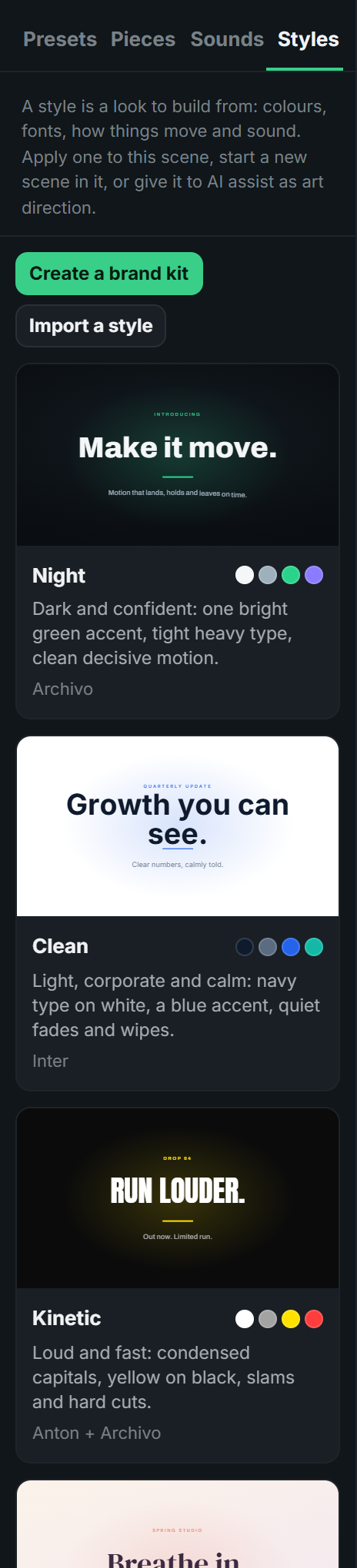
- Apply to this scene: any of colours and fonts, motion and sounds. Words and timing stay; colours are matched by role (text, secondary text, accent, panels); each act's headline gets the display font; entrances keep their variety.
- New scene: a title card in the style, ready to edit.
- Use with AI assist: AI assist follows the style when it makes or changes a scene.
- Save this scene as a style: your colours, fonts, the presets you use for each role and your sounds, kept in this browser.
Brand kits
Create a brand kit at the top of the Styles tab makes a style of your own from your brand: a name, your logo (PNG, SVG, JPG or WebP, up to 1.5 MB), five colours (background, text, secondary text, accent and panels), a display and a body font with their weights, whether headlines are in capitals, and which built-in style it moves like (its motion personality, pace and sounds). A brand card shows a Brand tag.
- New scene in a brand style starts with your logo on the title card; Add the logo puts it on the open scene.
- AI assist uses the logo when it builds a scene in your brand.
- Edit opens the brand kit again; Export downloads any style as a
.jsonfile and Import a style reads one, so a team can share the same look.
Fonts and background
The scene's Fonts settings list the fonts it uses (Google Fonts, by family and stylesheet address); the Export window can embed them in a downloaded page. The Background is any CSS background: a colour, a gradient or an image.