The Studio
The Studio runs in your browser at kinetic-scenes.unysonplus.com. Nothing to install; your work is saved in the browser as you go (and as a project file when you choose Save). It opens on a demo: a 38-second promo in six acts, each a group on the timeline, that uses a wide range of presets. Double-click an act to see how it is built.
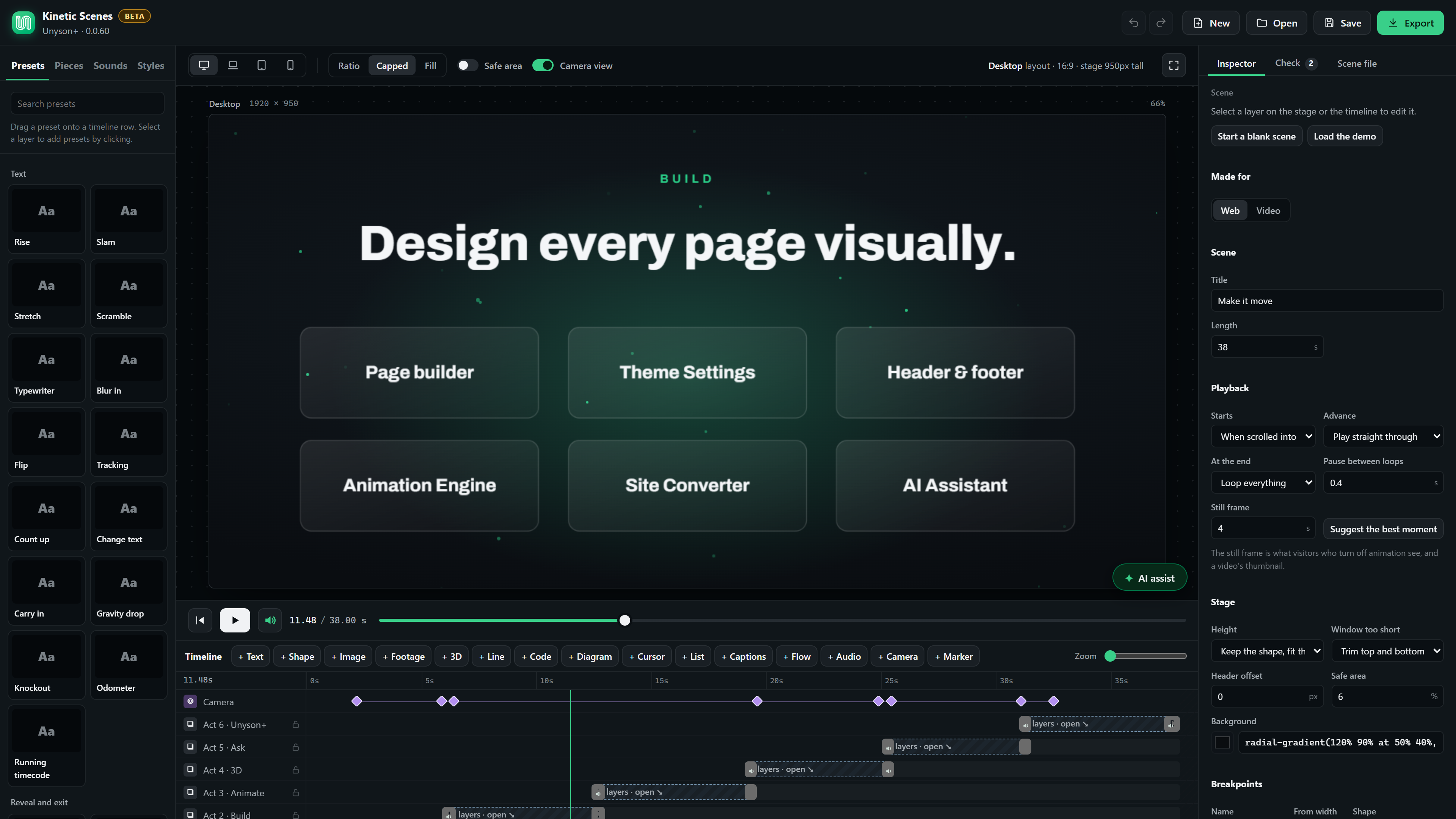
The parts of the screen
The top bar
Undo and Redo, New (an empty scene with the same screen sizes and fonts; Undo brings the old one back),
Open (a .scene.json project file), Save (downloads the project file, Ctrl+S) and Export (HTML, embed code,
share link and video; see Export).
The library (left)
Four tabs:
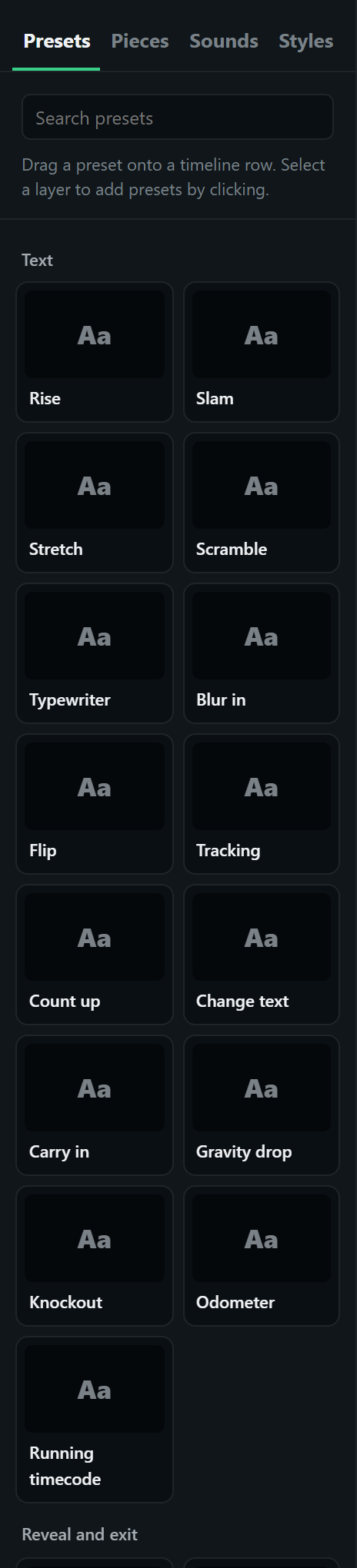
- Presets: every animation, grouped (Text, Reveal and exit, Move and scale, Emphasis, Cursor and tours, Scene transitions, Ambient and backgrounds, Code, 3D). Hover a preset to see it play. Drag it onto a timeline row, or select a layer and click it to add it at the playhead. Presets that don't fit the selected layer are dimmed. The full list is on the Presets page.
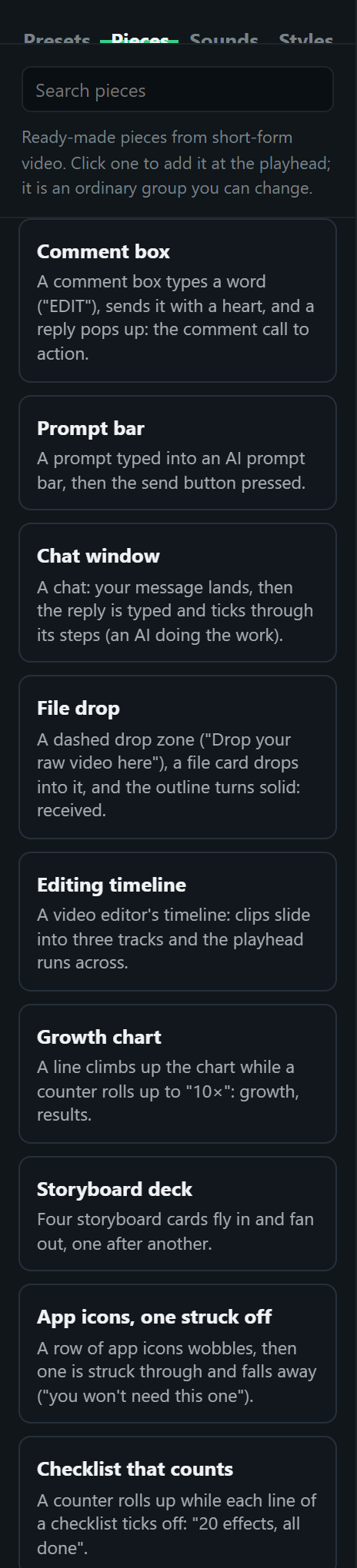
- Pieces: ready-made animated pieces (a comment box, a prompt bar, a chat window, a growth chart, a title card…), added at the playhead as ordinary groups. See Video editing effects.
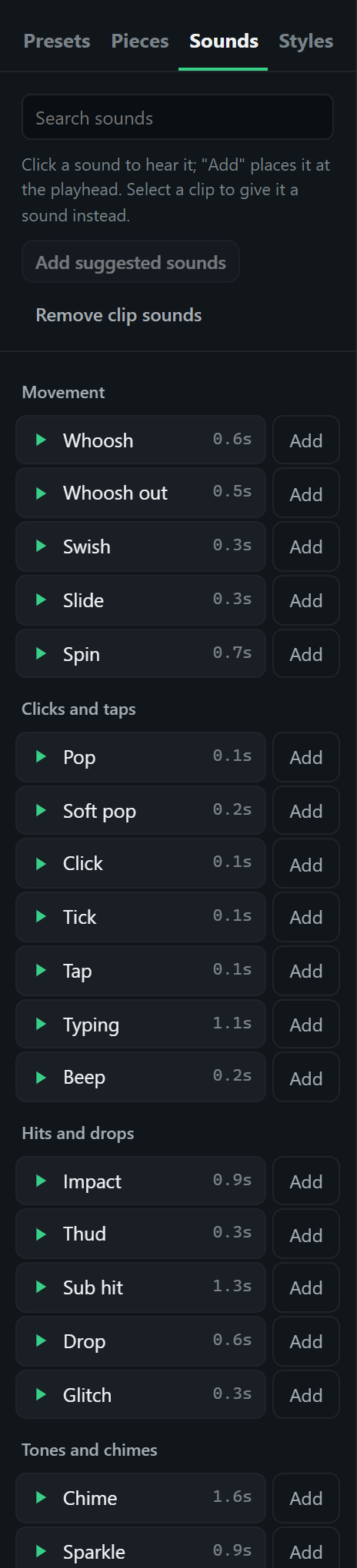
- Sounds: 25 built-in sounds, made by the player itself. See Sound.
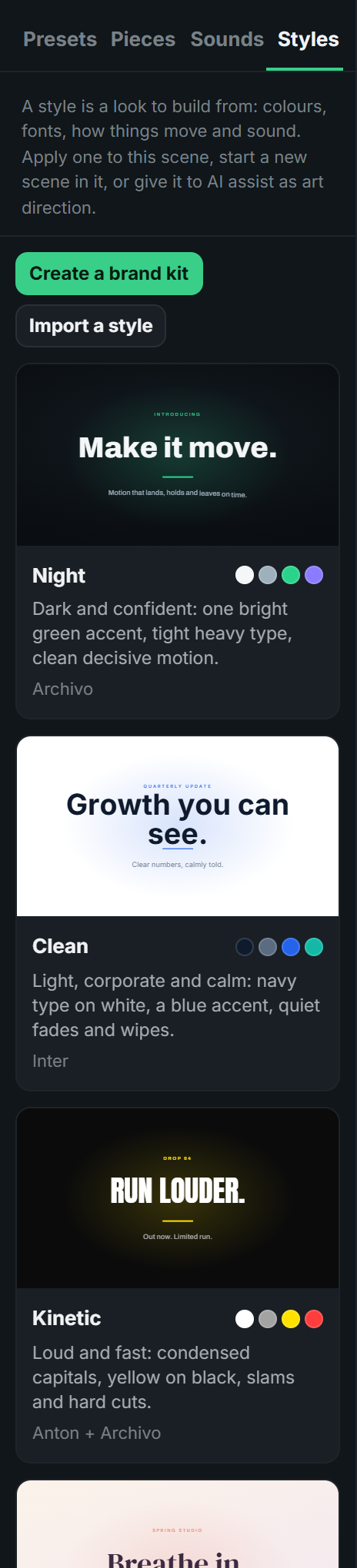
- Styles: eight looks (colours, fonts, motion personality and sounds) to apply or start from. See Styles.
The stage (middle)
The preview is a real browser window of the chosen size, scaled to fit, so layouts behave exactly as they will on a visitor's screen. Above it:
- Screen size: desktop (1920 × 950), laptop (1440 × 780), tablet (820 × 1080) and mobile (390 × 740). In video mode this becomes the list of video formats, each shown at its exact pixel size.
- Height mode: Ratio, Capped or Fill (see the stage).
- Safe area (in video mode, App guides): shows the safe zone, or where the app covers the picture.
- Camera view: shown when the scene has a camera; turn it off to select and drag layers in the flat layout.
- Full screen (F): plays the scene at your screen's real size, without the editor.
On the stage, click a layer to select it, drag it to move it, drag its handles to resize it, Shift-click to select more, and double-click a group to step inside it.
The transport and the timeline (bottom)
Play, pause, back to the start and a scrubber, plus the sound switch for the preview. The timeline lists the layers (top to bottom, as drawn) with their clips as coloured bars, the audio rows with their waveforms, the camera row and the markers. The + buttons add layers: Text, Shape, Image, Footage, 3D, Line, Code, Diagram, Cursor, List, Captions, Flow, plus Audio, Camera keys and Markers.

- Move a clip by dragging it; trim it by dragging its ends. Clips snap to the playhead and to other clips.
- Groups (acts) show as one bar; double-click to step inside, where the timeline shows the group's own clock.
- Right-click a row for Duplicate, Group, Ungroup and Delete; double-click a name (or F2) to rename it.
- Zoom with the slider on the right.
The Inspector, Check and Scene file (right)
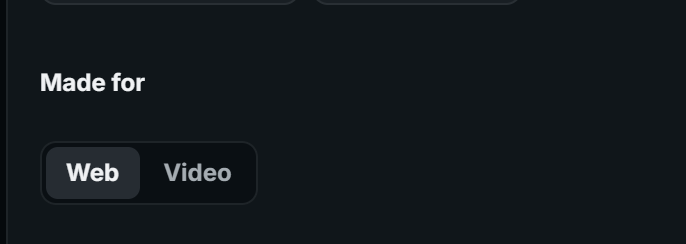
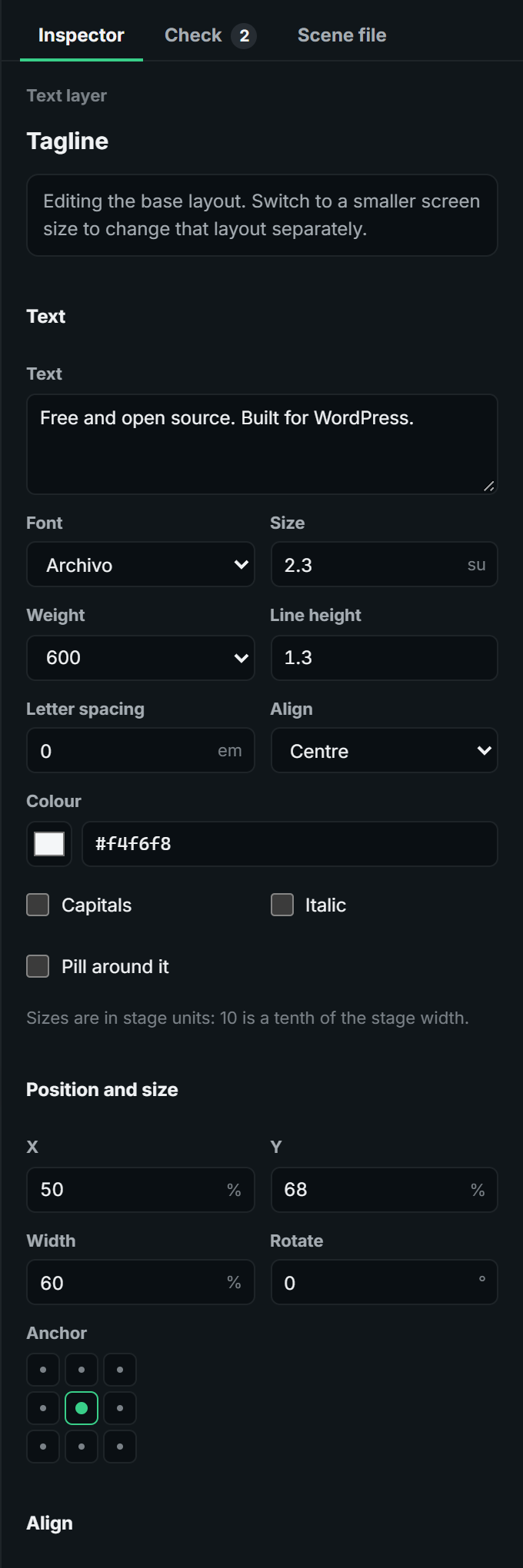
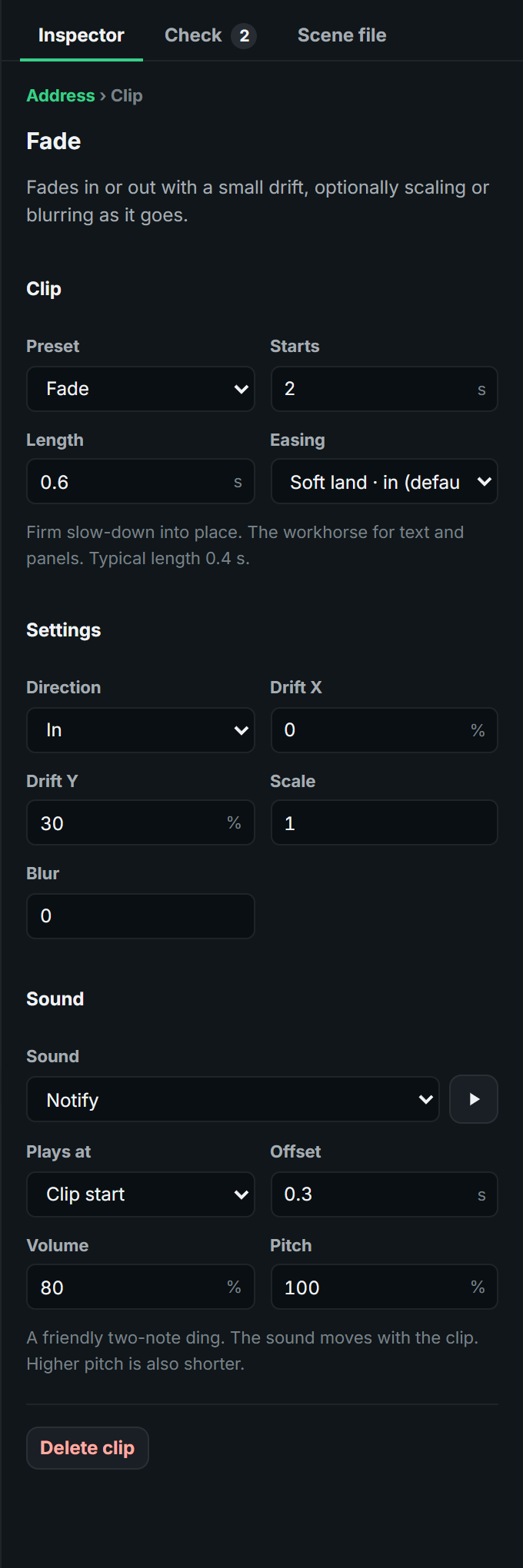
- Inspector edits whatever is selected: the scene (nothing selected), a layer, a clip, an audio clip or a camera key.
- Check lists what could be better, with one-click fixes (see Check scene). The badge counts the warnings.
- Scene file shows the whole scene as JSON. Edit it directly: a valid edit becomes an ordinary undoable change; while the text is invalid, the problems are listed and the scene keeps its last valid version.
| The scene | A layer | A clip |
|---|---|---|
 |  |  |
AI assist
The ✦ AI assist button at the bottom right of the stage opens a chat with the AI Dev Kit on your computer. See AI.
A first scene, step by step
- New in the top bar (or Start a blank scene in the Inspector).
- + Text on the timeline. Type your headline in the Inspector's Text box; set its font, size and colour.
- With the text selected, click Rise in the library. A clip appears at the playhead. Drag its end to make it longer or shorter.
- + Shape for a panel behind it; drag its row below the text so it is drawn behind. Give it Fade.
- Press Space to play. Switch the screen size to Mobile and adjust the text's size and position there: changes on a smaller screen are saved for that layout only.
- Open Check: fix anything it lists (most items have a one-click fix).
- Export → download the HTML, copy the embed code, or render a video.
Saving and opening
- As you work, the scene is saved in this browser automatically (a draft).
- Save downloads a
.scene.jsonproject file; Open loads one. Project files carry everything except footage, which stays in the browser it was added in (it is too big for a project file). - Share link (Export) puts the whole scene in a link; whoever opens it gets their own copy.
- From WordPress, Open in Kinetic Scenes on the element opens the scene here and Save to page sends it back.
Keyboard shortcuts
| Keys | Does |
|---|---|
| Space | Play / pause |
| Home | Back to the start |
| , and . | One frame back / forward (Shift: one second) |
| ← → (nothing selected) | Playhead 0.1 s back / forward (Shift: 1 s) |
| ← → ↑ ↓ (layer selected) | Nudge it 0.5% (Shift: 5%) |
| ← → (clip selected) | Move the clip 0.05 s (Shift: 0.5 s) |
| Ctrl+Z, Ctrl+Shift+Z or Ctrl+Y | Undo, redo |
| Ctrl+D | Duplicate |
| Ctrl+G, Ctrl+Shift+G | Group, ungroup |
| Ctrl+A | Select all layers |
| Ctrl+S | Save the project file |
| Delete or Backspace | Delete the selected layer, clip, audio clip or camera key |
| F2 | Rename the selected layer |
| M | Add a marker at the playhead |
| F | Full screen |
| Escape | Leave the group, or clear the selection |