Timeline and animation
Everything in a scene happens on one timeline. Every frame is a pure function of time: nothing is random between plays and nothing runs in real time, so you can scrub to any moment and see exactly what a visitor (or a video) will show.

Clips
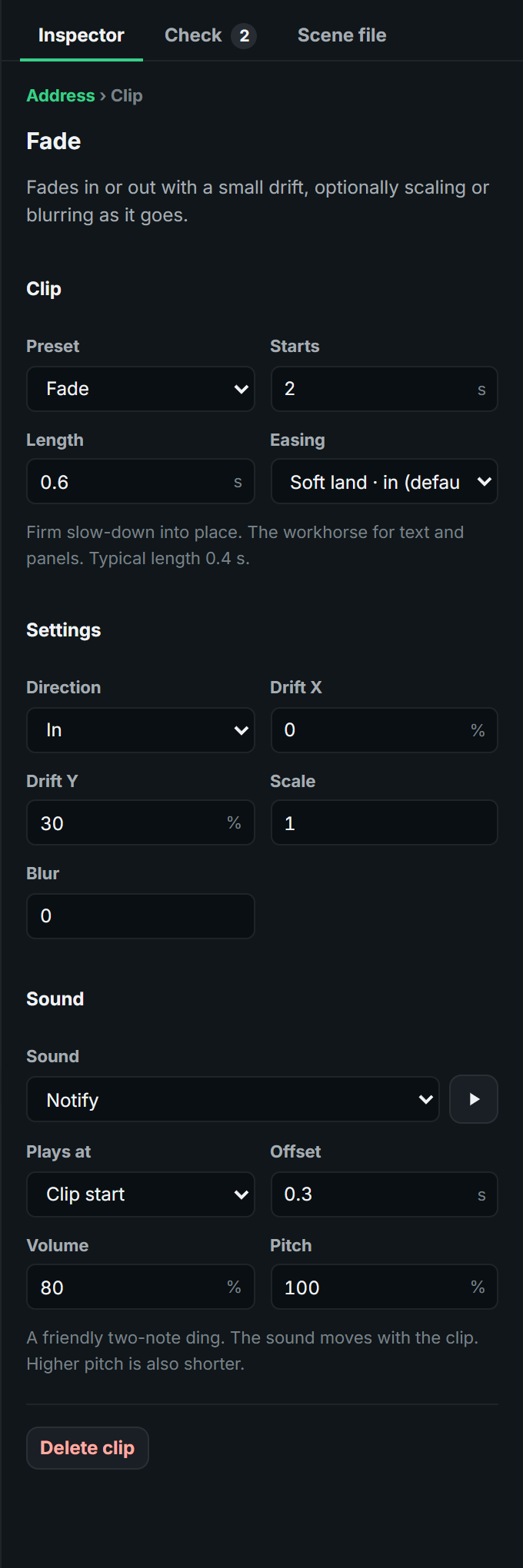
A clip is one preset on one layer, from a start time for a length. Select it to see its settings in the Inspector: Preset (swap it for another, keeping the timing), Starts, Length, Easing, the preset's own Settings and its Sound.
- Drag to move, drag an end to trim. Several clips can sit on one layer; Check scene warns when two moving clips overlap and would fight over the same movement.
- The scene's Length (Inspector, nothing selected) is how long one play-through lasts; clips past it are cut off.
Groups and acts
Select layers and press Ctrl+G to group them. A group keeps its children together and has its own clock: its children's clips run from the group's start, so dragging the group's bar moves its whole animation. Double-click a group to step inside; the timeline then shows its clock and a breadcrumb to step back out (Escape).
Longer scenes are split into acts: one top-level group per act (a hook, the problem, the product, the call to action). Presets on a group (Fade, Slide, a transition) act on the whole group.
Transitions
Select a group and use Transition to the next group in the Inspector to hand it over to the next act: a matched exit and entrance, timed together, as ordinary clips you can still edit.
- Slash: a glowing diagonal line sweeps across and the next scene appears behind it (set its slant and colour).
- Flash: a burst of light, with the cut at its brightest moment.
- Whip pan: one fast camera swing, velocity-matched: the scene speeds away with a blur along the move and the next arrives from the same side at the same speed; an optional light streak hides the join.
- Light streak, Glitch (slices jump and colours split), Dip to colour (fill, hold a beat, open on the next), Zoom through (rush past the camera as the next approaches).
- Crossfade, Push, Soft wipe, Blinds, Iris and 3D turn for quieter changes.
- Shatter breaks a picture or footage into flying shards (see video effects).
The transition replaces the leaving group's exit and the arriving group's entrance, and brings its sound.
Keyframes and curves
When no preset does what you want, a Keyframes clip sets values by hand: move X and Y, scale, rotation, opacity and blur, each property its own track between the keyframes that set it.
- Put the playhead where you want a keyframe and click Add keyframe at playhead, or, with the clip selected, simply drag the layer on the stage: that sets its position keyframe at the playhead.
- Diamonds on the timeline select keyframes and drag them in time.
- For the move into each keyframe, pick an ease or draw a custom curve by dragging two handles, including overshoot (above the box) and anticipation (below it).
Eases and curves
The Easing menu lists twelve measured eases first, with what each is for and its typical length: Soft land (the workhorse for text and panels), Snap and settle, Glide, Whip, Pop over, Crash in, Bounce hard, Cruise, Soft in-out, Gentle in, Leave (exits: speeds up out of frame) and Crash out. The standard GSAP eases follow, and a custom cubic curve.
The camera
+ Camera adds a camera key at the playhead, and the scene gets a Camera row. The camera is one view over every layer: between two keys it pans, zooms, rolls and tilts in perspective, so the viewer glides through the scene instead of watching things move on a still page.
- Select a key to set the view at that moment (zoom, pan across and down, tilt back, turn, roll) and the curve of the move into it. An empty value holds where it was.
- Drag a key's diamond to retime it; double-click it (or press Delete) to remove it.
- Add a move from the playhead builds a whole move: Push in, Pull out, Pan right or left, Tilt reveal (the scene starts leaning back and settles flat), Slow drift (keeps a held frame alive) and Dutch roll.
- Focus the camera on it (a layer's settings) adds keys that glide in to frame that layer, hold and glide back.
- Layers with a depth move more or less than the rest as the camera pans and zooms (parallax). Layers pinned to the stage stay put.
- Turn Camera view off above the stage to select and drag layers in the flat layout while the camera moves the view.
Markers
+ Marker (or M) drops a marker at the playhead. Markers are the stops of a click-to-advance presentation, the targets of hotspot links, and handy labels for the parts of a long scene.