Video mode
A scene is made for the web (the default) or as a video. Choose it at the top of the Inspector with nothing selected. Web keeps responsive layouts, scroll and click playback, search-engine text and the WordPress element. Video is for Reels, TikTok, Shorts and YouTube, or for graphics to lay over your own footage in a video editor.
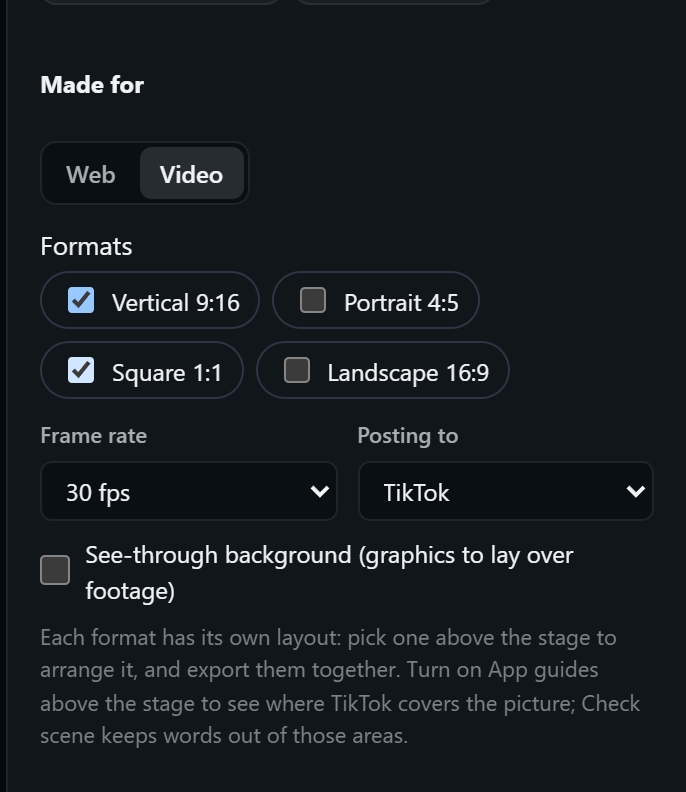
Formats
Vertical 9:16 (1080 × 1920), Portrait 4:5 (1080 × 1350), Square 1:1 (1080 × 1080) and Landscape 16:9 (1920 × 1080): one or several. Each format is its own layout. Pick one above the stage to arrange it; the preview shows it at its exact pixel size. Layers keep their animation in every format; position, size and type size can differ per format, as with web layouts. Switching a scene between Web and Video keeps every layer: each new layout takes the overrides of the old layout closest to it in shape.
A video starts on its own and plays once, at its exact length. Frame rate: 24, 25, 30, 50 or 60 frames a second.
App guides
Choose Posting to (TikTok, Instagram Reels, YouTube Shorts, YouTube or anywhere), then turn on App guides above the stage: the areas the app covers with its own buttons, captions and bars are marked on the preview, and Check scene warns when words sit under them.
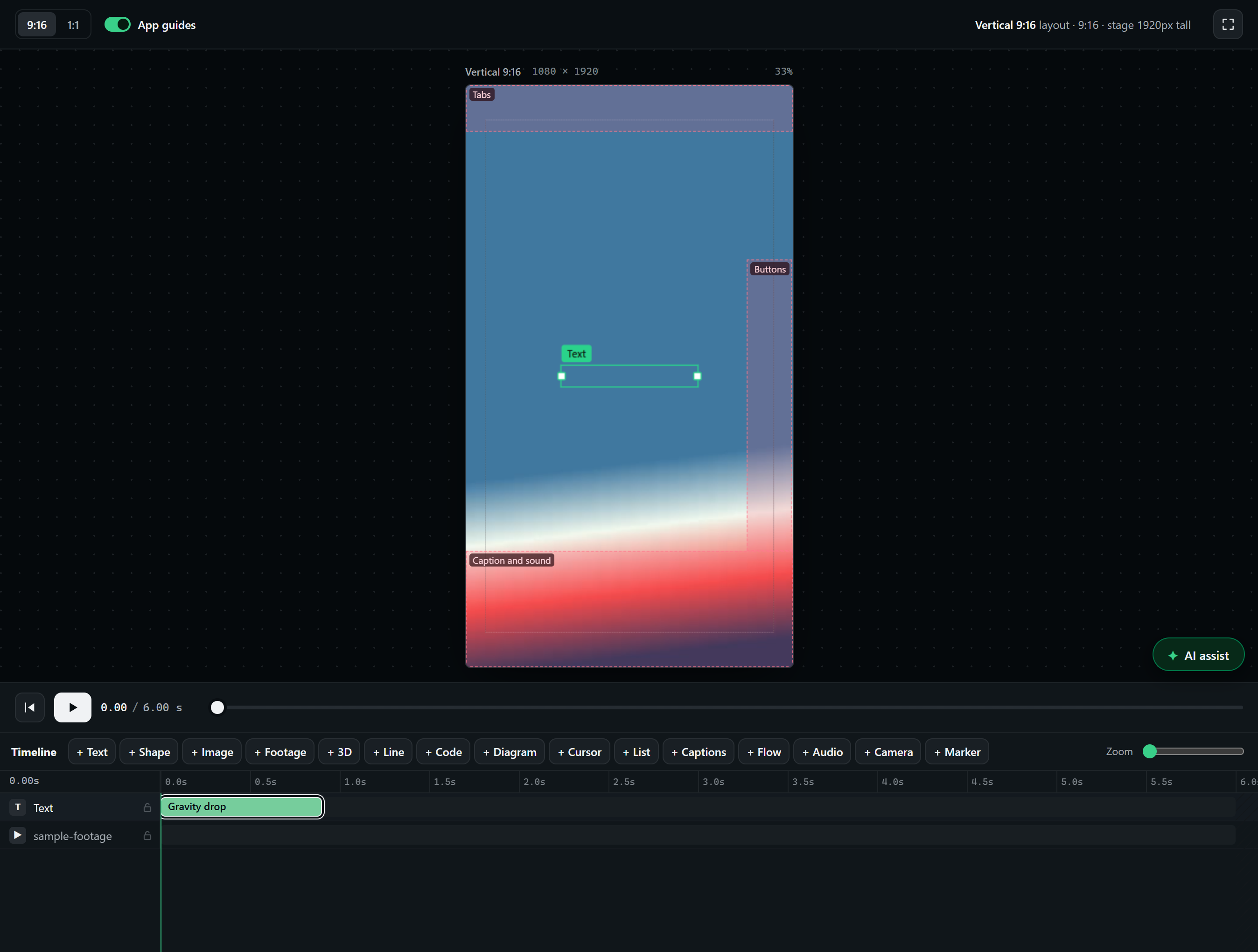
The guides are generous on purpose (the apps move their buttons from time to time): keep words between about 12% and 75% down, at least 6% in from the left, and clear of the button column on the right.
Footage
+ Footage adds a video to design against: line up words and effects with what happens on camera. It starts with the scene and is cut where the file ends.
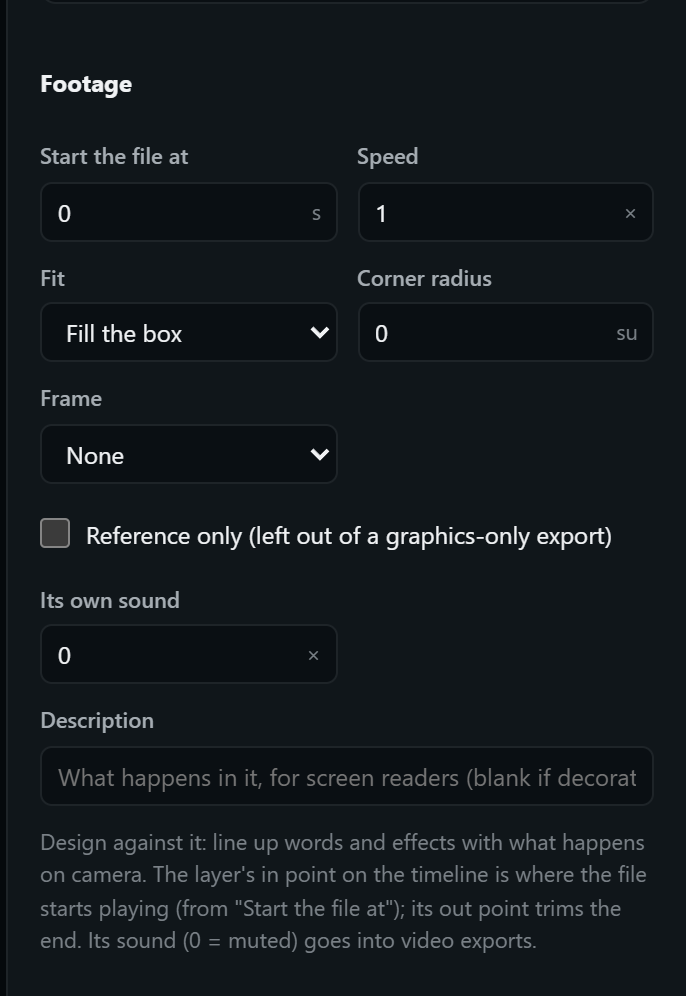
- Start the file at trims the start; the layer's out point trims the end. Speed plays it from 0.25× to 4×.
- Fit fills the box or fits inside it; a corner radius and a frame (phone, browser window, polaroid, film strip, card) dress it.
- Reference only shows it while you design and leaves it out of a graphics-only export.
- Its own sound (0 = muted) goes into video exports at that volume.
- Footage is kept in your browser, not in the scene file (video is far too big for it). Videos and the downloaded page carry it; a share link and the embed code can't, and the Export window says so.
Footage tools (cut the person out, follow the face, use its sound) are on the Video editing effects page.
Checks for video
In video mode, Check scene adds the rules that matter for short-form video:
- The hook: the first words on screen by two seconds.
- Covered areas: no words under the app's buttons and captions, in every format.
- Captions: a voice-over needs captions (most people watch muted); Add captions adds them.
- Length: over the platform's limit is a warning; long for the platform is a note (Reels about 30 s, TikTok and Shorts under a minute).
- It plays once: a looping scene gets Play once.
- Idle floating: floating for more than two seconds tells no story; cut sooner or show the next thing.
- Every cut between acts: no empty frame at a cut (Start it at… closes the gap), and the movement carried across the cut: when a shot leaves to the left, the next arrives from the right moving the same way (Arrive from the… fixes it); one main direction for the whole video.
- Text sizes are checked at the size a video is seen on a phone.
Exporting a video
Export → Video renders each format the scene is made in, one or all of them in one go:
- MP4 (H.264, plays everywhere), WebM (smaller) or ProRes .mov (for CapCut, Premiere and DaVinci Resolve).
- See-through background: graphics only, with transparency (WebM, or ProRes 4444), to lay over footage in a video editor.
- Include the reference footage: the full composite.
- Cover image: the still frame as a PNG.
The AI Dev Kit on your computer renders frame by frame, so every frame is exact, 3D and footage included. Without the kit, some browsers can render the MP4 themselves; see Export.