Video editing effects
The effects short-form editors use on talking-head videos are presets, layer settings and ready-made pieces, and AI assist knows every one by name ("a gravity drop on the word drop", "a snap zoom on the punchline"). The examples below are drawn by the real player on an illustration; on your own footage they look the same.
Text
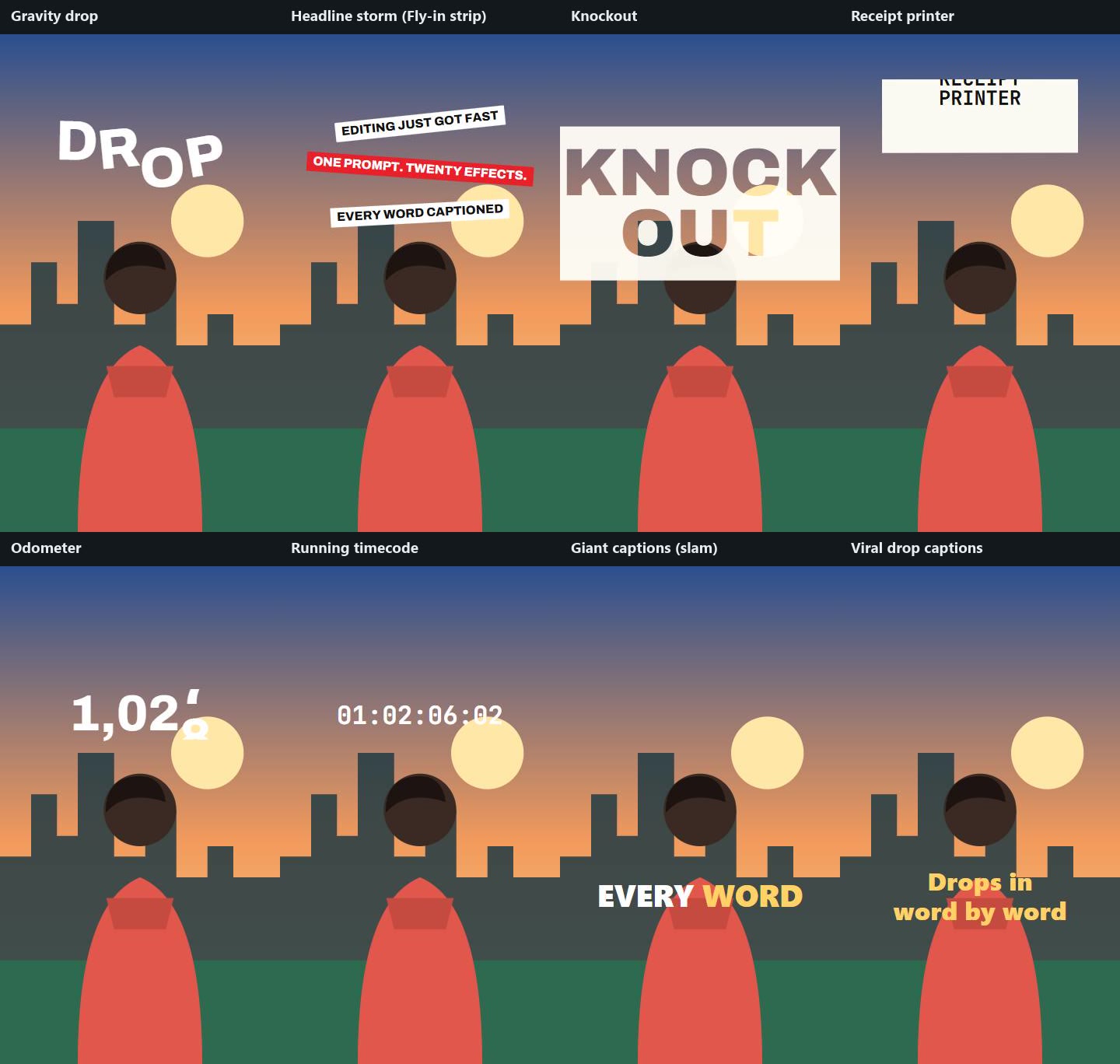
| Effect | How |
|---|---|
| Gravity drop | Letters (or words) fall from above one after another, bounce and settle, each with a tilt that straightens as it lands. Out, they drop away. |
| Headline storm | Several tilted headline pills, each with Fly-in strip from alternating sides, a moment apart, piling up. The Headline storm piece is ready-made. |
| Knockout | The words are cut out of a light block that wipes on, so the footage shows through the letters. |
| Receipt printer | A slip prints out of a slot at the top of its box in short jerky feeds. Put it on a group (a paper shape and its lines). |
| Odometer | The number rolls into place digit by digit, each moving on only when the one to its right passes 9. |
| Running timecode | A timecode in the text (hours to frames) runs while the clip plays. |
| Giant captions | A captions layer with Words arrive: each slams in, one or two big words at a time. |
| Viral drop | Captions with each drops in, bouncing as it is said. |
| Kinetic hook | Big words slammed in over a bar that wipes across: the Kinetic hook piece. |
| Screenplay page, title card, intertitle | Ready-made pieces (below): typed lines then a highlight; a big serif title with a running timecode; a silent-film card. |
Emphasis
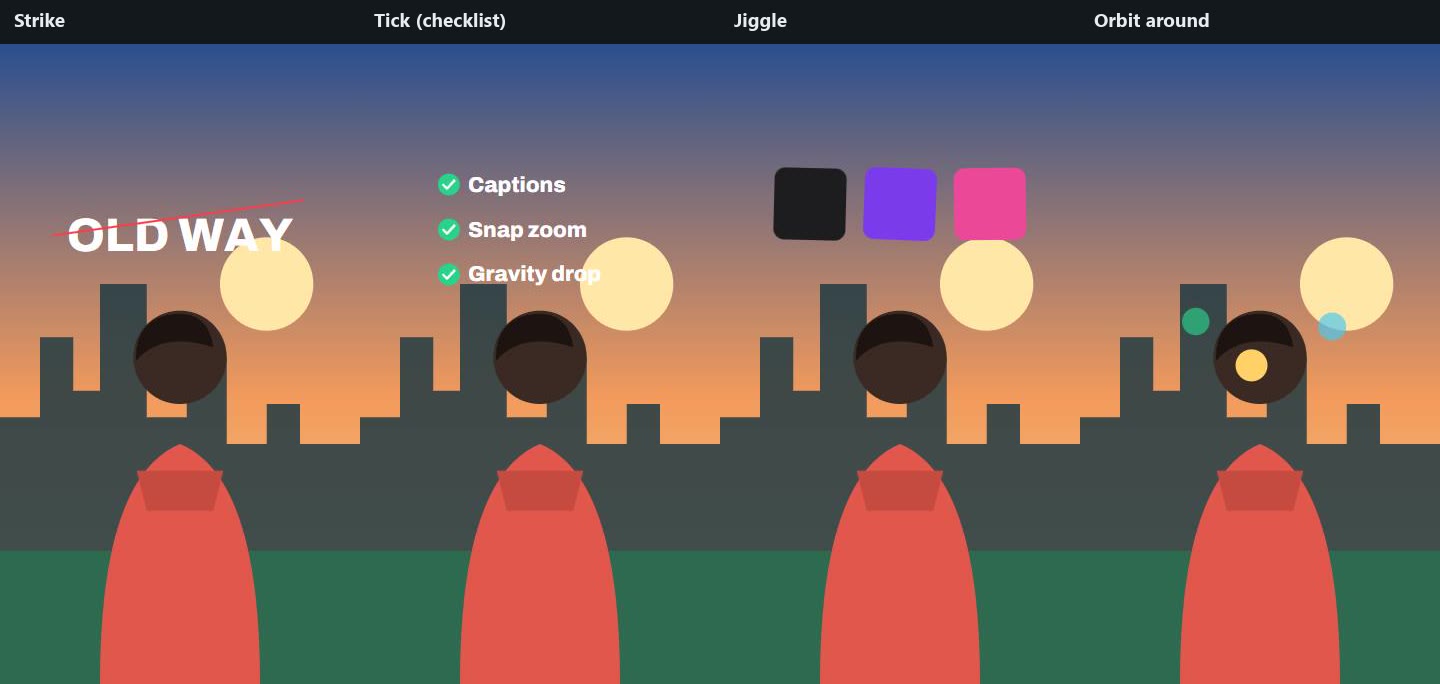
| Effect | How |
|---|---|
| Strike | A line is drawn through it, then it falls away, crossed out (or stays struck). |
| Tick | A tick drawn in a circle beside it; one per line for a checklist that ticks off. |
| Jiggle | The phone home-screen wobble, as before a delete. Jiggle delete: Jiggle, then Strike. |
| Orbit around | Circles round its place on a tilted ring, smaller and dimmer on the far side: icons orbiting a head. |
On footage and pictures
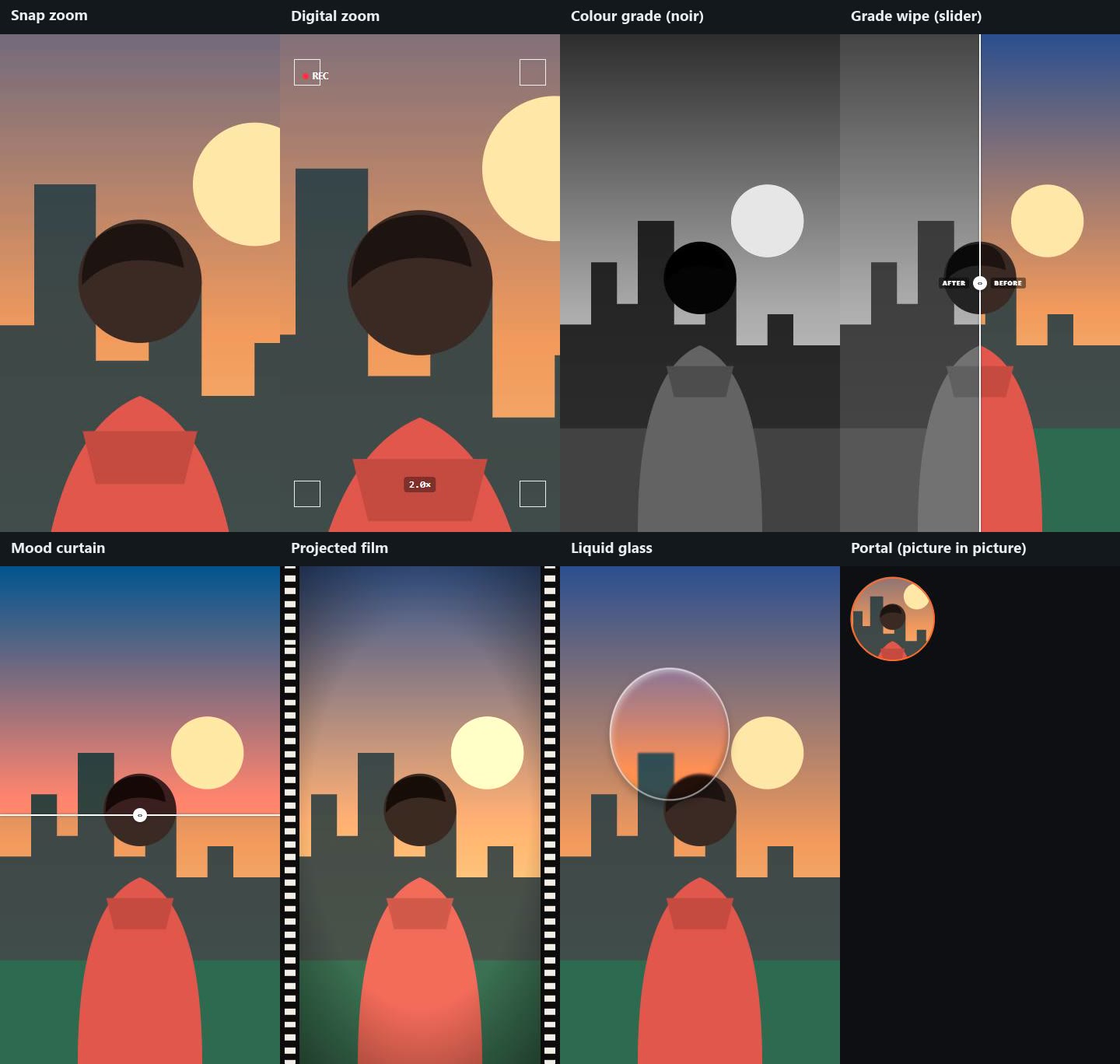
| Effect | How |
|---|---|
| Snap zoom | A sharp punch-in on a point (the face, a detail), held; Out snaps back. |
| Digital zoom | The picture steps in with a blur as the focus hunts, inside a recording frame (corners, REC, the zoom). |
| Colour grade | Fades in a look on the picture only: black and white, noir, warm, cool, film, vivid, faded, teal and orange. |
| Grade wipe | The grade sweeps across behind a line with a handle, before and after on either side (a grade slider, an eyedropper grade); with Sweep: Down it is a mood curtain. |
| Projected film | Grain, flicker, a vignette and sprocket holes running past; without sprockets it is a film look. |
| Liquid glass | A lens of liquid glass glides across, blurring, brightening and saturating what is under it. |
| Portal | The picture shrinks into a ringed circle in a corner (picture in picture), or grows back out of one. |
| Dolly zoom | With the person cut out: Snap zoom out on the footage while the person zooms in. |
| Zoom through cut | The Zoom through transition between two shots. |
Grades, zooms and film combine on the same footage (a grade under projected film, a snap zoom inside a digital zoom).
Copies and frames
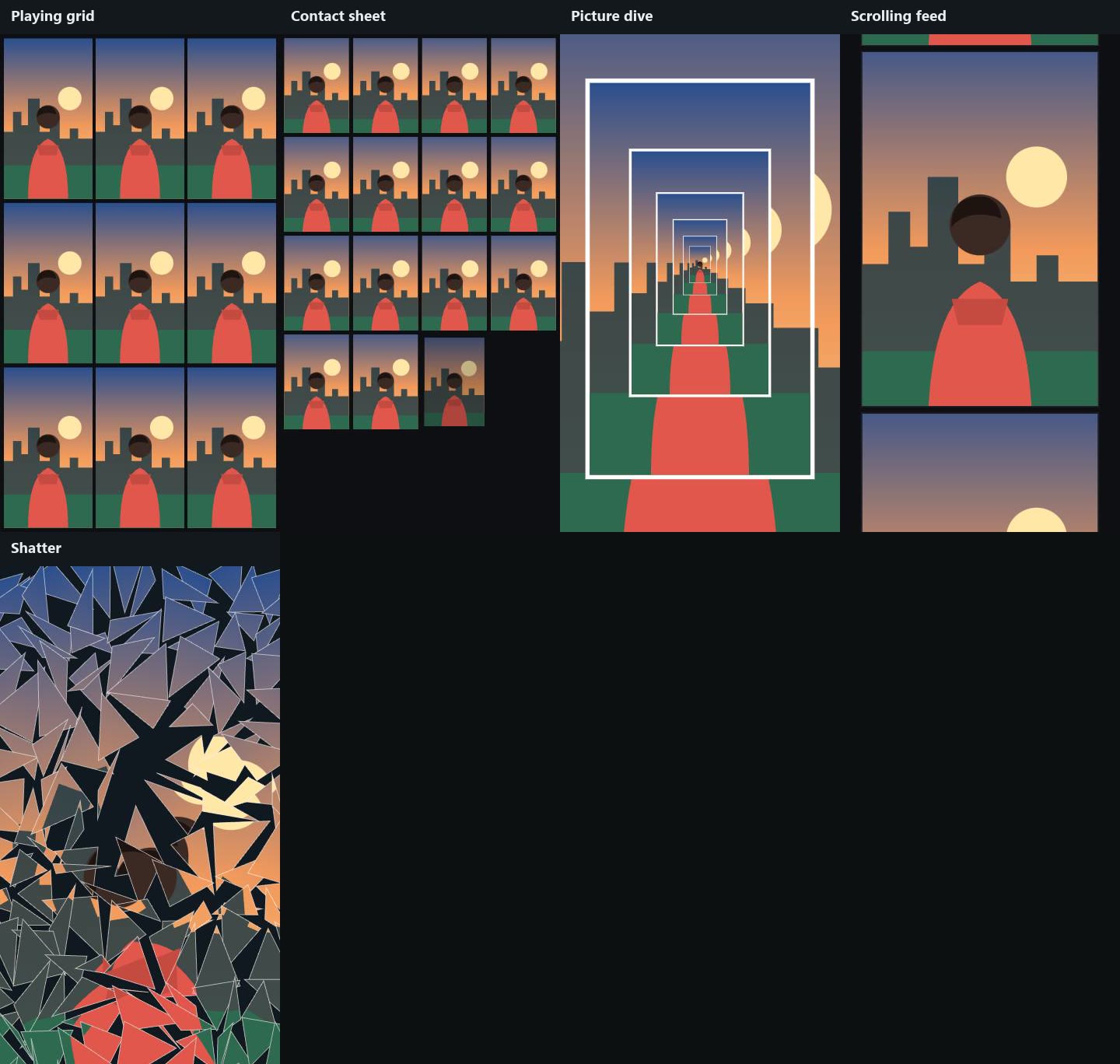
Copies shows the picture or footage in copies, all playing: a playing grid, a contact sheet filling up frame by frame, a picture dive (the frame inside the frame inside the frame, the camera diving in; the odometer recursion look) or a scrolling feed of cards (a real feed). Shatter cracks it from a point and breaks it into flying shards.
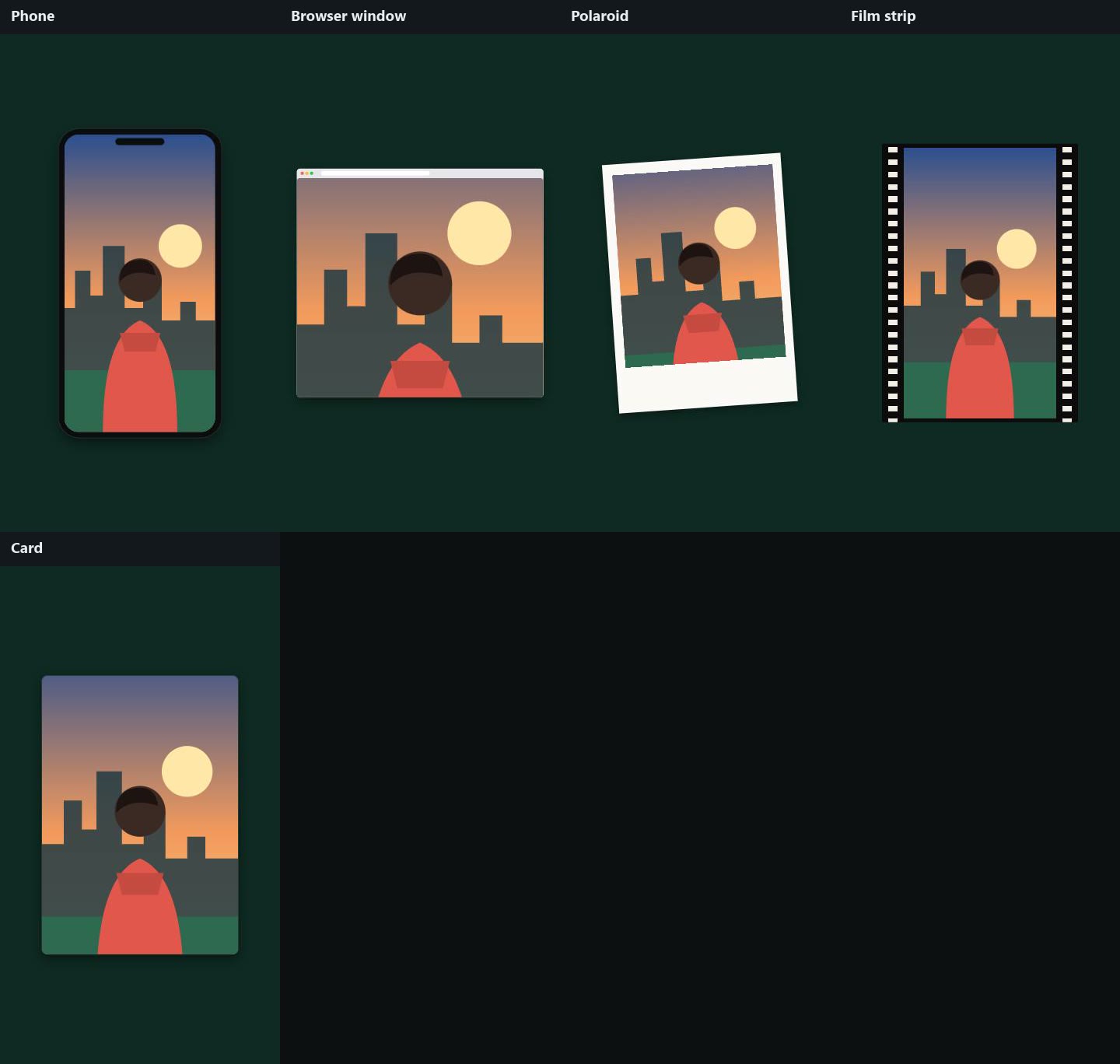
Any picture or footage can sit in a frame: a phone (a phone mockup), a browser window (a B-roll overlay over the speaker), a polaroid, a film strip or a card (a video card).
Footage tools
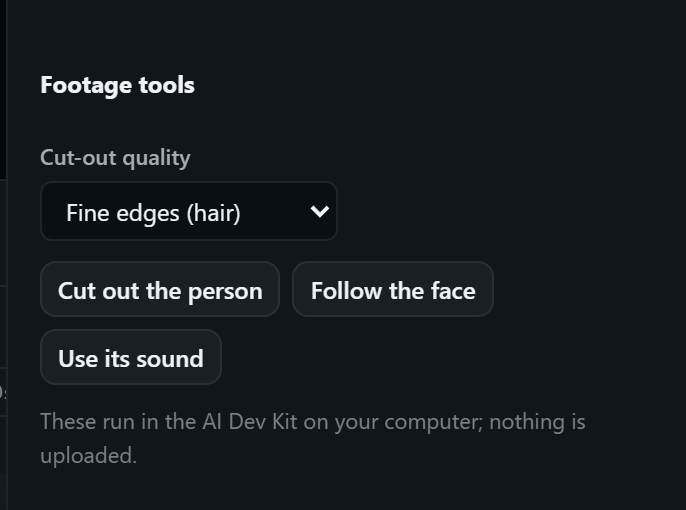
Select a footage layer to find Footage tools. They run in the AI Dev Kit on your computer: nothing is uploaded.
Cut out the person
Adds a see-through copy of the person, in step with the footage (same timing, place and frame), as the top layer. Put graphics between it and the footage and they go behind the person.
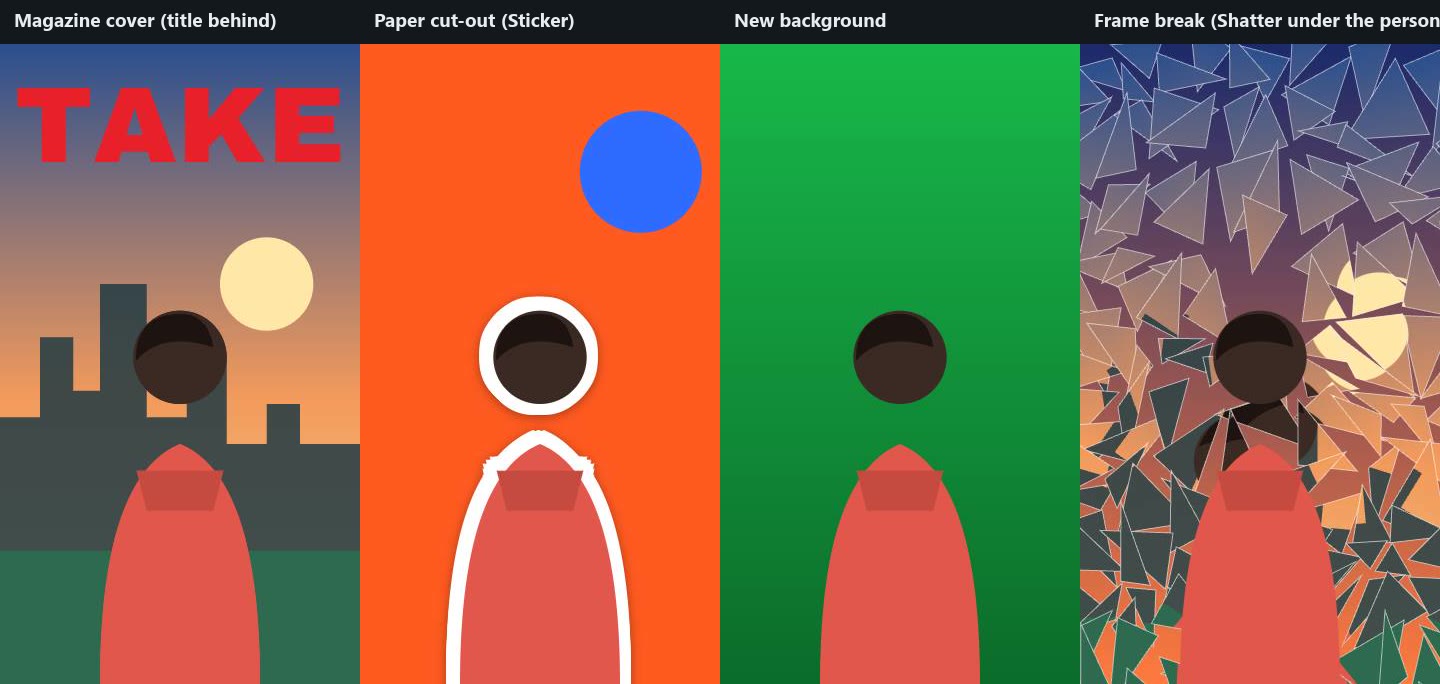
- Magazine cover / words behind the head: big masthead text between the footage and the person (the Magazine cover piece is placed there for you).
- Paper cut-out: a coloured backdrop between them, the footage hidden, and Sticker outline on the person.
- Green screen / studio reveal: any shape or picture between them as the new background.
- Frame break: Shatter on the footage, with the person staying whole above it.
- Frame escape: the footage in a frame (card or phone) and the person on top, unframed, so they spill out of it.
Two models work together: one for fine edges such as hair, one that knows the body (so a shirt the colour of the wall stays solid). Fine quality runs on your graphics card where there is one (about 50 ms a frame) and on the processor otherwise; Fast uses the body model alone, many times quicker. Each frame is blended with the one before so edges don't flicker.
Follow the face
Finds the face in every frame and keeps its path on the footage. Give any layer the Follow the face preset to keep it on the face, or above, below, left or right of it, while the clip runs (optionally growing and shrinking with the face):
- Live markup: a black and white grade on the footage, an outlined ellipse that draws itself, following the face.
- Orbit: small icons following the face, each with Orbit around.
- A label over the head, a callout that moves with the speaker, captions that stay under the chin.
Use its sound
Adds the footage's audio as a voice track in step with it (and mutes the footage), ready to transcribe for captions and for timing effects to the words.
Ready-made pieces
The library's Pieces tab adds animated pieces at the playhead, each an ordinary group you can change. With the person cut out, a piece goes behind them.
| Piece | What it is |
|---|---|
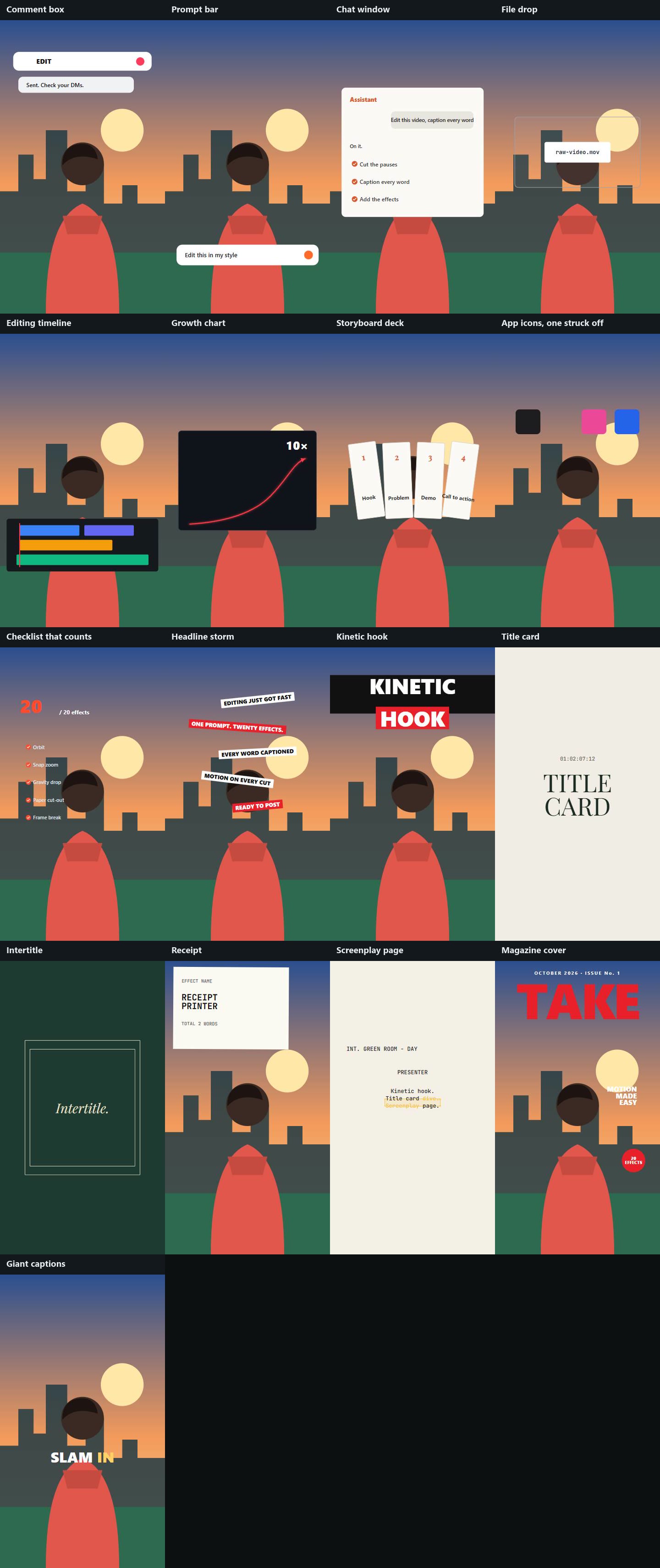
| Comment box | A comment box types a word ("EDIT"), sends it with a heart, and a reply pops up: the comment call to action. |
| Prompt bar | A prompt typed into an AI prompt bar, then the send button pressed. |
| Chat window | Your message lands, then the reply is typed and ticks through its steps. |
| File drop | A dashed drop zone, a file card drops in, and the outline turns solid. |
| Editing timeline | Clips slide into three tracks and the playhead runs across. |
| Growth chart | A line climbs while a counter rolls up to "10×". |
| Storyboard deck | Four cards fly in and fan out. |
| App icons, one struck off | Icons wobble, then one is struck through and falls away. |
| Checklist that counts | A counter rolls up while each line ticks off. |
| Headline storm | Tilted headline strips fly in from alternating sides and pile up. |
| Kinetic hook | Two big words slammed in over a wiping bar. |
| Title card | A running timecode above a big serif title. |
| Intertitle | An ornate frame draws in round a line of italic serif text. |
| Receipt | A slip prints out of the top of the screen. |
| Screenplay page | Lines typed, then a line highlighted. |
| Magazine cover | Masthead, cover lines and an issue badge, meant to sit behind the person. |
| Giant captions | Big captions, each word slamming in as it is said. |
Edit my video with AI
With footage in the scene, Edit my video in AI assist takes the footage's sound out and transcribes it (if it isn't yet), then the AI adds captions and places 5–10 effects on the moments that suit them, each landing on its word: a hook in the first two seconds, a snap zoom on a punchline, a grade on a change of mood, ticks on a list, the comment box at the end. Type what you want first to steer it. See AI.