Access rules
An access rule locks part of your site. Each rule answers three questions:
- What it protects: a page, every post, a category, everything under
/members/, the whole site… - Who can see it: members of certain plans, certain WordPress roles, or anyone logged in.
- What everyone else sees: a teaser and a prompt, the login screen, another page, or "page not found".
One access engine answers every "may this person see this?" question on the site, so a rule means the same thing everywhere the content could show up: on its own page, in the page-builder content, excerpts, lists, archives and search, RSS feeds, the REST API, comments, attachments, the XML sitemap and the description and social tags in the page head. Nothing leaks through a side door.
Rules live under Unyson+ → Membership → Access rules. For a single page there is also a shortcut, the Membership box in the editor, and parts of a page can be shown or hidden per plan with element visibility.
The rules list
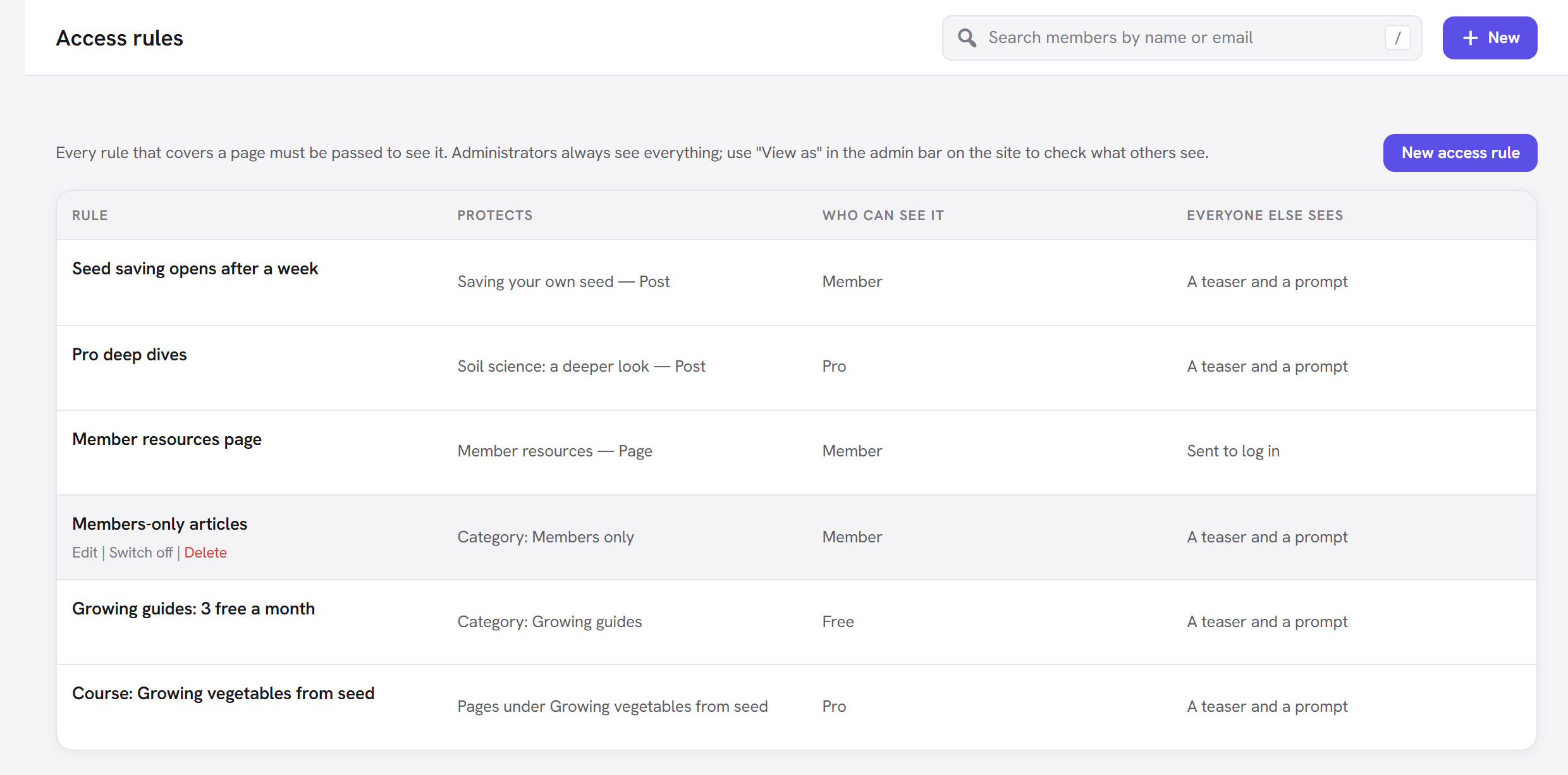
| Column | Shows |
|---|---|
| Rule | The rule's name, with Off when it is switched off. |
| Protects | Everything it locks, and below in grey "except" the exceptions. |
| Who can see it | The plans, roles or "anyone logged in"; Members of any plan when nothing is ticked. |
| Everyone else sees | A teaser and a prompt, A prompt, Sent to log in, "Sent to" an address, or Page not found. |
Hover a rule for Edit, Switch off (or Switch on) and Delete. Deleting a rule opens what it protected straight away. Switching it off does the same but keeps the rule for later.
How to create an access rule
Example: the Larkspur Garden Club wants every blog post for paying members, except one free sample article.
- Open Access rules and click New access rule (or New → Access rule in the top bar).
- Name:
Member articles. The name is for you; visitors never see it. - Under What it protects, the first line reads Protect · All items of a type · Posts. Keep it.
- Click Add a line, set it to Except · A specific page or post · Posts, type part of the sample article's title in the search box and pick it from the results.
- Under Who can see it, tick Member and Pro (Pro already includes Member, so Member alone would do; ticking both is fine).
- Under What everyone else sees, keep A teaser and a prompt to log in or join (recommended) and a Teaser length of 55 words.
- Optionally write a Message in the prompt: "Become a member to read every article, from GBP 8.00 a month."
- Click Create rule. It works straight away.
- Check it on the site with View as (see Test it with "View as").
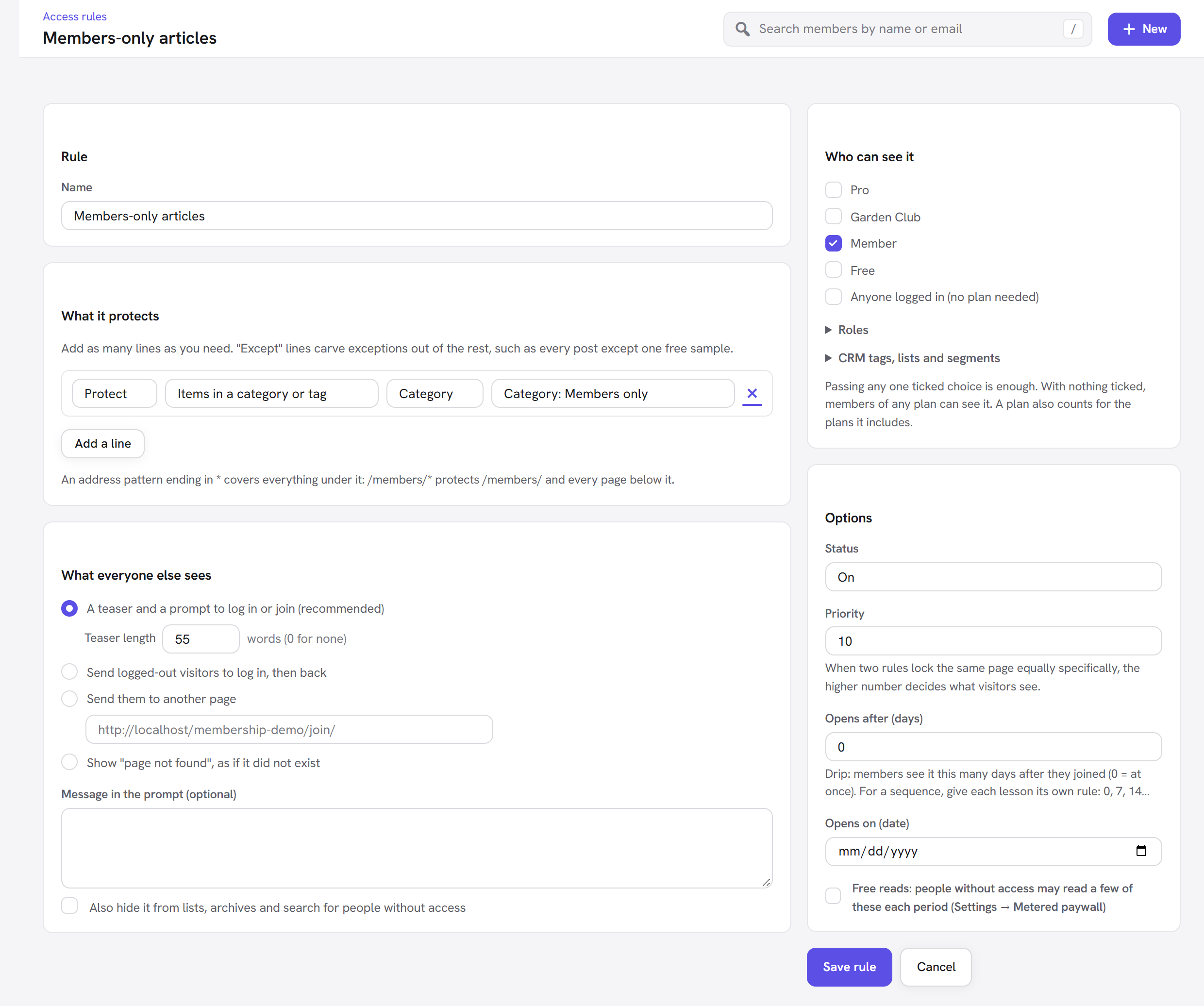
Every option explained
Rule
| Field | What it does | Default |
|---|---|---|
| Name | A name for the rule, shown in the list and in a page's Membership box. Required. | empty (placeholder "Members-only articles") |
What it protects
Each line has two choices: Protect (lock this) or Except (leave this out), and the kind of thing. Add as many lines as you need with Add a line; the cross at the end removes one. A rule needs at least one Protect line.
| Kind of thing | Then choose | Protects | Example |
|---|---|---|---|
| All items of a type | a post type (Posts, Pages, Products, Courses…) | Every single item of that type. Not the archive page that lists them (use A post type archive for that). | Every blog post. |
| A specific page or post | the post type, then search for the item | That one page, post or item. | The "Members' seed swap" page. |
| Pages under a page | search for the parent page | Every page below it, at any depth. The parent page itself stays open, which makes a good public landing page. | Everything under "Members area". |
| Items in a category or tag | the taxonomy (Category, Tag, or another), then search for the term | Every item with that term, and the term's own archive page. A post in a child category is covered only if it also has the chosen category. | Every post in "Advanced growing". |
| A post type archive | a post type | The archive page that lists that type (for example the shop page or /courses/). Not the items themselves. | The courses list. |
| Addresses (URL) | type a pattern | Any address that matches. A pattern ending in * covers everything under it: /members/* protects /members/ and every page below it. Without * the address must match exactly (a trailing slash does not matter). | /members/*, /resources/* |
| The entire site | nothing | Every page on the site. | A private club site. |
The item search lists published, private, draft and scheduled items, 20 at a time; keep typing to narrow it.
Except lines carve exceptions out of the rest: "every post except the free sample", "the entire site except the home page and the join page". An Except line takes the item out of this rule only; another rule can still lock it.
:::warning Protecting the entire site? Add Except lines for the pages people need before they are members: your login page, sign-up page, pricing page and checkout page. Otherwise visitors are asked to log in on the very page they log in or join on. :::
What everyone else sees
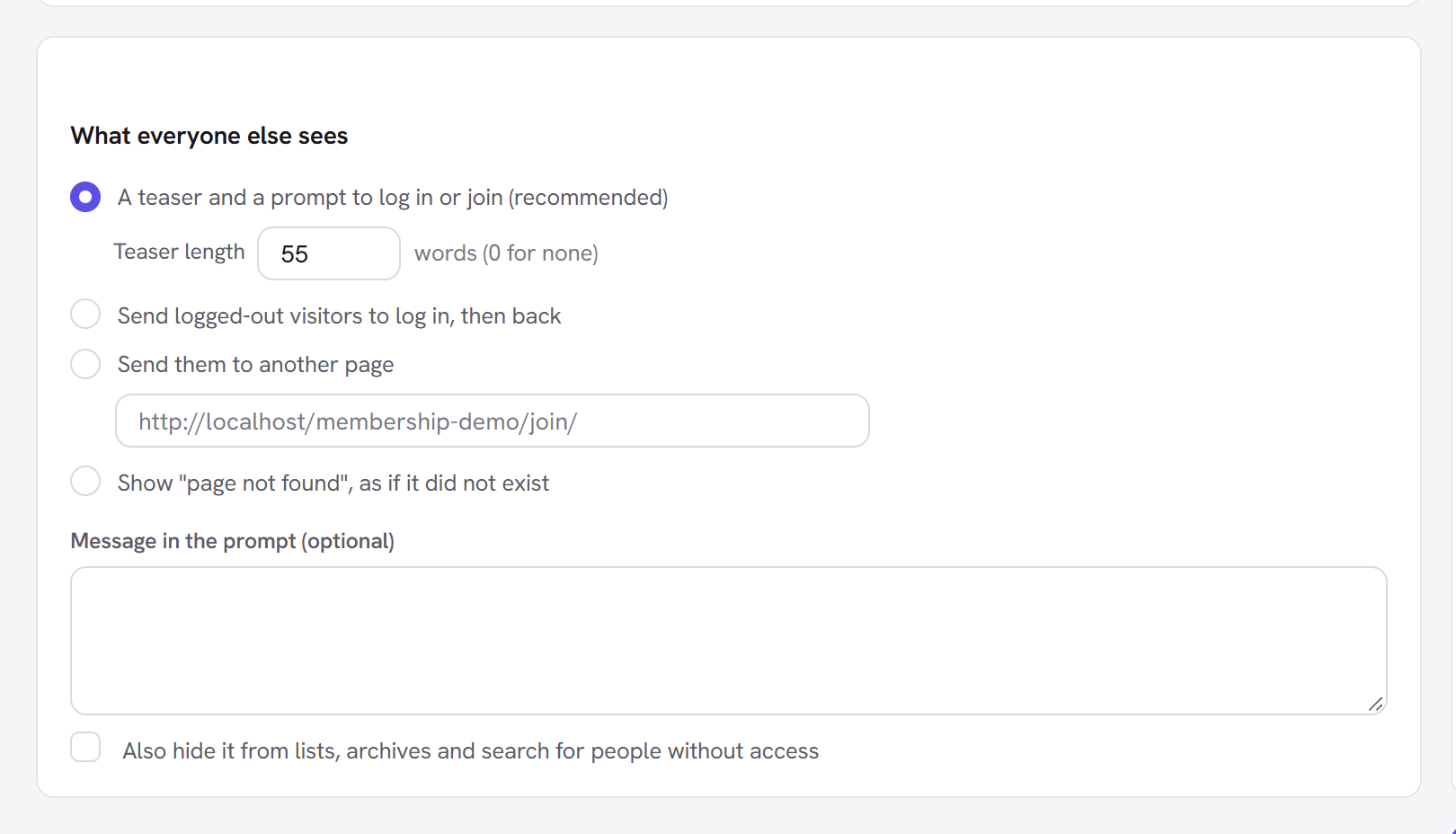
| Choice | What happens | When to use it |
|---|---|---|
| A teaser and a prompt to log in or join (recommended) | On a page or post, the visitor sees the first words of the content (the teaser), then a prompt box. On a page that is not one item (an archive, a URL that is not a post, the whole site), a logged-out visitor is sent to the login screen instead. | Most content: the teaser sells it, and search engines still see what it is about. |
| Teaser length | How many words of the content show before the prompt, 0 to 500. 0 shows the prompt alone. | 55 words. Raise it for long articles, set 0 for content that should stay entirely private. |
| Send logged-out visitors to log in, then back | A logged-out visitor goes straight to the WordPress login screen and returns to the page afterwards. Someone logged in without the right plan sees the prompt. | Content for existing members only, where there is nothing to sell. |
| Send them to another page | Everyone without access is sent to the address you type, such as your pricing page (placeholder /join/). | A members area whose pages are not worth teasing. Send them to the plans. |
| Show "page not found", as if it did not exist | A normal "page not found" (404). The content is also left out of lists, archives and search for people without access. | Content whose existence should stay private. |
| Message in the prompt (optional) | Your own text in the prompt box, replacing the automatic wording. Simple HTML such as a link is allowed. | To name the price or link to your pricing page. |
| Also hide it from lists, archives and search for people without access | Items covered by the rule disappear from blog lists, category pages and search results for people who cannot open them. | Off by default, so non-members see what they would get by joining. Turn it on for content that should not be advertised. |
The prompt box shows a title, a message, the plans that unlock it, and up to two buttons:
- Log in, for logged-out visitors. It goes to the Login page chosen in Settings, then back to this page.
- Join (logged-out visitors) or See the plans (logged in, but without a plan that opens this). It goes to the Join page chosen in Settings → Member pages, normally the page with your Pricing Plans element. With no Join page set, it goes straight to the checkout for the plan when exactly one plan unlocks the content, the Payments module is on and that plan has a price. Otherwise (several plans and no Join page, or a free plan) the button is left out, so set a Join page. A rule that only asks for a login never shows it, and an item sold on its own shows Buy this for … in its place.
The automatic wording:
- Logged out: "This is for members", "Log in if you are a member, or join to read the rest."
- Logged in without the right plan: "Your account does not include this", "It is part of a membership plan you do not hold yet."
- A rule that only asks for a login: "Log in to continue", "This page is for people with an account on this site."
Under "Included in" it names the rule's plans, or every open plan when the rule accepts any plan. For a prompt in your own words and design, use the Paywall Prompt element.
Example: with the Larkspur Garden Club's Plans page set as the Join page, a logged-out visitor on a member article sees Log in and Join; a Free member sees See the plans, which takes them to the same page to upgrade.
<img src="/img/membership/front-paywall.png" alt="A members-only article as a logged-out visitor sees it: a fading teaser, then the "This is for members" prompt naming the Member plan, with Join and Log in buttons" width="878" />
Who can see it
| Choice | Lets in |
|---|---|
| a box for each plan | Members of that plan, and members of any plan that also includes it (Pro includes Member, so a Member box lets Pro in too). |
| Anyone logged in (no plan needed) | Anyone with an account on the site. A registration wall. |
| Roles (click to open) | People with one of the ticked WordPress roles, such as Author or Shop manager. |
| CRM tags, lists and segments (CRM module) | Members whose CRM contact is With any of these CRM tags, On any of these CRM lists or In any of these CRM segments. Shown while the CRM extension is active. |
Passing any one ticked choice is enough. With nothing ticked, members of any plan can see it, free plans included. So for paying members only, tick the paid plans.
Options
| Field | What it does | Default |
|---|---|---|
| Status | On or Off. An Off rule protects nothing. | On |
| Priority | When two rules lock the same page equally specifically, the higher number decides what visitors see. | 0 |
| Opens after (days) (Drip content module) | Members see it this many days after they joined (0 = at once). For a sequence, give each lesson its own rule: 0, 7, 14… Until then the prompt says when it opens. | 0 |
| Opens on (date) (Drip content module) | It opens for members on this date. With both fields set, the later moment counts. | empty |
| Free reads: people without access may read a few of these each period (Settings → Metered paywall) (Metered paywall module) | People without access can read a few items covered by this rule before the prompt appears. The number per visitor or free account, and the period, are set in Settings → Metered paywall. | off |
Drip content and the metered paywall are explained in Drip content and Metered paywall.
How several rules work together
- Every rule is a lock. If two rules cover a page, a person must pass both. A post in the "Advanced growing" category under a "Member articles" rule and a "Pro only: advanced" rule is for people who pass both: Pro members, since Pro includes Member.
- The most specific failing rule decides what people see. From most to least specific: the page's own Membership box, a specific page or post, pages under a page, a category or tag, a post type archive, all items of a type, an address, the entire site. So a page-specific rule's message wins over a site-wide one.
- Priority breaks ties between rules of the same kind: the higher number decides.
- Except lines remove an item from that one rule.
- "Open to everyone" in a page's Membership box overrides every rule for that page.
- Courses make their own rule. With the Courses module, each course keeps a rule named "Course: " and the course title, which protects the course's lessons (the course page stays open). It is managed for you from the course's settings.
The Membership box on a page or post
Every page, post and public item has a Membership box in the sidebar of its edit screen (for people who manage Membership). It is the quickest way to handle one page.
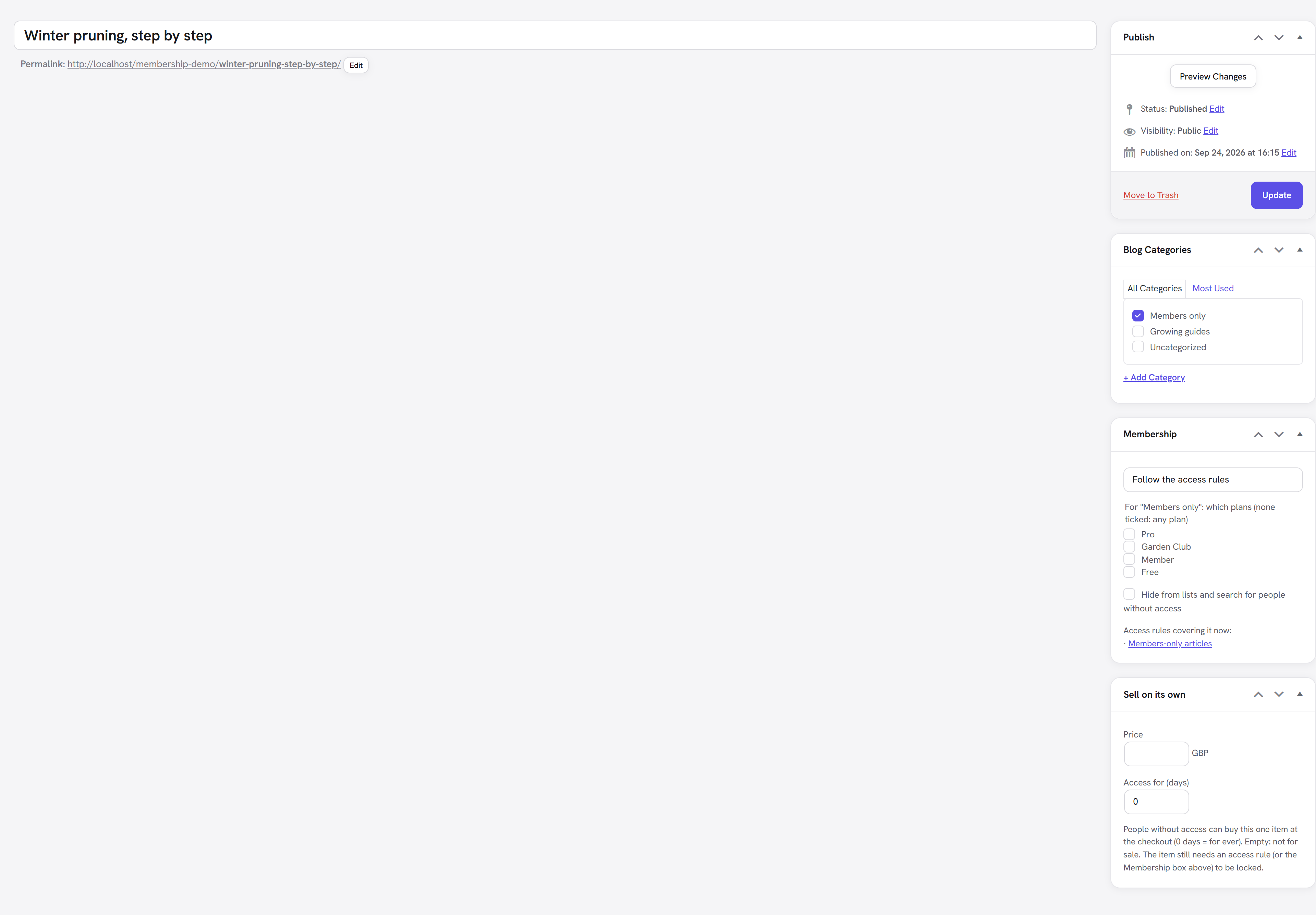
| Field | What it does |
|---|---|
| Access (menu) | Follow the access rules (the default: whatever your rules say), Members only (locks this page on its own, whatever the rules say), or Open to everyone (no rule applies to this page at all). |
| For "Members only": which plans (none ticked: any plan) | The plans that may see it when you chose Members only. |
| Hide from lists and search for people without access | Leaves the page out of lists, archives and search for people without access, and out of the XML sitemap. |
| the note below | Lists the access rules covering the page now, each a link to the rule, or says "No access rule covers it now." |
A page set to Members only shows a 55-word teaser and the prompt to people without access.
With the Payments module on, a second box, Sell on its own, lets you sell this one item without a plan (see Pay-per-item).
Show or hide part of a page
Sometimes the page is public but part of it is for members: a download button, a "Join us" banner that members should not see, a members' discount code.
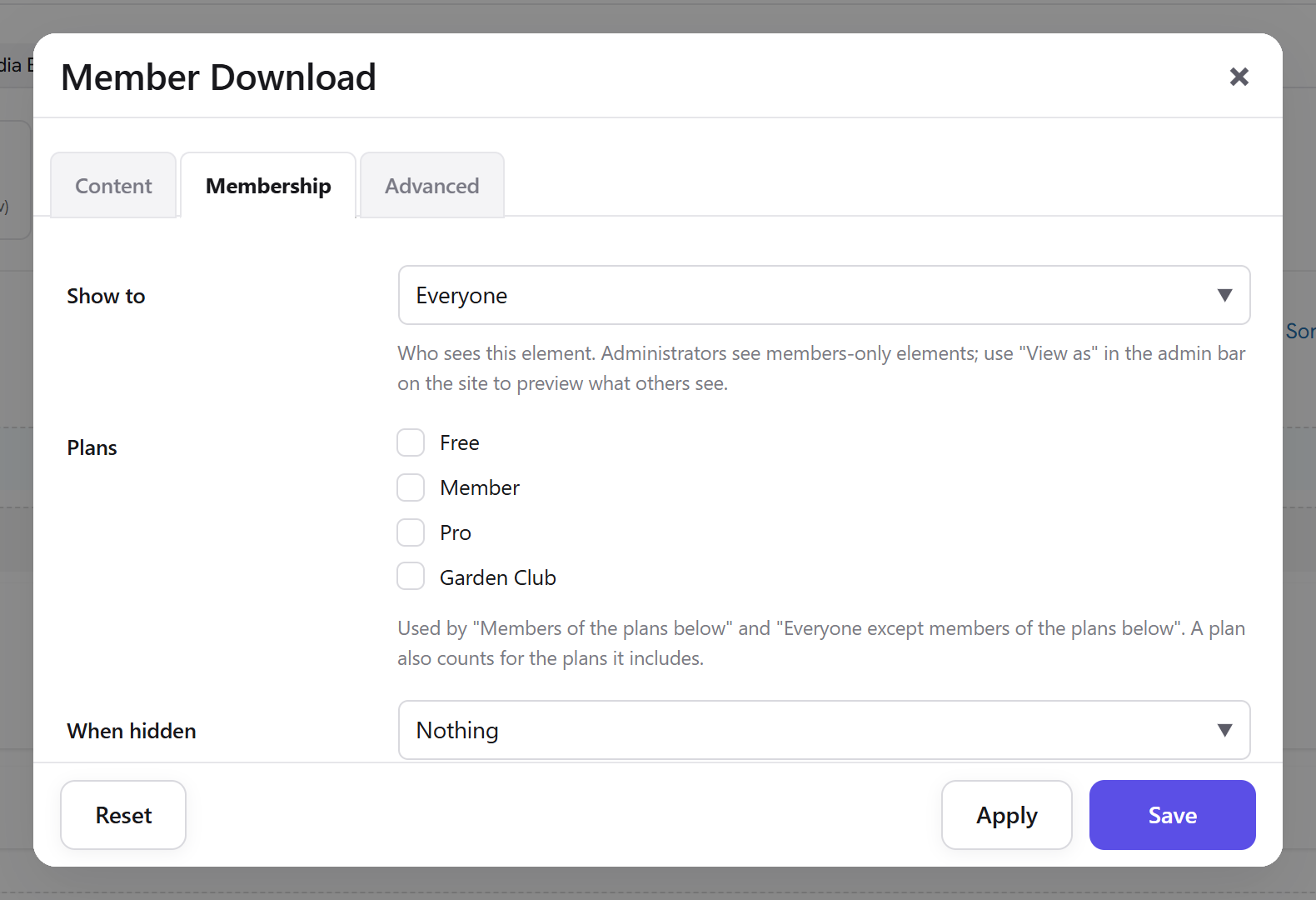
In the page builder. Every element with an Advanced tab also gets a Membership tab:
| Field | What it does | Default |
|---|---|---|
| Show to | Who sees the element: Everyone, Members (any plan), People without a plan, Members of the plans below, Everyone except members of the plans below, Logged-in people, Logged-out visitors. | Everyone |
| Plans | The plans used by the two "plans below" choices. A plan also counts for the plans it includes. | none |
| When hidden | What people who may not see it get in its place: Nothing, or The members prompt (log in, or the plans that unlock it). The prompt only appears for members-only choices. | Nothing |
Example: a "Join the club" banner set to People without a plan, and a "Download the planting calendar" button set to Members of the plans below with Member ticked and When hidden set to the members prompt.
In the block editor. Blocks (other than the Unyson+ blocks) get the same choices in a Membership panel in the block sidebar, and a restricted block shows a dashed outline in the editor.
In text outside the builder (classic editor, widgets), use the shortcode:
[member_content plans="member"]Members see this.[/member_content]. Add prompt="yes" to show the members prompt
to others, or else="Join to see this." for your own text. show="non_members" shows it only to people without
a plan.
Hiding an element hides it from the page, but it is not the same as locking the page: a members-only element on a public page is hidden from view, while the page and its other content stay public.
Show or hide menu items
In Appearance → Menus, open a menu item: a Show to (Membership) setting has the same choices as elements (Everyone, Members (any plan), People without a plan, and so on), with plan boxes underneath. Hiding an item also hides the items nested under it.
<img src="/img/membership/menu-visibility.png" alt="A "Member resources" menu item in Appearance, Menus with Show to (Membership) set to Members of the plans below and the Member plan ticked" width="1600" />
Typical setup: My account and Members area for Members (any plan); Join and Log in for Logged-out visitors or People without a plan.
The Paywall Prompt element
The Paywall Prompt element (page builder, Membership tab) is the same "this is for members" box, placed and worded by you. Use it on a landing page, or together with element visibility: set it to People without a plan next to a members-only section.
| Field | What it does | Default |
|---|---|---|
| Title | The heading. Leave empty for the automatic wording. | empty |
| Message | The text. Leave empty for the automatic wording. | empty |
| List the plans | Name the plans that would unlock the content. | Yes |
| Log-in link | Show a Log in button to logged-out visitors; they come back to this page afterwards. | Yes |
| Button text | Your own button, for example "See the plans". Shown when it has both text and a link. | empty |
| Button link | Where your button goes, such as your pricing page. | empty |
Your own Button text and Button link win. Leave both empty and the element shows the automatic Join / See the plans button described above, which goes to your Join page (or the one plan's checkout).
Test it with "View as"
Administrators, Membership managers and anyone who may edit a page always see it, so a protected page looks open to you. That is deliberate. To see what others see:
- Open the page on your site while logged in (View as is in the admin bar on the front end, and appears once you have at least one open plan).
- In the admin bar, open View as and pick:
- A logged-out visitor
- A logged-in user without a plan
- A member of each plan, such as A member of Member
- The page reloads as that person would see it, and the admin bar shows Viewing as: … in yellow. Rules, element visibility and menu items all follow the preview.
- Choose You (you see everything) to stop previewing.
For a final check, open a private browser window (logged out), and log in there with a test member account.
Troubleshooting
"I protected a page but I can still see it." You are logged in as an administrator, who always sees everything. Use View as → A logged-out visitor, or a private window.
"Members can't see a page they should." Check the page's Membership box: it lists every rule that covers the page. Every rule must be passed, so a second rule (perhaps a site-wide one) may ask for another plan. Use View as → A member of their plan to confirm, and look at the member's page to check that their membership has access (Active, Trial, Past due or Cancelled with time left).
"Free members can see paid content." The rule has nothing ticked under Who can see it, which means members of any plan, Free included. Tick the paid plans.
"Visitors are sent to the login screen instead of seeing the teaser." On pages that are not one item (an archive, a URL rule, the entire site), the prompt choice sends logged-out visitors to log in, because there is no single item to tease. Use rules on items (a post type, a category, pages) for teasers.
"My login or sign-up page is protected too." Add Except lines for them to your site-wide or URL rule.
"The page still shows to logged-out visitors after I protected it." A caching plugin or your host may be serving a saved copy. Membership tells caches not to keep protected pages, but a copy saved before you protected it can linger: clear the cache.
"A protected post still appears in the blog list." That is the default, so non-members can see what they would get: the list shows the teaser, not the content. Tick Also hide it from lists, archives and search for people without access to remove it.
Next steps
- Plans: the plans your rules let in.
- Members: check a member's memberships and history.
- Content tools: drip content, the metered paywall, protected downloads and courses.
- Back to Getting started or the Membership overview.