The Home screen
Home is the first screen you see when you open Unyson+ → Membership. It answers the questions you would ask every morning: how many members have access, who joined or left lately, who is about to run out, and whether the site's background jobs are running on time.
On a brand-new site: the first steps
Until you have at least one plan and at least one membership, Home shows Set up your membership site with three steps instead of numbers, under the line "Three steps get you started. Then protect content with Access rules, and switch on Payments in Modules to sell plans.":
- Create a plan, with a New plan button. The step is ticked once a plan exists.
- Add your first member, with an Add a member button: give someone a plan by hand to see what a membership looks like.
- Choose your modules, with an Open Modules button (see Modules).
As soon as the first membership exists, Home switches to the cards below. If you are following Getting started, the quickest way past this screen is to add yourself (or a test address) as a member.
The status line
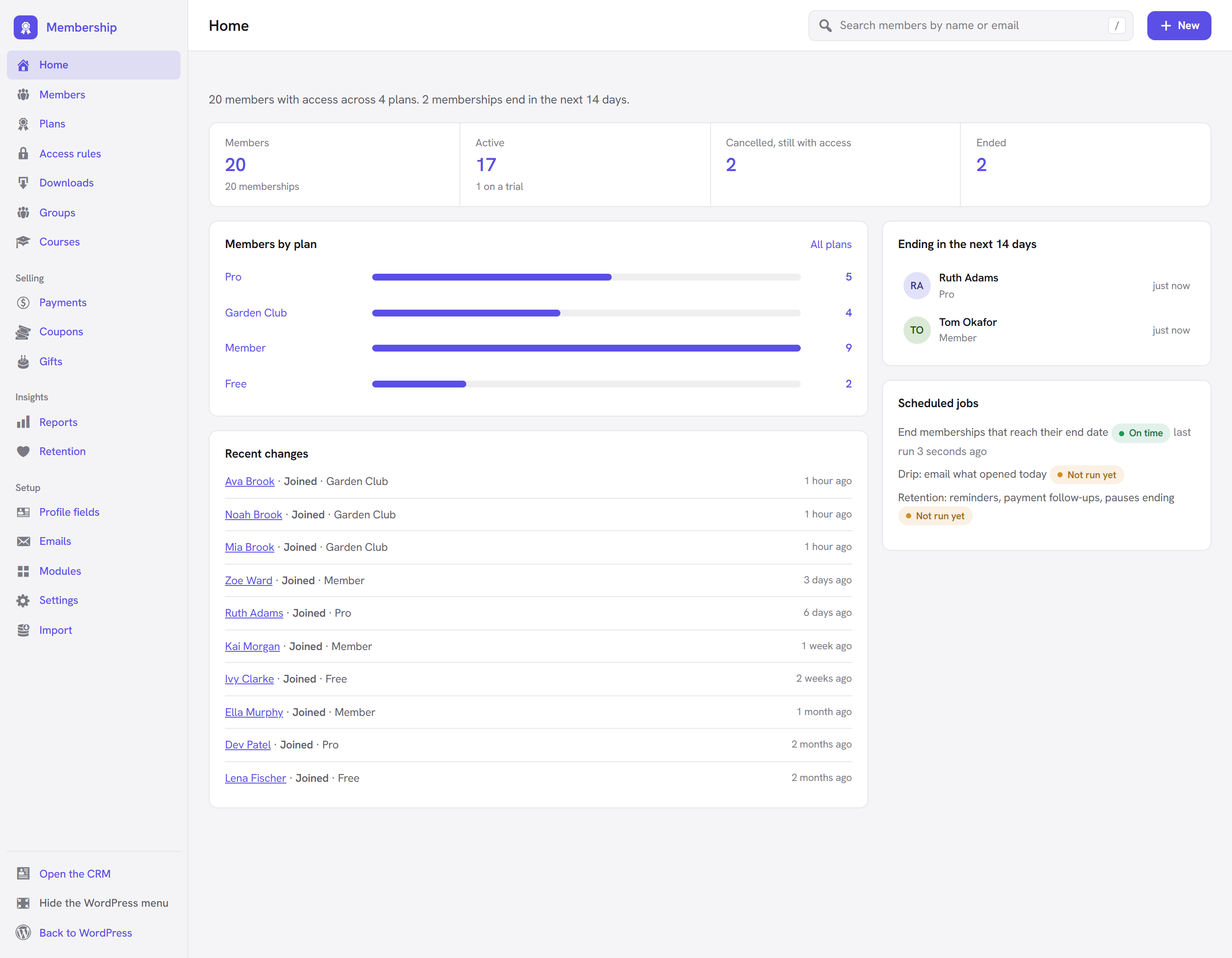
The sentence at the top sums things up, for example: "12 members with access across 3 plans. 2 memberships end in the next 14 days." The second sentence appears only when something ends soon.
The four count cards
Each card is a link: click it to open the Members list already filtered.
| Card | What it counts | Opens |
|---|---|---|
| Members | People who can see members-only content right now: their membership is active, on a trial, past due or cancelled but not yet over. One person with two plans counts once. The note under the number ("15 memberships") counts memberships instead of people. | Members, With access |
| Active | Memberships that are active or on a trial. The note shows how many are trials ("3 on a trial"). | Members, Active |
| Cancelled, still with access | Memberships someone cancelled that keep access until their end date. These are the people you can still win back. | Members, Cancelled |
| Ended | Memberships that expired or were refunded. | Members, Expired |
Paused and pending memberships are not in these cards; find them through the status tabs on the Members list.
Members by plan
A bar for each plan with the number of memberships with access on it. Click a bar to see those members. All plans opens the Plans list.
Example: Larkspur Garden Club might show Free 140, Member 38, Pro 9, Garden Club 4. A plan with no members shows an empty bar, so you can spot a plan nobody has joined.
Recent changes
The ten latest events across all members, newest first: the member's name (a link to their page), what happened, the plan, and how long ago. The events you will see:
| Event | Means |
|---|---|
| Signed up, waiting to start | They signed up but have not confirmed their email, are waiting for your approval, or have not finished paying. |
| Joined | A membership started. |
| Trial started | A membership started with a free trial. |
| Extended | The end date moved later (a renewal, or Extend on the member's page). |
| Payment failed / Payment recovered | A renewal payment failed, or a failed one went through later. |
| Plan changed | The membership moved to another plan. |
| Paused / Resumed | The member paused their membership, or it started again (Retention module). |
| Cancelled | Cancelled; access usually continues to the end date. |
| Reactivated | A cancelled or ended membership was made active again. |
| Ended | Access stopped. |
| Refunded | The payment was refunded. |
"Nothing yet." means no events have been recorded.
Ending in the next 14 days
Up to eight memberships with access whose end date falls in the next two weeks, soonest first, with the plan and when it ends ("in 3 days"). Memberships that renew automatically through a payment service show here too until they renew, because their current period ends. "No memberships end in the next two weeks." when there are none.
Use it for a personal reminder to people on a fixed-length plan, or to check that renewals are coming through.
Scheduled jobs
Membership relies on WordPress's scheduler (WP-Cron) for work that happens on its own. This card lists each job, its state and when it last ran:
| Job | Runs | Listed when |
|---|---|---|
| End memberships that reach their end date | every hour | always |
| Drip: email what opened today | once a day | the Drip content module is on |
| Retention: reminders, payment follow-ups, pauses ending | once a day | the Retention module is on |
The state of each job:
- On time: it is scheduled and running.
- Not run yet: it is scheduled but has not run since the module was switched on. Normal on a new site.
- Late: it should have run a while ago.
- Not scheduled: WordPress has no next run for it.
WordPress runs these jobs when someone visits the site, so on a quiet site, or when the host has switched
WP-Cron off (DISABLE_WP_CRON), they can run late. A late membership end means someone keeps access for a
few extra hours. When a job is late or off, the card shows a ready-made line to add to your server's
scheduler (cron), which calls wp-cron.php every five minutes; click it to select it, then paste it into your
host's cron settings or send it to your host. With WP-CLI on the server you can also run
wp cron event run --due-now. More in Scheduled jobs and WP-CLI.
The same check appears in WordPress under Tools → Site Health as Membership scheduled jobs.
Search and the New menu
Two things in the top bar are there on every Membership screen:
- Search members by name or email. Type and press Enter to open the Members list with that search. Press / anywhere in the app to jump to the box.
- New opens a short menu:
- Add a member opens the Add a member form.
- Plan opens a blank plan.
- Access rule opens a blank access rule.
Good to know
- The numbers are live. Home reads the memberships each time it loads; there is nothing to refresh or rebuild.
- Revenue is not on Home. Money figures (monthly recurring revenue, churn, lifetime value) are on the Reports screen, which needs the Reports module. See Reports.
- People who only manage Membership (not full administrators) get Membership as a top-level item in the WordPress menu, because the Unyson+ menu is for administrators.
Next steps
- Plans: set up what people join.
- Members: find, add and manage members.
- Access rules: protect your content.
- Back to Getting started or the Membership overview.