Members
A member is a WordPress user who holds at least one plan. Each plan they hold is a membership, with its own status, start date, end date and history. Someone who holds Free and Member has two memberships.
Everything about members is under Unyson+ → Membership → Members: the list, each member's own page, and the form to add someone by hand. Every change you make here is written to the member's history with your name, and the right emails and connected services (the payment service, the CRM) are told about it.
The members list
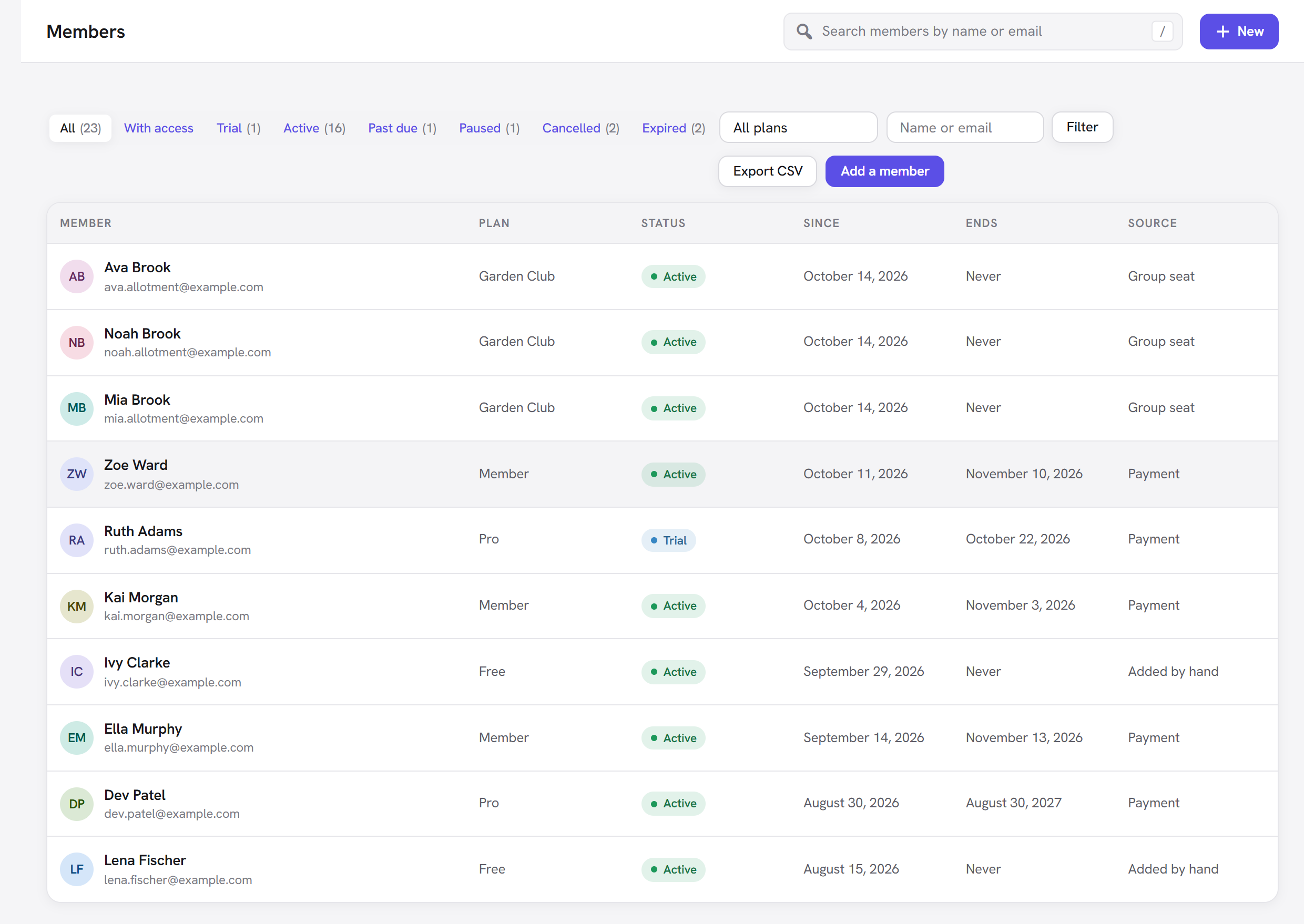
The list has one row per membership, so a person with two plans appears twice.
Status tabs across the top:
- All: every membership, with the total count.
- With access: memberships that can see members-only content right now (active, on a trial, past due, and cancelled but not yet over). This is the tab to use for "who are my members".
- One tab per status that has at least one membership, with its count: Pending, Trial, Active, Past due, Paused, Cancelled, Expired, Refunded. A status nobody is in has no tab.
Filters next to the buttons:
- All plans (a menu): show one plan only.
- Name or email: search by name or email address.
- Click Filter to apply. The status tab you were on is kept.
The search box in the top bar does the same search from any Membership screen (press / to jump to it).
Columns:
| Column | Shows |
|---|---|
| Member | Name and email. Click to open their page. |
| Plan | The plan of this membership. |
| Status | The status, as a coloured pill (see Membership statuses). |
| Since | When the membership started. |
| Ends | When it ends, or Never. |
| Source | How it came about: Added by hand, Sign-up (a sign-up form), Payment (the checkout), Store order (WooCommerce), Group seat (a team plan), Gift, Import or CRM automation. |
Before anyone has joined, the list says "Add someone by hand to try your plans out. People also join through a sign-up form, or the checkout when Payments is on."
The list shows 25 rows a page, with page links at the bottom. Two buttons sit on the right: Export CSV (see Export members to CSV) and Add a member.
Add a member
Use this to give someone a plan yourself: a friend of the club, someone who paid by bank transfer before you set up payments, a member moving over from another system, or yourself for testing.
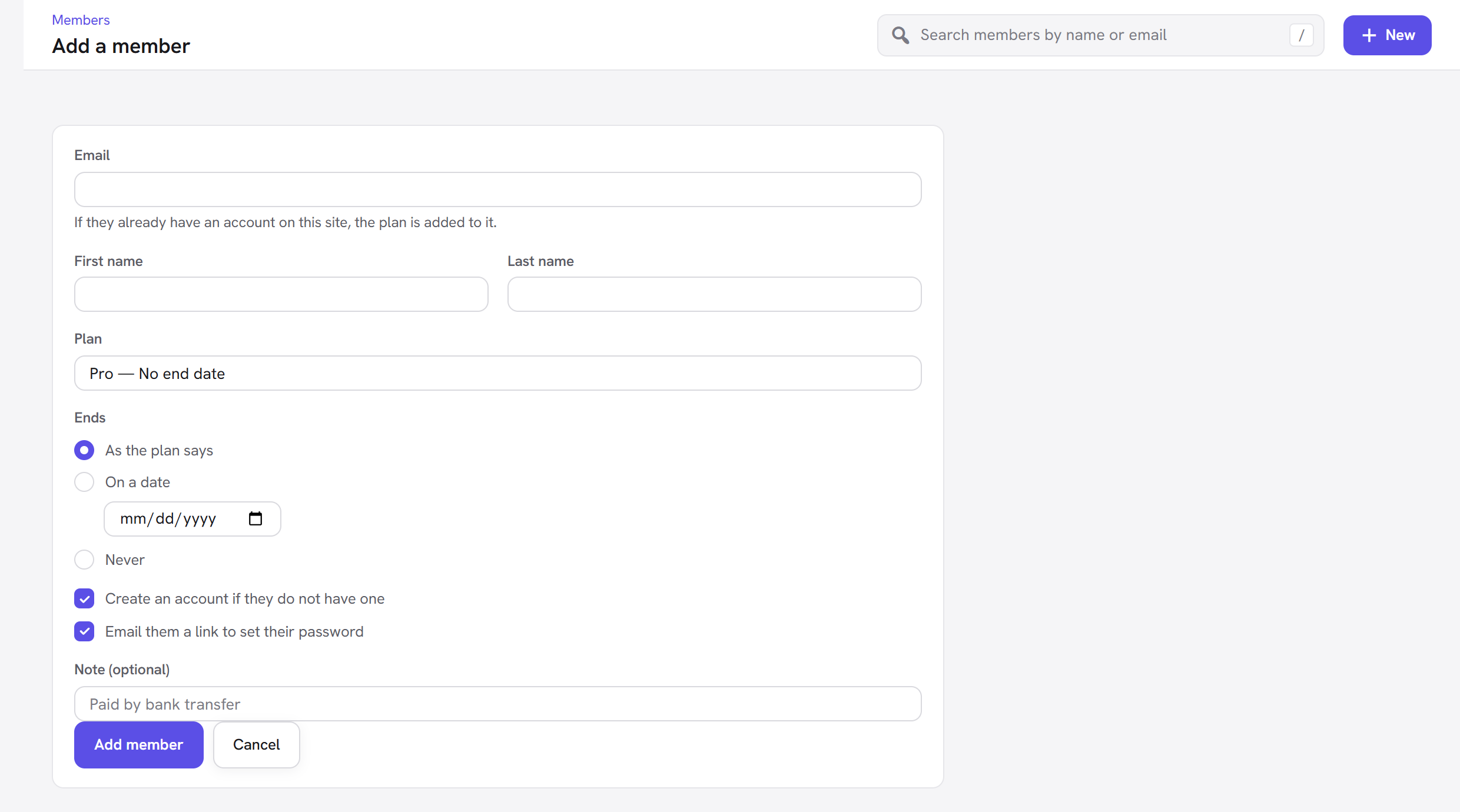
- Click Add a member (on the list, or New → Add a member in the top bar).
- Enter their Email. If someone with that email already has an account on your site, the plan is added to that account.
- Add a First name and Last name (used only when a new account is made).
- Choose the Plan. Each choice shows the plan's length, such as "Member — No end date".
- Under Ends, choose As the plan says, On a date (and pick it), or Never.
- Leave both boxes ticked unless you have a reason not to:
- Create an account if they do not have one
- Email them a link to set their password
- Add a Note (optional), such as "Paid by bank transfer". It appears in the member's history.
- Click Add member. You land on their member page.
| Field | What it does | Default |
|---|---|---|
| Finds the person's account, or the address for a new one. Required. | empty | |
| First name, Last name | Name for a new account (its display name becomes "First Last"). An existing account keeps its name. | empty |
| Plan | The plan to give. Only plans open to new members are listed. | the first plan |
| Ends | As the plan says (the plan's own length), On a date, or Never. | As the plan says |
| Create an account if they do not have one | Makes a WordPress account with your site's default role (usually Subscriber), a username made from the email address and a random password. Untick it to add plans only to people who already have an account. | on |
| Email them a link to set their password | Sends WordPress's own new-account email with a link to choose a password. | on |
| Note (optional) | A note saved with the history entry. | empty |
Good to know about adding by hand:
- No welcome email is sent for a membership you add by hand; the set-password email above is the only one.
- Hand-added members do not count against a plan's Member limit.
- One of each plan per person. If they already hold that plan, you see "This person already holds that plan. Extend it instead."
- To add many people at once, use the Importers module (Import in the sidebar). See Import and export.
A member's page
Click a name anywhere in Membership to open the member's page.
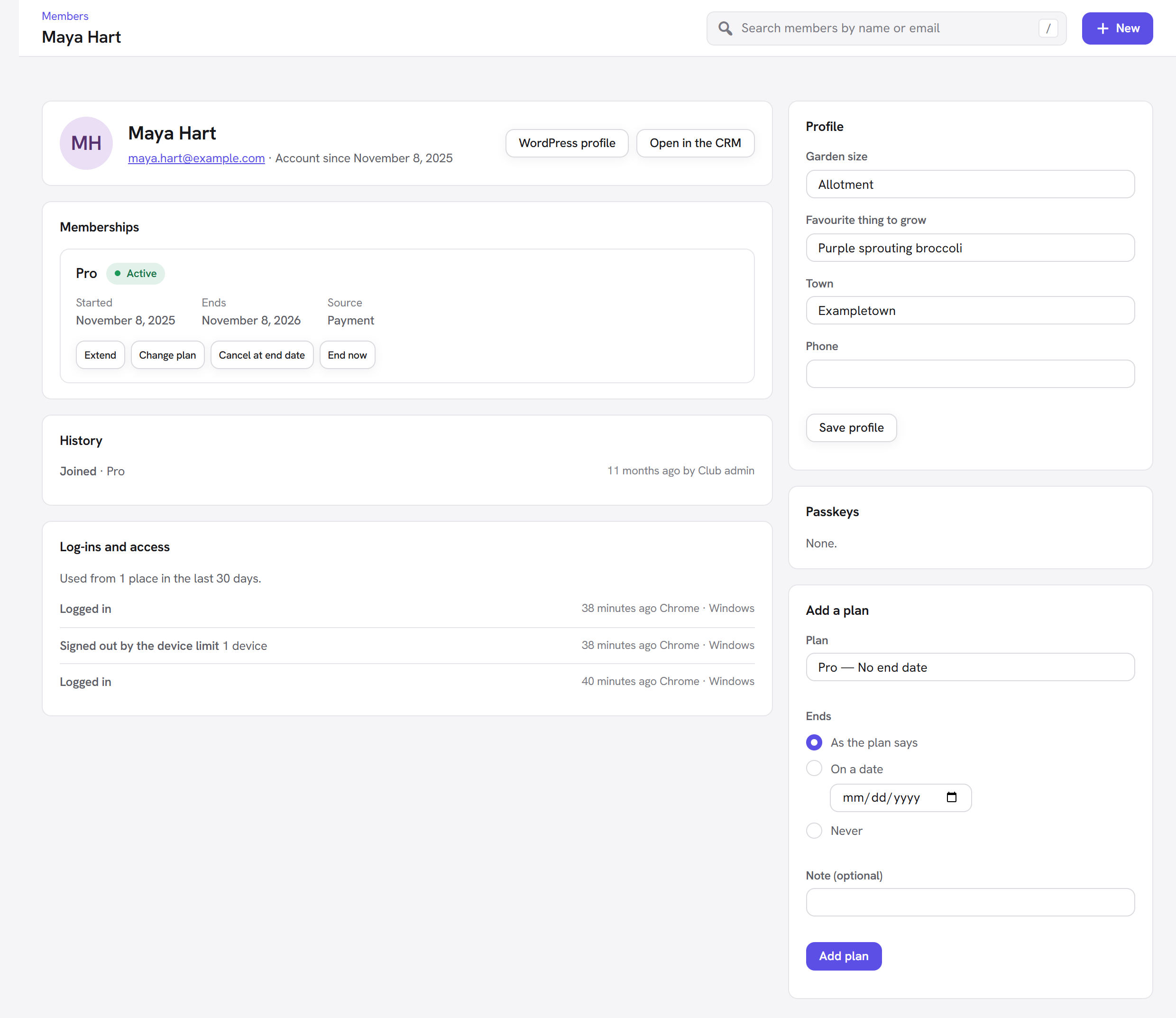
At the top: their name, email (a mail link) and "Account since" date, with buttons for their WordPress profile and, when the CRM is active, Open in the CRM.
Waiting for confirmation or approval. If the person signed up through a form that asks them to confirm their email, or that waits for your approval, a panel says so above their memberships:
- Waiting for email confirmation: they have not clicked the link yet; they cannot log in and their membership has not started. Buttons: Resend the confirmation email (the old link stops working) and Mark as confirmed (when you know the address is theirs).
- Waiting for your approval: their membership starts as soon as you click Approve.
Memberships
One card per membership, with the plan, its status, and Started, Ends (Access until for a cancelled one) and Source. Underneath are the actions that make sense for its status:
| Action | Shown for | What it does |
|---|---|---|
| Extend | every membership | Opens a small form: By the plan's own length, Until a date, or Never. The extra time is added from the current end date if that is still ahead, otherwise from today. Extending a cancelled, expired or refunded membership also makes it active again. |
| Change plan | every membership, when there is another open plan | Moves this membership to another plan, keeping its dates. It does not change what a payment service charges; for a paid subscription, let the member switch from their account page (set Members can switch to on the plan). |
| Cancel at end date | active, trial and past-due memberships that have an end date | Cancels, but access continues until the end date. A subscription at the payment service is cancelled at the end of its period. |
| End now | every membership with access | Ends it at once, after a confirmation: access stops immediately and a running subscription is cancelled at the payment service. |
| Reactivate | cancelled, expired and refunded memberships | Makes it active again. If its end date has passed, a new one is set from today by the plan's length. A cancelled subscription is resumed at the payment service where possible. |
A membership with no end date (until cancelled) has no Cancel at end date: use End now, or Extend → Until a date to give it a last day.
Refunds are made from the payment itself, on the Payments screen (Payments module): Refund for a card or PayPal payment, Mark refunded for a bank transfer. A refunded first payment ends the membership. Pausing is done by the member from their account page when the Retention module allows pauses; a paused membership shows here with the Paused status. See Payments and Retention.
History
The 30 latest events for this person, newest first: what happened (Joined, Extended, Plan changed, Cancelled, Ended…), on which plan, any note, how long ago, and who did it ("by" a name, or automatically when the system did it, such as an end date passing or a renewal from the payment service).
The side panels
- Profile: the member's profile fields (when you have created some), editable here, with Save profile.
- Passkeys (Account security module): how many passkeys the member has registered.
- Add a plan: give this member another plan, with Plan, Ends (As the plan says, On a date, Never), Note (optional) and Add plan.
With the Account security module on, a Log-ins and access panel in the main column lists their recent log-ins (with password, email link or passkey), wrong passwords, pages they were turned away from, plan changes and devices signed out by the device limit, and says from how many places the account was used in the last 30 days. More than three places is flagged: the account may be shared.
Membership statuses
| Status (pill) | Has access? | Means | How it gets there |
|---|---|---|---|
| Pending | no | Signed up but not started yet. | The person has not confirmed their email, is waiting for your approval, or started a checkout and has not paid yet. |
| Trial | yes | In a free trial; the first charge comes at the end of it. | A price with Trial days. |
| Active | yes | A normal, running membership. | Joined, paid, renewed, added by hand, reactivated. |
| Past due | yes | A renewal payment failed and the payment service is retrying. Access continues meanwhile. | A failed renewal. It becomes Active again when a retry succeeds, or ends if the service gives up. |
| Paused | no | Paused by the member for a while (Retention module); it resumes on its own. | The member chose a pause on their account page. |
| Cancelled | yes, until the end date | Will not renew. Access lasts to Access until, then it becomes Expired. | Cancelled by the member, by you (Cancel at end date), or at the payment service. |
| Expired | no | Over: the end date passed or it was ended. | An end date passing, End now, a subscription ending at the payment service. |
| Refunded | no | The payment was refunded and access stopped. | A refund on the Payments screen or at the payment service. |
Ended memberships are never deleted: they stay in the list and the history, so a returning member's past is still there, and Reactivate brings one back.
Export members to CSV
Export CSV on the members list downloads the memberships as a spreadsheet file
named after today's date, for example members-2026-10-14.csv.
- Narrow the list first if you want: a status tab, a plan, a search. The filters apply to the export. For "everyone who currently has access to Member", choose With access, pick Member and click Filter.
- Click Export CSV. The file downloads straight away.
The file has one row per membership. The first columns are exactly the ones the Importers module reads, so a file exported from one site imports into another unchanged:
| Column | Holds |
|---|---|
email, first_name, last_name | The member's account details. |
plan | The plan's slug. |
status | pending, trialing, active, past_due, paused, cancelled, expired or refunded. |
started_at, ends_at, renews_at | Dates (site time). |
gateway, subscription_id, customer_id | The payment service, its subscription id and customer id, for paid memberships. |
Then a few columns for reading: membership_id, user_id, display_name, plan_name, source,
trial_ends_at, cancelled_at, created_at.
- The file opens cleanly in Excel and other spreadsheet programs, accented names included.
- A cell that starts with
=,+,-or@gets an apostrophe in front, so a spreadsheet does not run it as a formula. - Importing an export back into the same site skips every row, because those memberships are already there.
- With WP-CLI you can export from the command line with
wp membership export. See Scheduled jobs and WP-CLI.
Good to know
- Members are ordinary WordPress users. Deleting a user in Users removes them from Membership too; their paid payments stay on record. To remove someone's access but keep the account, use End now.
- Administrators do not need a plan. You see all content anyway. To check what a member sees, use View as in the admin bar (see Access rules).
- Changes reach the payment service. Cancelling, ending and reactivating here are passed on to Stripe or PayPal, so the member is not charged for a membership you ended.
Next steps
- Plans: the plans you give members.
- Access rules: what each plan opens.
- Sign-up forms and the login and account pages: let people join and manage their membership themselves.
- Back to Getting started.