Groups and teams
A team membership lets one person pay for several people. A company buys ten seats for its staff, a family buys a household membership, a school buys access for a class. The buyer becomes the team owner, and invites the others from their own account page. You do not have to add anyone by hand.
Each person who joins gets the same plan as the owner, with their own login, their own progress and their own account. Their access follows the owner's: when the owner renews, everyone is renewed; when the owner's membership ends, everyone's ends.
The example on this page is the Larkspur Garden Club's team plan Garden Club, sold to community gardens with 5 seats.
Before you start: switch the module on
Groups and teams is a module and is off by default.
- Go to Unyson+ → Membership → Modules.
- Switch on Groups and teams ("One buyer pays for several seats and invites people by email, link or email domain.").
- Click Save modules.
A Groups item appears in the Membership sidebar, and plans get a Team seats field.
Step 1: make a team plan
A team plan is an ordinary plan with a number of seats.
- Go to Unyson+ → Membership → Plans and click New plan (or open an existing plan). Every plan field is explained in Plans.
- Give it a name ("Garden Club") and its prices, as for any plan.
- In the Options panel, set Team seats to
5. - Click Create plan (or Save plan).
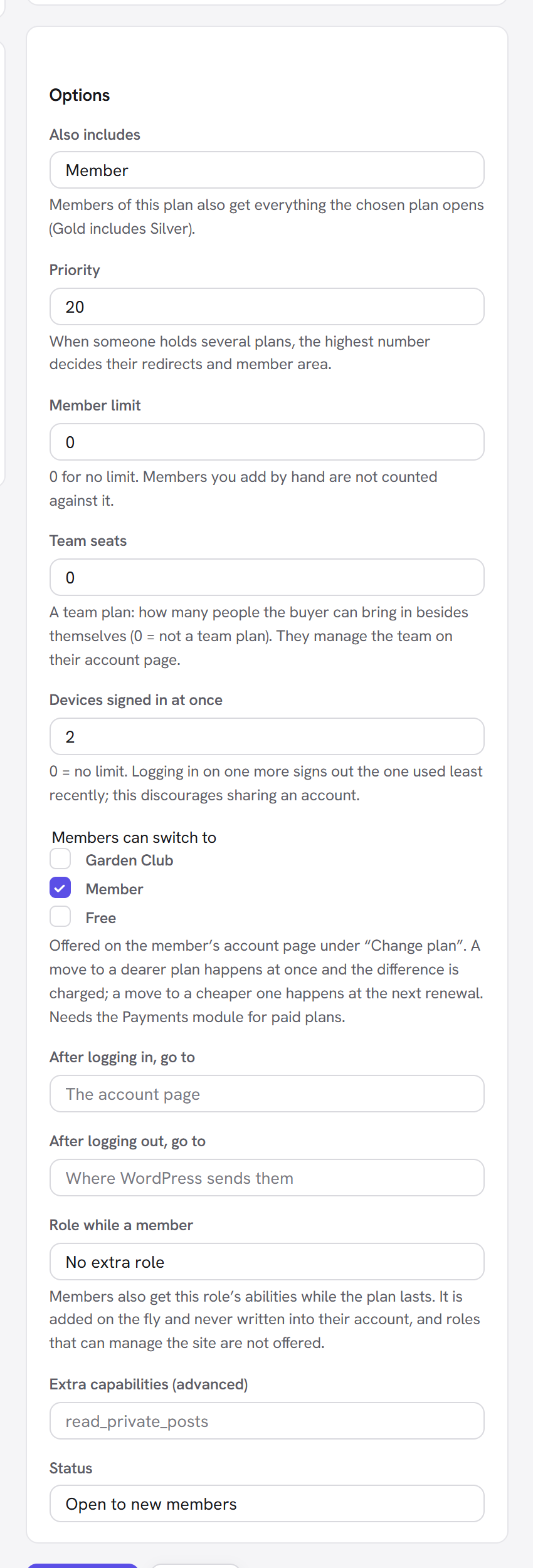
Team seats is the number of people the buyer can bring in besides themselves. So a plan with 5 seats covers 6 people: the owner and five others.
Sell the plan like any other: in your pricing table, at the checkout, or by giving it to someone by hand.
Step 2: the buyer becomes the team owner
As soon as someone gets a team plan (they join, start a trial, or switch to it), a team is created for them, named after them ("Ana's team"). Their account page gains a team section.
Step 3: the owner invites people
The owner manages the team from their account page. The section is headed Your team: 2 of 5 seats used, and offers three ways to fill the seats.
<img src="/img/membership/front-team.png" alt="The team section on the owner's account page: "Your team: 5 of 10 seats used", three members with Remove and two invitations with Withdraw, the Invite by email box with Send invitations, the join link to share, and the email domain field with Save" width="680" />
By email
- In Invite by email (separate several with commas), the owner types one or more addresses, for example
[email protected], [email protected]. - They click Send invitations.
Each person gets the Team invitation email with a personal link. A waiting invitation holds a seat, so the owner cannot invite more people than there are seats. The owner sees "Invitations sent.", or "Nobody was invited: check the addresses, and that there are free seats." when no address could be used (not a valid address, already invited, or no seats left).
By a join link
Under the invite form: "Or share this link (anyone who has it can take a free seat):" and a link to copy. The owner can post it in a group chat or a newsletter. Anyone who opens it can take a free seat until the seats run out.
By email domain
For an organisation where everyone has an address at the same domain:
- In Let everyone with an email at this domain join when they log in, the owner types the domain, for
example
example.com(no@). - They click Save.
From then on, anyone with an address at that domain who logs in to your site is added to the team
automatically, as long as there is a free seat. Public email services cannot be used here: gmail.com,
outlook.com, hotmail.com, yahoo.com and icloud.com are refused with "Use your organisation's own
domain, not a public email service." Leave the field empty and save to stop joining by domain.
What the invited person sees
The invitation link and the join link both open your account page, showing:
- Join and the team's name;
- "(Owner) invites you to their (plan) team membership.";
- for someone not logged in: "Already have an account? Log in first", then First name, Email and Choose a password (at least 8 characters), to create an account on the spot;
- a Join the team button.
After joining: "Welcome to the team! Your membership has started." They now hold the team's plan and get the usual welcome email for it.
Things that can stop someone joining, with the message they see:
| Situation | Message |
|---|---|
| The email is already registered | "An account with this email already exists. Please log in first." |
| No free seats left (join link or domain) | "This team has no free seats. Ask its owner for one." |
| They already hold the plan themselves | "You already have this plan yourself." |
| They are already in the team | "You are already in this team." |
| They own the team | "You own this team already." |
| The team has ended, or the invitation was withdrawn | "This invitation is no longer valid. Ask the team owner for a new one." |
Removing members and leaving
The owner sees everyone in the team section, each marked Member or Invited:
- Remove next to a member ends that person's access at once and frees the seat. The owner sees "Done. The seat is free again."
- Withdraw next to a waiting invitation cancels it and frees the seat. The invitation link stops working.
A team member cannot cancel the owner's subscription. On their account page, their membership shows Leave the team instead of the usual cancel link. It asks "Leave this team? Your access ends now and your seat goes back to the team." and then shows "You have left the team."
How seats follow the owner
Everyone in the team holds the same plan as the owner, ending on the same date:
| The owner's membership… | Every member's seat… |
|---|---|
| renews | is extended to the new end date |
| is paused | is paused, and resumes when the owner's resumes |
| is cancelled (runs to the end of the period) | is cancelled to the same end date |
| is reactivated | is reactivated |
| expires or is refunded | ends, and the team is marked Ended |
| switches to another team plan | moves to that plan; the team gets that plan's number of seats |
When seats run out
When every seat is taken (members plus waiting invitations):
- the invite form and the join link are hidden from the owner's team section;
- anyone who opens the join link sees "This team has no free seats. Ask its owner for one.";
- people at the team's domain who log in are not added.
To free a seat, the owner removes a member or withdraws an invitation. To give a team more seats, change them on the Groups screen (below), or have the owner move to a plan with more seats.
The Groups admin screen
Unyson+ → Membership → Groups lists every team.
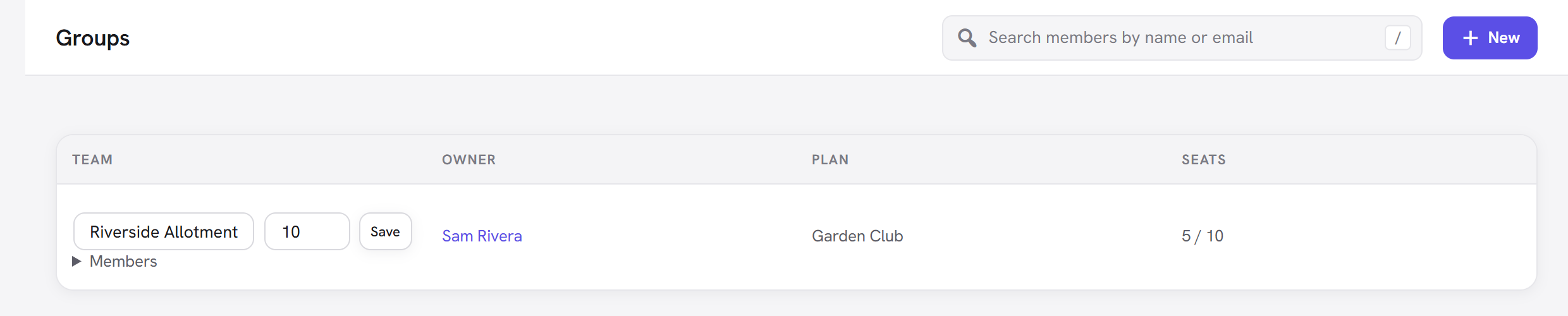
| Column | Shows |
|---|---|
| Team | The team name and number of seats, both editable, with a Save button. Ended when the owner's membership has ended. Members opens the list of people in the team (name, email, and "(invited)" for waiting invitations). |
| Owner | The team owner, linked to their member page. |
| Plan | The team's plan. |
| Seats | Seats used out of seats available, for example 3 / 5, and the joining domain if one is set. |
To rename a team or change its seats, edit the fields in the Team column and click Save ("Team saved."). The team name appears in the invitation email and on the join page.
With no teams yet, the screen reads "No teams yet" and explains: "Give a plan "Team seats" (Plans → a plan → Options). Whoever holds it becomes a team owner and invites people from their account page."
Every option explained
| Where | Field | What it does | Default |
|---|---|---|---|
| Plan editor → Options | Team seats | "A team plan: how many people the buyer can bring in besides themselves (0 = not a team plan). They manage the team on their account page." | 0 |
| Groups screen | Team name | The team's name, shown in invitations and on the join page. | "(Owner's name)'s team" |
| Groups screen | Seats | This team's number of seats. Overrides the plan's number for this one team. | The plan's Team seats at the time the team was created |
| Owner's account page | Invite by email (separate several with commas) | Sends invitations; each holds a seat until answered. | — |
| Owner's account page | Let everyone with an email at this domain join when they log in | Automatic joining by email domain. | Empty (off) |
The team invitation email
Team invitation in Unyson+ → Membership → Emails, sent "When a team owner invites someone by email." It goes to the invited address.
- Default subject:
{owner_name} invites you to {team_name} - Default body: "Hello,
{owner_name}has invited you to join their{plan}team membership at{site_name}. Accept here:" followed by{join_url}.
Good to know
I added Team seats to a plan people already hold. Do they get a team? Not straight away. A team is created when someone joins, starts a trial on, or switches to the plan. Existing holders get a team the next time one of those happens.
I lowered a team's seats below the number in use. Nobody is removed. The team simply cannot add anyone until enough seats are free.
Can the owner be in two teams? Yes. Someone who owns several team memberships sees one team section for each.
Does a team member pay anything? No. Their seat is covered by the owner's payment.
Who counts as the owner on the Members screen? The owner holds the plan normally; team members hold it as a team seat. Both appear under Unyson+ → Membership → Members, where the seat holders' Source reads Group seat (see Members).
Next steps
- Member directory: let members find each other.
- Membership cards: a card with a QR code for each member.
- Reports: see how your team plans are doing.
- Back to the Membership overview.