Member directory
A member directory is a page where members can find each other: a grid of members with their photo and a few details, a search box, filters, and a profile page for each person. It turns a list of subscribers into a community. Members of the Larkspur Garden Club, for example, can look up who else grows in their area or specialises in roses.
Privacy is built in. Nobody's email address is ever shown, members choose whether to be listed, and you decide, for every profile field, whether it is shown to nobody, to members, or to everyone.
Before you start: switch the module on
Member directory is a module and is off by default.
- Go to Unyson+ → Membership → Modules.
- Switch on Member directory ("A searchable directory and public profiles, with privacy for each field.").
- Click Save modules.
How to set up the directory
Step 1: choose who can browse it and who is listed
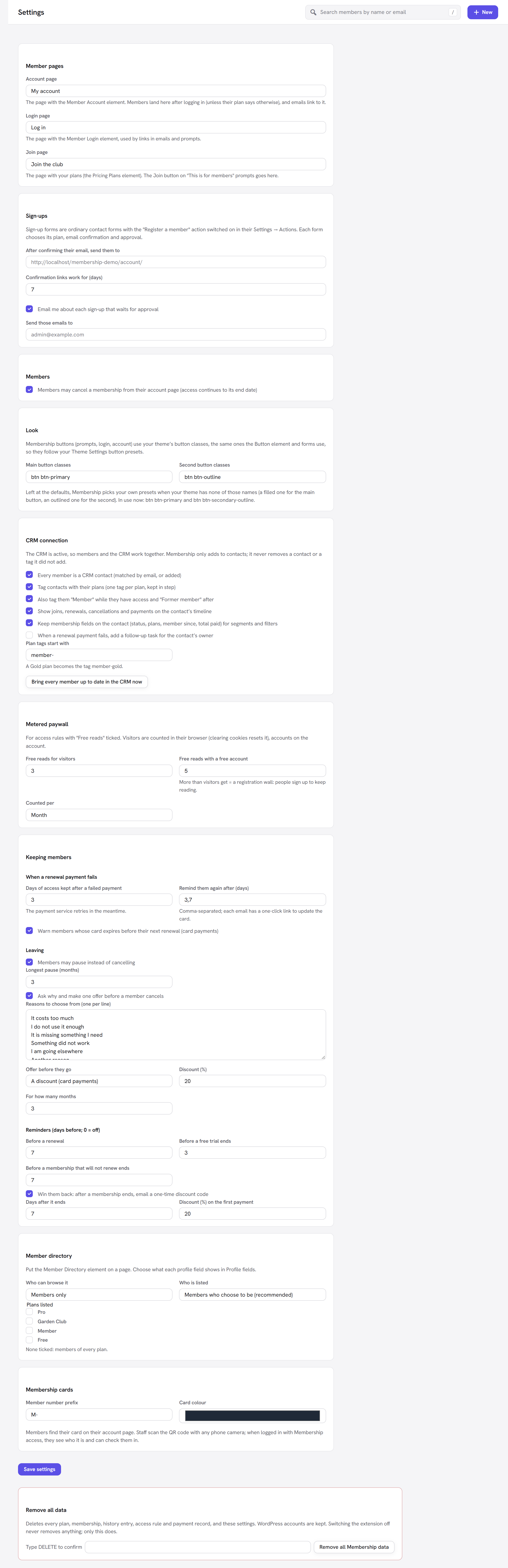
- Go to Unyson+ → Membership → Settings and find the Member directory panel (see Settings).
- Choose Who can browse it, Who is listed and, optionally, the Plans listed.
- Click Save settings.
Step 2: decide what each profile field shows
The directory shows details from your profile fields: the extra details you keep about members, such as "Town", "Favourite crop" or "Growing since".
- Go to Unyson+ → Membership → Profile fields (see Profile fields).
- For each field, set In the directory: to Not shown, Members or Everyone.
- Click Save profile fields.
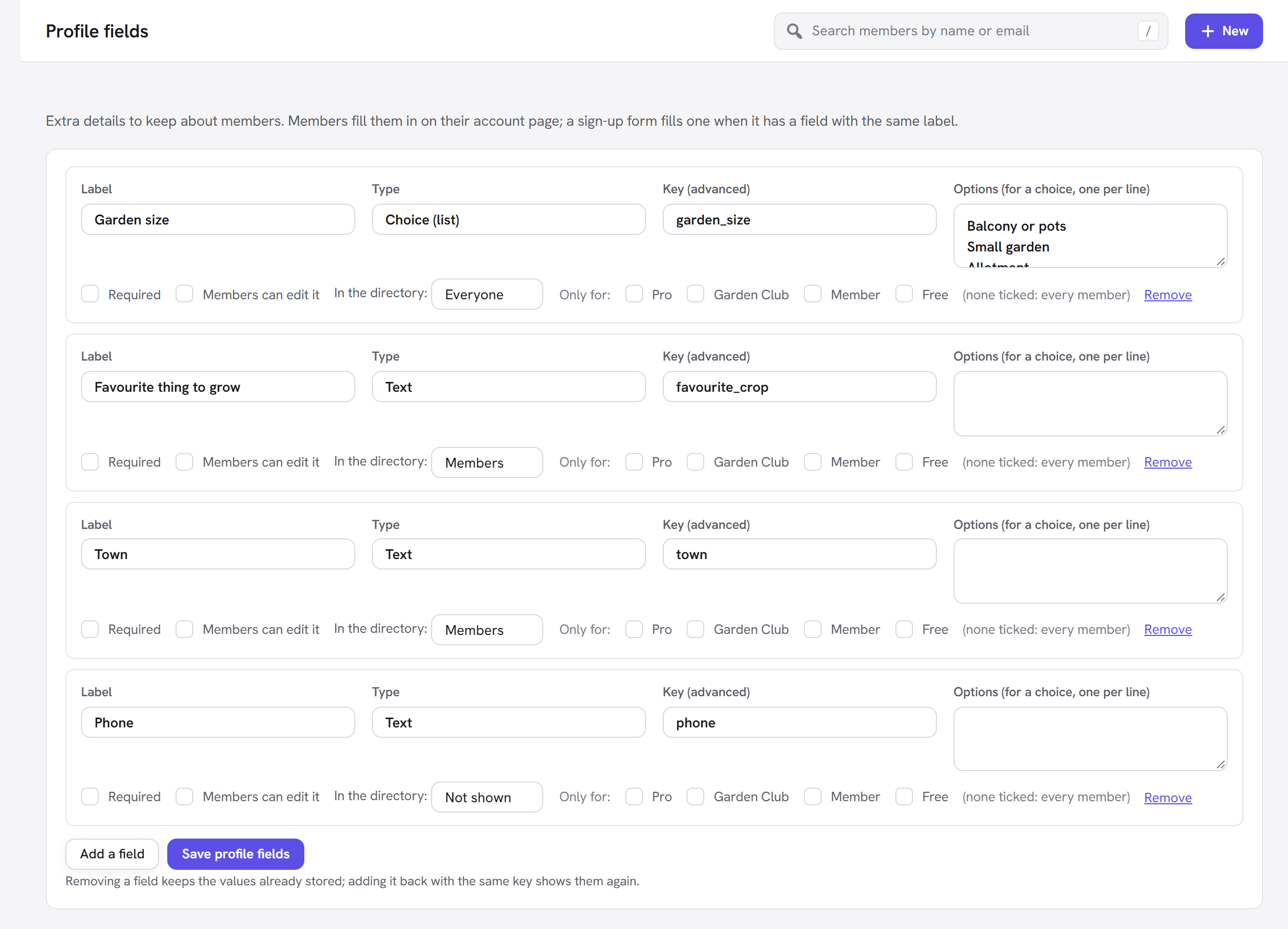
For the Garden Club: "Town" and "Favourite crop" are shown to Members, "Growing since" to Everyone, and "Phone" stays Not shown.
Step 3: put the directory on a page
- Create a page, for example "Members", and edit it with the page builder.
- Add the Member Directory element from the Membership tab of the elements list.
- Set its options (below) and save the page.
<img src="/img/membership/front-directory.png" alt="The member directory on the front end: a Search members box, an Any garden size filter and Search, "8 members", and a card for each member with their picture, name and two profile details" width="1440" />
Every option explained
Settings → Member directory
The panel note: "Put the Member Directory element on a page. Choose what each profile field shows in Profile fields."
| Field | Choices | What it does | Default |
|---|---|---|---|
| Who can browse it | Members only, Everyone | Who may see the directory page. With Members only, anyone without a plan sees "The member directory is for members" and "Log in, or join, to see who else is here." with the usual login and join prompt (its Join button goes to your Join page; see | |
| Access rules). | Members only | ||
| Who is listed | Members who choose to be (recommended), Every member, unless they opt out | Whether members must tick a box to appear (opt in), or appear unless they untick it (opt out). | Members who choose to be (recommended) |
| Plans listed | One tick box per plan | Only members of the ticked plans appear. "None ticked: members of every plan." | None ticked |
Opt in or opt out? Opt in is recommended, and in many countries privacy law expects it: people are only listed when they have said yes. Opt out fills the directory faster, but tell members clearly when they join.
Only people with a current membership are ever listed. When a membership ends, the person disappears from the directory.
Profile fields → In the directory
| Choice | Who sees the field in the directory |
|---|---|
| Not shown | Nobody (the default for every field). |
| Members | Visitors with a plan, and administrators. |
| Everyone | Anyone who can browse the directory. |
The name and profile picture (the WordPress avatar) are shown for everyone who is listed. Nothing else is shown unless a field says so. The email address is never shown.
The Member Directory element
| Option | What it does | Default |
|---|---|---|
| People per page | How many members are shown on each page of the grid (1 to 100). Page numbers appear below the grid when there are more. | 24 |
| Search box | Shows a search box. | Yes |
| Filters | "A filter for each choice field the visitor may see." A drop-down appears for every profile field of the type Choice (list) that the visitor is allowed to see. | Yes |
The Advanced tab holds the usual element settings shared by all Unyson+ elements.
What visitors see
- The grid: a count ("12 members"), then a card for each member: their picture, their name, and up to two of the profile details the visitor may see. Members are sorted by name. When nobody matches: "Nobody matches yet."
- Search: typing in Search members and clicking Search finds members by name and by the values of profile fields the visitor may see. Searching never looks inside hidden fields, so a member's private details cannot be found by guessing.
- Filters: each drop-down starts on "Any" followed by the field name (for example "Any favourite crop"). Only fields the visitor may see can be filtered on.
- Profiles: clicking a card opens that member's profile on the same page, with a larger picture, the name and every detail the visitor may see. ← All members goes back to the grid. A profile for someone who is not listed shows "This member is not in the directory."
How members choose to be listed
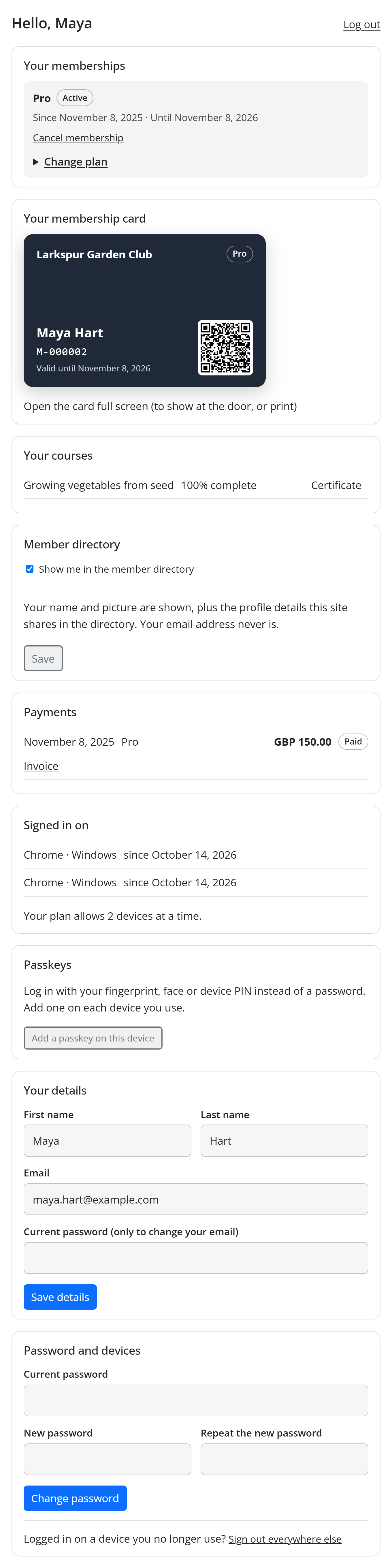
Every member with a plan has a Member directory section on their account page:
- Show me in the member directory (a tick box), with the note "Your name and picture are shown, plus the profile details this site shares in the directory. Your email address never is."
- A Save button. Afterwards: "Your directory choice is saved."
With Who is listed on opt in, the box starts unticked; on opt out, it starts ticked.
Members fill in their profile fields on the same account page (for the fields that have Members can edit it ticked), and change their picture through their avatar, like anywhere on WordPress.
Good to know
Profile URLs. A profile opens at the directory page's address with ?member= and the person's WordPress
user name slug. It only works on the page that holds the Member Directory element.
Where do the pictures come from? From the standard WordPress avatar (Gravatar by default, or whatever avatar setup your site uses).
Which fields can be filters? Only fields of the type Choice (list), with their options typed in Options (for a choice, one per line). Text fields are covered by the search box instead.
A field is limited to some plans in Profile fields ("Only for:"). That controls who is asked for the field. What the directory shows is decided only by In the directory.
Can I hide the directory from search engines? Use Members only: then the directory and profiles are only shown to logged-in members.
Next steps
- Groups and teams: team plans with seats.
- Membership cards: a card with a QR code for each member.
- Back to the Membership overview.