Membership cards
The Membership cards module gives every member a membership card: their name, plan, member number and how long it is valid, with a QR code. Members show it on their phone, or print it. At the door of an event, a shop counter or a club evening, staff scan the QR code with any phone camera and see at once whether the membership is valid, and can record a check-in.
Clubs, gyms, venues, museums and associations use cards like this to give members discounts or entry. There is no app to install, for members or staff.
Before you start: switch the module on
Membership cards is a module and is off by default.
- Go to Unyson+ → Membership → Modules.
- Switch on Membership cards ("Printable or digital cards with a QR code for check-in.").
- Click Save modules.
Every member with a current membership now has a card. There is nothing else you must set up.
How to style the card
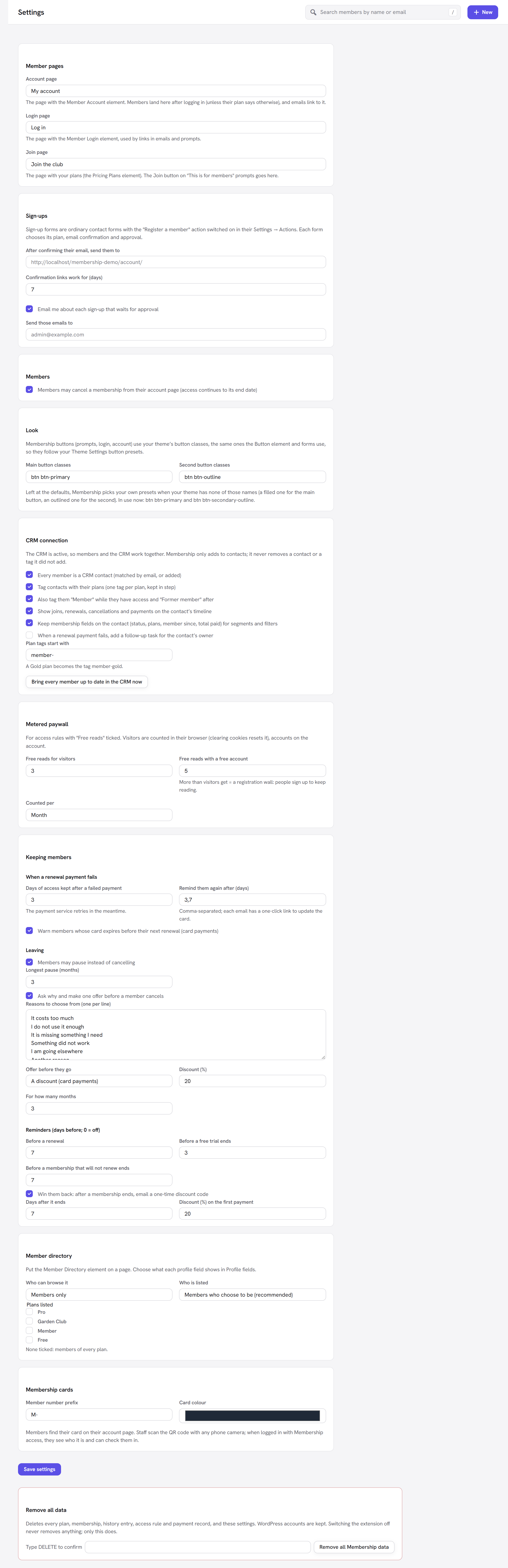
- Go to Unyson+ → Membership → Settings and find the Membership cards panel (see Settings).
- Set the Member number prefix and the Card colour.
- Click Save settings.
Every option explained
The panel note: "Members find their card on their account page. Staff scan the QR code with any phone camera; when logged in with Membership access, they see who it is and can check them in."
| Field | What it does | Default | Tip |
|---|---|---|---|
| Member number prefix | Put in front of every member number. Letters, numbers and hyphens only, up to 10 characters. | M- | Use your initials, for example LGC-. |
| Card colour | The card's background colour. | #1f2937 (a dark slate grey) | Use your brand colour. Choose a dark one: the card's text is white. |
Member numbers are the prefix plus the member's WordPress account number, padded to six digits. The
member with account number 42 is M-000042 (or LGC-000042). The number never changes, even when they
change plan.
What members see
On their account page, members get a Your membership card section, showing the card:
- your site name at the top, and the plan name;
- the member's name and member number;
- Valid until and the end date, or Valid while the membership lasts for a membership with no end date (such as an ongoing subscription);
- the QR code.
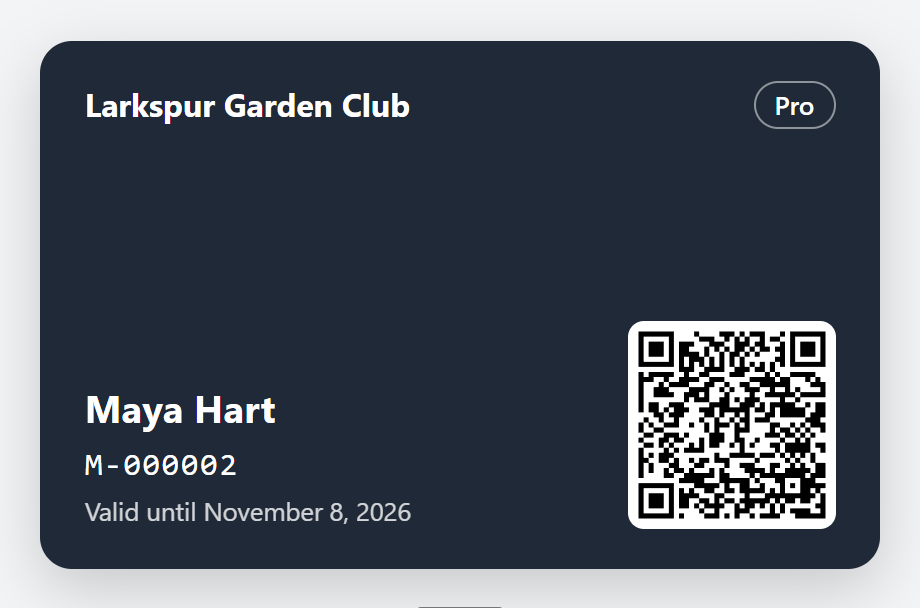
Under the card: Open the card full screen (to show at the door, or print). That opens the card alone on a plain page, sized for a phone, with a Print button (the button itself is left off the printout). Members can bookmark it or add it to their home screen; it asks them to log in if they are not.
Which plan is on the card? A member who holds several plans gets one card, for the plan with the highest Priority (set in the plan editor). Single items bought on their own never appear on a card.
How check-in works
The QR code holds a link to your site. The link is signed: it cannot be made up, or changed to another member's, without the signature failing.
- Staff point a phone camera at the QR code and open the link.
- The page turns green with Valid membership, or red with Not valid (the membership has ended, been cancelled past its end date, or the code is not genuine).
- What else they see depends on who is scanning:
- Anyone (not logged in, or without Membership access) sees only valid or not valid, and "Staff: log in to see who this is and check them in." No name or personal details are shown, so a lost card reveals nothing.
- Staff (logged in with Membership access) also see the member's name and number, the plan and its end date, and a Check in button.
- Staff click Check in. The page shows "Checked in."
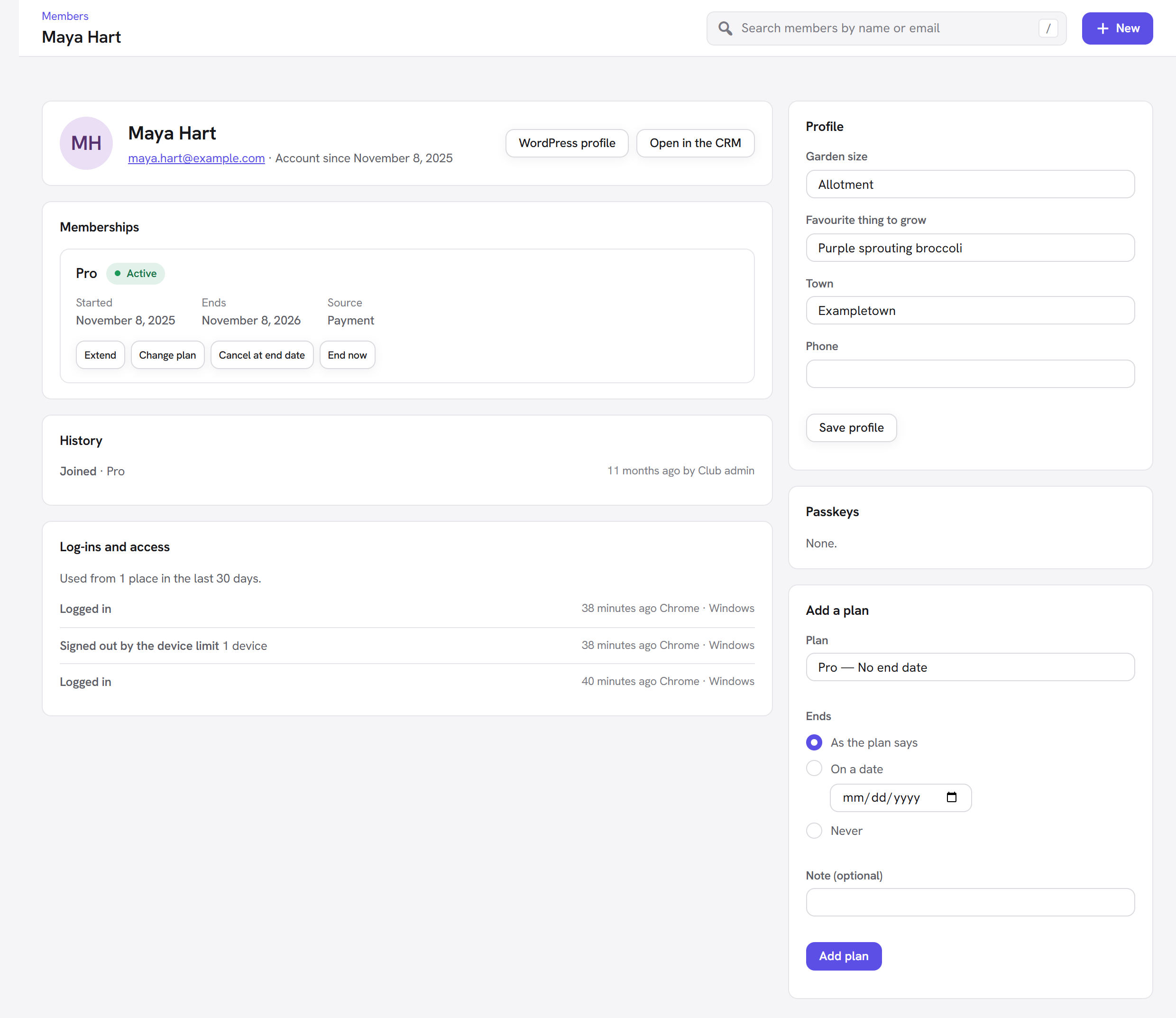
Each check-in is recorded in the member's History on their member page (Unyson+ → Membership → Members → a member), with the time, as "Checked in." (or "Checked in while not valid." if staff checked in someone whose membership was not valid).
Who counts as staff
People with the Membership management capability, which by default means administrators. Staff log in to your
site on the phone they scan with. A developer can give the check-in to another role (for
example door staff who should not manage members) with the unysonplus_membership_checkin_capability filter.
Good to know
Do I need a QR scanner app? No. The camera app on modern iPhone and Android phones reads QR codes and offers to open the link.
A member's card shows the wrong plan. Check the Priority of their plans: the card shows the highest.
Can the card be faked by editing the QR code? No. A link with a wrong signature, or for another membership, shows Not valid.
What happens when a membership ends? The card disappears from the account page, and scanning an old printed card shows Not valid.
Is the card or check page found by search engines? No. Both are marked so search engines do not index them.
Next steps
- Groups and teams: every team member gets their own card too.
- Member directory: let members find each other.
- Back to the Membership overview.