Protected downloads
Protected downloads are files that only the people you choose can download: a PDF guide for members, a template pack for your Pro plan, a recording of a workshop.
Why not just put the file in the Media Library and hide the page it is on? Because a Media Library file has a public address. Anyone who has the link (or guesses it, or finds it in a search engine) can download it without logging in. Protected downloads are stored where the web cannot reach them, and every download goes through a check first: is this person logged in, do they hold the right plan, and have they reached their monthly limit?
Before you start: switch the module on
Protected downloads is a module and is off by default.
- Go to Unyson+ → Membership → Modules.
- Switch on Protected downloads ("Files served only to people with access, with download limits and a log.").
- Click Save modules.
A Downloads item appears in the Membership sidebar.
How to add a protected file
Example: the Larkspur Garden Club offers a Planting calendar (PDF) to everyone on the Member plan (and so to Pro, which includes Member), at most 3 downloads a month each.
- Go to Unyson+ → Membership → Downloads.
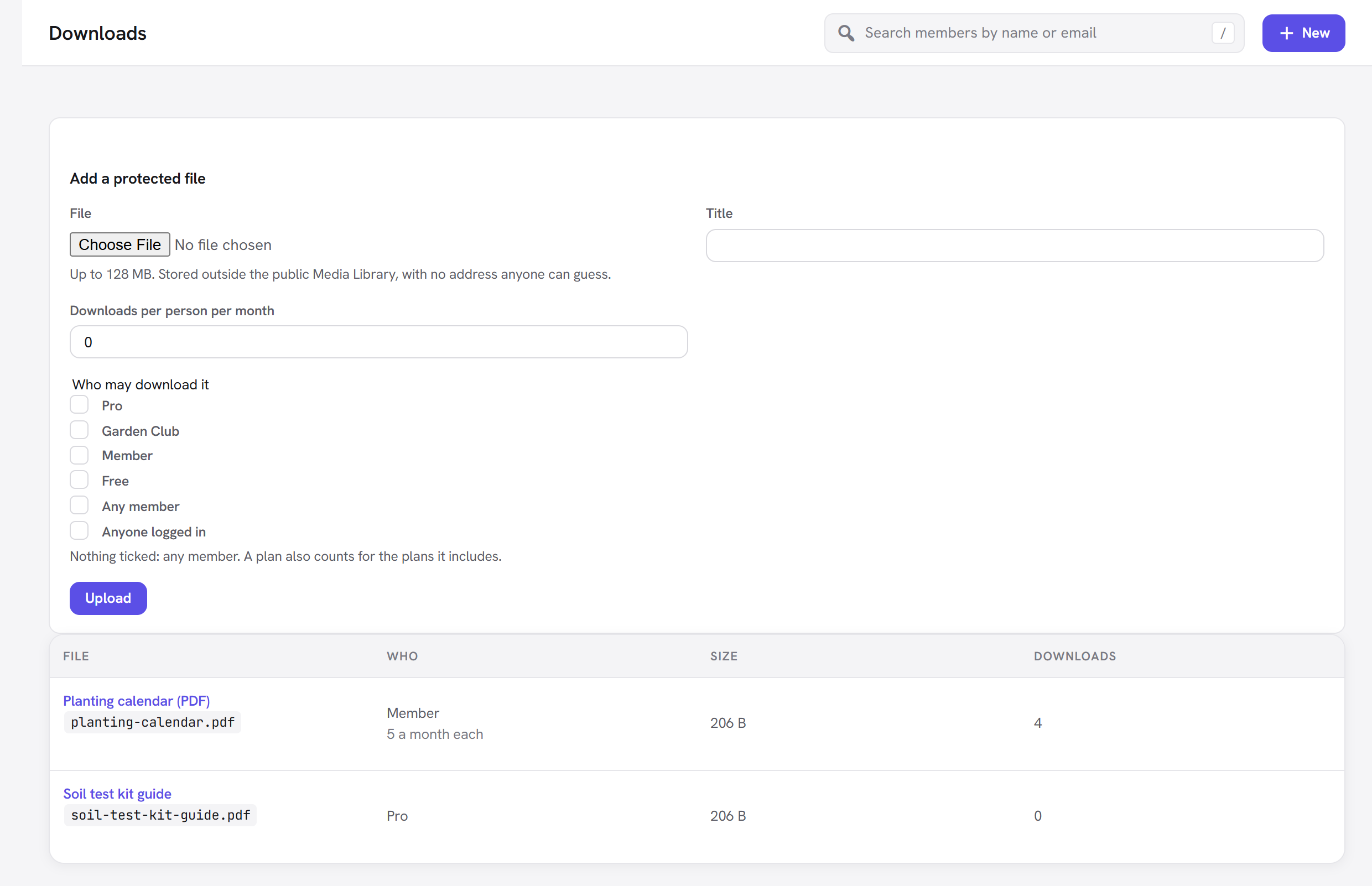
- In Add a protected file, click File and choose the PDF from your computer.
- Type a Title: "Planting calendar (PDF)". This is what members see on the button.
- Set Downloads per person per month to
3. - Under Who may download it, tick Member.
- Click Upload.
You will see "File added. Put it on a page with the Member Download element." The file now appears in the list below the form.
How to put the file on a page
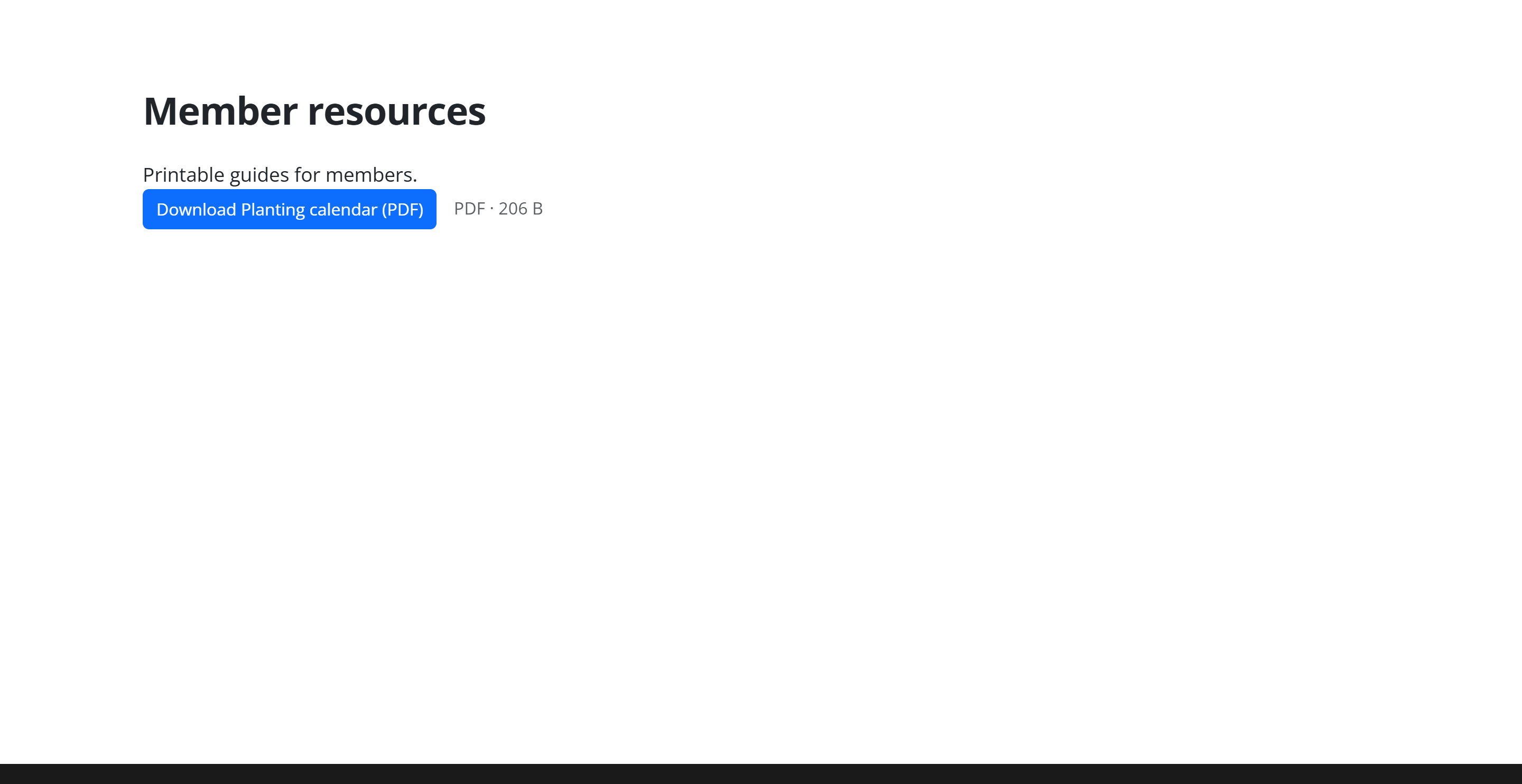
Files are offered to members with the Member Download element in the page builder.
- Edit the page (for example your "Member resources" page) with the page builder.
- Add the Member Download element, from the Membership tab of the elements list.
- In File, choose "Planting calendar (PDF)".
- Optionally change Button text and Show the file type and size.
- Save the page.
The element does not need the page itself to be protected. It decides what to show for each visitor:
- Someone who may download it sees the download button.
- Someone who has reached the monthly limit sees: "You can download this 3 times a month, and have done so already. It opens again next month."
- Someone who is not logged in sees the button greyed out with "Log in to download this file." and a Log in link.
- A member without the right plan sees the greyed-out button and "This download is part of a membership plan you do not hold."
- When the file is also sold on its own (see below), people without access also get a Buy it for button with the price.
Every option explained
Add a protected file (Membership → Downloads)
| Field | What it does | Default | Tip |
|---|---|---|---|
| File | The file to protect. The help text shows the largest size your server accepts, and reads "Stored outside the public Media Library, with no address anyone can guess." | Required | Only file types WordPress allows on your site can be uploaded. A file larger than the limit fails with "Choose a file to upload (it may be larger than the server allows)." Ask your host to raise the upload limit for big files. |
| Title | The name shown in the list and on the download button. | Empty: the file name without its extension | Give it a friendly name; members see it. |
| Downloads per person per month | How many times each person may download this file in a calendar month. 0 means no limit. | 0 | Set a limit on valuable files to discourage people passing their login around. The count resets on the 1st of each month. |
| Who may download it | Tick one or more plans, Any member, or Anyone logged in. Help text: "Nothing ticked: any member. A plan also counts for the plans it includes." | Nothing ticked (any member) | Tick the lowest plan that should get it: a plan that includes it (like Pro including Member) gets it too. Use Anyone logged in for a lead magnet that needs only a free account. |
Click Upload to add the file.
Editing a file (Edit / log)
Click a file's title, or Edit / log under it, to change it. The heading shows the original file name.
| Field | What it does |
|---|---|
| Title | As above. |
| Downloads per person per month | As above. "0 for no limit." |
| Who may download it | As above. |
| Sell on its own for | The price for buying just this file, in your shop currency. Empty means not for sale. Help text: "Buyers can download it from their account and the Member Download element." Appears only while the Payments module is on. |
| Access for (days) | How long a buyer may download it. 0 = for ever. Appears with Sell on its own for. |
Click Save. You cannot replace the file itself: to change it, upload the new version as a new file, point your Member Download elements at it, and delete the old one.
The file list
| Column | Shows |
|---|---|
| File | The title and, under it, the original file name. Row actions: Edit / log, Download (try the download yourself) and Delete. |
| Who | Who may download it (plan names, Any member, Anyone logged in) and the limit, for example "3 a month each". |
| Size | The file size. |
| Downloads | How many times it has been downloaded in total. |
Delete asks "Delete this file? Download buttons for it stop working." It removes the file from the server and its download log. Member Download elements pointing at it disappear for visitors (administrators see a note asking them to choose a file).
The Member Download element
| Option | What it does | Default |
|---|---|---|
| File | The protected file to offer, chosen from those under Membership → Downloads. If the module is off, the help text reads "Switch on Protected downloads in Membership → Modules first." | "— Choose a file —" |
| Button text | The words on the button. | Empty: "Download" and the file's title |
| Show the file type and size | Shows a small line such as "PDF · 2 MB" under the button. | Yes |
The Advanced tab holds the usual element settings (spacing, classes, visibility and so on) shared by all Unyson+ elements.
The download log
Open a file with Edit / log. Under the form, Latest downloads lists the last 50 downloads of that file: the date and time, and the member's name. "Not downloaded yet." means nobody has.
Every download is recorded with the person and the time. The visitor's IP address is not stored as such; only a scrambled (hashed) form of it is kept, which cannot be turned back into the address.
Where files are stored, and why links cannot be shared
- Files are saved in a folder inside
wp-content/uploads/unysonplus/whose name ends in a random string unique to your site (membership-files-followed by 16 random characters). - That folder refuses all direct web access (it carries
.htaccessandweb.configrules for Apache and IIS servers). - Each file is saved under a random name, not its real one, so even the folder listing would not tell anyone what is inside.
- The only way to download a file is the download link, which is your site's address with
?fw_mbr_download=and the file's number. That link checks, every time, who is asking.
So if a member copies the download link and posts it somewhere, it is useless to anyone else: a logged-out visitor is sent to the login page, and a logged-in person without the right plan gets "This download is part of a membership plan you do not hold." The member's own monthly limit still applies to them.
:::note Nginx servers
Nginx does not read .htaccess files. The random folder and file names already keep files hidden, but if
your host uses Nginx you can ask them to deny web access to wp-content/uploads/unysonplus/membership-files-*
for complete peace of mind.
:::
Good to know
Do administrators count against the limit? No. People who manage Membership can always download every file, without limits. The Download row action is there so you can test.
Do I need an access rule as well? No. A protected file carries its own "who may download it". You can put the Member Download element on a public page: visitors see the button greyed out and are invited to log in.
What happens when a member's plan ends? They can no longer download the file. The button turns grey with the reason.
Where do buyers of a single file find it? When a file is sold on its own, the buyer holds a hidden item plan for it (item plans never show in pricing tables). Right after paying, the checkout's thank-you message has a Download it now button. After that, the Member Download element shows them the normal download button. Selling single items needs the Payments module; see Pay-per-item.
Next steps
- Courses: attach downloads to lessons by placing the Member Download element in them.
- Drip content: open the page with the download a number of days after joining.
- Back to the Membership overview.