Drip content
Drip content means members do not get everything on the first day. A page opens for each person a number of days after they joined, or on a fixed date for everyone. Use it to:
- release a weekly series (week 1 on joining, week 2 seven days later, and so on);
- keep a welcome guide for new members and the advanced material for later;
- open a seasonal page on a date, for example a spring planting guide that opens on 1 March;
- stop people from joining, downloading everything on day one and cancelling.
Drip is not a separate system. It is two extra fields on an ordinary access rule: the rule still decides who may see a page, and the drip fields decide when it opens for them.
Before you start: switch the module on
Drip content is a module and is off by default.
- Go to Unyson+ → Membership → Modules.
- Switch on Drip content ("Open content a number of days after someone joins, on a date, or in a sequence.").
- Click Save modules.
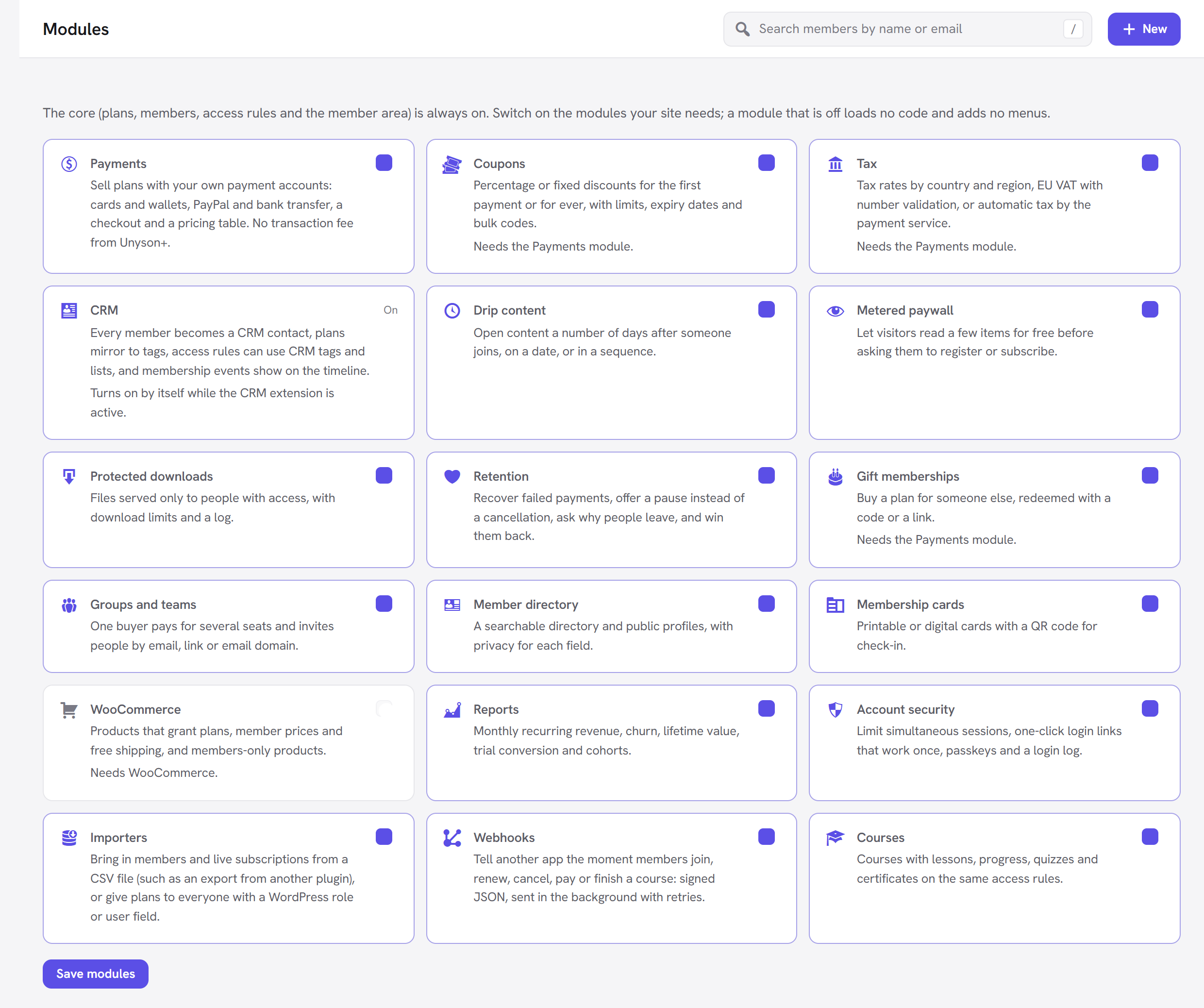
Once it is on, every access rule gets two new fields in its Options panel: Opens after (days) and Opens on (date).
How to open a page a number of days after joining
Example: the Larkspur Garden Club wants its "Planning your first bed" guide to open for Member plan holders one week after they join.
- Go to Unyson+ → Membership → Access rules and click New access rule (or open an existing rule).
- Under Rule, give it a Name, such as "Week 1: Planning your first bed".
- Under What it protects, choose A specific page or post and pick the guide.
- Under Who can see it, tick the Member plan.
- Under What everyone else sees, keep A teaser and a prompt to log in or join (recommended).
- In Options, set Opens after (days) to
7. - Click Create rule (or Save rule).
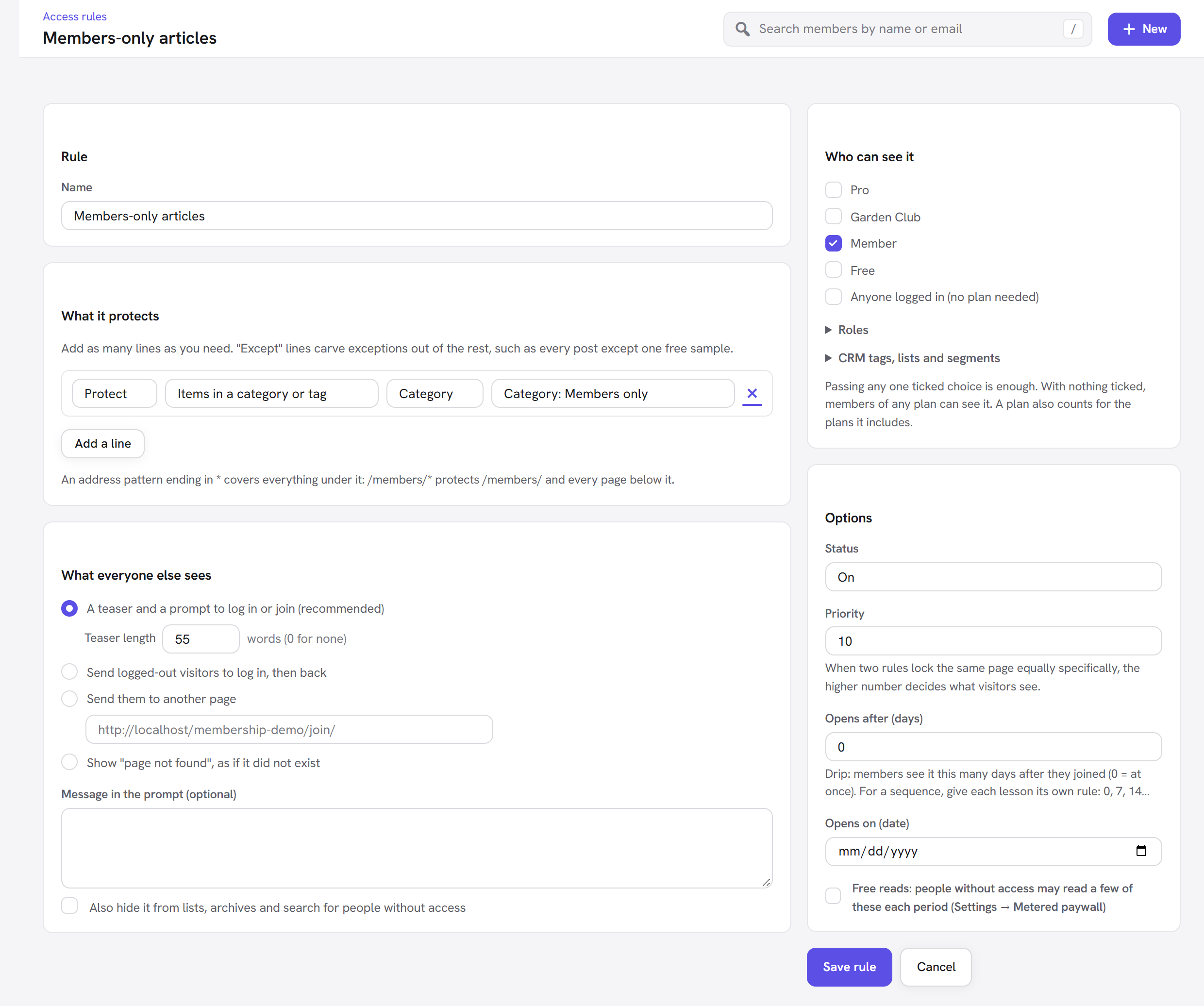
A Member who joined today sees the teaser and a "This opens for you in 7 days" message. On the seventh day the page opens for them, and a member who joined a month ago can read it straight away.
How to open a page on a date
- Open the rule as above.
- In Options, pick a date in Opens on (date).
- Save the rule.
Everyone who passes the rule can read the page from that date. Before it, they see the "opens on" message.
How to build a sequence
A sequence is several rules, one per item, with rising day counts. For a four-week course of articles:
| Rule | What it protects | Opens after (days) |
|---|---|---|
| Week 1 | Article 1 | 0 |
| Week 2 | Article 2 | 7 |
| Week 3 | Article 3 | 14 |
| Week 4 | Article 4 | 21 |
Give all four rules the same plans under Who can see it. Each member then moves through the series at their own pace, counted from their own joining date.
:::tip Courses have their own drip If what you are building is really a course (lessons in order, progress, a quiz), use the Courses module instead. Each lesson there has its own Opens after (days) field, counted from the day the student starts the course. :::
Every option explained
Both fields are in the Options panel of an access rule (Unyson+ → Membership → Access rules → a rule). They appear only while the Drip content module is on.
| Field | What it does | Default | When to change it |
|---|---|---|---|
| Opens after (days) | Members see the protected content this many days after they joined. 0 means at once. The help text reads: "Drip: members see it this many days after they joined (0 = at once). For a sequence, give each lesson its own rule: 0, 7, 14…" | 0 | Set it for anything that should unlock later in a membership: a weekly series, bonus material, an "after your first month" offer. |
| Opens on (date) | The content opens on this date for everyone who passes the rule. | Empty (no date) | Use it for a launch date, a seasonal page or a live event recording that goes up on a set day. |
Using both: when a rule has a day count and a date, the content opens at whichever comes later. For example, "7 days after joining, but not before 1 March".
What "joined" means
The day count starts from the person's joining date for that rule:
- For a rule with plans ticked, it is the start of their earliest current membership of one of those plans (a plan also counts for the plans it includes, so a Pro member counts for a rule on Member).
- For a rule with no plans ticked, it is the start of their earliest current membership of any plan.
- For someone who passes the rule another way (a role, Anyone logged in, or a CRM tag), it is the date their WordPress account was created.
What members see before it opens
While a page is still closed for someone who otherwise has access, the rule's prompt changes:
- The title becomes This opens for you tomorrow, or This opens for you in N days.
- The message reads "It is part of your membership and becomes available on (date). We will email you when it opens."
- The plan buttons and the login link are hidden, because the person already has the right plan; there is nothing to buy.
People who do not pass the rule at all (visitors, or members of another plan) see the normal prompt to log in or join, exactly as for any other protected page.
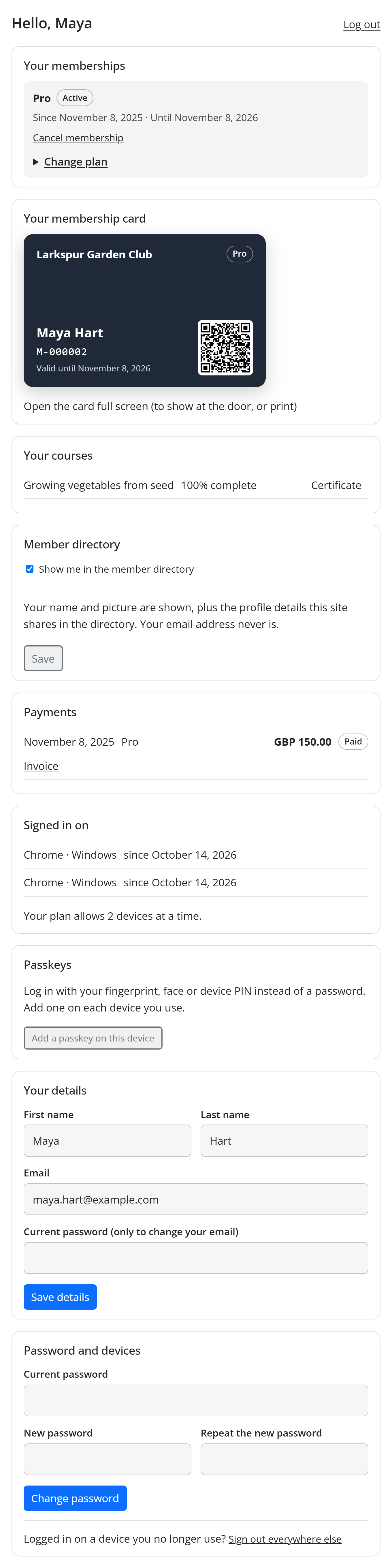
"Coming up for you" on the account page
Members get a Coming up for you section on their account page. It lists the pages that will open for them soonest first, each with Opens and the date (up to ten items). The section only appears when something is waiting.
The drip email
When content opens, members are told by email.
- The email is New content opened in Unyson+ → Membership → Emails. It goes to the member, "Once a day, when drip content opens for a member."
- Default subject:
New for you on {site_name}. - Default body: "Hi
{first_name}, Something new is now open to you:" followed by{items}and "Enjoy!". {items}is a list of what opened since the last run, one line each: the title and the link.- A member gets one email a day, however many items opened for them that day.
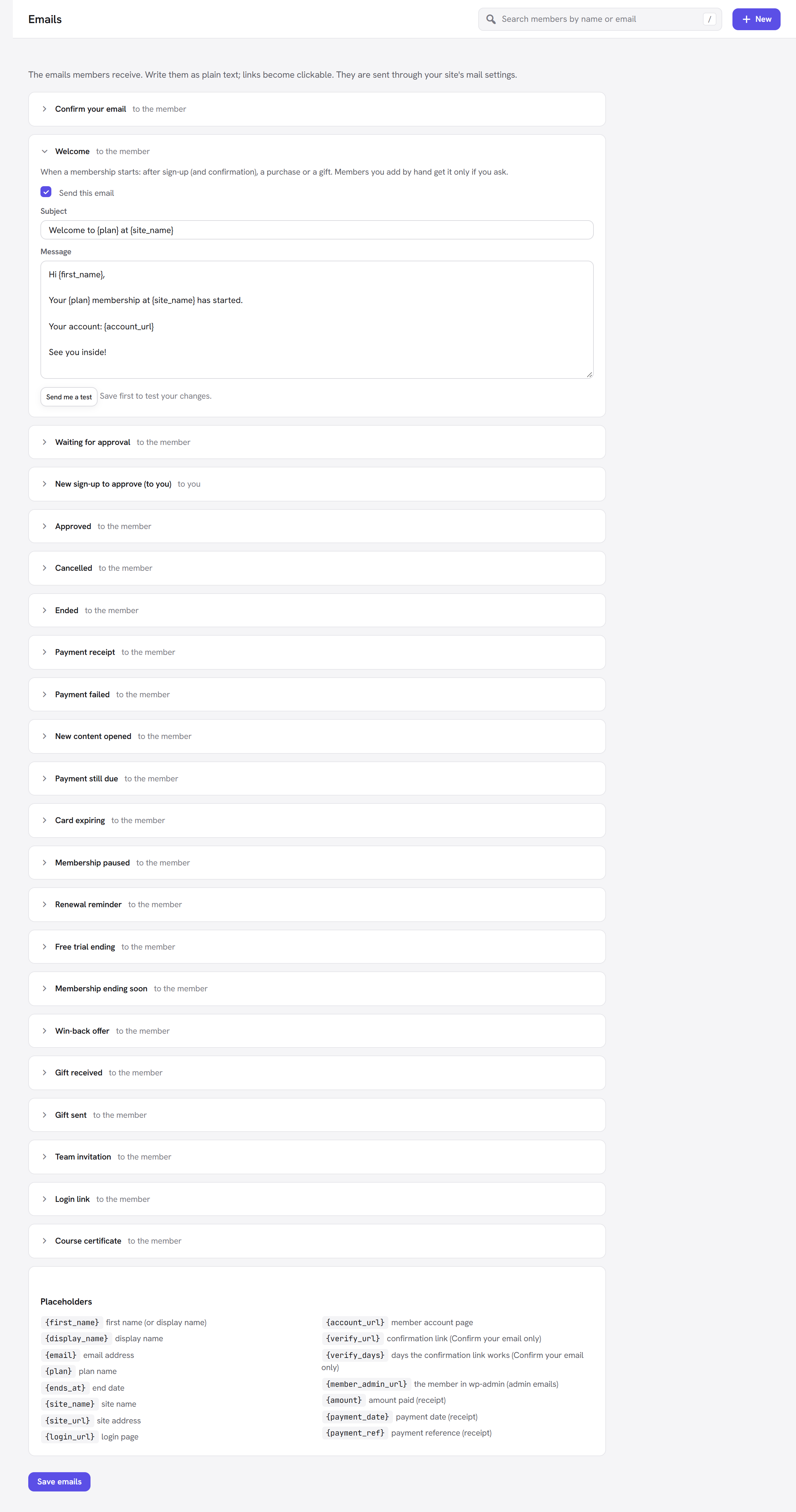
You can change the subject and wording like any other member email. See Emails.
The email is sent by a daily scheduled job (WordPress cron) that first runs at 07:00 the day after you switch the module on, then once a day.
Good to know
Which items are listed in the email and on the account page? Only lines in What it protects that point at A specific page or post. A dripped rule that protects a whole category, a post type or a URL pattern still opens on time, but it cannot be listed by name, so it is not mentioned in the email or under Coming up for you. For a sequence you want announced, use one rule per page.
Does the rule have to be switched on? Yes. A rule whose Status is Off does nothing, drip included.
I previewed the page with "View as" and it says it opens in 7 days. That is expected. A "View as" preview is treated as someone who joined today, so you see what a brand-new member sees.
Administrators always see everything. Log out, or use "View as" in the admin bar, to check what members see.
Does a member lose dripped content when they cancel? They lose access when their membership ends, like any protected content. If they come back, the day count starts again from the start of their new membership.
The email did not arrive. WordPress cron runs when someone visits the site. On a quiet site, the daily job can run late. Check the email is switched on in Emails, and that your site can send email at all.
Next steps
- Metered paywall: let visitors read a few items before asking them to join.
- Protected downloads: files only members can download.
- Courses: lessons with progress, quizzes and certificates.
- Back to the Membership overview.