Emails
Membership sends an email at each important moment in a member's life: when they sign up, when their membership starts, when a payment goes through, before a renewal, when it ends. Every one of them is listed on one screen, where you can reword it, switch it off and send yourself a test. You do not need to write any of them: each comes with sensible wording that works as it is.
Emails are part of the Membership core. Some emails belong to a module and appear in the list only while that module is on.
How to edit an email, step by step
- Open Unyson+ → Membership → Emails (in the Setup section of the sidebar).
- Click an email's title to open it. Next to the title you see who receives it ("to the member" or "to you") and Off when it is switched off. Welcome is open when the screen loads.
- Read the line under the title: it says exactly when the email is sent.
- Change the Subject and the Message. Use placeholders such as
{first_name}and{plan}where the member's details should go (see the list below). - Click Save emails at the bottom of the screen.
- Click Send me a test under the email to see it in your own inbox.
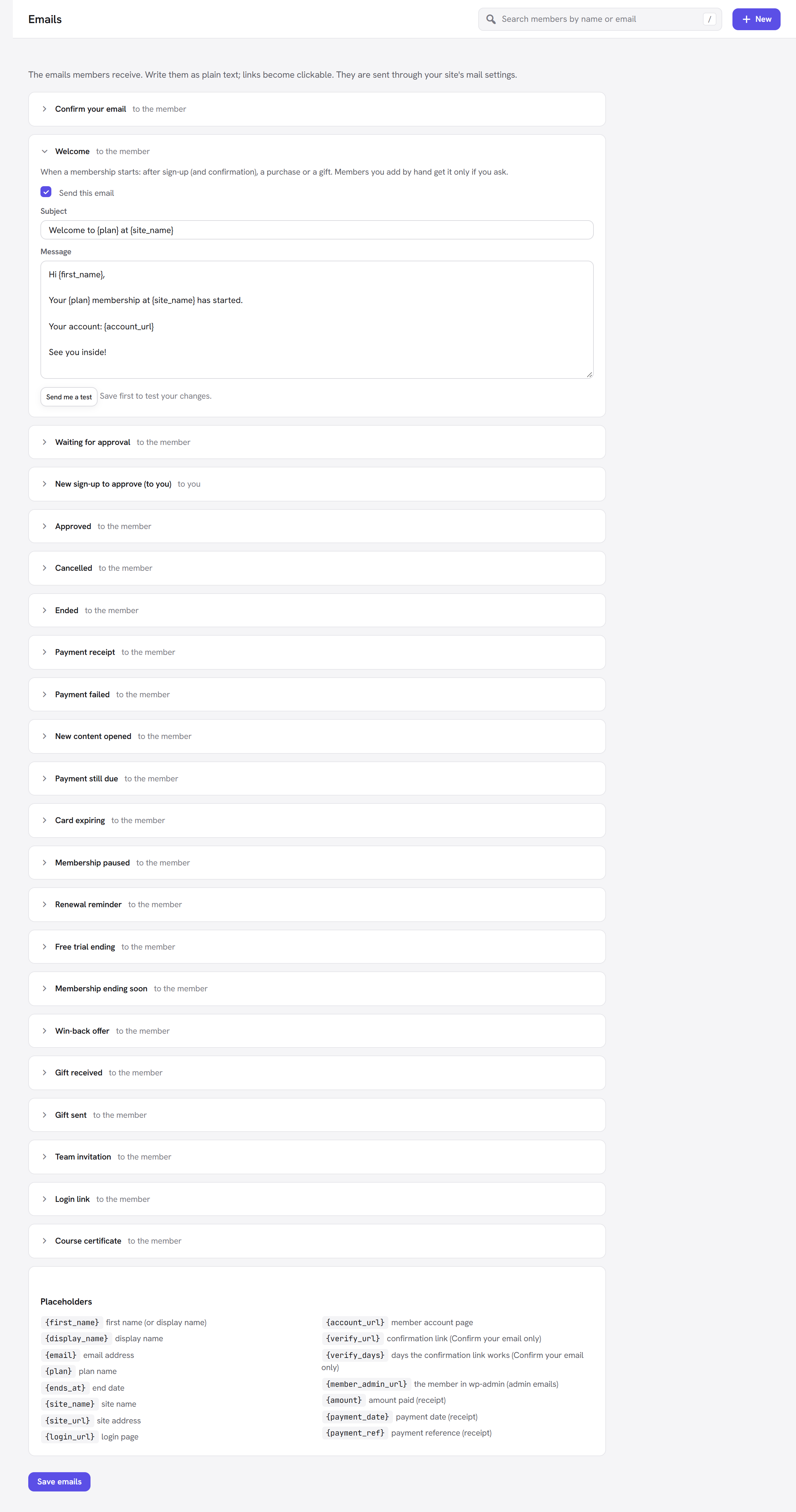
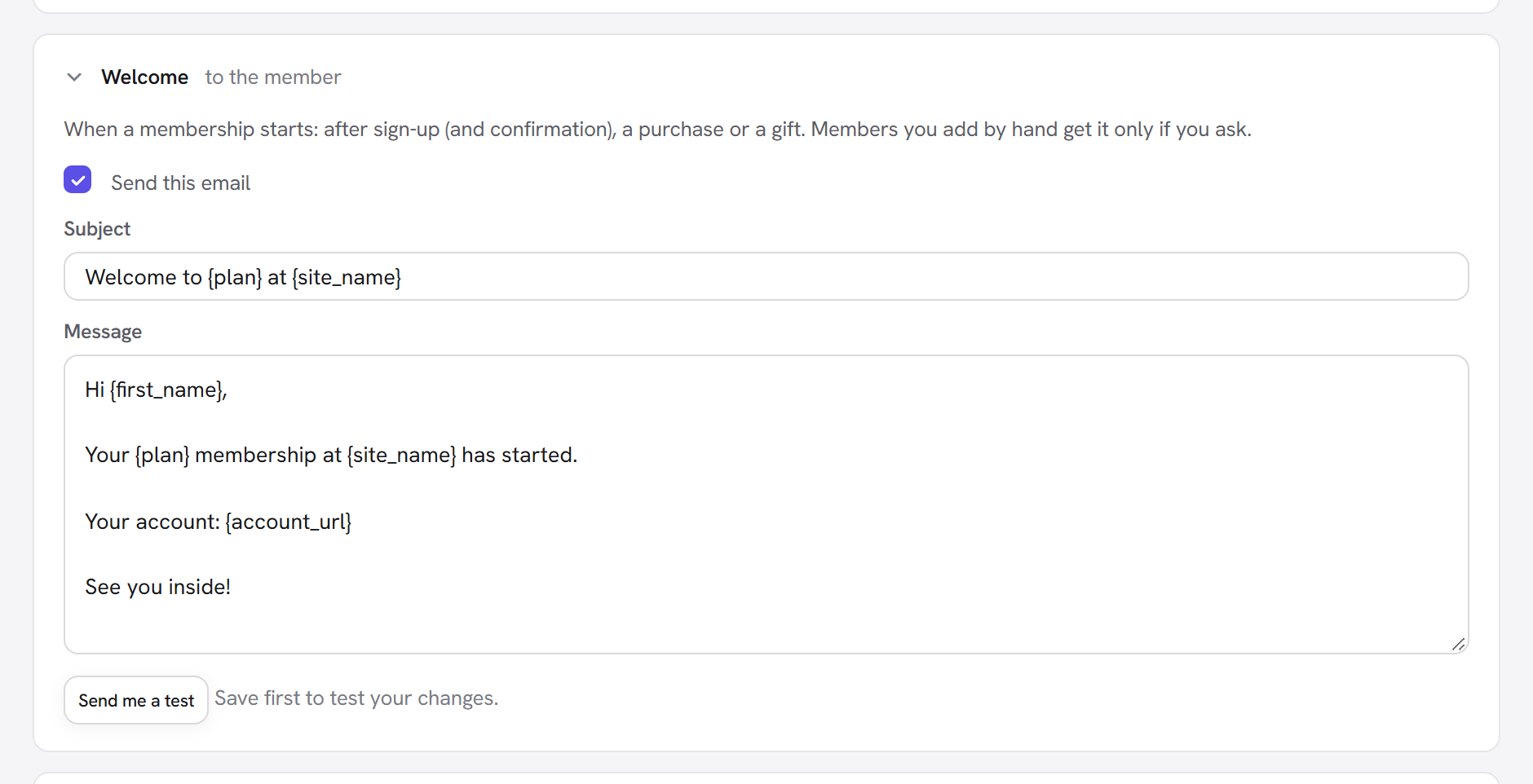
In the Larkspur Garden Club example, the Welcome email might read: "Hi {first_name}, welcome to
{plan} at the Larkspur Garden Club. Your first planting calendar is waiting in your account:
{account_url}".
Every option of an email
| Option | What it does | Default | Tip |
|---|---|---|---|
| Send this email | Switches the email on or off. A switched-off email is simply not sent. The Confirm your email email has no such box: it cannot be switched off, because sign-ups that ask for confirmation depend on it. | On | Switch off what you send another way, for example the receipt if your payment service already emails one. |
| Subject | The email's subject line. Placeholders work here too. | The default wording | Keep it short and specific. |
| Message | The text of the email, written as plain text. Blank lines start a new paragraph and addresses become clickable links. | The default wording | Put each link on its own line so it is easy to tap on a phone. |
| Send me a test | Sends this email to your own address straight away, even if it is switched off. | — | Save first: the test uses the saved wording. |
To go back to the original wording, empty the Subject or Message and save: an empty box means "use the default".
Every email and when it is sent
Sign-up and membership (always available)
| Who gets it | When it is sent | |
|---|---|---|
| Confirm your email | The member | Right after someone signs up, when the sign-up form asks for email confirmation. Cannot be switched off while confirmation is on. Its link works once and for the number of days set in Settings. |
| Welcome | The member | When a membership starts: after sign-up (and confirmation), a purchase or a gift. Members you add by hand get it only if you ask. |
| Waiting for approval | The member | When a sign-up needs an administrator to approve it. |
| New sign-up to approve (to you) | You | To the site administrator when a sign-up waits for approval (Settings decides who receives it, and whether it is sent at all). |
| Approved | The member | When an administrator approves a sign-up. It includes the link to log in. |
| Cancelled | The member | When a membership is cancelled and access continues until its end date. |
| Ended | The member | When a membership ends and no longer gives access. A refund, or a membership replaced by a plan change, does not send it. |
Payments module
| Who gets it | When it is sent | |
|---|---|---|
| Payment receipt | The member | After each successful payment, including renewals. |
| Payment failed | The member | When a renewal payment fails. Access continues for a few days while the payment is retried. With the Retention module on, its default message links to a one-click card update. |
Retention module
| Who gets it | When it is sent | |
|---|---|---|
| Payment still due | The member | Days after a failed renewal (Settings → Keeping members), while it is still unpaid. |
| Card expiring | The member | Before a renewal, when the card on file expires first (card payments). |
| Membership paused | The member | When a member pauses. |
| Renewal reminder | The member | Days before a membership renews (Settings → Keeping members). |
| Free trial ending | The member | Days before a free trial ends. |
| Membership ending soon | The member | Days before a membership that will not renew ends. |
| Win-back offer | The member | Days after a membership ended, with a one-time discount code. |
Other modules
| Module | Who gets it | When it is sent | |
|---|---|---|---|
| New content opened | Drip content | The member | Once a day, when drip content opens for a member. |
| Gift received | Gift memberships | The person the gift is for | Once the gift is paid. |
| Gift sent | Gift memberships | The buyer | Once their gift is paid and sent. |
| Team invitation | Groups and teams | The person invited | When a team owner invites someone by email. |
| Login link | Account security | The member | When a member asks for a one-click login link. |
| Course certificate | Courses | The student | When a student completes a course that gives a certificate. |
The days used by the Retention emails are set in Membership → Settings → Keeping members; see Settings.
Placeholders
A placeholder is a word in curly brackets that is replaced by the real value when the email is sent. These work in every email (they are also listed in the Placeholders panel at the bottom of the Emails screen):
| Placeholder | Replaced by |
|---|---|
{first_name} | The member's first name (or their display name when they have none) |
{display_name} | The member's display name |
{email} | The member's email address |
{plan} | The plan name |
{ends_at} | The membership's end date ("no end date" when it has none) |
{site_name} | Your site's name |
{site_url} | Your site's address |
{login_url} | The login page chosen in Settings (or the WordPress login screen) |
{account_url} | The member account page chosen in Settings |
{verify_url} | The confirmation link (Confirm your email only) |
{verify_days} | The days the confirmation link works (Confirm your email only), from Confirmation links work for (days) in Settings |
{member_admin_url} | The member's page in wp-admin (admin emails) |
{amount} | The amount paid (receipt), or the renewal price (reminders) |
{payment_date} | The payment date (receipt) |
{payment_ref} | The payment reference or invoice number (receipt) |
These only have a value in the emails that use them by default, so keep each one in its own email:
| Placeholder | Used in | Replaced by |
|---|---|---|
{invoice_url} | Payment receipt | The link to the invoice |
{update_card_url} | Payment failed, Payment still due, Card expiring | A one-click link to update the card (Retention) |
{card_last4} | Card expiring | The last four digits of the card |
{renewal_date} | Renewal reminder, Free trial ending, Card expiring | The date of the next renewal or the end of the trial |
{paused_until} | Membership paused | The date the pause ends |
{renew_url} | Membership ending soon, Win-back offer | The link to renew |
{coupon_label}, {coupon_code} | Win-back offer | The discount, described, and its code |
{items} | New content opened | The content that just opened |
{buyer_name}, {recipient_name}, {recipient_email}, {gift_message}, {gift_code}, {redeem_url} | Gift received, Gift sent | The gift's buyer, recipient, message, code and redeem link |
{owner_name}, {team_name}, {join_url} | Team invitation | The team owner, the team and the link to accept |
{login_link}, {minutes} | Login link | The one-time login link and how long it works |
{course}, {certificate_url} | Course certificate | The course and the link to the certificate |
The placeholders in the first table are always known: where one has no value (for example {plan} in the
Approved email), it is replaced by nothing. The ones in the second table are only known in their own
emails; anywhere else, and with any mistyped placeholder, the text in curly brackets is sent as it is. So
send yourself a test after editing.
How the emails look
You write plain text; Membership turns it into a simple, readable HTML email: a white card on a light grey background, in the reader's system font, with your site name in small print underneath. Line breaks are kept and addresses become links. HTML tags are removed from the message when you save, so there is no way to break the layout.
Emails are sent through WordPress's normal mail function, so the Mailer extension (or any mail plugin you use) delivers them, with the same sender name and address as the rest of your site.
Testing
- Send me a test sends the saved email to the address of the account you are logged in with. Values that depend on a real membership are filled with examples: the plan "Gold", an end date a year from today and an example confirmation link. Your own name and email fill the member placeholders.
- If the test says "The test could not be sent. Check the site's mail settings (Mailer).", your site cannot send email yet. Set up the Mailer extension or an SMTP service, then try again.
- To check an email in its real setting, sign up yourself on the site with a second email address.
Good to know
Can I add an email of my own? Not from this screen; it lists the emails Membership and its modules
send. Developers can add one with the unysonplus_membership_email_catalogue filter.
Who receives "to you" emails? The address in Settings → Sign-ups → Send those emails to, or the site's admin email (WordPress Settings → General) when that is empty.
Members say the emails go to spam. That is a delivery issue, not a wording one: send through an SMTP service with your domain set up for it, using the Mailer extension.
Does switching off Welcome stop the membership starting? No. Switching an email off only stops the email.
Next steps
- Settings: who receives approval emails, the confirmation link lifetime and the days for reminders.
- Sign-up forms: when the confirmation and approval emails are used.
- Payments: receipts, invoices and failed payments.
- Back to the Membership overview.