Login and the account page
Members need two pages: one to log in, and one to manage their account once they are in. Unyson+ gives you an element for each, so both pages are built in the page builder and look like the rest of your site rather than like the grey WordPress login screen.
- The Member Login element is a login form, with "Forgot your password?" and a link to your sign-up page.
- The Member Account element is the member's own page: their memberships, their details, their password and devices, plus whatever the modules you use add (payments and invoices, courses, a membership card, a team…).
Both are part of the Membership core; no module needs switching on. You find them in the page builder under the Membership tab.
How to set up the two pages, step by step
-
Create a login page. Add a page called "Log in", open it in the page builder and drop the Member Login element from the Membership tab onto it. In its options, set Sign-up page to the address of your sign-up page (for example
/join/). Publish. -
Create an account page. Add a page called "My account" and drop the Member Account element onto it. Set "No membership yet" link to your pricing or sign-up page. Publish.
-
Tell Membership which pages they are. Open Unyson+ → Membership → Settings and, under Member pages, choose "My account" as the Account page and "Log in" as the Login page. If you have a plans page with the Pricing Plans element, choose it as the Join page too. Click Save settings. See Settings.
-
Add them to your menu. A "Log in" link for visitors and a "My account" link for members works well; a menu item's own membership setting can show each one to the right people (see Show or hide menu items).
<img src="/img/membership/menu-visibility.png" alt="A "Member resources" menu item in Appearance, Menus with Show to (Membership) set to Members of the plans below and the Member plan ticked" width="1600" />
-
Test it in a private window: log in as a test member and check where you land.
The account page matters more than it looks. Members land on it after logging in (unless their plan says otherwise), it receives people who have just confirmed their email, and every member email that says "your account" links to it. Without one, members are sent to their WordPress profile in wp-admin.
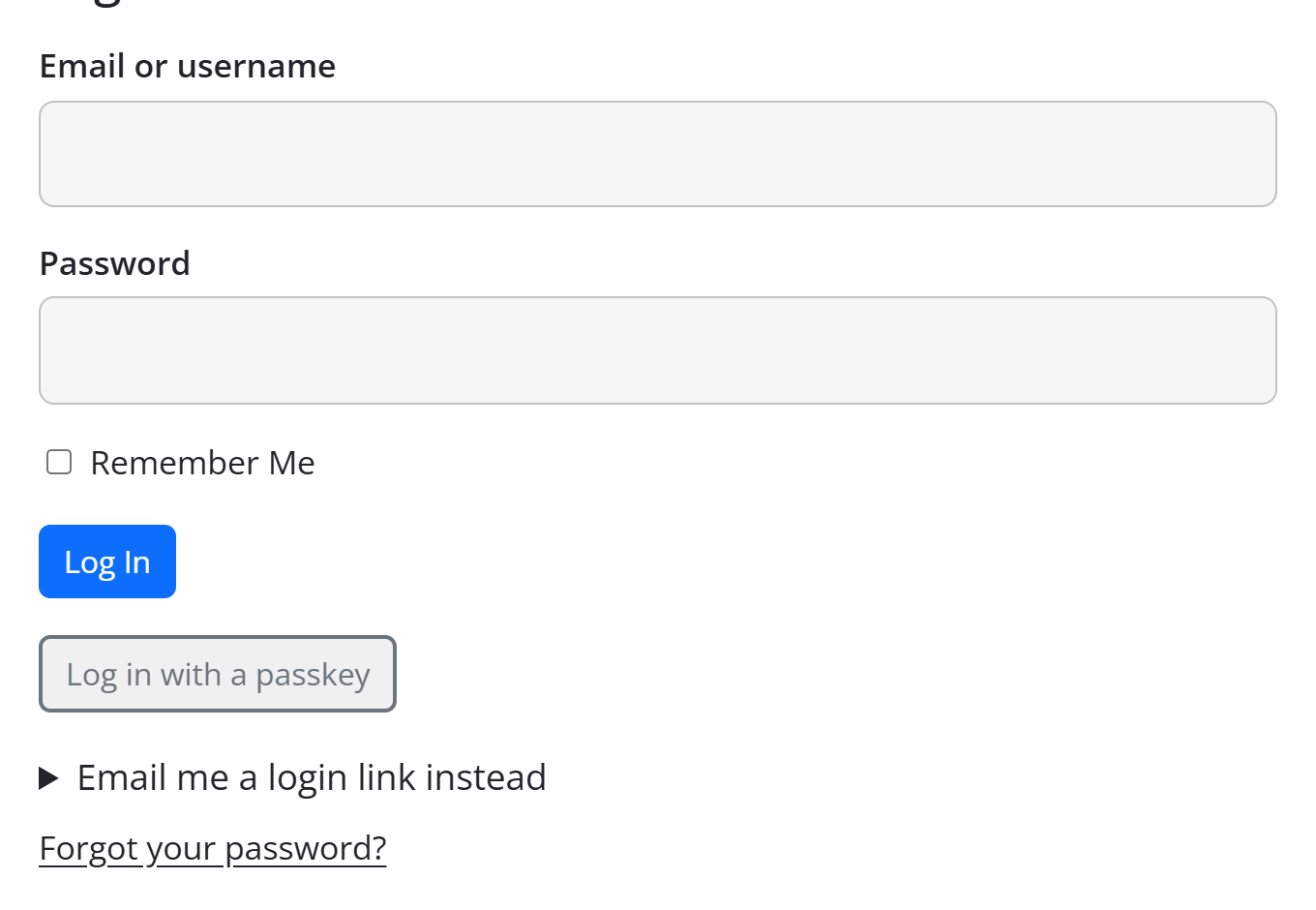
The Member Login element
Visitors who are logged out see the form: Email or username, Password, Remember Me and the
Log In button, followed by the links. Members who are already logged in see a short line instead:
"You are logged in as name. Your account · Log out".
The form posts to WordPress's own login, so everything that protects WordPress logins (the Security extension's login throttling and two-factor step, for example) applies here too.
Every option of Member Login
Content tab
| Option | What it does | Default | Tip |
|---|---|---|---|
| Title | A heading above the form. Leave it empty for no heading. | "Log in" | Empty it when the page already has its own heading. |
| "Remember me" | Shows the box that keeps people logged in on this device. | Yes | Switch off for a site used on shared computers. |
| "Forgot your password?" | Shows the link to WordPress's password reset. | Yes | Keep it on. |
| After logging in | Where people go next. Where the member's plan says (else the account page), Stay on this page or Go to an address. | Where the member's plan says (else the account page) | Use Stay on this page for a login box placed on a members-only article. |
| Address | The address used with Go to an address. | Empty | Use a full address such as https://example.com/welcome/. |
| Sign-up link text | The words of the sign-up link under the form. | "Not a member yet? Join" | Match your wording, for example "New here? Join the club". |
| Sign-up page | The page with your sign-up form. Leave it empty to hide the link. | Empty | Point it at your sign-up form or pricing page. |
Advanced tab: the spacing, visibility, CSS class and other options every Unyson+ element has.
A few details about After logging in:
- If the login page was reached with a destination in its address (
?redirect_to=…, which Membership's "log in to read this" prompts add), the member goes back there, to the page they were trying to read. - Staff (anyone who can edit posts) keep WordPress's normal behaviour and land in wp-admin.
- Members never land in wp-admin.
Logging in without a password
Two extra ways to log in appear under the form when the Account security module is on (Membership → Modules, off by default):
- Email me a login link instead. The member opens this, types Your email and clicks Send the link. They get the Login link email with a one-click link that works once, for 15 minutes. Opening it shows a Log me in button (again, so mail scanners cannot use it up). The reply on the page is the same whether or not the address has an account, so the form cannot be used to find out who is a member. One link per address per minute.
- Log in with a passkey. Members who have added a passkey on their account page can log in with their fingerprint, face or device PIN. The button shows only in browsers that support passkeys, and it also appears on the WordPress login screen. A passkey login counts as both factors, so it is not asked for a second step.
The same module adds a Devices signed in at once limit to each plan, a Signed in on list on the account page, and a Log-ins and access log on each member's page in the app.
The Member Account element
A logged-out visitor who opens the account page sees "Log in to your account" and the login form, so the account page also works as a login page. (A person following a team invitation sees the invitation step instead, when the Groups and teams module is on.)
A logged-in member sees "Hello, first name", a Log out link and then the sections below.
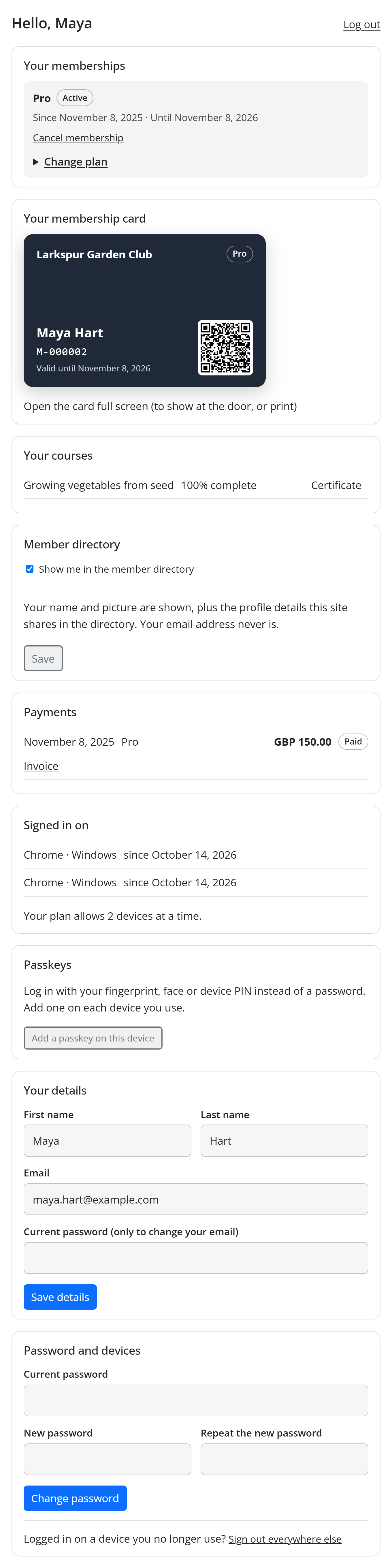
Every option of Member Account
Content tab
| Option | What it does | Default | Tip |
|---|---|---|---|
| Your details | Shows the section where members edit their name, email and profile fields. | Yes | Rarely worth hiding. |
| Memberships | Shows each plan with its status and dates, and Cancel membership (if Settings allow it). | Yes | Keep it on; it is the heart of the page. |
| Password and devices | Shows the change-password form and Sign out everywhere else. | Yes | Hide it only if members never use passwords on your site. |
| "No membership yet" link text | The words of the link shown to someone with no plan. | "See the plans" | For example "Choose a plan". |
| "No membership yet" link | Your plans or sign-up page, shown to members without a plan. Leave it empty to hide. | Empty | Point it at the page with the pricing table. |
Advanced tab: the usual element options (spacing, visibility, CSS class…).
What members see and can do on the account page
The sections appear in this order. The ones marked with a module appear only while that module is on and only when there is something to show.
| Section | What it shows and what members can do | Needs |
|---|---|---|
| Your memberships | Each plan with its status (Active, Trial, Payment due, Paused, Cancelled, Ended, Refunded) and dates: "Since …", then "Until …", "Access until …" (cancelled), "On hold" (paused), "Ended …" or "No end date". Memberships still waiting for confirmation or approval are not listed. | Core |
| ↳ Cancel membership | Cancels a plan that has an end date; access continues to that date. Shown only when Members may cancel a membership from their account page is ticked in Settings. With the Retention cancellation flow on, the button opens a short "why are you leaving" step with one offer first. | Core (flow: Retention) |
| ↳ Change plan | Upgrade or switch to the plans set in the plan's Members can switch to, with a note on when it takes effect and what is charged. A planned change shows "Moving to … on …" and Keep my current plan. | Payments |
| ↳ Pause | Pause for a number of months, then Pause; a paused plan shows "Paused until …" and Resume now. With the cancellation flow on, the pause is offered inside that flow instead. | Retention |
| ↳ Leave the team | For a seat on someone else's team plan, in place of Cancel: access ends now and the seat goes back. | Groups and teams |
| Your membership card | The card with its QR code, and Open the card full screen (to show at the door, or print). | Membership cards |
| Your team | For a team owner: "Your team: X of Y seats used", each person with Remove or Withdraw, Invite by email, a join link to share and an email domain whose people may join. | Groups and teams |
| Your courses | Each course with its percentage complete and a Certificate link once earned. | Courses |
| Coming up for you | Drip content that has not opened yet, with "Opens …" dates. | Drip content |
| Member directory | Show me in the member directory and Save. | Member directory |
| Payments | Each payment with date, plan, amount, status (Paid, Refunded, Waiting for payment) and an Invoice link; "Card expiring or changed?" with Update your payment method for card subscriptions. | Payments |
| Signed in on | The devices signed in now (shown when there are two or more) and the plan's device limit. | Account security |
| Passkeys | The member's passkeys with Remove, and Add a passkey on this device. | Account security |
| Your details | First name, Last name, Email, the profile fields members may edit, and Current password (only to change your email). Button: Save details. | Core |
| Password and devices | Current password, New password, Repeat the new password (at least 8 characters) and Change password; then "Logged in on a device you no longer use?" Sign out everywhere else. | Core |
Every action reloads the page with a short notice at the top, such as "Your details are saved." or "Your current password is not right." Changing the email address needs the current password, and the new address must not belong to another account.
Redirects after login and logout, per plan
Each plan can send its members somewhere of their own. Open Unyson+ → Membership → Plans, edit a plan and look at its settings:
- After logging in, go to: an address. Empty means the account page.
- After logging out, go to: an address. Empty means where WordPress normally sends them.
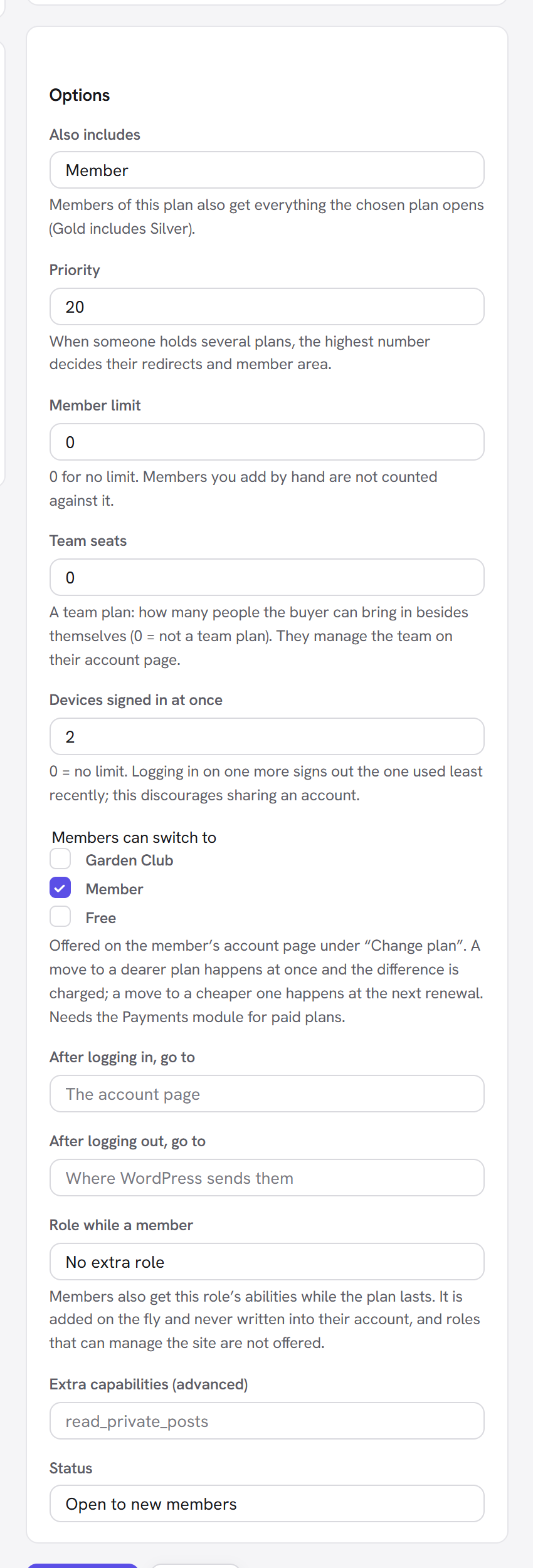
When someone holds several plans, the plan with the highest Priority number decides. In the example, give Pro a higher priority than Member and point its login redirect at a "Pro lounge" page. These redirects work wherever the member logs in: the Member Login element, the account page or the WordPress login screen. They never apply to staff.
The WordPress login page
You do not have to replace the WordPress login screen (wp-login.php); it keeps working. Members who log
in there are still sent to their plan's page or the account page rather than to wp-admin, and the passkey
button appears there too when Account security is on.
Choosing a Login page in Settings changes where Membership's own links point: the links in emails, the "log in" button on locked content, and the expired-link pages. With no login page chosen, those links go to the WordPress login screen.
Good to know
A member says they cannot log in. Check their page in Members. If it shows Waiting for email confirmation or Waiting for your approval, that is why; see Sign-up forms.
Do I need both pages? The account page is the important one: it also shows a login form to visitors. A separate login page is nicer to link to and lets you set its title, redirect and sign-up link.
Can I put the login form in a sidebar or a popup? Yes. Member Login is an element like any other; use Stay on this page so people stay where they were.
The buttons do not match my theme. They use the classes in Settings → Look; see Settings.
Next steps
- Sign-up forms: let people create the account they log in with.
- Profile fields: add your own fields to Your details.
- Emails: the login link, welcome and cancellation emails.
- Settings: the account and login pages, and whether members may cancel.
- Back to the Membership overview.