Profile fields
WordPress keeps only a few facts about each account: a username, a name and an email address. Profile fields let you keep the extra details your membership needs: a phone number, a company, a birthday, a favourite growing method. Members fill them in on their account page, a sign-up form can collect them, and you can see and edit them on each member's page.
In the Larkspur Garden Club example, the club keeps a Phone number for every member, an Allotment number only for Pro members, and a Growing style choice (Organic, Conventional, Not sure yet) that members may show in the member directory.
Profile fields are part of the Membership core; no module needs switching on. The In the directory setting appears when the Member directory module is on.
How to add a profile field, step by step
- Open Unyson+ → Membership → Profile fields (in the Setup section of the sidebar).
- Click Add a field. A new row appears.
- Type the Label, for example "Growing style". This is what members see.
- Choose the Type, for example Choice (list).
- For a choice, type the Options, one per line: "Organic", "Conventional", "Not sure yet".
- Tick Required if members must fill it in, and leave Members can edit it ticked if they may change it themselves.
- To limit the field to some plans, tick them after Only for: (none ticked means every member).
- With the Member directory module on, choose who sees it in In the directory:.
- Click Save profile fields.
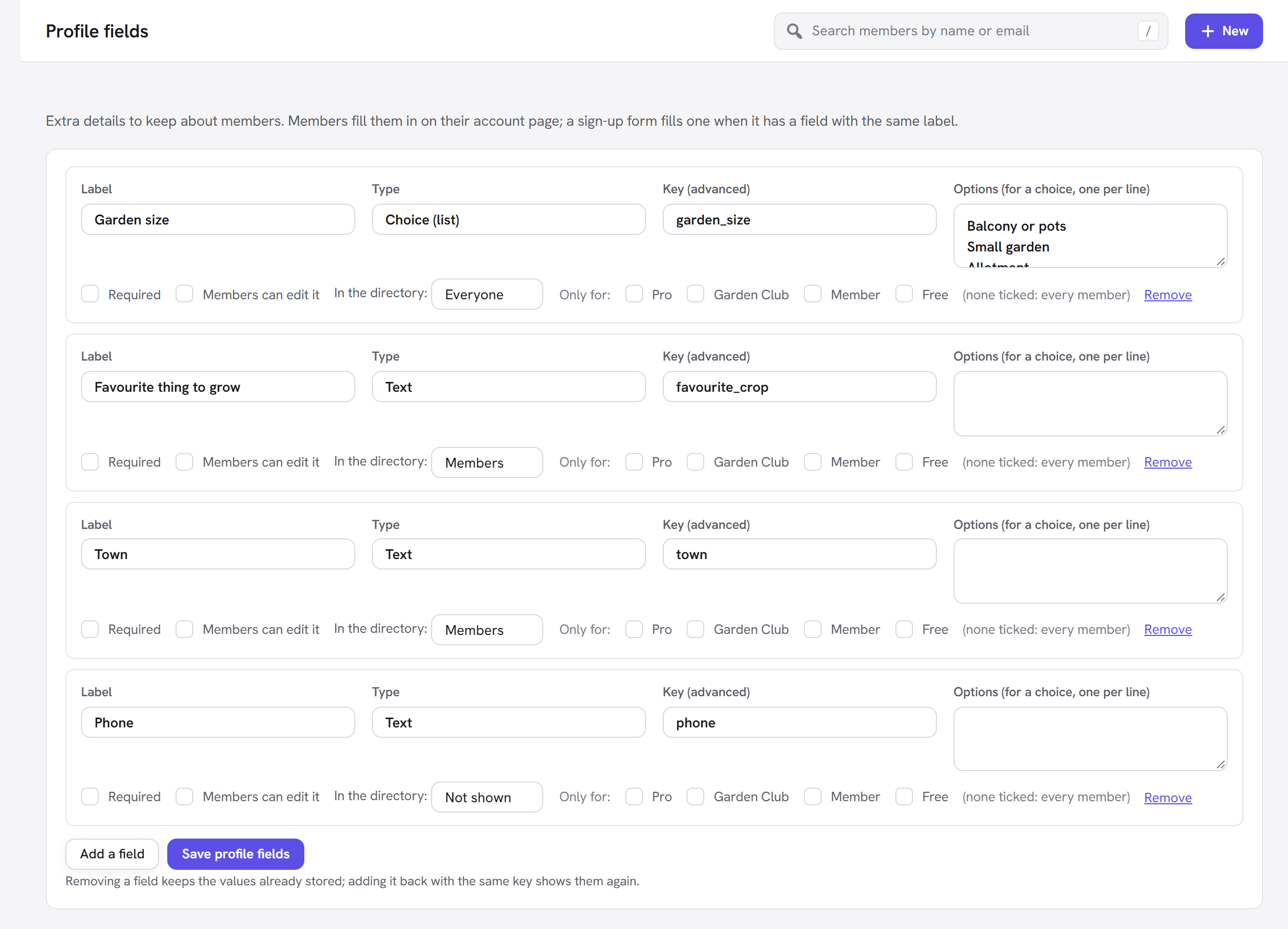
The field now appears on the account page of every member it applies to, under Your details, and on each member's page in the app.
Every option explained
| Option | What it does | Default | Tip |
|---|---|---|---|
| Label | The field's name, shown to members and to you. A row without a label is dropped when you save. | Empty | Keep it short and clear: "Phone", "Company". It is also how sign-up forms find the field (see below). |
| Type | What kind of answer it holds (see the list of types below). | Text | Pick the most specific type: it checks the answer and gives phones and dates the right keyboard. |
| Key (advanced) | The internal name the value is stored under. Leave it empty and it is made from the label (Growing style becomes growing_style). At most 40 characters. | Made from the label | Only set it yourself if you need a fixed name, for example for an import. Two fields cannot share a key: saving says "Two fields would share the key …". |
| Options (for a choice, one per line) | The answers a Choice (list) field offers. A comma also separates options. Ignored for other types. | Empty | Add every answer you will accept; a submitted value that is not in the list is refused. |
| Required | Members must fill it in when they save their details. Shown with a *. | Off | Use it for details you truly need. Sign-up forms are not blocked by it (see below). |
| Members can edit it | Shows the field on the member's account page so they can change it. Untick it for details only you manage. | On | Untick it for something like a membership number you assign. You can still edit it on the member's page. |
| In the directory: | Who sees the value in the member directory: Not shown, Members or Everyone. Appears only with the Member directory module on. | Not shown | Share only what members would expect to be public. Email addresses are never shown in the directory. |
| Only for: | The plans this field belongs to. (none ticked: every member). Appears once you have plans. | None ticked | Use it for plan-specific details, like the allotment number for Pro. A member sees the field while they hold one of the ticked plans (or a plan that includes it). |
| Remove | Removes the row. | — | The values already stored are kept: add the field back with the same key and they show again. |
The field types
| Type | What members get | What is checked |
|---|---|---|
| Text | A one-line box | Nothing beyond tidying the text |
| Longer text | A box of several lines | Nothing beyond tidying the text |
| Choice (list) | A drop-down starting at "— Choose —" | The answer must be one of the options |
| Tick box | A checkbox with the label next to it | Ticked or not |
| Date | A date picker | A real date ("… is not a valid date.") |
| Number | A number box | A number ("… must be a number.") |
| Phone | A phone box | Only digits, spaces and + ( ) - . are kept |
| Web address | An address box | A valid address ("… is not a valid address.") |
Where profile fields appear
- The member's account page. Under Your details on the Member Account element, for every field the member may edit and that applies to their plans. A required field left empty stops the save with "… is required."
- The member's page in the app. Unyson+ → Membership → Members, open a member: the Profile panel shows every field, editable by you, with a Save profile button. Here you can also fill in fields members cannot edit.
- Sign-up forms. A form field whose label matches a profile field's label (or its key) fills that field when the person signs up. So to ask for a phone number at sign-up, add a field labelled "Phone" to the form. The match ignores upper and lower case. A sign-up form fills what it has; a required profile field the form does not ask for does not block the sign-up.
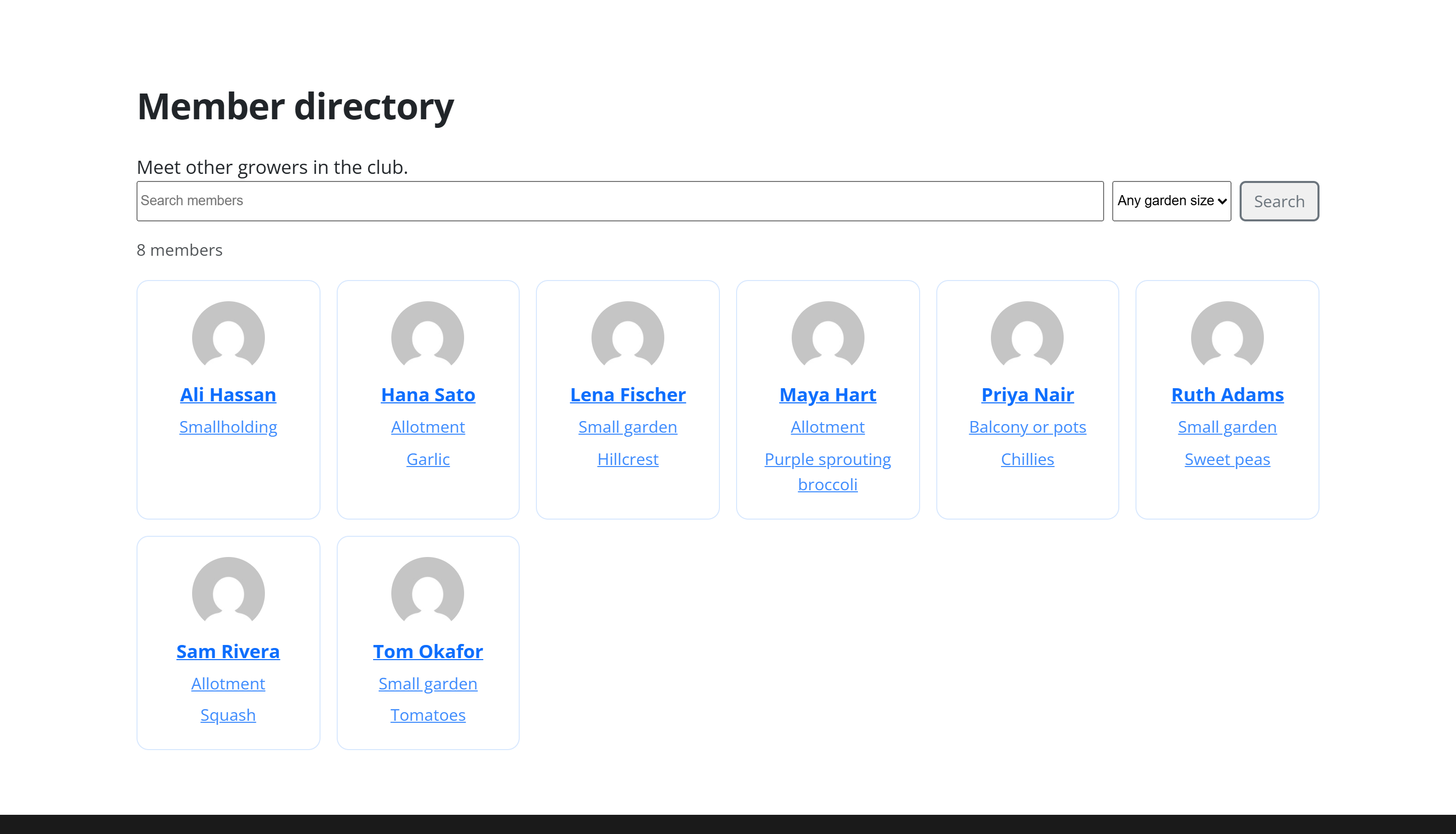
- The member directory. With the Member directory module on, fields set to Members or Everyone show on the directory and on members' public profiles, and can be searched. Members choose whether to be listed at all.
Privacy: export and erase
Profile values belong to the member's WordPress account, so WordPress's own privacy tools cover them:
- Export Personal Data (WordPress Tools → Export Personal Data) includes a Member profile group with every profile field that has a value, alongside the member's memberships and their history.
- Erase Personal Data (Tools → Erase Personal Data) removes every stored profile value, together with the person's memberships and email-confirmation details. Payment records are kept for accounting but no longer point to the person.
Good to know
I removed a field by mistake. Add it again with the same Key (advanced): the stored values come back.
Can I change a field's type later? Yes: change Type and save. Values already stored stay as they are, so check that they still make sense for the new type.
Can I make a field show only during sign-up? The sign-up form decides what it asks for. Untick Members can edit it if members should not change the answer afterwards.
Do profile fields go to the CRM? The member's account, plans and membership details go to the CRM when the CRM extension is active; see The CRM connection.
Next steps
- Sign-up forms: ask for profile details when people join.
- Login and the account page: where members edit their details.
- Member directory: choose what each field shows in the directory.
- Back to the Membership overview.