Settings
Unyson+ → Membership → Settings holds the site-wide choices that are not tied to one plan, one rule or one form: which pages are the member pages (account, login and join), how sign-up confirmation and approval behave, whether members may cancel themselves, and which button style Membership uses. Modules you switch on add their own panels to the same screen, so it is also where you set up the CRM connection, the metered paywall, the member directory, membership cards and the tools for keeping members.
You will normally visit it twice: once while setting up (to choose the account, login and join pages), and again whenever you switch on a module that adds a panel.
How to use the Settings screen
- Open Unyson+ → Membership → Settings (the last item in the Setup section of the sidebar).
- Work down the panels. Only the core panels show until you switch modules on.
- Click Save settings at the bottom. One button saves every panel, including the module panels.
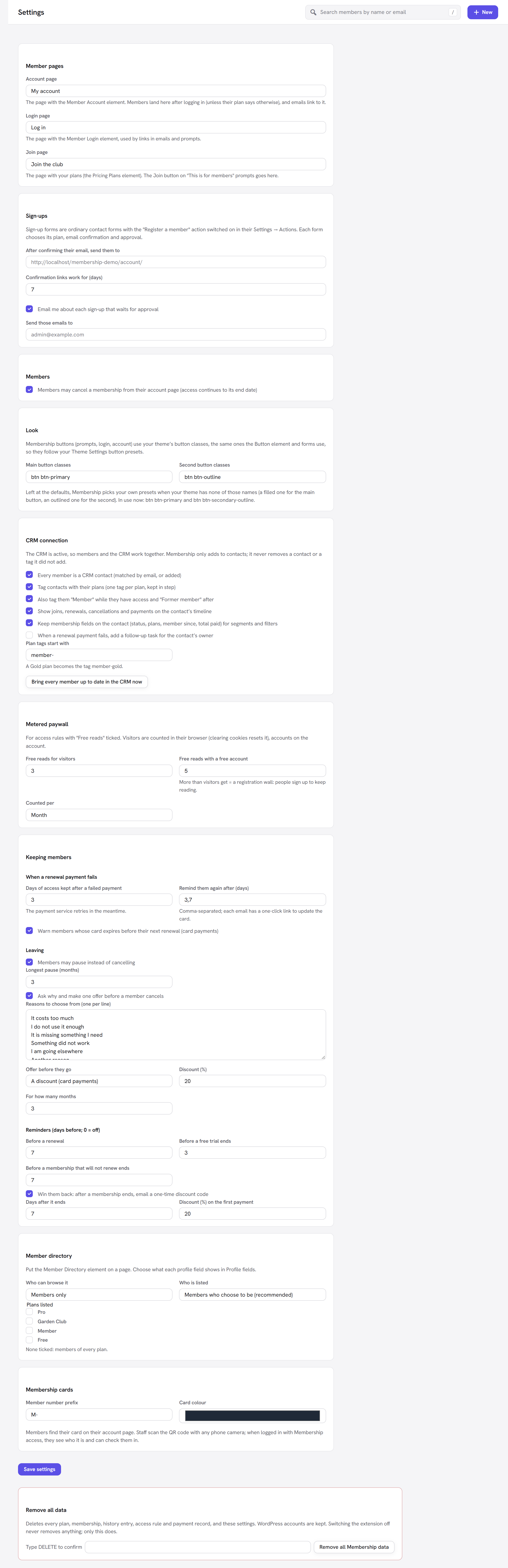
The Remove all data panel underneath is a separate form with its own button; Save settings never touches it.
Member pages
| Field | What it does | Default | Tip |
|---|---|---|---|
| Account page | The page with the Member Account element. Members land here after logging in (unless their plan says otherwise), people land here after confirming their email, and emails link to it ({account_url}). | None (members use their WordPress profile) | Always set it. Without it, members are sent to their profile in wp-admin. The page must be published. |
| Login page | The page with the Member Login element, used by links in emails ({login_url}) and prompts such as the "Log in" button on locked content. | None (the WordPress login screen) | Set it once you have built a login page, so members never see the grey WordPress screen. |
| Join page | "The page with your plans (the Pricing Plans element). The Join button on "This is for members" prompts goes here." Logged-out visitors see Join; people logged in without the right plan see See the plans. Both go to this page. | None (the checkout, when only one plan unlocks it) | Set it to your plans page (see Pricing table and checkout). Left on None, the button goes straight to the checkout only when exactly one plan unlocks the content, the Payments module is on and that plan has a price; otherwise the prompt shows no join button at all. |
How the Join page shows up on your site. Say a Larkspur Garden Club article is for Member. A logged-out visitor sees the teaser and a "This is for members" box with Log in and Join; a Free member sees See the plans. With Join page set to your "Plans" page, both buttons open it. A Paywall Prompt element with its own Button text and Button link keeps its own button. More in Access rules.
The lists show your published, private and draft pages, but a page is only used once it is published.
Sign-ups
Sign-up forms are ordinary contact forms with the Register a member action switched on in their Settings → Actions. Each form chooses its own plan, email confirmation and approval; this panel holds what they share. See Sign-up forms.
| Field | What it does | Default | Tip |
|---|---|---|---|
| After confirming their email, send them to | The address people land on, logged in, after confirming their email. | Empty (the account page) | Use a welcome or "getting started" page, for example /welcome/. |
| Confirmation links work for (days) | How long the link in the Confirm your email email works. From 1 to 30. | 7 | Shorter is safer; longer helps people who check their email rarely. |
| Email me about each sign-up that waits for approval | Sends the New sign-up to approve (to you) email for every sign-up that needs approval. | Ticked | Untick it if you check the Members list regularly anyway. |
| Send those emails to | Who receives those approval emails. | Empty (the site's admin email) | Use the address of whoever approves members, for example the club secretary. |
Members
| Field | What it does | Default | Tip |
|---|---|---|---|
| Members may cancel a membership from their account page (access continues to its end date) | Shows Cancel membership on the account page for each active plan with an end date. A cancelled member keeps access until that date and gets the Cancelled email. | Ticked | Untick it if members must contact you to cancel. Plans with no end date never show the button. With the Retention module, a short cancellation flow can run first (see below). |
Look
Membership's buttons (the prompts on locked content, the login form, the account page, the checkout) use your theme's button classes, the same ones the Button element and forms use, so they follow your Theme Settings button presets.
| Field | What it does | Default | Tip |
|---|---|---|---|
| Main button classes | The classes for the main buttons, such as Log In or Save details. | btn btn-primary | Start typing to pick one of your button presets from the suggestions. |
| Second button classes | The classes for quieter, second buttons, such as Send the link or Add a passkey on this device. | btn btn-outline | Pick an outlined or lighter preset so the two kinds are easy to tell apart. |
The automatic preset choice. Left at the defaults, Membership checks whether your Theme Settings have button presets with those names. If they do not, it picks your own presets instead: a filled one for the main button and an outlined one for the second, preferring presets whose name suggests the role (primary, fill or solid for the main one; outline, secondary or ghost for the second). The line under the fields says which ones are in use now: "In use now: … and …". Type your own classes to override the choice. Membership also adds its own fallback look, so buttons still look like buttons in a theme that does not style these classes.
Panels that modules add
These panels appear on the same screen while their module is on (Membership → Modules, all off by default; the CRM connection turns on by itself while the CRM extension is active). They are saved by the same Save settings button.
CRM connection (CRM extension active)
Membership only adds to contacts; it never removes a contact or a tag it did not add.
| Field | Default |
|---|---|
| Every member is a CRM contact (matched by email, or added) | Ticked |
| Tag contacts with their plans (one tag per plan, kept in step) | Ticked |
| Also tag them "Member" while they have access and "Former member" after | Ticked |
| Show joins, renewals, cancellations and payments on the contact's timeline | Ticked |
| Keep membership fields on the contact (status, plans, member since, total paid) for segments and filters | Ticked |
| When a renewal payment fails, add a follow-up task for the contact's owner | Not ticked |
Plan tags start with: a plan called Gold becomes the tag member-gold | member- |
The button Bring every member up to date in the CRM now syncs every existing member at once, handy after turning the CRM on for a site that already has members. More in The CRM connection.
Metered paywall (Metered paywall module)
See Metered paywall.
For access rules with "Free reads" ticked. Visitors are counted in their browser (clearing cookies resets the count); people with an account are counted on their account.
| Field | What it does | Default |
|---|---|---|
| Free reads for visitors | How many locked items a visitor may read. | 3 |
| Free reads with a free account | How many a logged-in person without a plan may read. More than visitors get makes a registration wall: people sign up to keep reading. | 5 |
| Counted per | Month, Week or Day. | Month |
Member directory (Member directory module)
Put the Member Directory element on a page, and choose what each profile field shows in Profile fields. See Member directory.
| Field | What it does | Default |
|---|---|---|
| Who can browse it | Members only or Everyone. | Members only |
| Who is listed | Members who choose to be (recommended) or Every member, unless they opt out. | Members who choose to be |
| Plans listed | The plans whose members appear. None ticked: members of every plan. | None ticked |
Membership cards (Membership cards module)
| Field | What it does | Default |
|---|---|---|
| Member number prefix | Put in front of each member number. Letters, numbers and hyphens, up to 10 characters. | M- |
| Card colour | The card's background colour. | #1f2937 (a dark grey) |
Members find their card on their account page. Staff scan the QR code with any phone camera; when logged in with Membership access, they see who it is and can check them in. See Membership cards.
Keeping members (Retention module)
When a renewal payment fails
| Field | What it does | Default |
|---|---|---|
| Days of access kept after a failed payment | The grace period; the payment service retries in the meantime. Up to 30. | 3 |
| Remind them again after (days) | Comma-separated days after the failure for the Payment still due email; each has a one-click link to update the card. | 3,7 |
| Warn members whose card expires before their next renewal (card payments) | Sends the Card expiring email. | Ticked |
Leaving
| Field | What it does | Default |
|---|---|---|
| Members may pause instead of cancelling | Offers a pause on the account page. | Ticked |
| Longest pause (months) | From 1 to 12. | 3 |
| Ask why and make one offer before a member cancels | Turns Cancel membership into a short flow: a reason, then one offer. | Ticked |
| Reasons to choose from (one per line) | The reasons offered in that flow. | "It costs too much", "I do not use it enough", "It is missing something I need", "Something did not work", "I am going elsewhere", "Another reason" |
| Offer before they go | A discount (card payments), A pause, A cheaper plan (from "Members can switch to") or No offer. | A discount |
| Discount (%) and For how many months | The discount offered, from 1 to 100%, for 1 to 24 months. | 20% for 3 months |
Reminders (days before; 0 = off)
| Field | Sends | Default |
|---|---|---|
| Before a renewal | Renewal reminder | 7 |
| Before a free trial ends | Free trial ending | 3 |
| Before a membership that will not renew ends | Membership ending soon | 7 |
| Win them back: after a membership ends, email a one-time discount code | Win-back offer (needs the Coupons module) | Ticked |
| Days after it ends | When the win-back email goes out | 7 |
| Discount (%) on the first payment | The win-back discount | 20 |
The emails these settings send are described on Emails, and the whole retention toolkit on Retention.
Payment settings (the payment services, currency, checkout page and terms) are not on this screen: they live in Membership → Payments → Payment settings. See Payments.
Remove all data
The panel at the bottom permanently deletes Membership's data: every plan, membership, history entry, access rule and payment record, and all the data tables of the modules (downloads, groups, courses, gifts, coupons and the rest). It also deletes every Membership setting: this screen's settings, your email wording, which modules are on (so every module is switched off), and the modules' own settings too: the payment settings, the retention settings, the CRM connection, membership cards, the member directory, the metered paywall, your profile field definitions, and the ids Membership remembered for the payment services (such as the matching customers, prices and coupons it made there). Its scheduled jobs are cleared as well.
What it keeps: WordPress accounts, and the values stored on those accounts (for example a member's answers to profile fields). Nothing at Stripe or PayPal is touched, so cancel any live subscriptions there first.
- Type
DELETEin Type DELETE to confirm. - Click Remove all Membership data and confirm the warning ("Remove ALL Membership data? This cannot be undone.").
Without the word, nothing is removed ("Type DELETE to confirm. Nothing was removed."). Afterwards you see "All Membership data was removed: plans, members, rules, payments and settings.", and Membership starts again with empty tables and opens Home. See also Privacy and data.
Switching the Membership extension off, or deleting it, never removes anything: your plans and members are still there if you switch it back on. This button is the only way to remove the data, so use it when you are finished with Membership for good, or to clear a test site.
Good to know
I cannot find a module's panel. It shows only while its module is on in Membership → Modules. Every panel saves with the one Save settings button at the bottom.
Members still land in wp-admin after logging in. Choose an Account page. Staff who can edit posts always land in wp-admin, by design.
Where are the settings for each plan? Prices, length, redirects after login and logout, device limits and which plans members can switch to are on each plan in Plans.
Next steps
- Login and the account page: build the pages you choose here.
- Sign-up forms: email confirmation and approval in practice.
- Emails: reword the emails these settings send.
- Getting started: where these pages fit in a first setup.
- Back to the Membership overview.