Sign-up forms
A sign-up form is how a visitor becomes a member of your site. In Unyson+ there is no separate "registration form" to learn: you build an ordinary form with the Forms extension, then switch on one action, Register a member (Membership), in the form's settings. From then on, every time someone sends that form, Membership creates their WordPress account, gives them the plan you chose and, if you want, asks them to confirm their email address or waits for you to approve them.
This page covers free sign-ups through a form. People who buy a paid plan get their account at the checkout instead; see Joining a paid plan at checkout below.
In the Larkspur Garden Club example, the Free plan is handed out by a sign-up form on a "Join the club" page, while Member and Pro are sold through the pricing table and checkout.
What you need first
- The Forms extension switched on (Unyson+ → Extensions). It provides the form builder, the Contact form element and the Actions tab this page uses.
- At least one plan in Unyson+ → Membership → Plans, usually a free one. A form can also create an account with no plan at all.
- Sign-up forms are part of the Membership core, so no module needs switching on.
How to build a sign-up form, step by step
- Create the page. Add a page such as "Join the club" and open it in the page builder.
- Add the form. From the Interactive Elements tab, drop a Contact form element onto the page.
- Add the fields. In the form builder, add:
- an Email field (required: the action refuses a form without a valid email address);
- a name field, if you want one. A field labelled "First name" and one labelled "Last name" (or a single "Name" field) fill in the new account's first and last name;
- optionally the Username and Password fields, which Membership adds to the form builder (see The Username and Password fields);
- optionally any field whose label matches one of your profile fields, such as "Phone". Its answer is copied into the member's profile.
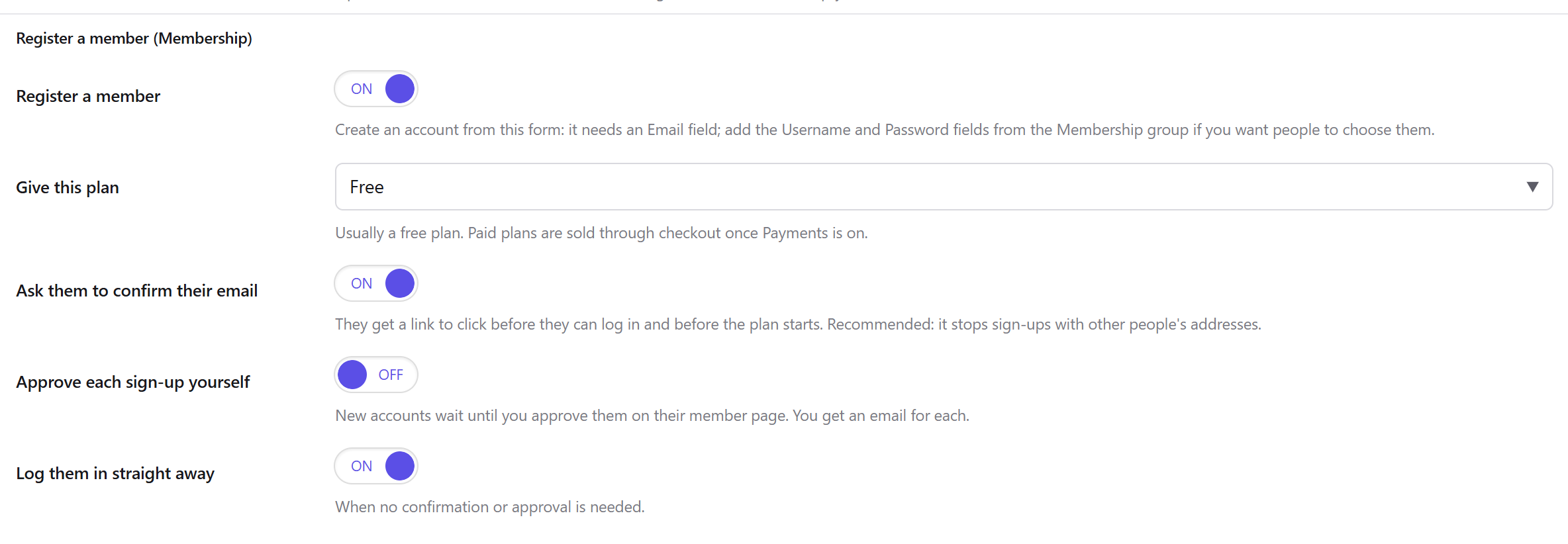
- Open the form's Settings and go to the Actions tab. Each available action has its own group with its title in bold. Find Register a member (Membership).
- Switch on Register a member and choose the plan in Give this plan, for example Free.
- Decide how strict to be: leave Ask them to confirm their email on (recommended), switch on Approve each sign-up yourself if you want to vet every new member, and keep Log them in straight away on for the smoothest sign-up when neither is needed.
- Save the form and publish the page. Then try it yourself in a private browser window with an email address you can read.
Tip: point the Sign-up page option of the Member Login element at this page, so people who reach the login form without an account can find it.
Every option of the Register a member action
These options live in the form's Settings → Actions tab, under Register a member (Membership). Each form has its own, so you can run two forms that give different plans or treat sign-ups differently.
| Option | What it does | Default | When to change it |
|---|---|---|---|
| Register a member | The on/off switch. When on, every accepted submission creates an account. The form needs an Email field; add the Username and Password fields if you want people to choose them. | Off | Switch it on for every sign-up form. Leave it off on ordinary contact forms. |
| Give this plan | The plan the new account receives. The list shows your active plans plus No plan (an account only). | No plan (an account only) | Pick your free plan. Paid plans are normally sold through the checkout once the Payments module is on, so the person pays first. |
| Ask them to confirm their email | Sends the Confirm your email message with a link. Until they click it and press the confirm button, they cannot log in and the plan does not start. | On | Leave it on. It stops people signing up with someone else's address and keeps fake accounts out. Switch it off only for a closed setting where you trust every address. |
| Approve each sign-up yourself | New accounts wait until you approve them on their member page. You get an email for each (if Settings allow it). | Off | Switch it on for a club or community where members must be vetted, for example only residents of one area. |
| Log them in straight away | Logs the new member in the moment they send the form. | On | Only takes effect when neither confirmation nor approval is needed. Switch it off if you would rather they log in themselves. |
What happens when someone sends the form
Before the submission is accepted, Membership checks it. If a check fails, the visitor sees the message under the form and nothing is stored or sent:
| Situation | Message the visitor sees |
|---|---|
| No email, or not a valid address | "Please enter a valid email address." |
| The email already has an account | "An account with this email already exists. Please log in instead, or reset your password if you have forgotten it." |
| They are logged in with a different email | "You are already logged in with another email address. Log out first to create a new account." |
| The plan has been closed (not active) | "Sorry, this membership is not open for sign-ups right now." |
| The plan's Member limit is reached | "Sorry, this membership is full." |
When the submission passes, Membership:
- Creates the WordPress account, with the site's default role (Settings → General → New User Default
Role in WordPress). The username is the one typed in the Username field, or, when there is none or
it is taken, one made from the part of the email before the
@. - Sets the password from the Password field. Without one, WordPress sends its own "set your password" email.
- Copies the first and last name and any matching profile fields.
- Gives the plan. If confirmation or approval is needed, the membership waits with the status Signed up, waiting to start and no access yet; otherwise it starts at once and the Welcome email goes out.
- Holds the account for confirmation or approval, or logs the person in.
Someone who is already logged in and sends the form with their own email address simply gets the plan. No second account is made. This makes a sign-up form a handy way to let existing users add a free plan.
The Username and Password fields
Membership adds two fields to the form builder for sign-up forms. Both are optional.
Username. Lets people choose the name they log in with. Its options are the usual field options
(label, required, help text and the extra options every field has). On the site it checks that the
username uses only letters, numbers, spaces and . - _ @, is at least 3 characters long and is not
already taken. Without this field, the username is made from the email address. Members can always log
in with their email address too.
Password. Lets people choose their password instead of getting an email to set one.
| Option | What it does | Default |
|---|---|---|
| Label and Required | As on every field. | "Password" |
| Ask twice | Shows a second box to repeat the password; the form says so if the two do not match. | On |
| Minimum length | The shortest password allowed. Values below 6 count as 6, above 64 as 64. | 8 |
The password field is a secret field: it is never stored with the form entry, never included in notification emails, never handed to other form actions and never shown back in the form after an error. Only the Register a member action reads it, to set the account's password.
Email confirmation
With Ask them to confirm their email on, the new member receives the Confirm your email email straight after signing up. Its link:
- works once and for the number of days set in Membership → Settings → Confirmation links work for (days) (7 by default, 1 to 30);
- opens a small page with a Confirm my email button. The address is confirmed only when that button is pressed. This is deliberate: some mail scanners open every link in an email, and a plain link would confirm addresses on someone's behalf;
- once confirmed, logs the member in and sends them to the address in After confirming their email, send them to (Settings), or to the account page when that is empty, with the notice "Your email is confirmed. Welcome!" The plan starts and the Welcome email goes out.
If the link has expired, the page says "This link has expired". Until they confirm, trying to log in shows "Please confirm your email address first: open the link in the email we sent you. It may be in your spam folder."
Helping someone who never got the email. Open their page in Unyson+ → Membership → Members. A panel Waiting for email confirmation offers two buttons:
- Resend the confirmation email: sends a fresh link; the old one stops working.
- Mark as confirmed: confirms them yourself, for example after checking by phone. If the form also asks for approval, they then wait for approval; otherwise their membership starts.
Approving sign-ups
With Approve each sign-up yourself on, a new account waits for you (after the email confirmation, when both are on). While it waits:
- the member gets the Waiting for approval email;
- you get the New sign-up to approve (to you) email, as long as Email me about each sign-up that waits for approval is ticked in Settings. It goes to the address in Send those emails to, or the site's admin email, and links straight to the member;
- logging in shows "Your account is waiting for approval. We will email you as soon as it is approved."
To approve someone:
-
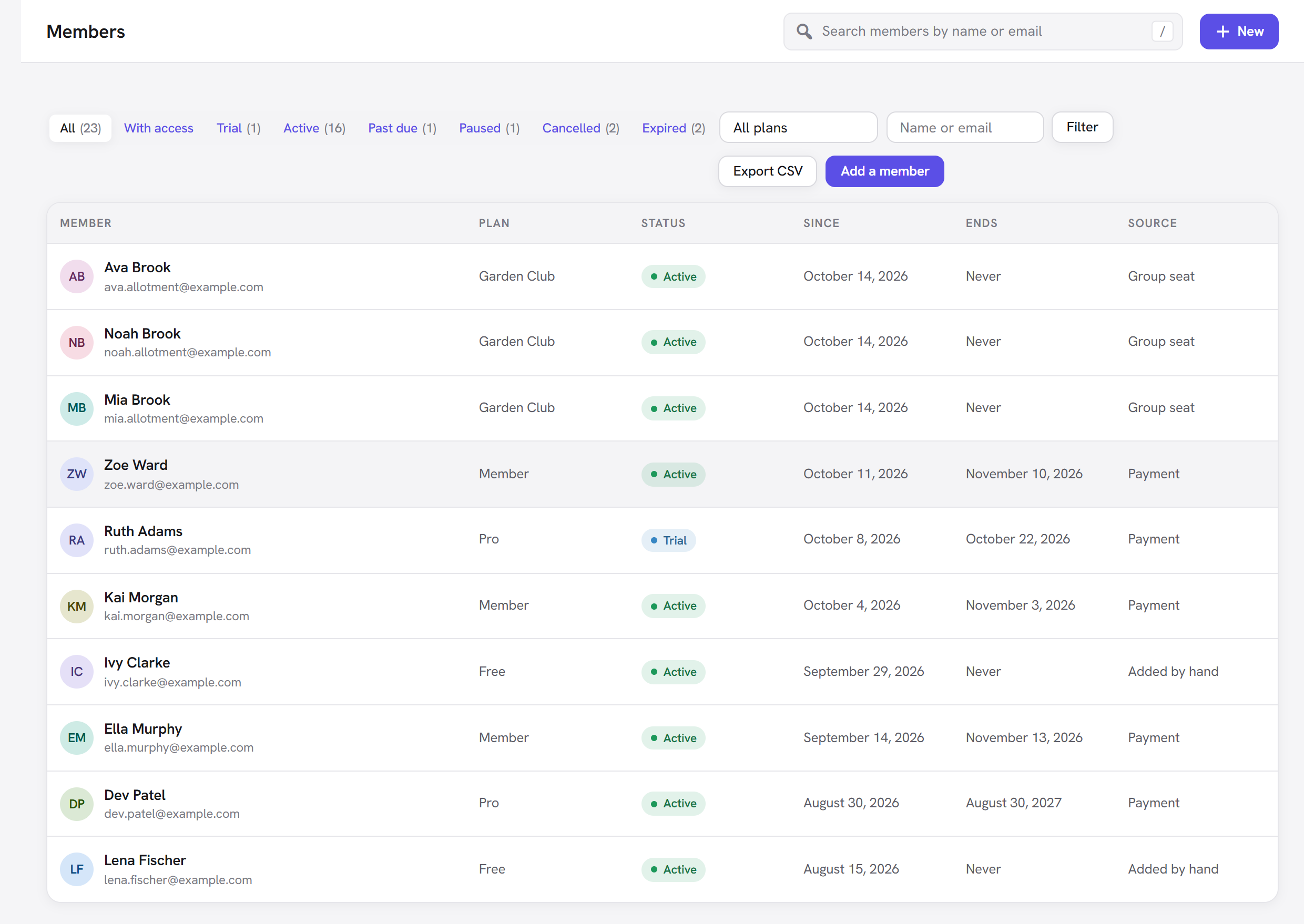
Open Unyson+ → Membership → Members. People waiting have the Pending status, so they appear under the Pending tab (the tab shows only while someone is pending).
-
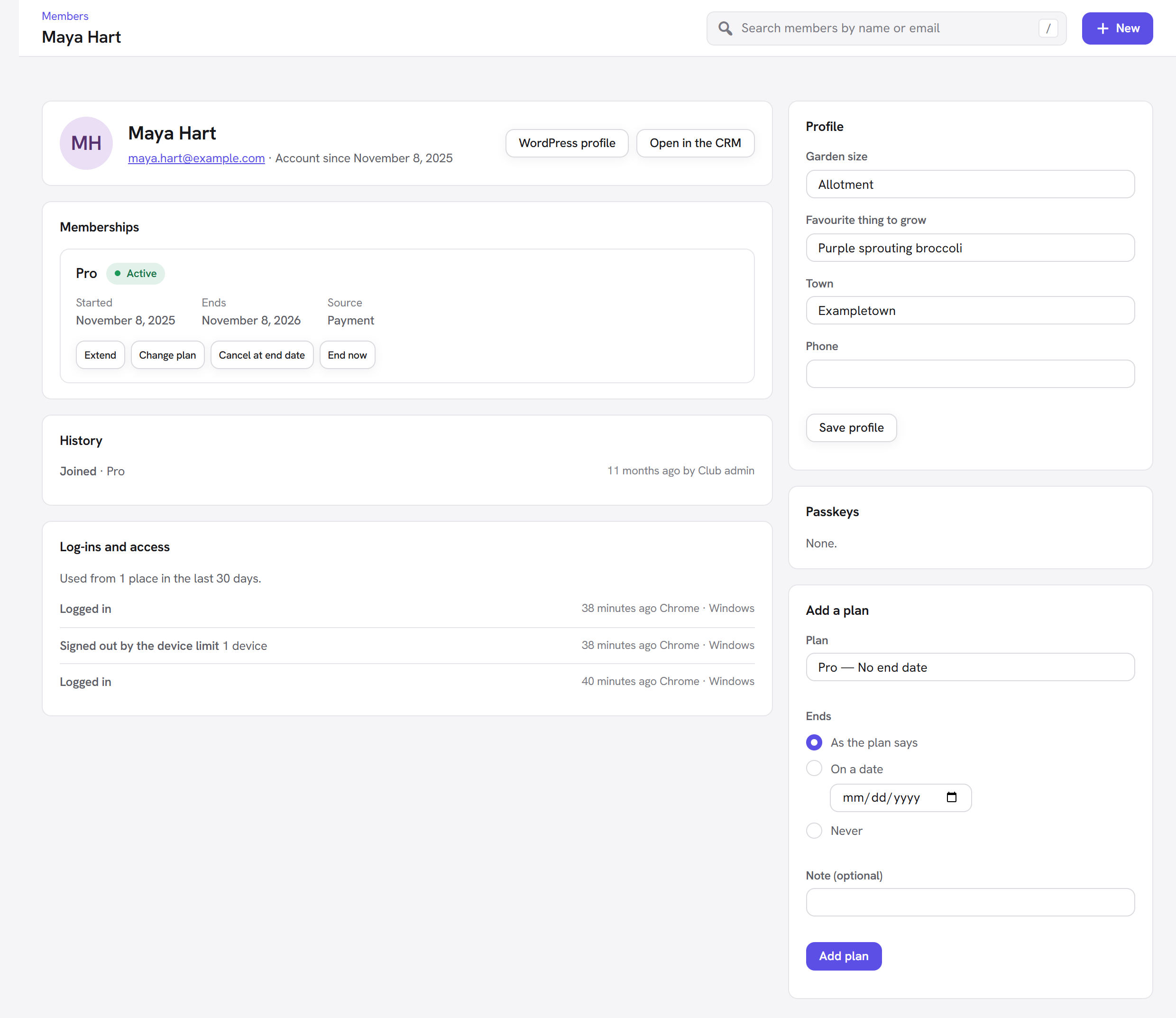
Open the member. A panel Waiting for your approval explains their state.
-
Click Approve. Their membership starts and they get the Approved email with a link to log in.
There is no "reject" button. Someone you have not approved can never log in, so you can simply leave them waiting; to remove them for good, delete their account in WordPress's Users screen.
Joining a paid plan at checkout
Paid plans (in the example, Member monthly or yearly, and Pro) are not given by a form. A visitor picks a plan on the Pricing Plans element, goes to the page with the Membership Checkout element, and pays. Both elements need the Payments module (Membership → Modules, off by default). Set your plans page as the Join page in Settings too, so the Join button on locked content leads there.
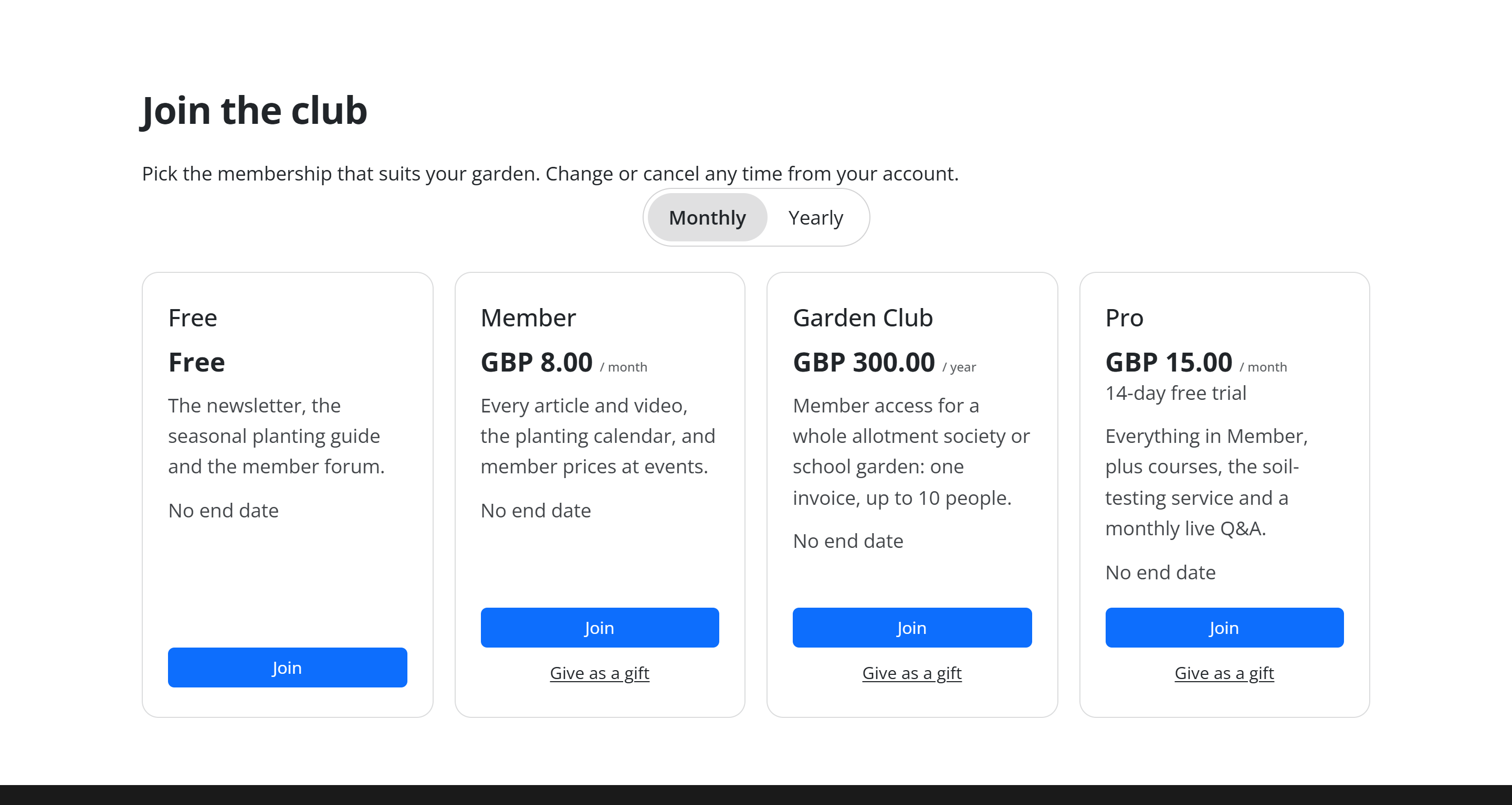
At the checkout, a visitor without an account types their first name, last name, email address and a password of at least 8 characters. The account is created and they are logged in as they go on to pay; the membership starts once the payment is confirmed. Checkout sign-ups skip email confirmation and approval, because the payment itself identifies the buyer. If the email already has an account, the checkout asks them to log in first and come back.
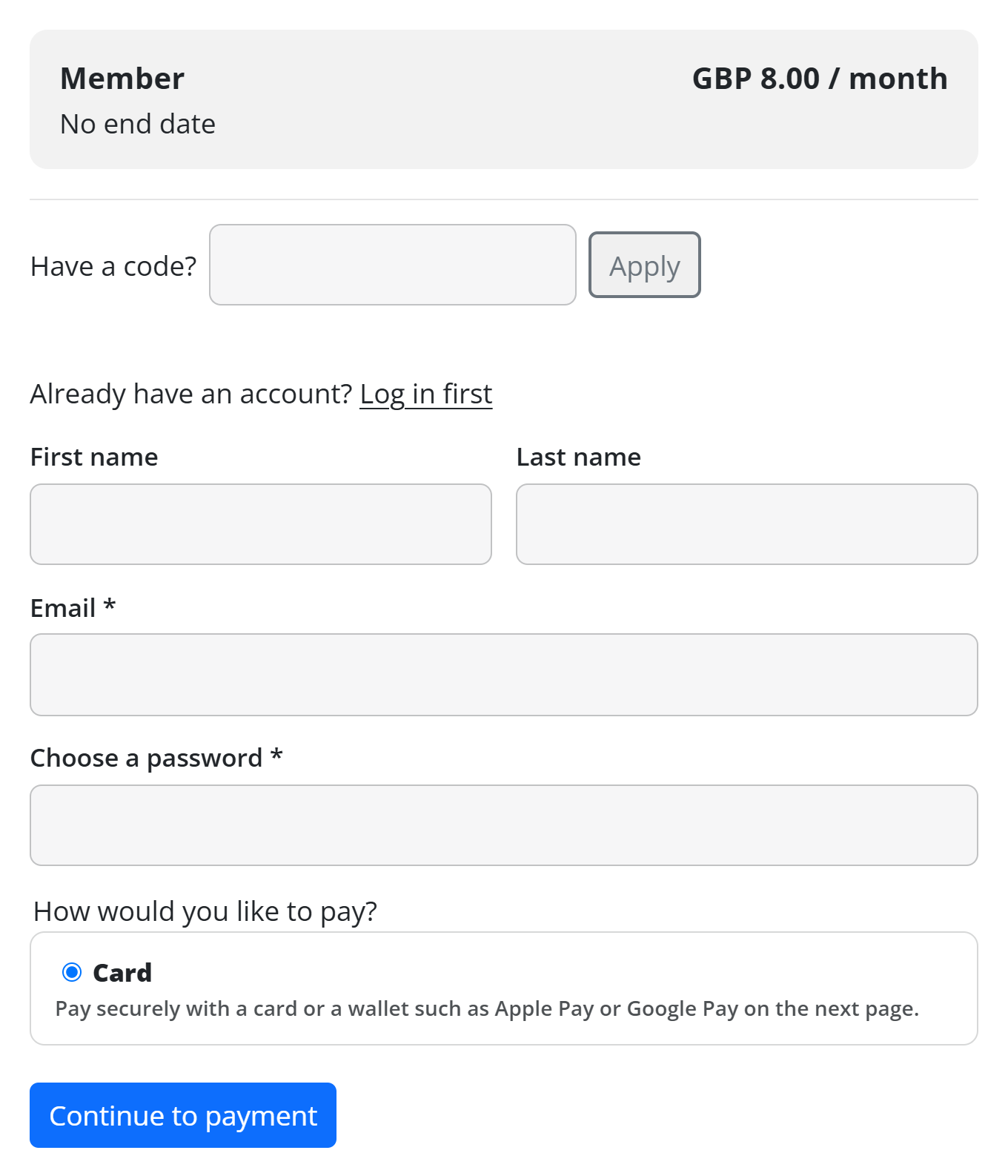
The checkout can also hand out a free plan: its free-plan button reads "Join for free" by default. All of this, including the payment settings, is covered in Payments and Pricing table and checkout.
Good to know
Can one form give a choice of plans? No. Each form gives one plan. Make one form per plan, or sell the plans through the pricing table and checkout.
Does the form still save an entry and send its notification? Yes. The Register a member action runs alongside the form's other actions and its entry, minus the password.
Can I use a WordPress plugin's registration form instead? Membership's own sign-up route is the Forms action. Accounts made any other way are ordinary WordPress users you can give a plan to by hand in Members.
Nobody receives the confirmation email. The emails are sent through your site's mail settings. Use Send me a test on Emails to check that mail leaves your site, and set up the Mailer extension or an SMTP service if it does not.
What does the member see after signing up? Whatever the form is set to show after a submission (its success message or redirect). If they were logged in straight away, they can go to the account page.
Next steps
- Login and the account page: give members a page to log in and manage their membership.
- Profile fields: collect extra details at sign-up.
- Emails: reword the confirmation, welcome and approval emails.
- Settings: the confirmation link lifetime, the page after confirming and the approval notices.
- Back to the Membership overview.