Account security
A membership is only worth paying for if one account is not quietly shared by a whole group of friends, and members only come back if logging in is easy. The Account security module helps with both:
- Devices signed in at once: a limit per plan on how many devices a member can be logged in on.
- Login links: members can ask for a one-click link by email instead of typing a password.
- Passkeys: members log in with their fingerprint, face or device PIN.
- A log of logins, failed logins and pages a member was turned away from, on each member's page, with a hint when an account looks shared.
:::info Module This is the Account security module. Switch it on under Membership → Modules (off by default). It adds a field to each plan, two buttons to every login form, two sections to the account page and a panel to each member's page. There is nothing else to configure. :::
Turn it on
- Go to Unyson+ → Membership → Modules, switch on Account security and click Save modules.
- Set a device limit on the plans that need one (below).
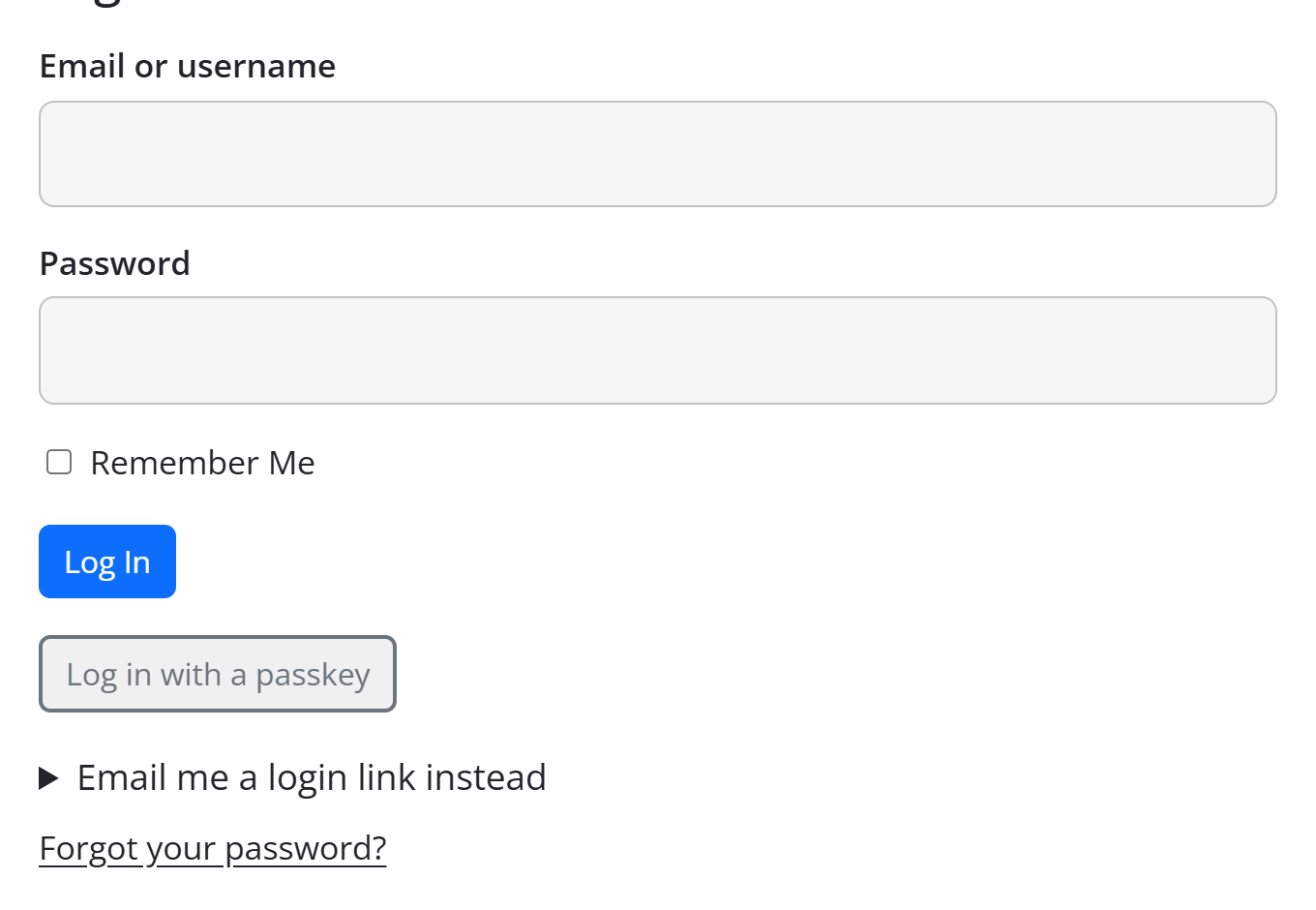
- Look at your login page: it now offers Log in with a passkey (in browsers that support passkeys) and Email me a login link instead.
Devices signed in at once
Set it per plan: Membership → Plans → edit a plan → Options → Devices signed in at once.
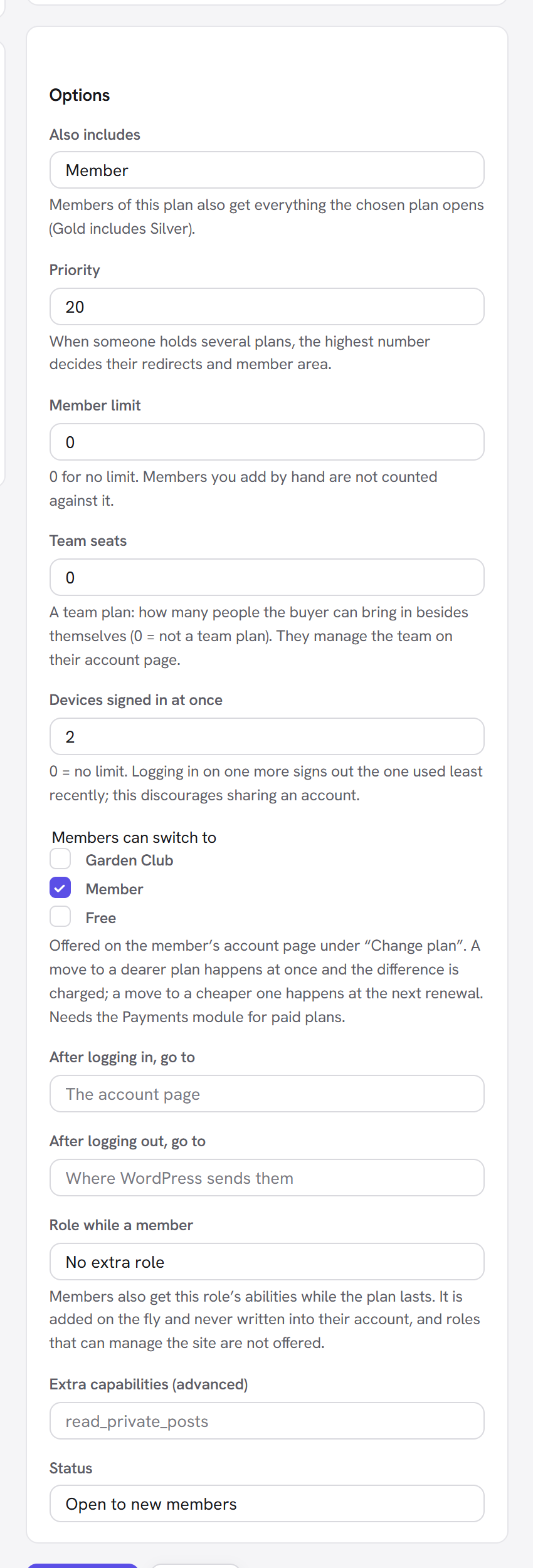
| Field | What it does | Default | Tip |
|---|---|---|---|
| Devices signed in at once | How many devices (browsers) a member of this plan can be logged in on at the same time. "0 = no limit. Logging in on one more signs out the one used least recently; this discourages sharing an account." | 0 | 2 or 3 covers a phone, a laptop and a tablet. 1 is strict: a member who logs in on their phone is logged out on their laptop. |
How it works:
- When a member logs in on one device too many, the session used least recently is signed out. The device they just logged in on is never the one signed out.
- With several plans, the most generous limit applies. Plans with 0 do not count, so one plan with a limit of 2 and another with no limit gives 2.
- Membership managers (administrators) are never limited.
- The member's log records "Signed out by the device limit".
On their account page, members with two or more sessions see Signed in on: each device (for example Chrome · Windows) and since when, and "Your plan allows 2 devices at a time." when there is a limit. The existing Sign out everywhere else button is there too.
Login links (passwordless email login)
Under the login form, members can open Email me a login link instead, type Your email and click Send the link. They get the Login link email with a one-click link.
The link is safe by design:
- It works once, for 15 minutes. Only a scrambled copy (a hash) is stored, never the link itself.
- Opening it shows a small page, "Log in to
{site name}" "As{email}.", with a Log me in button. Nothing happens until the member clicks it. That way the email scanners that open every link in an inbox cannot use it up. - The answer on the login page is always the same, "If that address has an account, a login link is on its way. It works once, for 15 minutes.", so nobody can use the form to find out who has an account.
- One request per email address per minute.
- An old or used link shows "This link has expired" with Ask for a new one.
The member arrives where they were going (for example the page they were trying to read), or on their account
page. You can change the email's wording in Membership → Emails → Login link (placeholders {login_link} and
{minutes}).
Passkeys
A passkey lets a member log in with what already unlocks their phone or computer: a fingerprint, their face, or the device PIN. There is no password to forget, and a passkey cannot be phished, because it only works on your site.
How a member adds a passkey
- Log in as usual and open the account page.
- Find the Passkeys section: "Log in with your fingerprint, face or device PIN instead of a password. Add one on each device you use."
- Click Add a passkey on this device.
- The browser or phone asks to confirm with the fingerprint, face or PIN. Confirm.
- The page shows "Passkey added." and lists it, named after the browser and system (for example Safari · iOS),
with added
{date}or last used{date}and a Remove button.
Repeat on each device. A passkey saved in a password manager or a phone's keychain may sync across the member's devices by itself.
How a member logs in with it
On the login page (the Member Login element, and WordPress's own wp-login.php), click Log in with a passkey
and confirm on the device. No email or password needed.
The passkey buttons appear only in browsers that support passkeys; elsewhere members simply log in as before.
On a member's admin page, a Passkeys panel shows how many they have (for example "2 passkeys." or "None.").
When a passkey does not work
| Message | What it means |
|---|---|
| This browser cannot use passkeys. | Use another browser or log in with the password. |
| The passkey request expired. Please try again. | The confirmation took more than 5 minutes. |
| This passkey is not linked to an account here. | It was removed from the account, or belongs to another site. |
| The passkey is not for this site. / The passkey was used from another site. | Passkeys belong to one web address. After moving the site to a new domain, members add their passkeys again. |
| This passkey looks copied. Remove it from your account and add it again. | A safety check failed; remove and re-add it. |
A passkey already proves two things (the device, and the fingerprint, face or PIN that unlocks it), so a passkey login is not asked for a second step by the Unyson+ Security extension.
The log on a member's page
Open Membership → Members and click a member. The Log-ins and access panel lists their latest 30 entries, newest first, with when it happened and the browser and system:
| Entry | Means |
|---|---|
| Logged in | With a password. |
| Logged in with an email link | With a login link. |
| Logged in with a passkey | With a passkey. |
| Wrong password | A failed login for this account. |
Turned away from {page} | They opened a page they had no access to. |
Plan changed to {plan} | Their plan changed. |
| Signed out by the device limit | A session was ended by the plan's limit. |
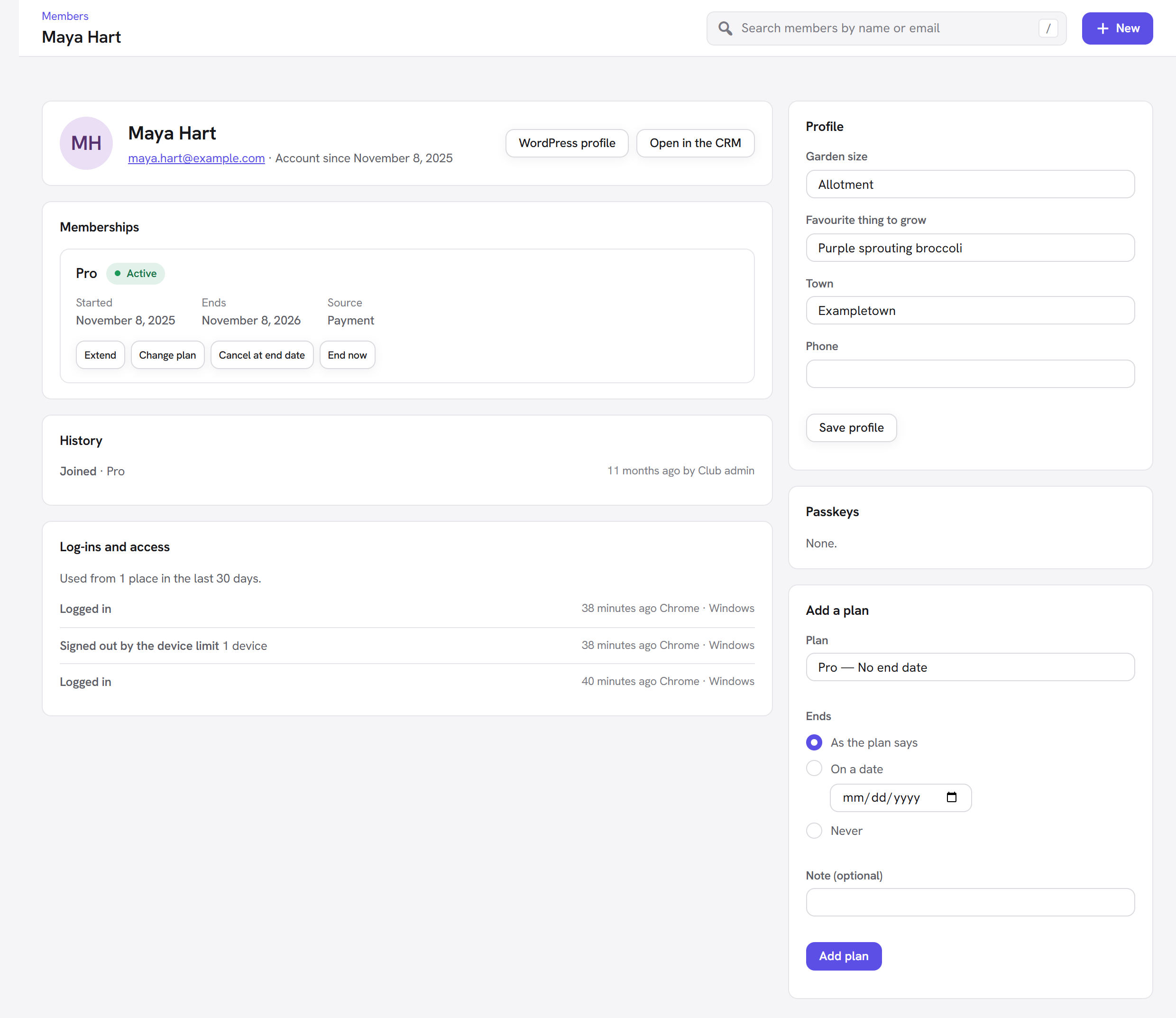
At the top: "Used from {n} places in the last 30 days." A "place" is a different internet connection
(IP address) that logged in. More than three is highlighted with "That is a lot: the account may be shared."
A member who logs in from home, work and a phone is three places; ten places in a month is worth a friendly
email or a lower device limit.
Entries older than 90 days are removed automatically.
Privacy of IP addresses
The log never stores a member's IP address. It keeps a keyed hash of it: a scrambled value made with a secret key unique to your site. Two logins from the same connection give the same value, so the log can count places, but nobody, including you, can turn the value back into an address or a location. The browser and system are stored as a short description (Firefox · Linux), not the full browser string.
This keeps the log useful for spotting shared accounts while holding as little personal data as possible. See Privacy and data for what else Membership stores.
Good to know
A member says they keep getting logged out. Their plan's device limit is lower than the devices they use. Check Signed in on on their account (or ask them), then raise the limit or ask them to log out of devices they no longer use.
Do login links replace passwords? No. Members can use either. Login links are handy for people who rarely visit and forget their password.
Can I turn off only passkeys or only login links? Not separately: they come with the module. If you switch the module off, both are gone; saved passkeys are kept and work again when you switch it back on.
Does the device limit work with "Remember me"? Yes. Every logged-in browser counts as a session until it logs out or the session expires.
Next steps
- Import members from another system: Import and export.
- Handle personal data requests: Privacy and data.
- Build the login and account pages: Login and the account page.
- Back to the Membership overview.