Connect the CRM
If you also use the Unyson+ CRM, Membership and the CRM join up by themselves. Every member becomes a CRM contact, each plan becomes a tag on that contact, and the contact page shows what they hold and what they paid. From then on you can email all Pro members in a campaign, open a page only to people with a CRM tag, or see at a glance that the person who just phoned is a member since 2024.
This page is the practical how-to. For the reasoning behind the design, see Membership and the CRM.
:::info Module This is the CRM module. There is nothing to switch on: it is on by itself while the CRM extension is active, and its row in Membership → Modules reads On. You choose what it does in Membership → Settings → CRM connection. :::
Set it up
- Activate the CRM extension (Unyson+ → Extensions), if it is not already on.
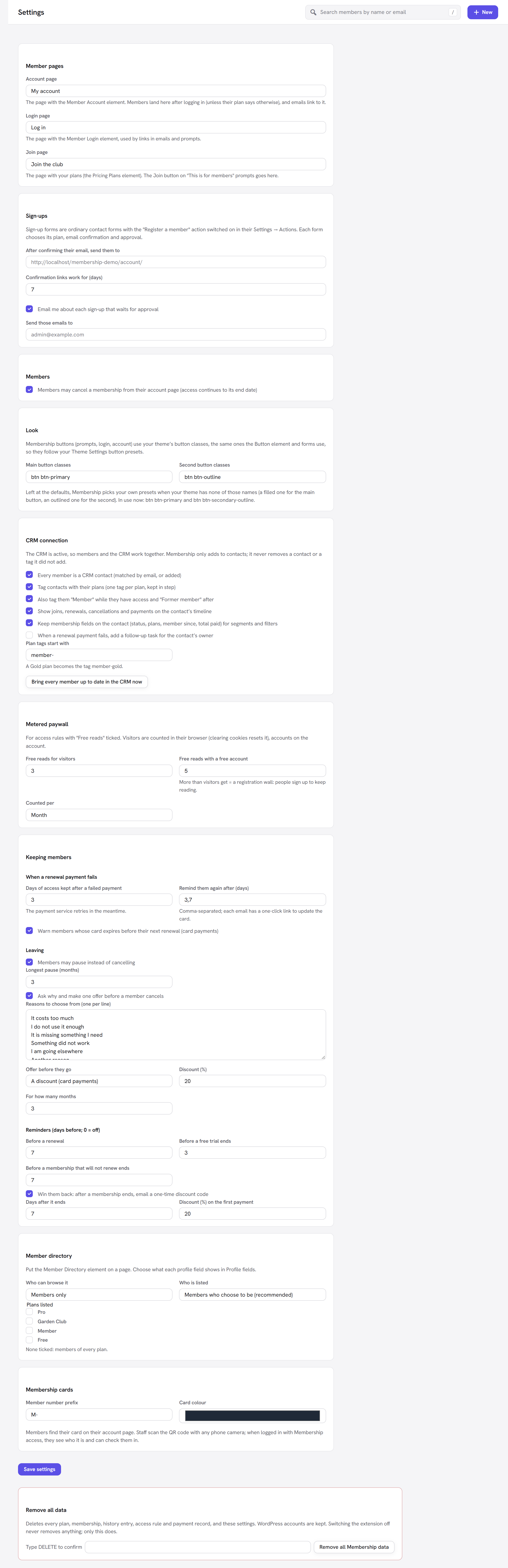
- Go to Unyson+ → Membership → Settings and scroll to CRM connection. The panel says "The CRM is active, so members and the CRM work together. Membership only adds to contacts; it never removes a contact or a tag it did not add."
- Leave the boxes ticked that you want (the defaults suit most sites; see Every option explained).
- Click Save settings.
- If you already had members before the CRM, click Bring every member up to date in the CRM now. It goes
through every member once and reports "
{n}members brought up to date in the CRM." New members after that are kept in step automatically.
Members as contacts
- When someone joins (or is given a plan), Membership looks for the CRM contact linked to their WordPress account. If there is none, it uses the contact with their email address, or makes one. The contact is then linked to the account. A newsletter subscriber who later joins keeps their history: no duplicate.
- A contact already linked to someone else's account is never taken over.
- Name and email follow the WordPress account. When a member changes them in their account, the contact is updated. Changes in the CRM do not flow back to the account.
- Contacts made this way have the source membership.
- When two contacts are merged in the CRM, the one kept is brought up to date with the member's plans.
Plans as tags
Each plan has its own tag on the contact, made from Plan tags start with plus the plan's slug. With the
default member-:
| Larkspur plan | Tag slug | Tag name in the CRM |
|---|---|---|
| Free | member-free | Member: Free |
| Member | member-member | Member: Member |
| Pro | member-pro | Member: Pro |
| Garden Club | member-garden-club | Member: Garden Club |
With Also tag them "Member" while they have access and "Former member" after ticked, every contact also
gets Member (member) while they hold any plan with access, and Former member (former-member) once
they had a membership but have none now.
How the tags behave:
- Membership manages them. On the contact page they are locked, so nobody removes them by mistake.
- They are recomputed after every change (join, renewal, cancel, end, plan change), so they cannot drift.
- Membership adds and removes only its own tags. Tags you added by hand stay.
- A cancelled member keeps their plan tag until access actually ends.
Now any CRM feature that works with tags works with plans: filter the contacts list by member-pro, build a
segment of "Member: Pro and not Former member", or send a campaign to the Member tag.
Membership fields on the contact
With Keep membership fields on the contact ticked, Membership adds a Membership group of fields to contacts and keeps them filled in (they are read-only in the CRM):
| Field | Holds |
|---|---|
| Membership status | Member, Former member or Waiting (signed up, waiting for confirmation or approval). |
| Membership plans | The plans held now, for example Member, Pro. |
| Member since | The start of their first membership. |
| Membership renews on | The next renewal date. |
| Membership ends on | When access ends, for memberships that will not renew. |
| Total paid for membership | Everything they paid, in your site's currency. |
Use them in CRM segments and filters: "Member since before 2025" for a loyalty email, "Membership ends on in the next 14 days" for a personal call, "Total paid over 200" for your best members.
CRM conditions in access rules
Access rules can open content to people by CRM tag, list or segment, not only by plan. For example, open the Volunteer handbook page to everyone with the CRM tag volunteer, whether or not they hold a plan.
- Go to Membership → Access rules and add or edit a rule.
- In Who can see it, open CRM tags, lists and segments.
- Tick what you need under With any of these CRM tags, On any of these CRM lists and In any of these CRM segments.
- Save the rule.
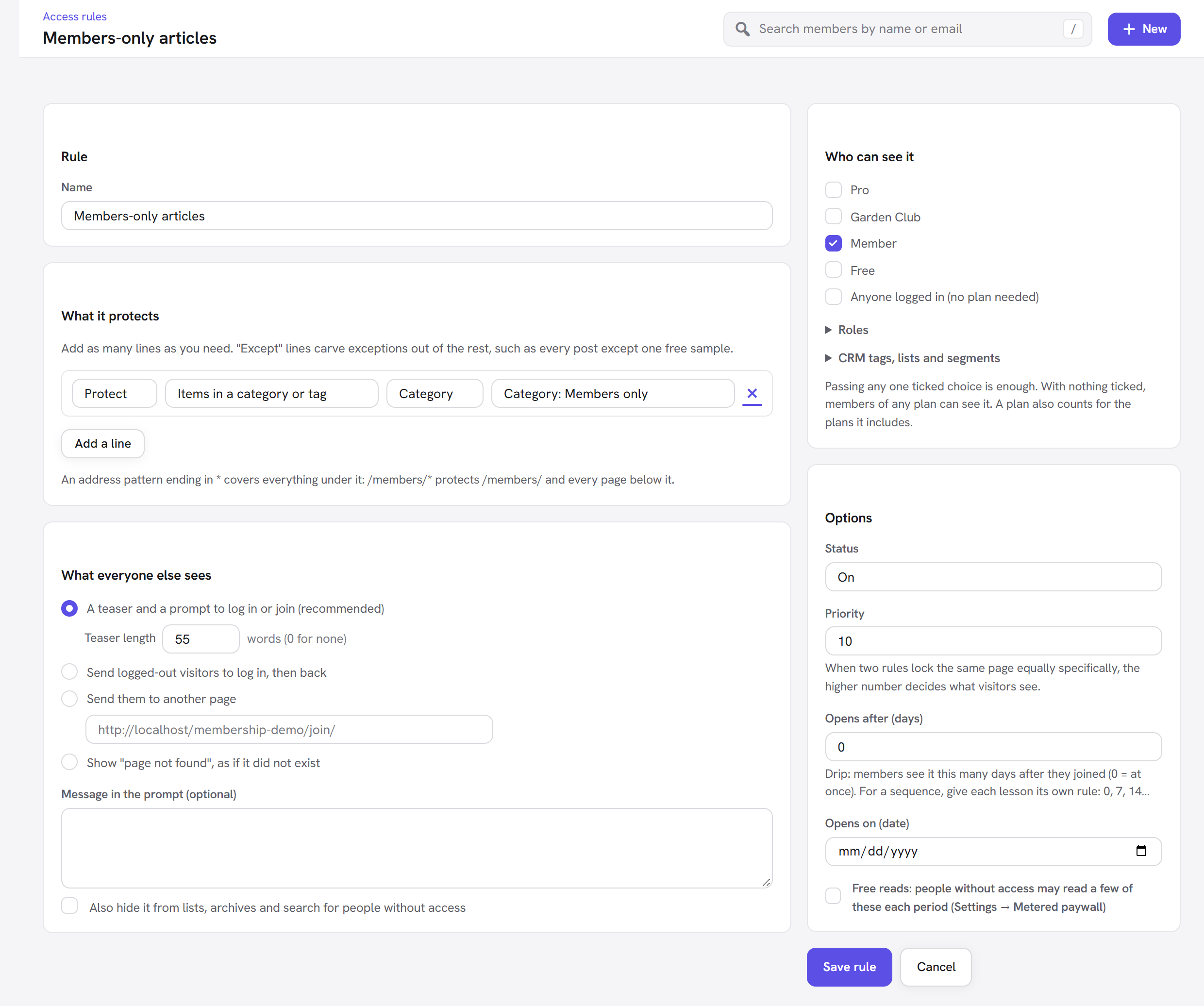
Like every other choice in Who can see it, passing any one is enough: a plan you ticked, a role, or one of these CRM conditions. The person must be logged in, because a visitor has no contact. If you have no CRM tags, lists or segments yet, the section says "No CRM tags, lists or segments yet."
:::note View as A View as preview of a rule never passes a CRM condition, because there is no real person behind the preview. To test a CRM condition, log in as a test member who has the tag. :::
The Membership panel on a contact
On a contact's page in the CRM, a Membership panel in the side column shows, for anyone who can manage Membership:
- Each membership: the plan, its status (Waiting, Trial, Active, Payment due, Paused,
Cancelled, Ended, Refunded), Since
{date}and until{date}. - Paid in total, when they have paid anything.
- Open the member page →, straight to their page in Membership.
A contact without a WordPress account has no panel; one with an account but no memberships shows "Not a member."
The CRM also gets a Membership link in its sidebar and a Members card on its Home: members with access, how many joined and left in the last 30 days, and what was taken.
Membership on the timeline
With Show joins, renewals, cancellations and payments on the contact's timeline ticked, the contact's timeline records, for example: Joined Member, Started a free trial of Pro, Renewed Member, Renewal payment for Member failed, Renewal payment for Member went through, Moved to Pro, Paused Member, Resumed Member, Cancelled Member, Reactivated Member, Member ended, Member refunded, Signed up for Member (waiting), and every payment (Paid 8.00 for Member).
With When a renewal payment fails, add a follow-up task for the contact's owner ticked, a failed renewal also
creates a to-do "Follow up: {plan} renewal payment failed", due the next day, for the contact's owner. Good for
clubs where a person calls members whose card failed.
Automations: triggers and actions
Membership registers its own triggers and actions for CRM automations, in a group called Membership:
| Triggers (start an automation when…) | Actions (an automation can…) |
|---|---|
| Member joined a plan | Give a membership plan (with For how many days (0 = the plan's own length)) |
| Member started a free trial | Extend a membership (by a number of Days) |
| Membership renewed | Cancel a membership (access continues to its end date) |
| Renewal payment failed | |
| Membership cancelled | |
| Membership ended | |
| Member changed plan |
Each trigger and action has a Plan choice. The Give a membership plan action needs the contact to have a WordPress account (it is found by email). For reminders before or after a date, use the managed date fields (Membership renews on, Membership ends on) with the CRM's date trigger.
:::info Coming with the CRM's Automations module The CRM's Automations module is still on the CRM roadmap. Membership's triggers and actions are already registered, so they appear and work as soon as it arrives, with nothing for you to change. Until then, use tags, segments and campaigns. :::
Every option explained
Membership → Settings → CRM connection:
| Option | What it does | Default | Tip |
|---|---|---|---|
| Every member is a CRM contact (matched by email, or added) | Finds or makes the contact for every member and links it to their account. | On | Turn off only if you want the CRM to hold just the people you add yourself. With it off, existing links still work. |
| Tag contacts with their plans (one tag per plan, kept in step) | Adds and removes a tag per plan. | On | The most useful option: it is what makes campaigns and segments by plan possible. |
| Also tag them "Member" while they have access and "Former member" after | The two status tags. | On | Handy for "everyone who left" win-back campaigns. |
| Show joins, renewals, cancellations and payments on the contact's timeline | Writes membership events and payments to the timeline. | On | Turn off if the timeline gets too busy on a site with many small renewals. |
| Keep membership fields on the contact (status, plans, member since, total paid) for segments and filters | Adds and fills the six Membership fields. | On | Needed for segments by date or value. |
| When a renewal payment fails, add a follow-up task for the contact's owner | Creates a to-do on a failed renewal. | Off | Turn on if someone on your team follows up by phone or email personally. |
| Plan tags start with | The start of every plan tag. "A Gold plan becomes the tag member-gold." | member- | Change it before you have many contacts; existing tags are not renamed. |
| Bring every member up to date in the CRM now | A button: brings every member's contact, tags and fields in step at once. | — | Use it once after connecting, and after changing the prefix. |
Good to know
Will it delete contacts when someone stops being a member? No. Membership only adds to contacts. When a membership ends, the plan tag comes off and Former member goes on; the contact stays.
I renamed a plan. Do the tags change? The tag slug comes from the plan's slug, not its name. Renaming the plan keeps the same tag.
A member's contact was not made. The email address may already belong to a contact linked to someone else's account; Membership leaves it alone rather than mixing two people. Fix the duplicate in the CRM, then click Bring every member up to date in the CRM now.
What if I deactivate the CRM? The module turns off. Membership works on its own as before, and everything already in the CRM stays there.
Next steps
- Background and design: Membership and the CRM.
- Learn the CRM itself: CRM documentation.
- Keep members who are about to leave: Retention.
- Back to the Membership overview.