Import and export
Moving to Unyson+ Membership from somewhere else? Starting a members site for a club whose members are in a spreadsheet? Bring them in with a CSV file, or give a plan to everyone who already has a certain WordPress role or user field. Going the other way, Members → Export CSV downloads your members in exactly the format the importer reads, so moving members from one Unyson+ site to another is an export and an import.
:::info Module Importing is the Importers module ("Bring in members and live subscriptions from a CSV file (such as an export from another plugin), or give plans to everyone with a WordPress role or user field."). Switch it on under Membership → Modules (off by default). It adds Import under Setup in the sidebar. Export is part of the core and always available on Membership → Members, with or without the module. :::
Prepare the CSV file
A CSV file is a spreadsheet saved as plain text. In Excel, Google Sheets, Numbers or LibreOffice, use Save as / Download → CSV. Put one row per membership (someone with two plans has two rows) and a header row with column names.
The importer understands these columns. Only email is required.
| Column | What to put in it | Example |
|---|---|---|
email | The member's email. Required. | [email protected] |
first_name | First name (used only for a new account). | Jo |
last_name | Last name (used only for a new account). | Bloom |
plan | The plan: its slug, its name or its id. | member, Member or 3 |
status | One of active, trialing, past_due, paused, cancelled, expired, refunded, pending. Anything else, or empty, becomes active. | active |
started_at | When the membership started. Empty = now. | 2025-03-01 |
ends_at | When access ends. Empty = no end date. | 2026-03-01 |
renews_at | The next renewal date, for a subscription. | 2026-03-01 |
gateway | Where the subscription lives: stripe, paypal or offline (bank transfer). | stripe |
subscription_id | The subscription's id at that payment service. | sub_1Abc… |
customer_id | The Stripe customer id (Stripe only). | cus_9Xyz… |
Good to know about the file:
- The column names do not have to match exactly:
First Nameandfirst_nameare the same, and you can match any column by hand in the next step. - Commas or semicolons both work as separators (the importer detects which), and a file saved with a byte-order mark (common from Excel) reads fine.
- Dates can be written in any common way (
2025-03-01,1 March 2025,2025-03-01 09:30) or as a Unix timestamp.
:::tip Example The Larkspur Garden Club's old spreadsheet:
email,first_name,last_name,plan,status,started_at,ends_at
[email protected],Jo,Bloom,Member,active,2025-03-01,2026-03-01
[email protected],Sam,Fern,Pro,active,2024-09-15,
[email protected],Lee,Moss,Free,active,2025-06-10,
:::
Import a CSV, step by step
- Go to Unyson+ → Membership → Modules, switch on Importers, click Save modules.
- Make sure every plan in the file exists under Membership → Plans.
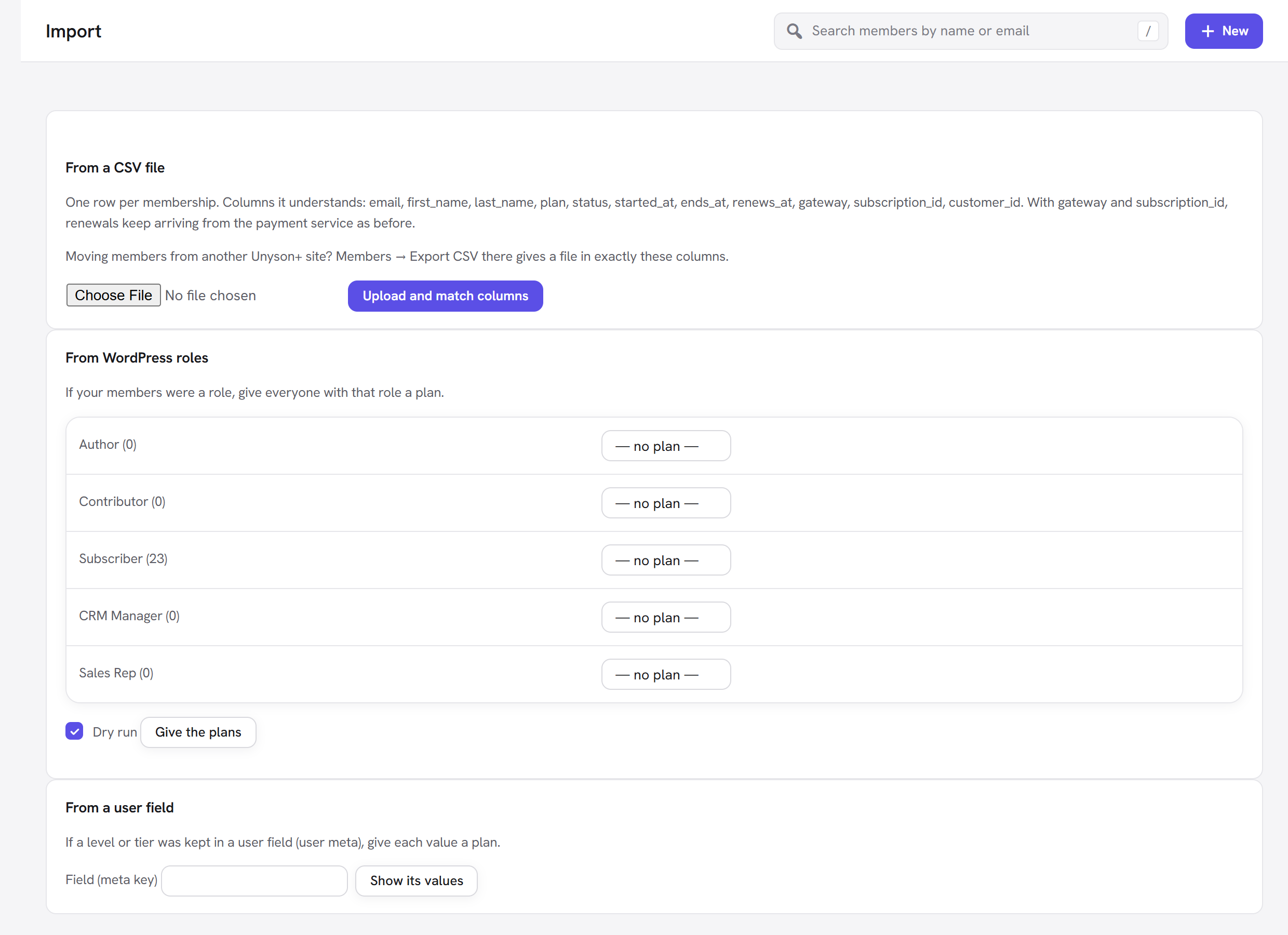
- Go to Setup → Import. In From a CSV file, choose your file and click Upload and match columns.
- Match the columns. For each Membership field on the left, pick the Column in your file that holds it, or — not in the file —. Columns with the same or a similar name are matched for you. First row shows the value from your first data row, so you can check the match is right.
- Choose the options below the table (see The import options). Dry run first is ticked: keep it ticked the first time.
- Click Import. The dry run changes nothing and reports, for example, "Dry run: 120 would be imported, 85 new accounts, 3 already here, 2 problems." Any problems are listed with their line number, such as "Line 14: no valid email." or "Line 22: no plan called "Gold"."
- Fix the problems in your file (or accept that those rows are skipped), untick Dry run first and click Import again. The result reads "Imported 120 (85 new accounts); 3 were already here; 2 problems."
- Check Membership → Members: the imported memberships have the source Import.
The uploaded file is kept for one hour while you match and dry-run. If you take longer, you see "The upload expired. Please upload the file again."
The import options
| Option | What it does | Default | Tip |
|---|---|---|---|
| Plan for rows without one | A plan for rows whose plan cell is empty (or for every row, when the file has no plan column). Those rows get this plan. | — no plan — | Handy for a club spreadsheet with no plan column: pick Member and every row joins Member. Left at — no plan —, rows without a plan are listed as problems. |
| Make accounts for emails that have none | Creates a WordPress account (with the site's default role and a random password) for each email that has none. Untick it to import only people who already have an account; the others are listed as problems. | On | Leave on when moving from another system. |
| Email new accounts a link to set their password | Sends WordPress's new-account email to each account made, with a link to choose a password. | Off | Turn on when you are ready for members to log in. Leave off to import quietly and announce the move yourself later (they can use Lost your password? or a login link). |
| Dry run first (report only, change nothing) | Reports what would happen without changing anything. | On | Always do one dry run. |
Rows that are skipped
A row is counted as already here and skipped when the person already holds that plan with access, or holds
that plan from an earlier import, or holds a membership linked to the same subscription_id. That makes it safe
to run the same file twice: the second run changes nothing it already imported.
Keeping live subscriptions renewing
If members pay through Stripe or PayPal today, you do not have to ask anyone to pay again. Fill in gateway and
subscription_id (and for Stripe also customer_id) and the membership is linked to that subscription.
Renewals, failed payments and cancellations then keep arriving from the payment service and being applied, just
as for a member who joined through your own checkout.
For this to work:
- Switch on the Payments module and connect the same Stripe or PayPal account under Payment settings.
- Import while Payment settings are in the mode (test or live) the subscriptions belong to. The Stripe customer id is saved for the current mode.
- Fill in
renews_atwith the next renewal date andends_atwith the end of the period paid for. - Make sure the plan has a price: the membership is linked to the plan's first price.
Afterwards you can check every subscription against the payment service with
wp membership reconcile --dry-run (see Scheduled jobs and WP-CLI).
Give a plan by WordPress role
If your members were simply a WordPress role (for example Subscriber or a custom Club member role):
- Go to Setup → Import → From WordPress roles: "If your members were a role, give everyone with that role a plan."
- Each role is listed with how many people have it (administrators and editors are not listed).
- Pick a plan next to the roles you want, and leave — no plan — for the others.
- Keep Dry run ticked and click Give the plans: "Dry run: 240 would get a plan; 12 already have it."
- Untick Dry run and click Give the plans again.
Everyone gets an active membership starting now, with no end date (it lasts until you end it). Only people who already have an account are involved, so no accounts are made and no emails are sent.
Give a plan by user field
If a level or tier was kept in a user field (user meta), for example club_level with the values basic and
premium:
- Go to Setup → Import → From a user field.
- Type the field name in Field (meta key) and click Show its values. Up to 50 different values are shown. If nobody has the field: "No accounts have that field."
- Pick a plan for each value:
basic→ Member,premium→ Pro. - Run it with Dry run first, then without. As with roles, the memberships start now and have no end date.
Export members to CSV
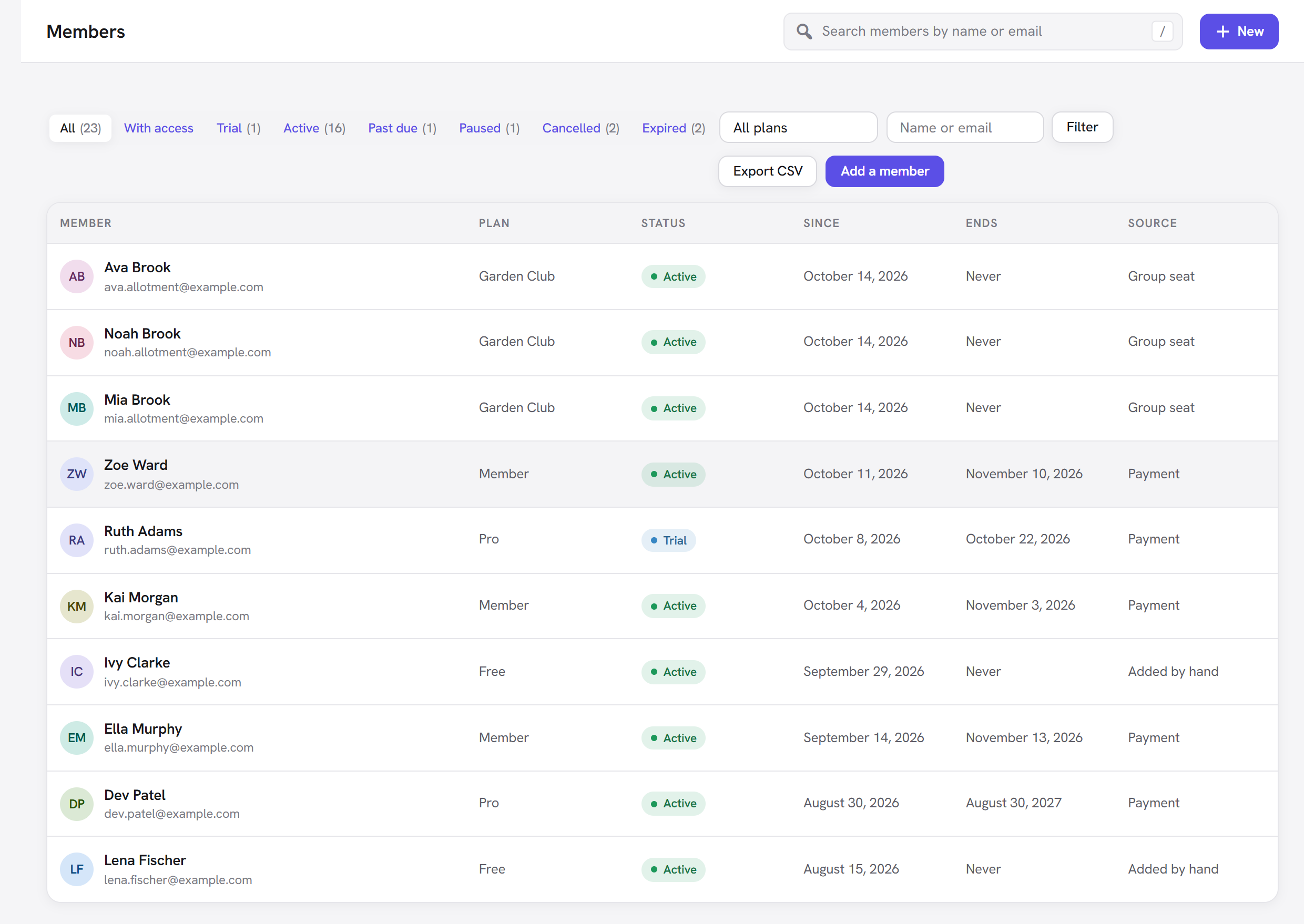
- Go to Membership → Members.
- Narrow the list if you want: a status tab (All, With access, Active…), a plan in All plans, or a name or email in the search box, then Filter.
- Click Export CSV. A file named
members-YYYY-MM-DD.csvdownloads with every membership matching the current filters (not only the page you are looking at).
The export columns
The file has one row per membership. The first eleven columns are exactly the importer's columns, in the
same order: email, first_name, last_name, plan (the plan's slug), status, started_at, ends_at,
renews_at, gateway, subscription_id, customer_id.
Then, for reading:
| Column | Holds |
|---|---|
membership_id | The membership's id on this site. |
user_id | The WordPress user id. |
display_name | The name shown on the site. |
plan_name | The plan's name. |
source | How the membership started (payment, registration, manual, gift, group_seat, woocommerce, import, crm_automation). |
trial_ends_at | When a free trial ends. |
cancelled_at | When it was cancelled. |
created_at | When the record was made. |
The file opens correctly in Excel with accented names (it starts with a byte-order mark).
Formula safety
A spreadsheet treats a cell that starts with =, +, - or @ as a formula and may run it. A member who typed
=HYPERLINK(…) as their name could otherwise trick whoever opens the file. So any text cell starting with one of
those characters (or a tab or line break) gets an apostrophe in front, which spreadsheets show as plain text.
Numbers, including negative ones, are left alone.
Move members from one Unyson+ site to another
- On the old site, go to Members, choose the With access tab (or All, to keep history of ended memberships too) and click Export CSV.
- On the new site, create the same plans with the same slugs (the export uses slugs).
- Switch on Importers there and import the file as above, with a dry run first. The extra columns are simply left as — not in the file —.
- If members pay by subscription, connect the same payment account on the new site first (see Keeping live subscriptions renewing), and point the payment service's notifications (webhooks) at the new site.
The same export is available on the command line: wp membership export members.csv --status=access.
Good to know
Does importing send emails? No, unless you tick Email new accounts a link to set their password. Plans are not announced with the welcome email either.
Can I import passwords? No. New accounts get a random password; members set their own with the email link, Lost your password? or a login link.
What about members' payment history? The importer brings memberships, not past payments. Past invoices stay in your old system or the payment service.
Can I undo an import? Not with one button. Every imported membership has the source Import, so you can find them on the Members screen. Take a database backup before a large import.
Does the Import screen also read other membership plugins? It reads a CSV file, a role or a user field. Export from the other plugin to CSV, then match its columns.
Next steps
- Check everything after the move: Scheduled jobs and WP-CLI.
- Keep data requests in order: Privacy and data.
- Back to the Membership overview.