WooCommerce
If your site already runs a WooCommerce store, Membership and the store can work as one:
- A product can give a membership plan. Buy the "Garden Club membership" product, get the Member plan.
- Plans can give store perks. Members of Pro see a member price on every product, or on chosen categories, and pay no shipping.
- A product can be for members only. Anyone can see the seed-swap box, but only members can buy it.
- WooCommerce subscriptions can be the billing. With a subscription product, the plan follows the subscription: active, on hold, cancelled, ended.
This is an alternative to Membership's own checkout (the Payments module). Use WooCommerce when you want memberships in the same cart as physical goods, or you already bill through WooCommerce. Use the Payments module for a simpler membership-only checkout. You can use both.
:::info Module This is the WooCommerce module. It needs the WooCommerce plugin to be active. Switch it on under Membership → Modules (off by default; greyed out with "Needs WooCommerce." until WooCommerce is active). It adds a Membership tab to every product and store fields to every plan. :::
How to sell a plan as a product
Example: the Larkspur Garden Club sells a yearly membership as a WooCommerce product.
- Make sure the plan exists: Membership → Plans, for example Member. Its own length decides how long the membership lasts (for a product, set the plan's length to one year).
- Go to Unyson+ → Membership → Modules, switch on WooCommerce and click Save modules.
- Go to Products → Add New (or edit an existing product). Give it a name, for example Garden Club membership (1 year), and a price.
- Scroll to the Product data box and click the Membership tab.
- In Buying it gives, pick Member.
- Click Publish (or Update).
That's it. When someone buys the product and the order is paid, they get the Member plan and the welcome email.
What happens behind the scenes
| When | What Membership does |
|---|---|
| The order becomes Processing or Completed (paid) | Gives the buyer the plan. The order gets a note: "Membership: Member given." Each order line gives the plan only once, however often the order status changes. |
| The buyer already has that plan with access | Extends it by the plan's length instead of adding a second membership. |
| The buyer checked out as a guest | Gives the plan to the account with the billing email. If there is none, an account is made from the billing email (WooCommerce sends its usual new-account email). |
| There is no valid billing email | Adds the order note "Membership: no account to give the plan to (no valid billing email)." and gives nothing. |
| The order is Refunded, Cancelled or Failed | Ends the membership that order gave, with the note "Membership: ended with the order." |
The membership's source is Store order, which you see on the member's page and in Reports ("Still members, by how they came").
WooCommerce subscriptions as billing
If you use the WooCommerce Subscriptions extension, give a subscription product a plan the same way (Membership tab → Buying it gives). The plan then follows the subscription instead of the order:
| Subscription status | Membership |
|---|---|
| Active | The plan is given (first time) or kept active. Its end date follows the subscription's next payment date. A membership that was paused, cancelled or past due becomes active again. |
| On hold | Payment due (past due), like a failed renewal. |
| Pending cancellation | Cancelled: access continues to the end of what was paid for. |
| Cancelled or Expired | The membership ends. |
Renewals, retries and card updates are all handled by WooCommerce. Membership only follows the status.
Member prices and free shipping (perks on plans)
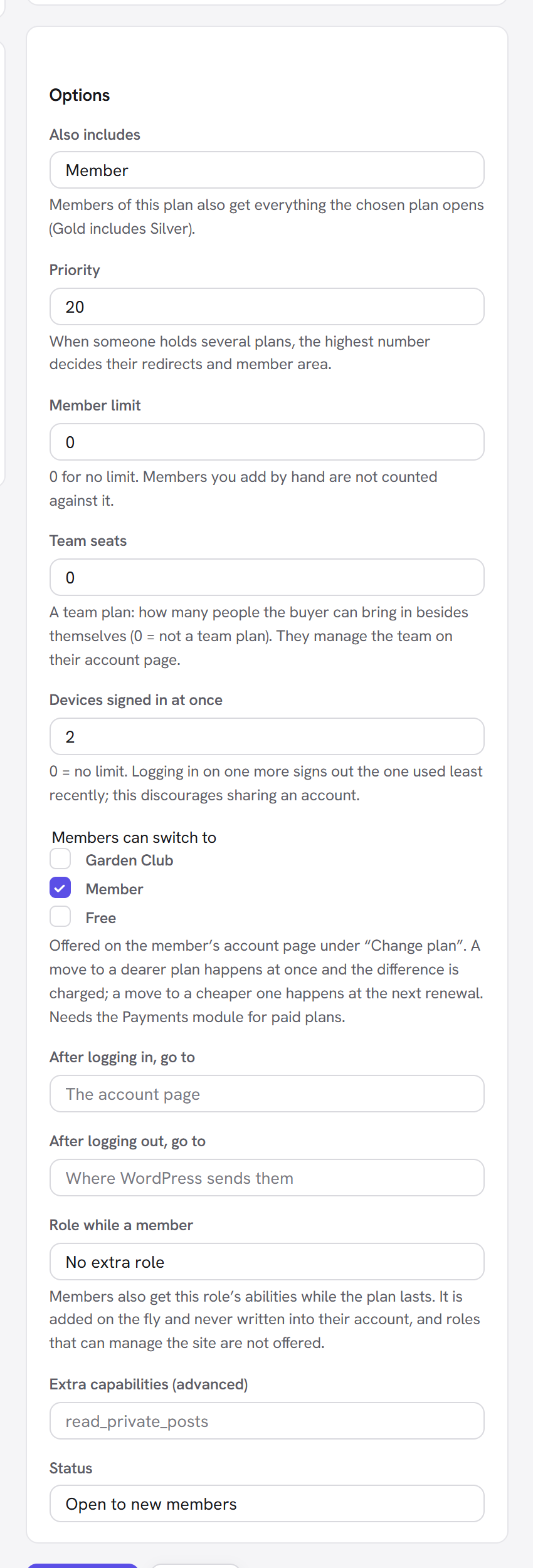
Plans can give their members store perks. Open Membership → Plans, edit a plan, and find these fields in its Options panel (they appear while the WooCommerce module is on):
| Field | What it does | Default | Tip |
|---|---|---|---|
| Store discount for members (%) | A percentage off the regular price for members of this plan, 0 to 100 in steps of 0.5. Members see it as a member price. | 0 (none) | Use it on your top plan as a reason to upgrade, for example 10% for Pro. |
| On products in | Product categories the discount applies to. Shown only when your store has categories. | None ticked: every product | Tick Seeds and Tools to keep the discount off gift cards or courses. |
| Free shipping for members | Members of this plan pay no shipping. | Off | Every shipping rate at checkout costs 0 for them and is labelled (free for members). |
How the member price works:
- The discount comes off the regular price. If a sale is running and the sale price is lower, the member pays the sale price: the member price is never dearer than a sale.
- In the shop, on the product page, in the cart and in the order the member sees the normal price struck through next to their price, with a Member price badge (unless a real sale is at least as good, then the sale badge stays).
- Someone with several plans gets the best discount of the plans they hold (with that plan's categories), and free shipping if any of their plans gives it.
- Variable products work too: each variation gets the member price.
- Perks apply only while the membership has access. A cancelled member keeps them until the end date.
Members-only products
To let only members buy a product:
- Edit the product and open Product data → Membership.
- Under Only members of these plans can buy it, tick the plans, for example Member and Pro.
- Click Update.
Everyone else can still see the product, but cannot add it to the cart. Under the price they read "For members of Member, Pro.", with a Log in link if they are not logged in. Membership managers (administrators) can always buy, so you can test the order.
To hide a product from non-members altogether, protect it with an access rule (Membership → Access rules), like any other content. The tab says so too.
The product's Membership tab: every field
| Field | What it does | Default |
|---|---|---|
| Buying it gives | The plan a paid order gives: No membership, or one of your active plans. Single-item plans are not listed. "Given when the order is paid; ended if it is refunded or cancelled. For a subscription product it follows the subscription." | No membership |
| Only members of these plans can buy it | Plans whose members may buy the product. "None ticked: anyone can buy it. To hide the product itself from non-members, use an access rule." | None ticked |
For a variable product, set these on the main product; every variation uses them.
Good to know
Can one product give two plans? No, one plan per product. If a plan should include another, set Also includes on the plan (for example Pro includes Member), or sell two products.
A partial refund did not end the membership. Only an order whose status becomes Refunded (a full refund), Cancelled or Failed ends it. For a partial refund, end the membership by hand from the member's page if you need to.
The customer bought it twice. Do they have two memberships? No. A second purchase of the same plan extends the one they have.
Do member prices show in the admin? No, only on the front of the store, for the logged-in member. In the admin you always see your real prices.
I switched the module off. What happens? New orders stop giving plans and member prices stop. Memberships already given stay as they are.
Next steps
- Turn on more features: Modules.
- Protect store products or pages with access rules.
- See store orders in your numbers: Reports.
- Back to the Membership overview.