Coupons
A coupon takes a percentage or an amount off a plan. Buyers type the code at the checkout, or arrive with
the code already filled in from a link you shared, such as https://example.com/plans/?coupon=SPRING20.
You decide:
- how much it takes off: a percentage (20% off) or a fixed amount (5.00 off);
- how long it lasts on a subscription: the first payment only, the first few months, or every payment;
- which plans it works for, how many times it can be used in total and per person, and between which dates.
Coupons also come in bulk: make hundreds of single-use codes in one go (for a magazine insert or a partner offer) and download them as a CSV file.
Switch on the Coupons module
- Open Unyson+ → Membership → Modules.
- Switch on Coupons ("Percentage or fixed discounts for the first payment or for ever, with limits, expiry dates and bulk codes.") and click Save modules.
Coupons is off by default and needs the Payments module ("Needs the Payments module."); its switch is greyed out until Payments is on. Coupons is always listed in the sidebar under Selling: while the module is off it carries an Off badge and opens a "Coupons is switched off" page with an Open Modules button. Once on, the screen opens and the checkout gets a Have a code? field (the Gift memberships module adds the same field, for gift codes).
Create a coupon
The Larkspur Garden Club wants 20% off the first three months of Member or Pro this spring, with the code SPRING20.
- Open Unyson+ → Membership → Coupons and click Add coupon.
- Code:
SPRING20. - Note (only you see it): "Spring newsletter offer".
- Discount:
20, and choose % off. - Applies to: The first few months, and enter
3in the months box. - Plans: tick Member and Pro.
- Total uses:
200. Uses per person:1. - Works from 1 March and Works until 31 May.
- Click Save coupon. The notice says "Coupon saved." and the coupon is on the list.
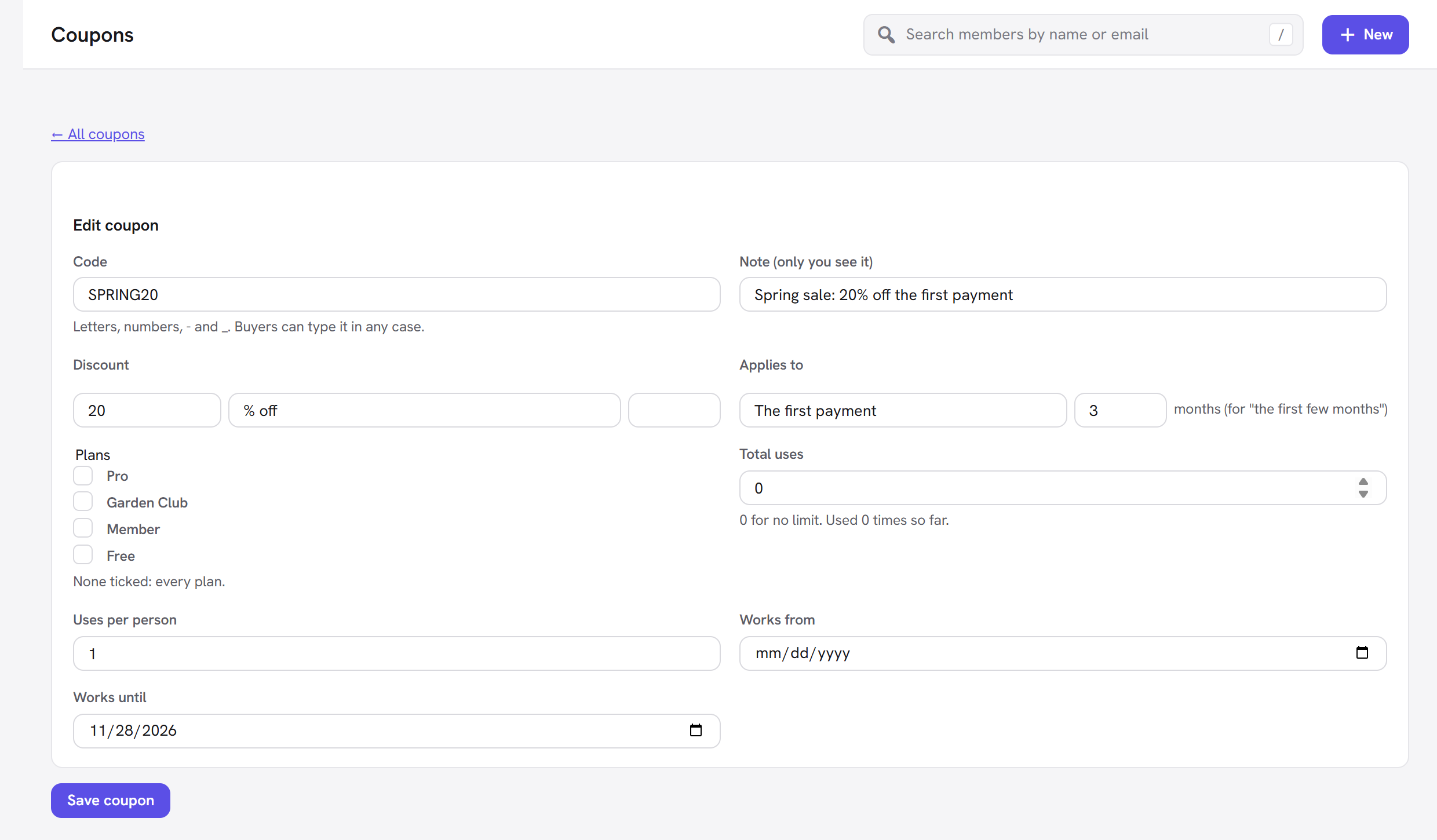
Share it as a code ("Use SPRING20 at the checkout") or as a link (see Coupon links below).
Every option explained
| Field | What it does | Default | Tip |
|---|---|---|---|
| Code | What buyers type. Letters, numbers, - and _, up to 100 characters. "Buyers can type it in any case.": codes are saved in capitals and spring20 works the same as SPRING20. Each code must be unique ("The code … is already used."). | Empty (required) | Short and easy to read aloud. |
| Note (only you see it) | A reminder of what the coupon is for. Shown under the code on the list. | Empty | Note the campaign or partner. |
| Discount (amount) | How much it takes off. Must be above 0, and at most 100 for a percentage ("Enter a discount above 0 (at most 100 for a percentage)."). | Empty (required) | |
| Discount (type) | % off (a percentage of the price) or off (amount) (a fixed amount). | % off | A fixed amount suits a single price; a percentage works for every price. |
| Currency (for an amount off) | The currency of a fixed amount. A fixed-amount coupon only works on prices in this currency ("That code does not apply to this price."). Ignored for a percentage. | Your default currency | Match it to the price it is for. |
| Applies to | The first payment, The first few months, or Every payment. See How it applies to renewals. | The first payment | |
| Months | How many months "The first few months" lasts ("months (for "the first few months")"). Ignored for the other two. | 3 | |
| Plans | The plans it works for. "None ticked: every plan." | None ticked | Limit it when the offer is for one plan ("That code does not apply to this plan."). |
| Total uses | How many completed checkouts may use it in all. "0 for no limit. Used … times so far." | 0 | Once reached: "That code has been used up." |
| Uses per person | How many times one person may use it. 0 for no limit. | 1 | "You have already used that code." |
| Works from | The first day it works (from the start of that day). Before then it is "not valid". | Empty (works now) | Schedule a launch-day code in advance. |
| Works until | The last day it works (to the end of that day). After that: "That code has expired." | Empty (never expires) |
Total uses and Uses per person count completed checkouts (a paid first payment, or a free checkout because the code took the whole price), not people who only typed the code. A gift bought with a code counts too.
The Coupons screen
Unyson+ → Membership → Coupons lists your coupons, newest first, 50 to a page.
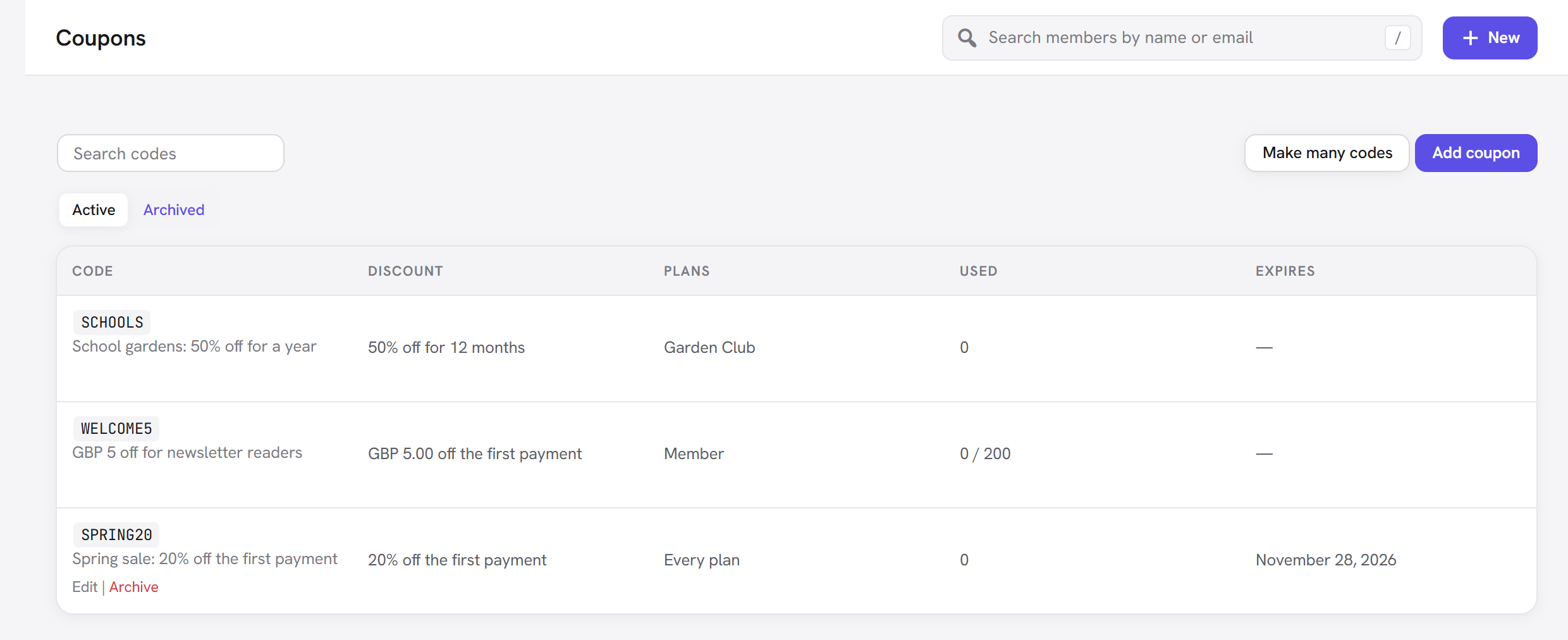
- Search codes: searches codes and notes.
- Make many codes and Add coupon (top right).
- Active / Archived: the two views.
| Column | What it shows |
|---|---|
| Code | The code (click to edit) and its note. Hover for Edit and Archive (or Restore in Archived). |
| Discount | A plain summary: "20% off the first payment", "20% off for 3 months", "GBP 5.00 off every payment". |
| Plans | The plans it works for, or Every plan. |
| Used | Uses so far, as "12 / 200" when there is a limit. |
| Expires | The Works until date, or a dash. |
Archive a coupon to stop it working without losing it: payments that used it keep its code, and you can Restore it later. There is no delete, so your payment history always makes sense.
With no coupons yet the screen says "No coupons yet" and explains: "A coupon takes a percentage or an amount off the first payment, every payment, or the first few months. Buyers type the code at the checkout, or you share a link with ?coupon=CODE."
Make many single-use codes (bulk codes)
- On the Coupons screen, click Make many codes.
- How many: 1 to 1,000 (25 to start with).
- Start each code with: a prefix such as
SPRING. Codes come out as the prefix, a dash and eight random letters and numbers, for exampleSPRING-K7Q2M9XA. Leave it empty for random codes only. - Fill in the same terms as a single coupon: Discount, Applies to, Plans, Works from, Works until.
- Click Make the codes.
"Each code can be used once, by one person." (Total uses and Uses per person are both fixed at 1.) The codes are grouped into a batch named after the date and time they were made, and the list opens filtered to that batch: "Batch batch-20261014-093000 · Download as CSV".
Download as CSV gives a spreadsheet of every code in the batch, however many you made, with the columns
code, discount, uses, max_uses, expires and status, ready for a mail merge or to hand to a partner. Download it straight after making the codes,
while the batch is shown.
Coupon links
Add ?coupon=CODE to the address of your checkout page or of a page with the Pricing Plans element:
https://example.com/plans/?coupon=SPRING20: every Join button on the pricing table carries the code to the checkout.https://example.com/join/?plan=member&coupon=SPRING20: the checkout opens with the Member plan and the code already applied.
Use them in newsletters, social posts or a "thank you" email. The buyer sees the discount before they pay, and can still remove or change the code in the Have a code? field.
How it applies at the checkout and to renewals
At the checkout the buyer types the code in Have a code? and clicks Apply (or Update the price when the Tax module adds country fields). The price lines show Discount (SPRING20) with the amount off, Due today, and for a subscription Then each renewal, plus a green note such as "Code SPRING20: 20% off for 3 months." If the code cannot be used, the reason shows in red and the price stays as it was.
What "first payment" means: the discount comes off what is due today, which includes any setup fee. On a price with free trial days, nothing but the setup fee is due today.
How long the discount lasts on a subscription:
| Applies to | One payment or lifetime price | Monthly or yearly price |
|---|---|---|
| The first payment | That payment. | The first payment only; renewals are at the full price. |
| The first few months | That payment. | The first payments covering that many months, then the full price. For example 3 months on a monthly price is three discounted payments. |
| Every payment | That payment. | Every payment, for as long as the subscription runs. |
The payment service keeps track of this for you:
- Card (Stripe): a matching coupon is created in your Stripe account the first time the code is used (separately in test and live mode) and added to the subscription, so Stripe discounts the right number of renewals. If you change a coupon's discount, type or length, a new Stripe coupon is made for new buyers; people who already used the old terms keep them.
- PayPal: the discount is built into the PayPal plan for that price: "Every payment" lowers the regular price, and "first payment" or "first few months" become discounted cycles before the regular price.
- Bank transfer: only one-off prices, so the discount is simply taken off the amount to pay.
A code that takes the whole price of a one-off plan means there is nothing to pay: the button reads Join for free and the membership starts at once.
The code used is saved on the payment (shown under the amount on the Payments screen) and printed on the invoice as "Discount (SPRING20)".
Good to know
- "That code is not valid." means the code does not exist, is archived, or its Works from date has not come yet.
- One code per checkout. The checkout takes one code at a time.
- Editing a coupon after people have used it changes it for future buyers only; existing subscriptions keep the discount they signed up with.
- Pay per item. The Plans list on a coupon also lists the hidden plans behind items you sell on their own (named after the page or file), so a code can be limited to one item.
Next steps
- Pricing table and checkout: where buyers enter codes.
- Payments: see which payments used a code.
- Tax: tax is worked out on the price after the discount.
- Back to the Membership overview.