Gift memberships
With the Gift memberships module, anyone can buy one of your plans for someone else: a year of Member for a friend who loves gardening, say. The buyer pays once, the person it is for gets an email with a link, and their membership starts when they open it and click Start my membership.
- The buyer pays once. A monthly or yearly price is one period (one month, one year) and nothing renews.
- The recipient does not need an account beforehand: they make one (or log in) when they redeem.
- If the recipient already holds that plan, the gift extends it.
- Every gift is listed on the Gifts screen, where you can send the email again or cancel a gift.
Switch on the module
- Open Unyson+ → Membership → Modules.
- Switch on Gift memberships ("Buy a plan for someone else, redeemed with a code or a link.") and click Save modules.
It is off by default and needs the Payments module, with a checkout page chosen in Payment settings (see Payments). Once on, Gifts appears in the sidebar under Selling, and the checkout's Have a code? box accepts gift codes.
How someone buys a gift
- On your pricing page, the buyer clicks Give as a gift under a plan. The link appears on every plan with
a price above zero in the Pricing Plans element. Its wording is the element's
Gift link text option ("Give as a gift" by default); empty that option to hide the link on a table. (Without a pricing table,
link to your checkout page with the plan and
&gift=1, for example/join/?plan=member&gift=1.) - The checkout opens in gift mode. The summary at the top shows what the gift costs for one period, for example "GBP 8.00 for 1 month", with "A gift: one payment, nothing renews". Under Who is the gift for? they fill in Their name, Their email (required) and A message (optional). The note underneath says: "They get an email with a link to start their membership once your payment goes through. You pay once; it does not renew."
- A logged-out buyer also fills in their own name, email and password: the buyer gets an account too, so their payment and invoice are on record.
- They choose a way to pay and click Continue to payment. Every way to pay that is ready is offered, including bank transfer, because a gift is always a single payment. A coupon works on gifts as usual.
- Back on the checkout page they see "Thank you! Your gift is on its way to … ." For a bank transfer: "Thank you! Your gift is sent to … as soon as the payment arrives.", with the amount and your payment instructions. The gift goes out when you Mark paid on the Payments screen.
<img src="/img/membership/front-gift.png" alt="The checkout in gift mode: the summary "GBP 8.00 for 1 month" with "A gift: one payment, nothing renews", the Have a code? box, Who is the gift for? with the recipient's name, email and message, the buyer's account fields, and Card or Bank transfer" width="680" />
What the gift costs: the price for one period plus any setup fee, after any coupon, with tax if the Tax module adds it. A gift is one period of a repeating price, paid once, so free trial days do not apply.
The gift emails
When the payment goes through, two emails are sent. Both are in Unyson+ → Membership → Emails, where you can edit their subject and text, send yourself a test, or switch them off.
- Gift received (see Emails): "To the person a gift is for, once it is paid." Default subject
{buyer_name} gave you a {plan} membership. The text includes the buyer's message, the redeem link and the gift code. - Gift sent: "To the buyer, once their gift is paid and sent." Default subject
Your gift of {plan} is on its way. It repeats the recipient's email, the redeem link and the code, so the buyer can pass them on by hand if the email does not arrive.
The placeholders these two emails add:
| Placeholder | What it becomes |
|---|---|
{plan} | The plan's name. |
{recipient_name} | The name the buyer entered, or "there" when they left it empty. |
{recipient_email} | The recipient's email (in the Gift sent email). |
{buyer_name} | The buyer's display name. |
{gift_message} | The buyer's message. |
{redeem_url} | The link that starts the gift. |
{gift_code} | The gift code, such as GIFT-7K2M9QXA4B. |
How the recipient redeems the gift
The redeem link is your checkout page with ?redeem= and the gift code, for example
https://example.com/join/?redeem=GIFT-7K2M9QXA4B.
- The recipient opens the link. The checkout page shows "A gift: Member", "From" and the buyer's name, and the buyer's message.
- If they are logged out: "Already have an account? Log in first", or they fill in First name, Email (both filled in from the gift) and Choose a password (at least 8 characters). An email that already has an account is asked to log in first.
- If they are logged in: "Starting it on your account (their email)."
- They click Start my membership. The membership starts and they land on their account page.
How long it lasts: one period of the price that was bought (one month for a monthly price, one year for a yearly price, three months for "every 3 months"). For a one-off or lifetime price, it lasts as long as the plan itself does. If they already hold the plan, that much time is added to their membership instead.
The gift code works once. Opening the link again shows "This gift has already been used."; a wrong or cancelled code shows "That gift code is not valid."
:::tip Redeeming with just the code Someone who only has the code (copied from the email, or written in a card) can open your checkout page, type it into the Have a code? box and click Apply: a gift code opens that gift's redeem page, ready for Start my membership. The box is on the checkout whenever the Gift memberships module is on, even if you do not use the Coupons module. :::
The Gifts screen
Unyson+ → Membership → Gifts lists the latest 100 gifts, newest first.
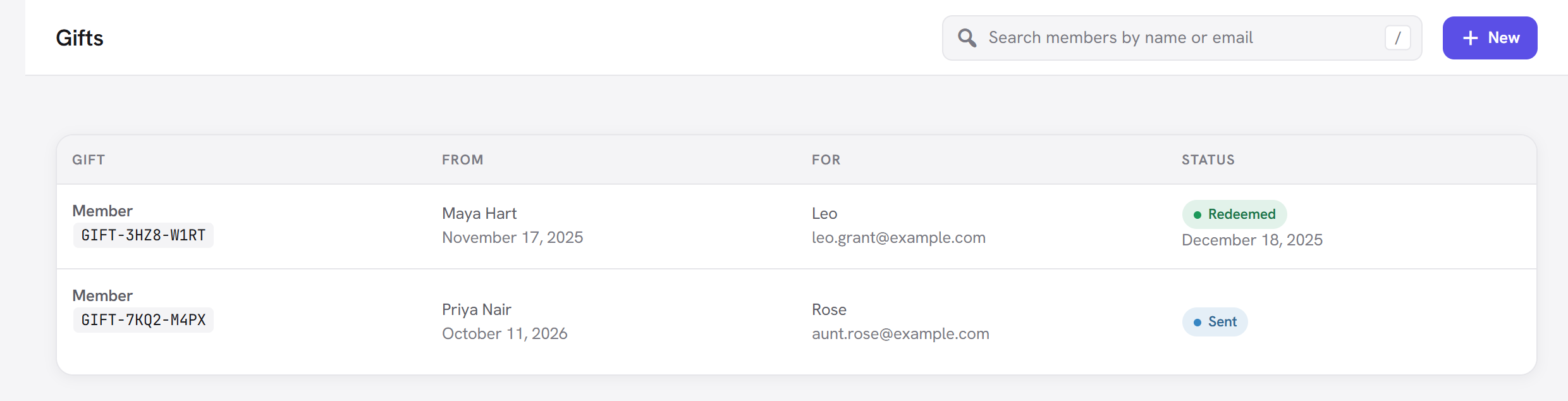
| Column | What it shows |
|---|---|
| Gift | The plan and the gift code. Hover for Send again and Cancel. |
| From | The buyer and the date they bought it. |
| For | The recipient's name and email. |
| Status | Waiting for payment, Sent, Redeemed (with the date) or Cancelled. |
- Send again (on a Sent gift) emails the recipient and the buyer once more: "The gift email was sent again." Use it when the recipient cannot find the email.
- Cancel (on any gift not yet redeemed) stops the code working: "Gift cancelled. Refund the payment on the Payments screen if needed." Cancelling does not refund the buyer by itself.
- Refunding the buyer's payment on the Payments screen cancels a gift that has not been redeemed yet.
With no gifts yet, the screen says "No gifts yet" and "People give a plan with "Give as a gift" on your pricing table. The person it is for gets an email with a link to start it."
Good to know
- Free plans cannot be given ("A free plan does not need to be given as a gift: share the sign-up page instead."), nor can items sold on their own.
- The recipient can redeem with any account. The email the buyer entered is where the link is sent, not a lock: whoever opens the link and clicks Start my membership gets the gift. Treat the link like a voucher.
- Gift payments show on the Payments screen under the buyer's name, with an invoice in the buyer's name.
- A gift does not renew. When its time is up, the recipient can join the plan in the usual way to carry on.
Next steps
- Pricing table and checkout: where the Give as a gift link appears.
- Payments: marking bank transfers paid and refunds.
- Coupons: discounts work on gifts too.
- Back to the Membership overview.