Pay per item
Not everyone wants a membership. Pay per item lets people buy one thing on its own: a single article, a page, a course, or a protected download such as the garden club's Planting calendar (PDF), without joining a plan.
You set a price (and, if you like, how many days access lasts), and the locked item gets a Buy this for … button that goes to your checkout. Everything the checkout does works for single items too: card, PayPal and bank transfer, coupons, tax, receipts and invoices.
Pay per item is part of the Payments module (Unyson+ → Membership → Modules, off by default); there is nothing else to switch on. Set up a way to pay and a checkout page first (see Payments).
How it works
- Lock the item first. Pay per item only sells access; it does not lock anything by itself. The item must already be protected by an access rule, by the Membership box on its edit screen, by a course's "who can take this course" setting, or (for a download) by the file's Who may download it.
- Set a price. Behind the scenes, the item gets a hidden plan of its own with one one-off price. It never shows in your pricing tables, in plan switching or in the public plan list. On Membership → Plans it is marked Page sold on its own or Download sold on its own.
- Buying it opens that one item for the buyer, for ever or for the number of days you chose, even when other rules also cover it (for example, a category that is otherwise for Pro members only).
- Members who already have access see the item as usual; the buy button only shows to people who cannot see it.
Sell a post, page or course
- Open the post, page or course in the WordPress editor.
- Make sure it is locked (for example, in the Membership box choose who may see it, or cover it with an access rule).
- In the side panel, find the Sell on its own box.
- Price: the amount in your default currency (shown next to the field), for example
4.00. - Access for (days):
0for ever, or a number of days, for example30. - Update the post.
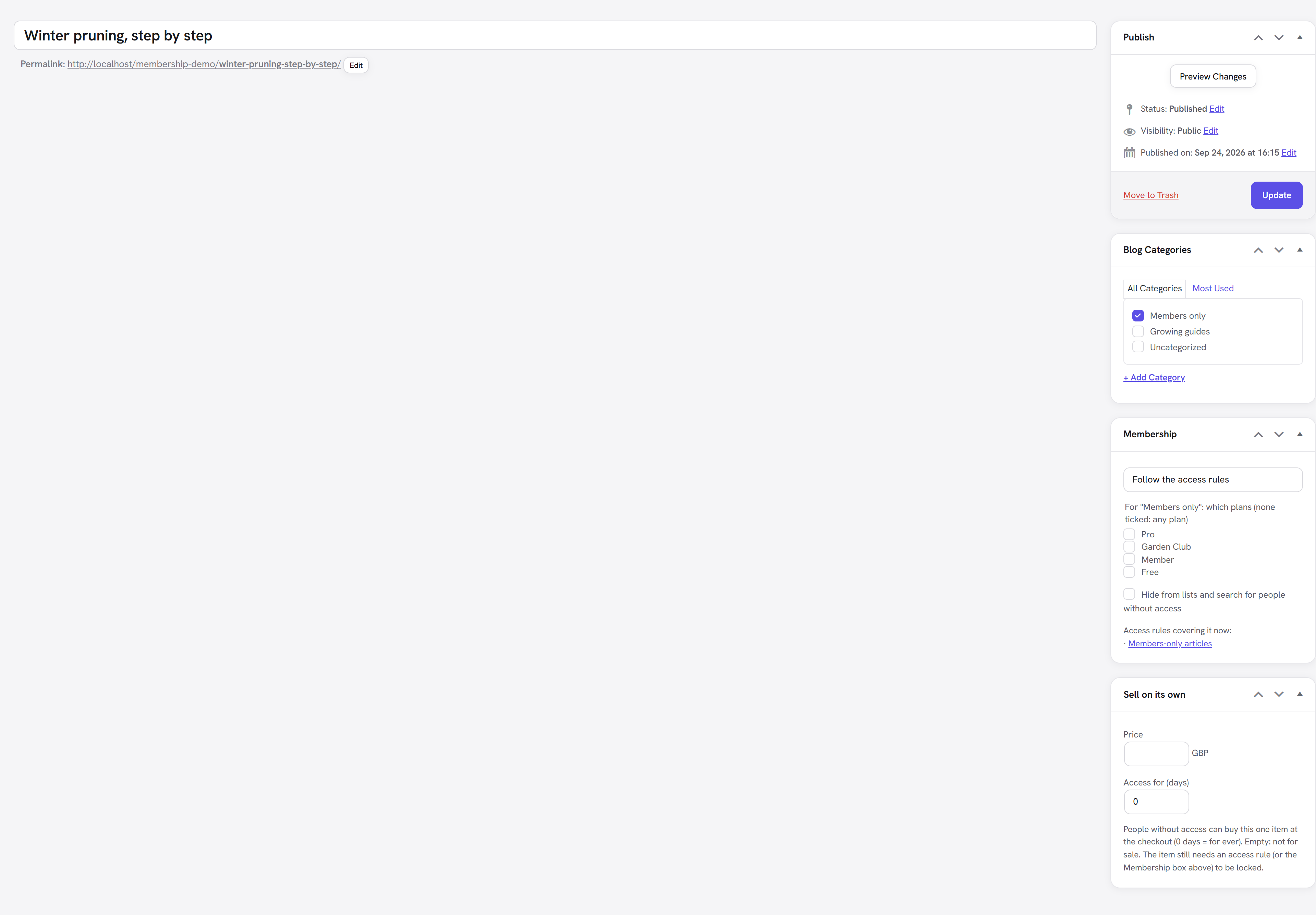
The box reminds you: "People without access can buy this one item at the checkout (0 days = for ever). Empty: not for sale. The item still needs an access rule (or the Membership box above) to be locked." Once it is on sale, the box also counts buyers: "3 buyers so far."
The Sell on its own box appears on every public post type (posts, pages, courses, lessons and your own public post types), and only for people who manage Membership.
What the buyer sees on a post or page
The locked item shows its usual prompt (teaser, "Included in" with the plans that open it, Log in), with a Buy this for GBP 4.00 button in place of the usual Join / See the plans button. The button goes to your checkout with the item already chosen.
<img src="/img/membership/front-paywall.png" alt="A locked article as a visitor sees it: the teaser and the "This is for members" prompt with Join and Log in buttons. For an item sold on its own, the Join button becomes Buy this for the item's price" width="878" />
The buy button is not added when the prompt already has a button of its own (one you set on the Paywall Prompt element), or when the item is locked by drip content until a date.
Selling a course
With the Courses module on, a course's gate shows Buy this course for GBP 25.00 (and Log in for visitors who are logged out). Buying the course opens all of its lessons: the course's own lesson rule includes the course's hidden plan. Set the course's Who can take this course to anything other than open, put a price in Sell on its own and update the course.
Sell a protected download
- Open Unyson+ → Membership → Downloads (Protected downloads module) and click a file to edit it.
- Sell on its own for: the price in your default currency. "Empty: not for sale. Buyers can download it from their account and the Member Download element."
- Access for (days): "0 = for ever."
- Click Save.
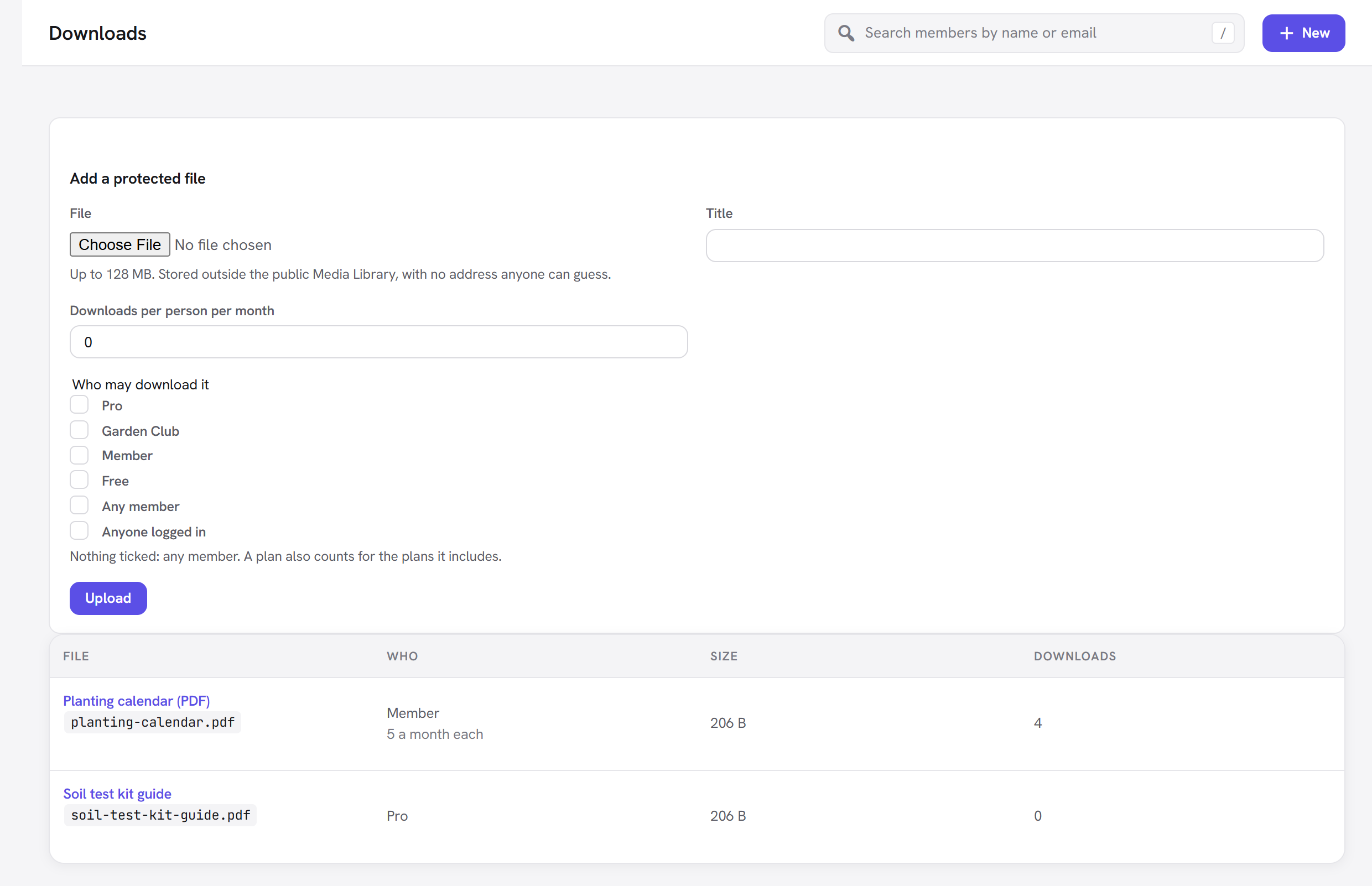
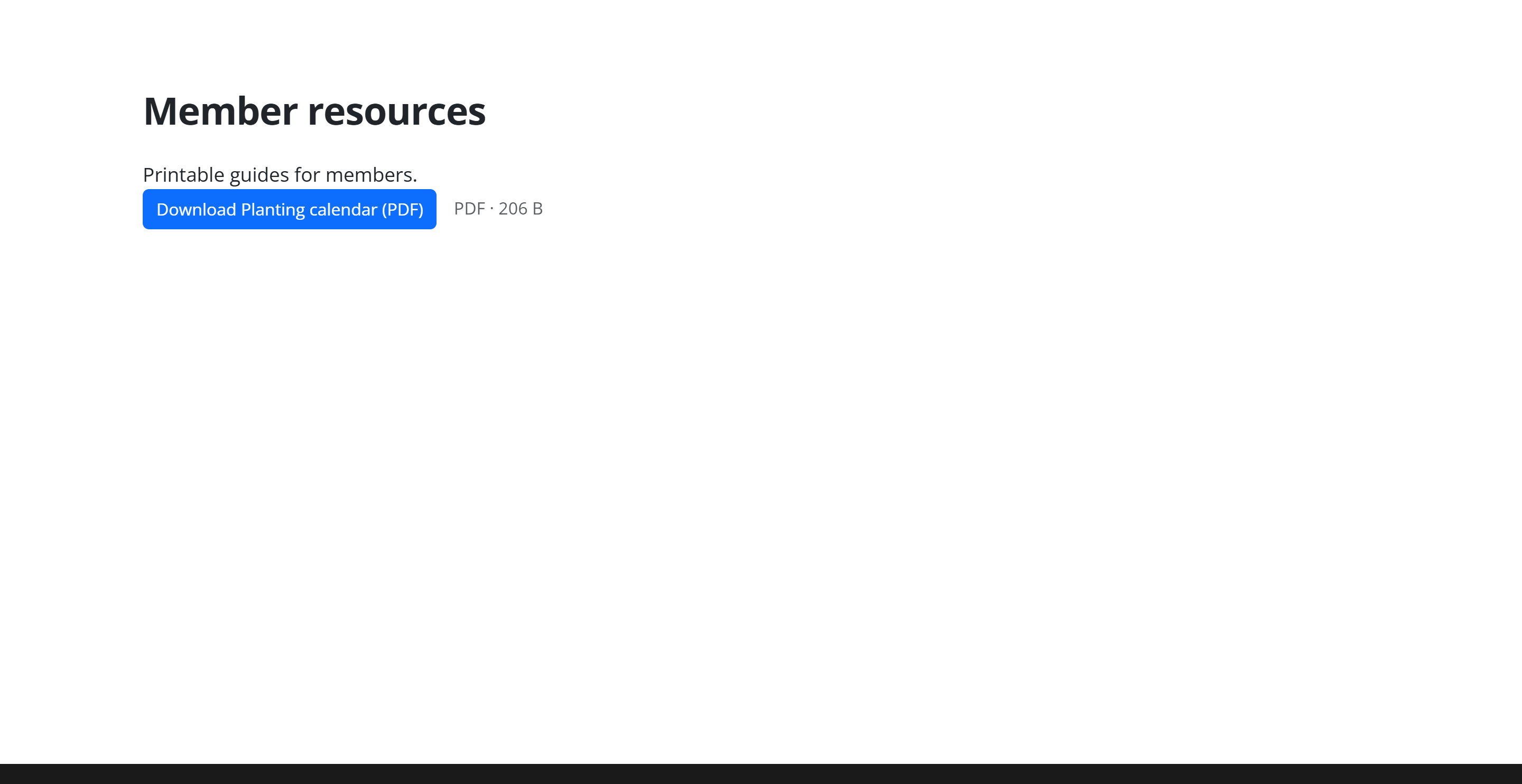
The file's hidden plan is added to its Who may download it for you, so buyers may download it. Anyone else who meets the Member Download element sees the button greyed out, the reason they cannot download it, and Buy it for GBP 3.00.
What the buyer goes through
- They click Buy this for … (or Buy it for … / Buy this course for …).
- The checkout shows the item's title and its one-off price, with the coupon field and any tax.
- Logged-out buyers make an account (name, email and password) or log in first, choose how to pay, and click Continue to payment.
- Back on the checkout page: the After a successful payment message and a button straight to what they bought: Open it now for a post, page or course, or Download it now for a file.
For a bank transfer, access starts when you Mark paid on the Payments screen. The purchase is listed on the buyer's account page with its invoice, like any other payment.
Every option explained
| Where | Field | What it does | Default |
|---|---|---|---|
| Sell on its own box | Price | The one-off price, in your default currency. Empty or 0 takes the item off sale. | Empty (not for sale) |
| Sell on its own box | Access for (days) | How long a buyer keeps access. 0 = for ever. | 0 |
| Downloads → edit a file | Sell on its own for | The one-off price for the file. Empty takes it off sale. | Empty |
| Downloads → edit a file | Access for (days) | How long a buyer may download it. 0 = for ever. | 0 |
Good to know
- Changing the price affects new buyers only. People who already bought it keep their access.
- Taking an item off sale (empty the price and save) hides the buy button. The hidden plan is archived and everyone who bought it keeps their access.
- The currency is your Default currency from Payment settings, at the moment you set the price.
- Coupons can be limited to a single item: the hidden plan is listed under Plans when you edit a coupon, named after the item.
- Gifts cannot be bought for a single item.
- Buyers are members of the item's hidden plan, so the plan on Membership → Plans shows how many people bought it.
Next steps
- Payments: set up a way to pay and the checkout page.
- Pricing table and checkout: the checkout the buy buttons lead to.
- Coupons: discounts for a single item.
- Back to the Membership overview.