Payments
The Payments module lets people buy your plans on your own site. The money goes straight into your own payment accounts (Stripe for cards and wallets, PayPal, or your bank), and Unyson+ takes no transaction fee. Card details never touch your site: buyers pay on Stripe's or PayPal's own secure page and come back to yours.
With Payments on you get:
- a Payments screen listing every payment, renewal and refund, with Mark paid, Refund and Mark refunded;
- Payment settings for your currency, checkout page, terms, plan changes, invoices and each way to pay;
- the Pricing Plans and Membership Checkout elements for your pages;
- numbered, printable invoices, a Payment receipt email and a Payment failed email;
- a Payments section and Change plan on the member's account page.
In the examples below, the Larkspur Garden Club sells Member (monthly and yearly) and Pro, and keeps Free as a free plan.
Before you start
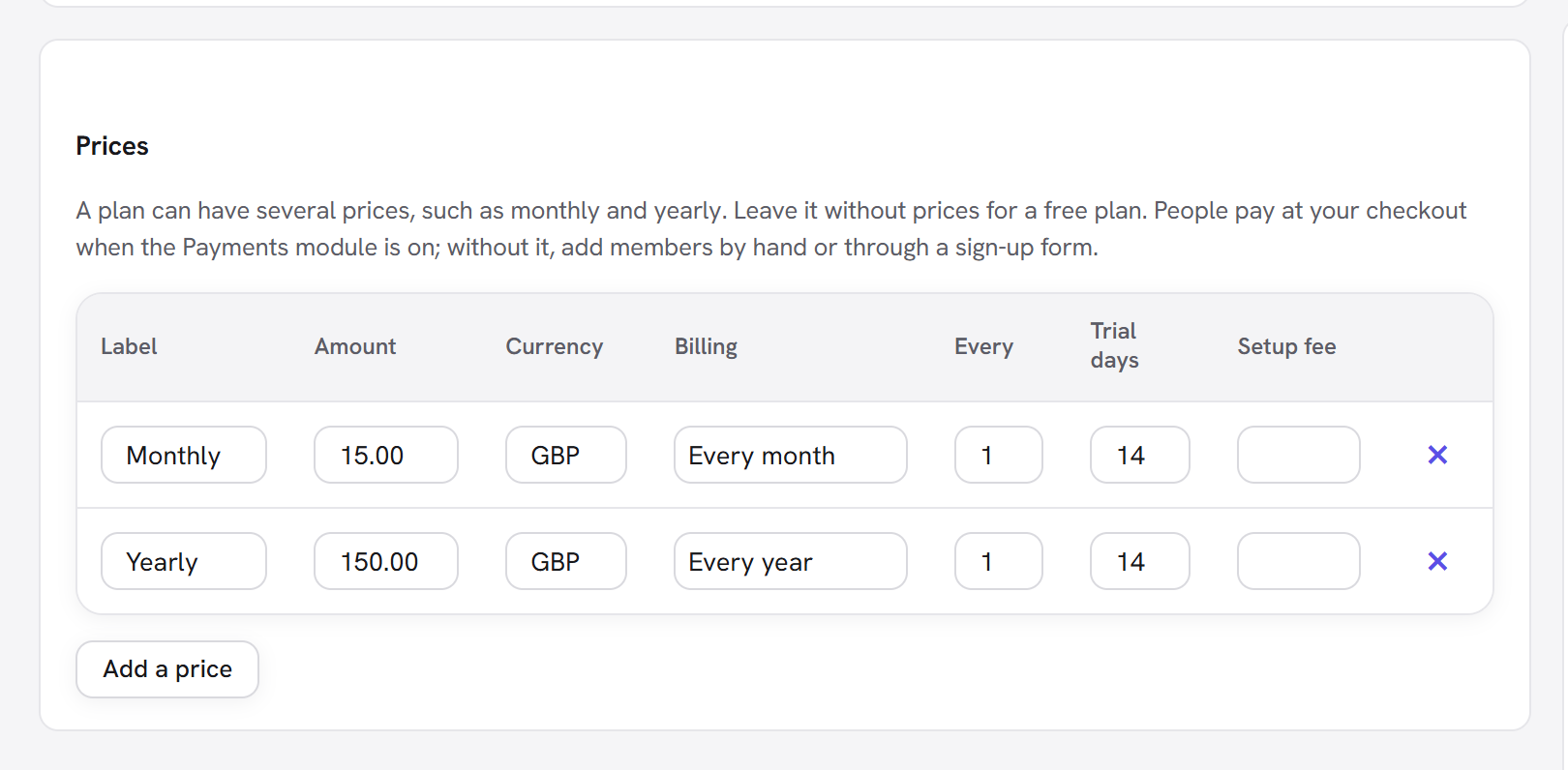
- A plan is only for sale once it has a price. Prices are set on the plan's page (Unyson+ → Membership → Plans, open a plan, Prices): an Amount, a Currency, the Billing (Free, One payment, Lifetime (one payment, never ends), Every day, Every week, Every month, Every year), Every (for example every 3 months), Trial days and a Setup fee.
- You need a page for the checkout and, usually, a page for the pricing table. Both are built with elements from the page builder; see Pricing table and checkout.
- For card payments you need a Stripe account; for PayPal, a PayPal business account. Both have a free test mode, so you can try everything without real money.
Step 1: switch on the Payments module
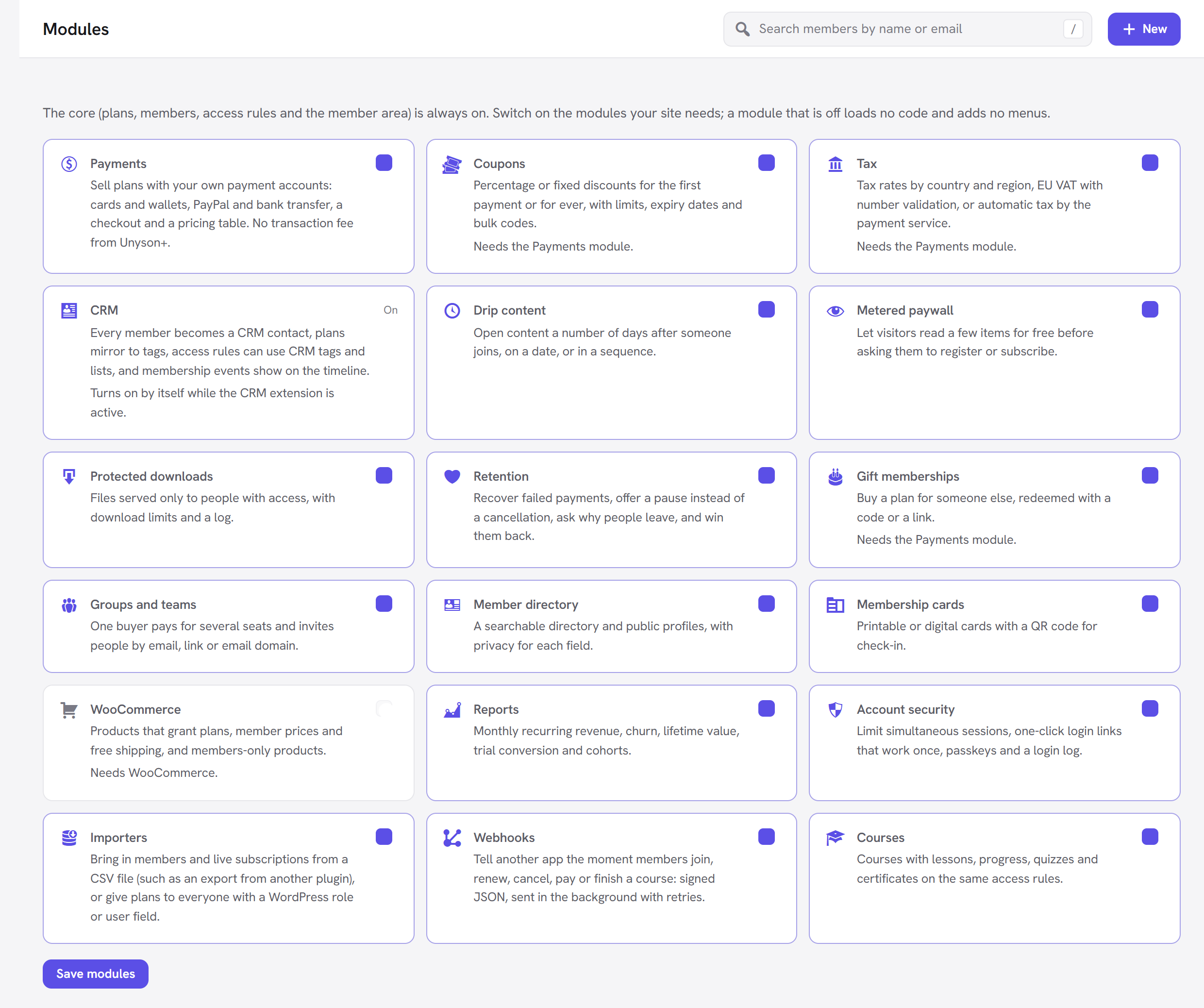
- Open Unyson+ → Membership → Modules.
- Switch on Payments ("Sell plans with your own payment accounts: cards and wallets, PayPal and bank transfer, a checkout and a pricing table. No transaction fee from Unyson+.").
- Click Save modules.
Payments is off by default. While it is off, Payments and Coupons show in the sidebar under Selling with an Off badge. Opening one shows "Payments is switched off", what the area does, "Switch on the Payments module to use it." and an Open Modules button. The Pricing Plans and Membership Checkout elements only show a note to administrators. Switching Payments on also lets you switch on the modules that depend on it: Coupons, Tax and Gift memberships.
Step 2: open the payment settings
Open Unyson+ → Membership → Payments and click Payment settings (top right). Until at least one way to pay is switched on and fully set up, the Payments screen shows: "No payment method is set up yet, so plans with a price cannot be bought." with a Set up payments link to the same place.
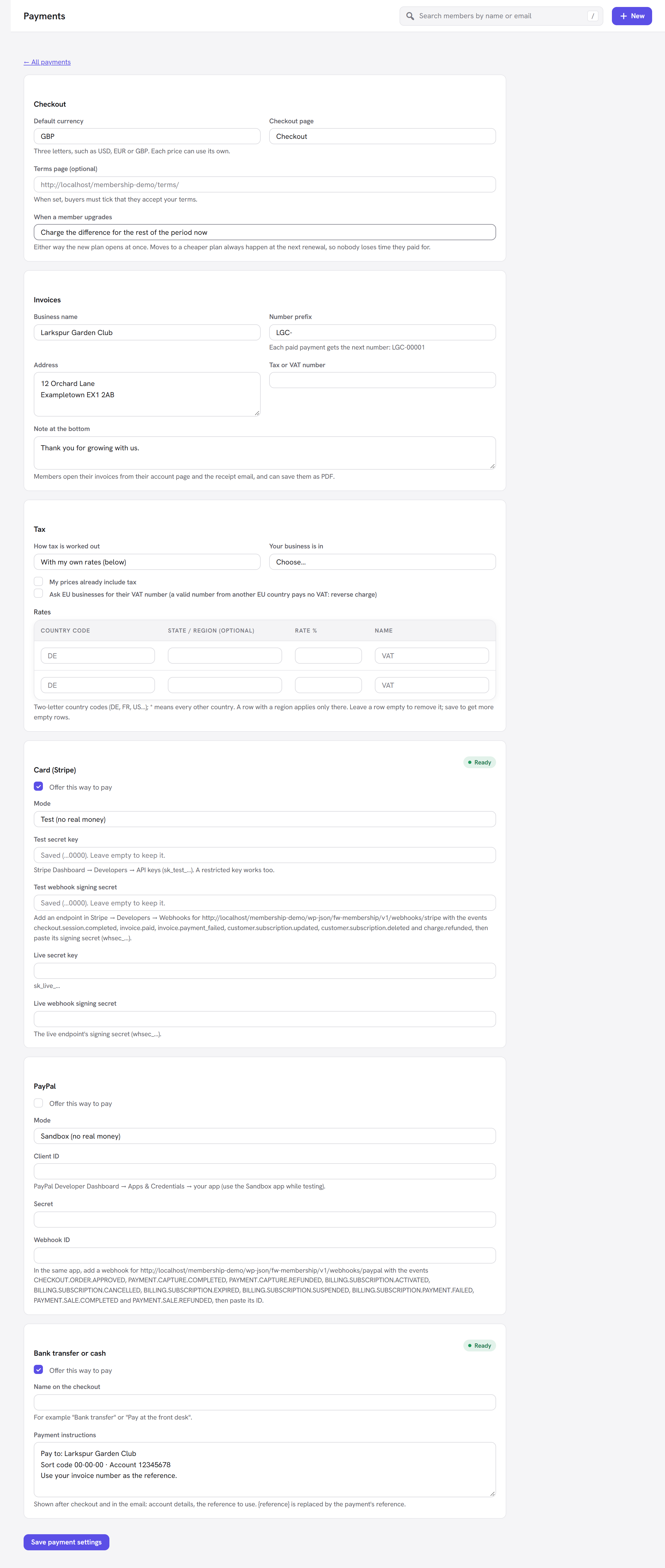
The settings page has these panels, from top to bottom: Checkout, Invoices, Tax (only with the Tax module on), then one panel for each way to pay: Card (Stripe), PayPal and Bank transfer or cash. Everything is saved together with Save payment settings at the bottom.
Checkout panel
| Field | What it does | Default | When to change it |
|---|---|---|---|
| Default currency | Three letters, such as USD, EUR or GBP. Used by any price that has no currency of its own, by single items you sell and by new coupons. | USD | Set it to the currency you charge in before you add prices. Each price can still use its own. |
| Checkout page | The page that holds the Membership Checkout element. Every Join button, Change plan move, gift link and "Buy this" button sends people here. | — Choose the page with the Membership Checkout element — | Always set it. The list includes drafts and private pages, but links only work once the page is published. |
| Terms page (optional) | The address of your terms page. When set, buyers must tick "I accept the terms." (with a link) before they can pay. | Empty | Set it if you have terms of sale or membership terms. |
| When a member upgrades | Charge the difference for the rest of the period now, or Charge the new price from the next renewal. | Charge the difference… now | Choose "from the next renewal" if you would rather not take an extra charge mid-period. Either way the new plan opens at once; moves to a cheaper plan always happen at the next renewal, so nobody loses time they paid for. |
Invoices panel
Every paid payment gets the next invoice number in one unbroken sequence, and a printable invoice page.
| Field | What it does | Default |
|---|---|---|
| Business name | Shown at the top right of every invoice. | Your site's name |
| Number prefix | Put before each number. The hint shows what the next number looks like, for example INV-00001. Letters, numbers, -, _ and /, up to 20 characters. | INV- |
| Address | Your business address, under the business name. | Empty |
| Tax or VAT number | Printed as "Tax number: …" under your address. | Empty |
| Note at the bottom | A line at the foot of every invoice, for example "Thank you for your support." | Empty |
Numbers are five digits after the prefix (INV-00001, INV-00002…). A number is only given when a payment
is paid and is more than zero, never to a pending or failed payment, and it is never reused. Changing
the prefix only affects invoices numbered from then on. See Invoices below for what members see.
The ways to pay
Each way to pay has its own panel with an Offer this way to pay tick box. Once ticked, the panel shows Ready (green) when it is set up well enough to take payments, or Needs settings when something is missing. Only ways to pay that are both switched on and ready appear at the checkout.
Secret fields (keys and secrets) are never shown again after saving. They display "Saved (…1234). Leave empty to keep it." with the last four characters; leave them empty to keep what is stored, or type a new value to replace it.
Card payments through Stripe
Stripe takes cards and wallets such as Apple Pay and Google Pay. At the checkout the buyer sees Card with "Pay securely with a card or a wallet such as Apple Pay or Google Pay on the next page." They pay on Stripe Checkout (Stripe's own payment page) and come back to your checkout page.
- One payment and Lifetime prices are a single charge.
- Every day / week / month / year prices become a Stripe subscription. Stripe bills every renewal itself, so renewals do not depend on WordPress or your site's scheduled tasks. Trial days and the setup fee are part of the subscription.
- Members can upgrade, downgrade, pause (with the Retention module) and update their card through Stripe's customer portal.
Stripe settings
| Field | What it does |
|---|---|
| Offer this way to pay | Shows Card at the checkout once the panel is Ready. |
| Mode | Test (no real money) or Live. Test uses the test keys below, Live the live keys. |
| Test secret key | From Stripe Dashboard → Developers → API keys. It starts sk_test_. A restricted key (rk_test_) works too. |
| Test webhook signing secret | The signing secret of your test webhook endpoint. It starts whsec_. |
| Live secret key | Your live secret key, starting sk_live_ (or a restricted rk_live_ key). |
| Live webhook signing secret | The signing secret of your live webhook endpoint (whsec_…). |
The panel is Ready when the secret key for the chosen mode starts with the right letters (sk_test_ or
rk_test_ in Test mode, sk_live_ or rk_live_ in Live mode). Each mode keeps its own Stripe customers,
prices and coupons, so test buyers never mix with real ones.
How to get your Stripe keys
- Log in to your Stripe Dashboard and switch it to test mode.
- Open Developers → API keys.
- Copy the Secret key (
sk_test_…; click to reveal it). You do not need the publishable key. - In Payment settings → Card (Stripe), tick Offer this way to pay, set Mode to Test (no real money), paste the key into Test secret key and save.
What is a webhook?
When something happens at Stripe or PayPal after the buyer has left (a renewal is charged next month, a card is declined, a member cancels in the payment service's portal, you refund in the Stripe Dashboard), your site needs to hear about it. A webhook is how it hears: you give the payment service an address on your site, and the service sends a short, signed message to that address each time one of the events you chose happens. Your site checks the signature (so nobody can fake a "paid" message) and updates the membership.
Without a webhook, the first payment still works (your site also checks with the payment service when the buyer comes back to the checkout page), but renewals, failed payments, cancellations and refunds made at the payment service would never reach your site. Always set one up before going live.
Set up the Stripe webhook
The address is shown in the field description in Payment settings. It is your site address followed by
/wp-json/fw-membership/v1/webhooks/stripe, for example
https://example.com/wp-json/fw-membership/v1/webhooks/stripe.
- In the Stripe Dashboard (still in test mode), open Developers → Webhooks and add an endpoint.
- Paste the address above as the endpoint URL.
- Select these events:
checkout.session.completedinvoice.paidinvoice.payment_failedcustomer.subscription.updatedcustomer.subscription.deletedcharge.refunded
- Save the endpoint, then reveal its Signing secret (
whsec_…). - Paste it into Test webhook signing secret and click Save payment settings.
Two more events are understood and worth adding: checkout.session.async_payment_succeeded (for payment
methods that confirm later, such as some bank debits) and invoice.upcoming (Stripe announces a renewal a
few days ahead; the Retention module uses it to warn members whose card expires before
then).
When you go live, repeat the same steps with the Dashboard in live mode: copy the live secret key, add a live endpoint with the same address and events, paste both into the Live fields, and set Mode to Live.
:::tip Testing on your own computer
Stripe cannot reach a site that only runs on your computer (such as localhost), so webhooks will not arrive
there. The first payment still completes when you come back to the checkout. To test renewals and refunds
locally, use the Stripe CLI to forward events to your local address, or test on a staging site that is on
the internet.
:::
PayPal
The buyer sees PayPal with "Pay with your PayPal account or a card on PayPal's page.", approves the payment on PayPal and comes back to your checkout page.
- One payment and Lifetime prices are a PayPal order, captured when the buyer comes back.
- Repeating prices become a PayPal subscription. Your site creates the matching PayPal product and plan the first time someone buys that price (including the trial, setup fee, tax and any coupon) and reuses it afterwards. PayPal retries a failed payment and stops after three failures.
- Plan changes are not offered for PayPal subscriptions: PayPal cannot move a subscription to another plan without the buyer approving it again. A member who pays by PayPal and wants another plan cancels and joins the new one.
- Members manage their PayPal subscription on PayPal's own automatic payments page (linked from their account page).
PayPal settings
| Field | What it does |
|---|---|
| Offer this way to pay | Shows PayPal at the checkout once the panel is Ready. |
| Mode | Sandbox (no real money) or Live. |
| Client ID | From the PayPal Developer Dashboard → Apps & Credentials → your app. Use the Sandbox app while testing. |
| Secret | The app's secret, from the same page. |
| Webhook ID | The ID of the webhook you add to the same app (below). |
The panel is Ready once Client ID and Secret are filled in. Unlike Stripe, PayPal has one set of fields: when you switch from Sandbox to Live, replace the Client ID, Secret and Webhook ID with the ones from your Live app.
How to set up PayPal
- Log in to the PayPal Developer Dashboard and open Apps & Credentials. Make sure Sandbox is selected.
- Create an app (a REST API app) or open the default one. Copy its Client ID and Secret.
- In the same app, add a webhook. The address is your site followed by
/wp-json/fw-membership/v1/webhooks/paypal(shown in the Webhook ID field description). - Select these events:
CHECKOUT.ORDER.APPROVED,PAYMENT.CAPTURE.COMPLETED,PAYMENT.CAPTURE.REFUNDED,BILLING.SUBSCRIPTION.ACTIVATED,BILLING.SUBSCRIPTION.CANCELLED,BILLING.SUBSCRIPTION.EXPIRED,BILLING.SUBSCRIPTION.SUSPENDED,BILLING.SUBSCRIPTION.PAYMENT.FAILED,PAYMENT.SALE.COMPLETEDandPAYMENT.SALE.REFUNDED. - Save the webhook and copy its Webhook ID.
- In Payment settings → PayPal, tick Offer this way to pay, choose Sandbox (no real money), paste the three values and save.
Each PayPal message is checked with PayPal itself before your site acts on it. Without a Webhook ID every message is refused, so renewals and cancellations would not reach your site.
Bank transfer or cash (offline)
For people who pay by bank transfer, cash at the front desk, or an invoice. The buyer gets your payment instructions, the membership waits (pending), and it starts when you mark the payment paid.
| Field | What it does | Default |
|---|---|---|
| Offer this way to pay | Shows this way to pay at the checkout once the panel is Ready. | Off |
| Name on the checkout | What the buyer sees, for example "Bank transfer" or "Pay at the front desk". | Bank transfer |
| Payment instructions | Shown after checkout: account details and the reference to use. {reference} is replaced by the payment's reference. | Empty |
The panel is Ready once Payment instructions has text. At the checkout the buyer reads "You get the payment details after this step. Your membership starts when the payment arrives."
:::warning Bank transfer is for one-off prices only Bank transfer works for One payment and Lifetime prices. Nothing renews by itself with a bank transfer, so a repeating price (Every day, Every week, Every month, Every year) needs Card (Stripe) or PayPal. If bank transfer is the only way to pay you have switched on, the checkout for a repeating plan cannot take the money and shows: "Online payment is not available for this plan yet. Please contact us to join."
So for the garden club's monthly and yearly Member prices, switch on Stripe or PayPal as well. Bank transfer is still offered for gifts, which are always paid once, and for any one-off price you add (such as a Lifetime price). :::
An example for the garden club:
Please transfer the amount to:
Larkspur Garden Club, account 12345678, sort code 00-00-00.
Use the reference {reference} so we can match your payment.
Each payment's reference is M followed by its number with zeros in front, for example M000042. After the
checkout the buyer sees "Almost done: your Member membership starts as soon as your payment arrives.", the
amount, and your instructions with the reference filled in. Their account page lists the payment as
Waiting for payment.
Marking a bank transfer paid
- When the money arrives, open Unyson+ → Membership → Payments.
- Find the payment (filter by Waiting if you have many). The Method column shows the reference.
- Hover the member's name and click Mark paid.
The notice confirms "Marked as paid. The membership has started and the member was emailed a receipt." The payment gets its invoice number at this moment.
The Payments screen
Unyson+ → Membership → Payments lists every money movement: first payments, renewals and refunds, newest first, 30 to a page.
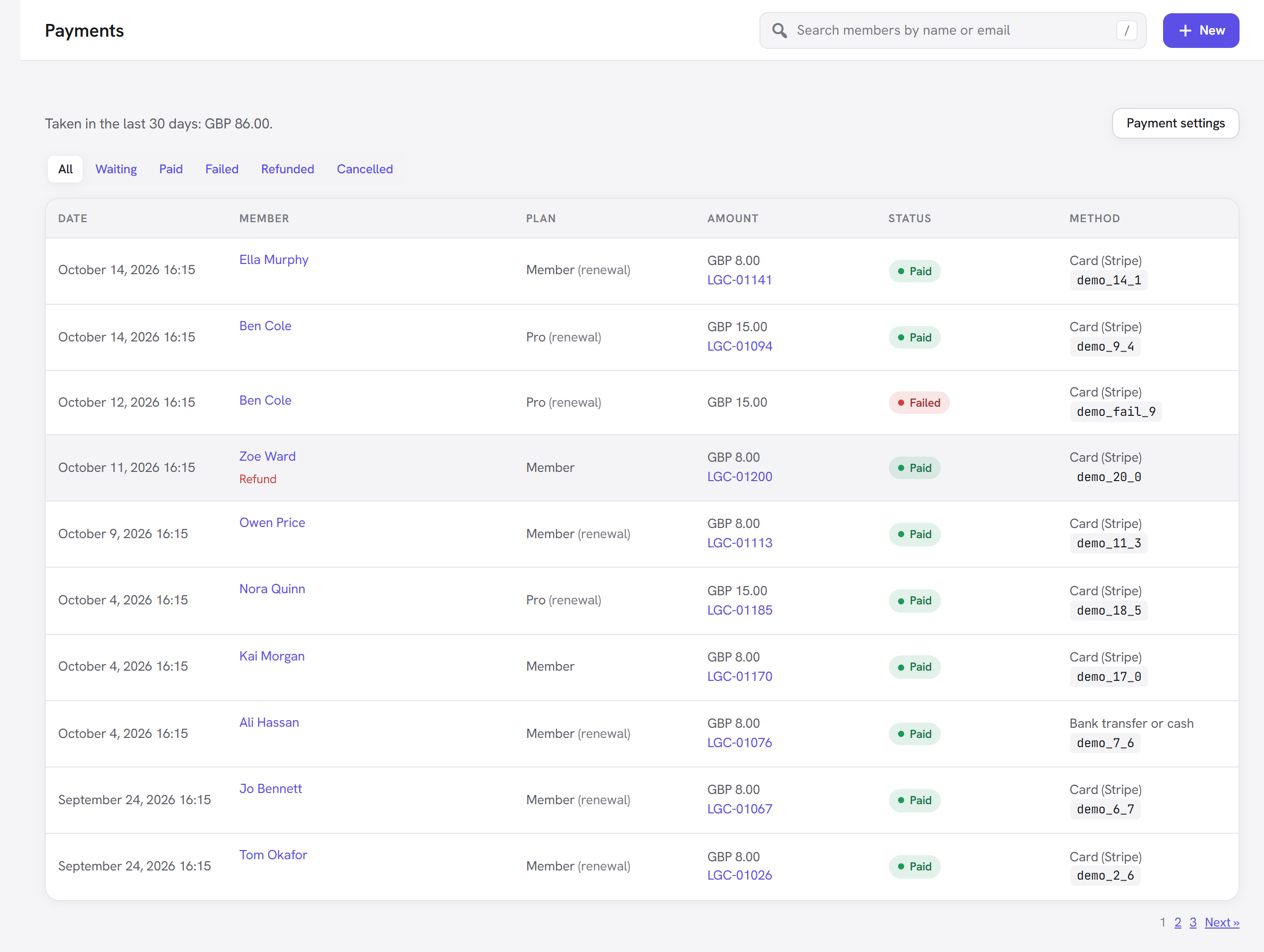
At the top: Taken in the last 30 days: with the total per currency (or "No payments in the last 30 days."), and the Payment settings button.
Filters (the links above the table): All, Waiting, Paid, Failed, Refunded, Cancelled.
| Column | What it shows |
|---|---|
| Date | When the payment was started, with the time. |
| Member | The buyer, linked to their member page ("(deleted)" if the account was removed). Hover for Mark paid (a waiting bank transfer), Refund (a paid card or PayPal payment) or Mark refunded (a paid bank transfer). |
| Plan | The plan, with "(renewal)" for a renewal payment. |
| Amount | The amount and currency, the invoice number (linked to the invoice) once paid, and the coupon code if one was used. |
| Status | Waiting, Paid, Failed, Refunded or Cancelled (see below). |
| Method | Card (Stripe), PayPal or Bank transfer or cash, with the payment service's reference underneath. |
What each status means:
- Waiting: started but not finished. A buyer who left the Stripe or PayPal page without paying, or a bank transfer you have not received yet. If the same person tries the same plan again, their earlier attempt is reused instead of piling up.
- Paid: the money arrived. The payment has an invoice and the member was sent a receipt.
- Failed: the payment could not be started, or a renewal was declined.
- Refunded: the money was given back (from this screen or at the payment service).
- Cancelled: a waiting payment that was closed, for example because the account was deleted. Paid payments always stay on record.
When there are no payments yet, the screen says "No payments yet" with "Payments appear here as people buy plans through your checkout page: first payments, renewals and refunds."
Refunds
Hover a Paid payment. What you see depends on how it was paid:
- Card (Stripe) and PayPal payments show Refund. Click it and confirm "Refund this payment through Card (Stripe)? The money goes back to the buyer. A refunded first payment ends the membership." (or "…through PayPal?"). The refund is made at the payment service for the full amount, and the payment is marked Refunded. The notice starts "Refunded."
- Bank transfer or cash payments show Mark refunded, because nothing can be sent back from your site. Return the money yourself first (a bank transfer back to the buyer, or cash), then click Mark refunded and confirm "Mark this payment refunded? Return the money yourself first; nothing is sent from here. A refunded first payment ends the membership." The payment is marked Refunded and the notice starts "Marked refunded."
Either way, what happens to the membership is the same, and the notice says so:
- Refunding a first payment ends the membership ("The membership has ended.") and stops its subscription, so it never renews again.
- Refunding a renewal keeps the membership ("The membership continues; cancel it on the member's page if it should stop.").
You can also refund in the Stripe Dashboard or in PayPal. With the webhook set up, your site hears about it and marks the payment refunded, with the same effect on the membership. In Stripe, only a full refund is picked up; a partial refund leaves the payment as Paid here.
How a subscription renews, fails and cancels
For monthly and yearly prices, the payment service (Stripe or PayPal) runs the subscription and tells your site what happened through the webhook. Your site never charges a card by itself.
- The first payment. The buyer pays at Stripe or PayPal and comes back. The membership becomes Active (or Trialing during free trial days) and runs to the end of the paid period. The payment is Paid, gets an invoice, and the member gets the Payment receipt email.
- Each renewal. The payment service charges the card and sends
invoice.paid(Stripe) orPAYMENT.SALE.COMPLETED(PayPal). A new Paid payment with "(renewal)" appears, the membership's end date moves to the end of the new period, and the member gets another receipt. - Grace days. Each period ends a few days after the renewal date (3 days by default; the Retention module lets you change it). That way a renewal that arrives a little late never locks anyone out.
- A failed renewal. The payment service sends
invoice.payment_failedorBILLING.SUBSCRIPTION.PAYMENT.FAILED. A Failed renewal appears, the membership becomes Past due (still with access through the grace days), and the member gets the Payment failed email asking them to update their payment method. The payment service retries the card; if a retry succeeds, the membership is back to Active. If the payment service finally gives up and ends the subscription, or the end date passes with no payment, the membership ends (Expired). - The member cancels on their account page (when you allow it in Membership → Settings). Billing stops at the payment service, and the member keeps access until the end of what they paid for. With Stripe the subscription is set to stop at the period end; PayPal stops billing straight away, but access still runs to the paid end date. A cancel made in the payment service's own portal is handled the same way.
- You end a membership now (End now on the member's page): the subscription is cancelled at the payment service immediately.
- You reactivate a cancelled membership before its end date: with Stripe, the subscription carries on and renews as before.
Every change goes into the member's history, so you can always see what the payment service reported and when. Changes the payment service reports are never sent back to it, and every message is handled only once, so a repeated webhook changes nothing.
Member plan changes (upgrades and downgrades)
Members can move themselves between plans you allow. On each plan's page, tick the plans under Members can switch to (for example, Member can switch to Pro, and Pro can switch to Member). The member then sees Change plan on their account page under that membership, with each allowed plan and price and an Upgrade or Switch button.
<img src="/img/membership/plan-edit-settings.png" alt="A plan's settings with "Members can switch to"" width="425" />
What happens depends on the move and how the member pays:
| The member has… | Moves to… | What happens |
|---|---|---|
| A Stripe subscription | A dearer repeating price | Changes now. With Charge the difference for the rest of the period now, Stripe charges the difference straight away ("Changes now. You pay about … today for the rest of this period.") and it shows as a payment marked "plan change" on the invoice. With Charge the new price from the next renewal, nothing extra is charged ("Changes now. The new price applies from your next renewal."). If the card fails the difference, nothing changes. |
| A Stripe subscription | A cheaper repeating price | Changes at the next renewal ("Changes on …, when your current period ends."). The member keeps what they paid for until then, and Stripe bills the new price from the renewal. |
| A Stripe subscription | A free plan | At the next renewal: billing stops then and the membership carries on, free. |
| No subscription (a one-off or lifetime price, a free plan) | A free plan | Changes now. |
| No subscription | A paid plan | Goes through the checkout ("You pay for the new plan at the checkout; your current plan ends once it is paid."). The checkout says "Switching from …. It ends as soon as this payment is made." |
| A PayPal subscription | Anything | Not offered (see PayPal above). |
A subscription can only move to another repeating price in the same currency. Whether a move counts as an upgrade or a downgrade is worked out from the price per day, so a yearly price compares fairly with a monthly one.
While a change waits for the renewal, the account page shows "Moving to Pro on …" with Keep my current plan to undo it. The Pricing Plans element also shows a Change plan button (instead of Join) on plans a member can switch to.
Invoices
- Members open their invoices from the Payments section of their account page (the Invoice link next
to each payment) and from the
{invoice_url}link in the receipt email. - The invoice shows your business name, address and tax number, Billed to (the member's name, email, and their country, region and VAT number when the Tax module asked for them), the date, the payment method, a line for the plan (with "renewal" or "plan change" when that applies), any discount and tax, and the Total, with a Paid or Refunded stamp.
- Print or save as PDF at the bottom opens the browser's print dialog, where the member can save it as a PDF.
- Only the member who paid and people who manage Membership can open an invoice; anyone else sees "This invoice is not available." A refund keeps the invoice and stamps it Refunded.
What members see on their account page
With Payments on, the Member Account element adds a Payments section listing their last 20 payments (date, plan, amount, Paid, Refunded or Waiting for payment, and an Invoice link). Members with a running subscription also see "Card expiring or changed?" with Update your payment method, which takes them to Stripe's customer portal or to PayPal's automatic payments page.
Emails
Payments adds two emails to Unyson+ → Membership → Emails, both editable and both able to be switched off:
- Payment receipt: after each successful payment, including renewals. Placeholders include
{plan},{amount},{payment_date},{payment_ref}and{invoice_url}. - Payment failed: when a renewal payment fails, asking the member to update their payment method.
Take your first payment in test mode
A complete run-through, start to finish, with no real money.
- Switch on Payments in Membership → Modules and save.
- Give a plan a price. Open Membership → Plans → Member, add a price of 5.00, Every month, and save.
- Make the checkout page. Create a page called "Join", add the Membership Checkout element from the Membership tab of the page builder, and publish it.
- Make the pricing page. Create a page called "Plans", add the Pricing Plans element, and publish it.
- Payment settings. In Membership → Payments → Payment settings, set Default currency and choose "Join" as the Checkout page.
- Connect Stripe in test mode. Tick Offer this way to pay under Card (Stripe), set Mode to Test (no real money), paste your Test secret key, add the webhook (see above) and paste its signing secret. Save. The panel should show Ready.
- Buy the plan. Open the Plans page in a private browser window (logged out), click Join on Member, fill in a name, an email you can read and a password, choose Card and click Continue to payment.
- Pay with a test card. On Stripe's page use Stripe's test card
4242 4242 4242 4242, any future expiry date and any three-digit code. - Check the result. You land back on the checkout page with "Thank you! Your membership is active." and Go to your account. In Membership → Payments the payment is Paid with an invoice number; the new member is on Membership → Members with an active Member membership, and the receipt email is on its way.
- Try a refund. Hover the payment, click Refund and confirm. The payment becomes Refunded and the membership ends.
When everything works, add your live keys and live webhook, switch Mode to Live, and buy once more with a real card for a small amount (then refund it) to be sure.
Good to know
- "Online payment is not available for this plan yet. Please contact us to join." at the checkout means no way to pay is ready for that price. Check that at least one panel shows Ready, and remember that bank transfer is never offered for repeating prices: a monthly or yearly plan needs Stripe or PayPal switched on.
- The buyer came back but the page says "We are confirming your payment with the payment service." The payment service has not confirmed yet. It usually takes a moment; the webhook finishes it.
- A buyer whose email already has an account is asked to log in first ("An account with this email already exists. Please log in first, then come back to this page."). A purchase is never attached to someone else's account.
- New buyers get an account at the checkout with the email and password they chose, and are logged in.
- Someone who already holds the plan sees "You already have Member." instead of the form.
- A full plan (one with a Member limit) refuses new buyers with "Sorry, this membership is full."
- Free plans need no payment service: the button reads Join for free and the membership starts at once.
- Missed a webhook? The command
wp membership reconcile(WP-CLI) ends memberships past their date and checks every subscription's status with its payment service. Add--dry-runto see what it would change. See Scheduled jobs and WP-CLI. - Deleting a member's account closes their waiting payments; paid payments stay on record.
Next steps
- Pricing table and checkout: build the pages buyers use.
- Coupons: discount codes and
?coupon=links. - Tax: tax rates and EU VAT.
- Gift memberships: let people buy a plan for someone else.
- Pay per item: sell one page, file or course without a plan.
- Emails: edit the receipt and payment-failed emails.
- Back to the Membership overview.