Pricing table and checkout
Two page-builder elements turn your plans into something people can buy:
- Pricing Plans shows your plans side by side with their prices and a button to join, with an optional monthly / yearly switch.
- Membership Checkout is the checkout: the chosen plan, an account for new buyers, the price (with any coupon and tax), and the ways to pay.
They work as a pair. Every Join button on the pricing table links to the checkout page with the plan and price already chosen, so the buyer goes straight from "I want this" to paying.
Both elements are in the Membership tab of the page builder. They need the Payments module (Unyson+ → Membership → Modules, off by default). While it is off, both elements show administrators a note asking them to switch it on, and show visitors nothing. See Payments for setting up a way to pay.
Step by step: a plans page and a checkout page
- Create the checkout page. Add a new page, for example "Join". Open the page builder, add the Membership Checkout element (Membership tab), and publish the page.
- Tell Membership which page it is. Open Unyson+ → Membership → Payments → Payment settings and choose the page under Checkout page. Save. Every button that sends people to buy something uses this page, so set it before anything else.
- Create the plans page. Add a page, for example "Plans", and add the Pricing Plans element.
- Choose what it shows. In the element's options, tick the plans to show (or none, for every open plan), pick one to Highlight, and adjust the button texts if you like. Publish.
- Link to it. Put the plans page in your menu, and fill in Plans page on the checkout element so visitors who open the checkout without a plan can find their way.
- Test it logged out in a private window: click Join, check the summary on the checkout, and pay with a test card (see Take your first payment in test mode).
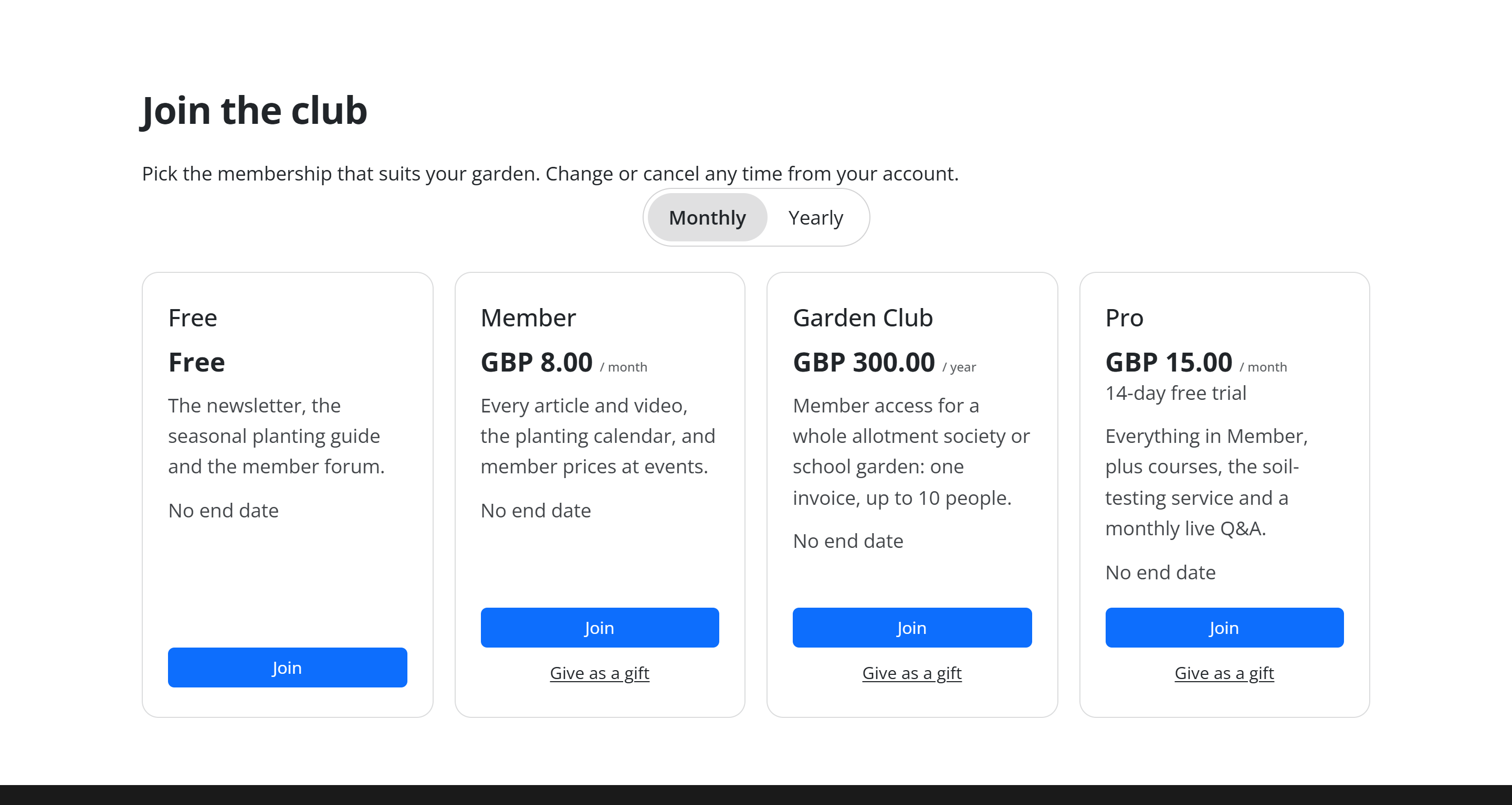
The Pricing Plans element
Every option explained
Content tab:
| Option | What it does | Default | Tip |
|---|---|---|---|
| Plans | Tick boxes for each active plan. | None ticked | "None ticked: every open plan, highest priority last." Tick only the plans you sell, for example Member and Pro, to leave out Free or a team plan you sell elsewhere. |
| Highlight | One plan to make stand out, with a badge and the main button style. The other plans' buttons use the secondary style. | None | Highlight the plan you most want people to choose. |
| Highlight label | The badge text on the highlighted plan. | Most popular | "Best value", "Recommended"… Leave it empty for no badge. |
| Button text | The button on plans the visitor does not hold. | Join | "Join now", "Start my membership"… |
| Gift link text | "The link under each paid plan to buy it for someone else (Gifts module). Leave empty to hide it." | Give as a gift | "Buy it for a friend"… Empty it to leave gifts off this table while the Gifts module stays on. |
| Text for the plan a member already holds | A greyed-out label in place of the button on plans the logged-in member already has. | Your plan | |
| Button for a plan the member can switch to | Shown instead of Join on plans the member can move to from a plan they hold. "Takes them to their account page, where they change plan instead of buying a second one." | Change plan | |
| "Monthly" switch label | The first button of the monthly / yearly switch. | Monthly | |
| "Yearly" switch label | The second button of the switch. | Yearly |
Advanced tab: the standard element settings shared by every Unyson+ element (spacing, CSS class and ID, visibility, custom CSS and so on).
How it decides what to show
- Which plans. Only active plans, never archived ones, and never the hidden plans behind single items for sale. They are ordered by each plan's priority, lowest first, so the highest priority comes last.
- The price on each card. "GBP 8.00 / month", "every 3 months", "once", "once, for life", or Free for a free plan. A price with trial days adds "14-day free trial". Under the price come the plan's description and its length (for example "No end date" or "Lasts 1 year").
- The monthly / yearly switch appears by itself when the plans shown have both a monthly and a yearly price. Clicking Yearly swaps every card to its yearly price and points its Join button at that price. A plan with only one price keeps showing it on both sides of the switch.
- For logged-in members, each card checks what they already hold: Your plan on a plan they have, Change plan on a plan they are allowed to switch to (set with Members can switch to on the plan), and Join on the rest. A paid move from a plan without a subscription goes through the checkout and ends the old plan once the new one is paid.
- Coupon links. If the pricing page is opened with
?coupon=CODEin its address (for example/plans/?coupon=SPRING20), every Join button carries the code on to the checkout. See Coupons. - Give as a gift. With the Gift memberships module on, each paid plan shows a link under its button (the Gift link text, "Give as a gift" by default), which opens the checkout in gift mode. Empty the Gift link text to hide it.
- No checkout page set? The Join buttons go nowhere until Checkout page is chosen in Payment settings and that page is published.
The Membership Checkout element
The checkout reads the plan and price from its address (?plan=member&price=12, which the Join buttons fill
in for you) and shows everything needed to buy it.
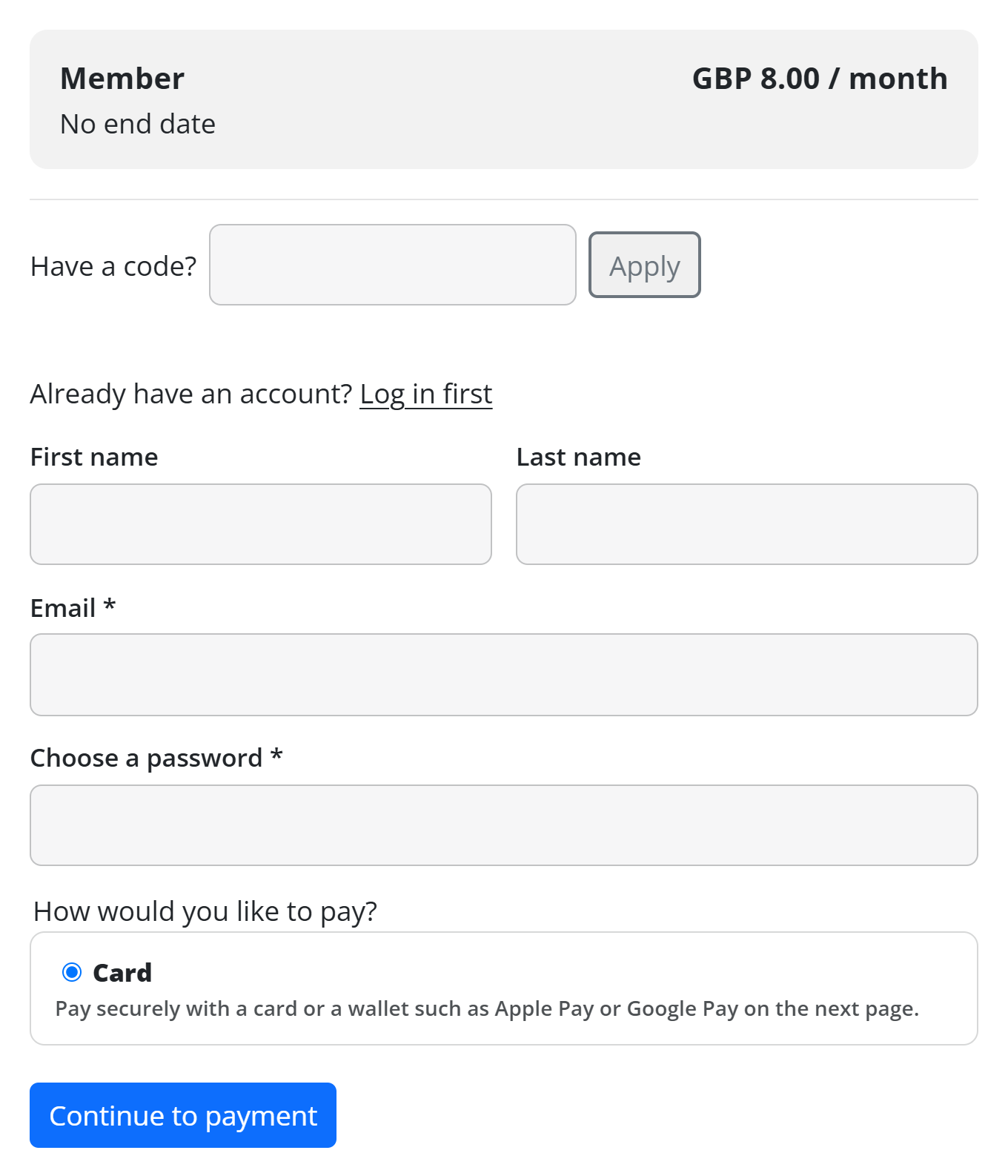
Every option explained
Content tab:
| Option | What it does | Default |
|---|---|---|
| Pay button | The button that sends the buyer to the payment page. | Continue to payment |
| Button for a free plan | The button when there is nothing to pay. | Join for free |
| After a successful payment | The message shown when the buyer comes back with the payment confirmed. | Thank you! Your membership is active. |
| When no plan was chosen | Shown when someone opens the checkout page without a plan in the address. | Choose a plan to get started. |
| Plans page | An address linked as "See the plans" after the message above. | Empty |
Advanced tab: the standard element settings.
Put the element on one page only, and choose that page as the Checkout page in Payment settings.
What the buyer sees, from top to bottom
- The summary: the plan name and length on the left, the price on the right, and "Free for the first 14 days" when the price has trial days.
- The price lines, when there is anything beyond the plain price: Setup fee, Discount (CODE), the tax line (for example "VAT (20%)", or "Includes VAT (20%)" when your prices include tax), Due today, and Then each renewal for repeating prices (with "(discounted for 3 months)" for a coupon that lasts a few months).
- Have a code? A code field with Apply, shown when the Coupons module or the Gift memberships module is on. It takes a coupon code, and also a gift code: typing a gift code here and clicking Apply opens that gift's redeem page, so someone who was given a code can start their membership from the checkout. When the Tax module asks for the buyer's Country (and State / region or EU VAT number (businesses, optional)), those fields sit here too and the button reads Update the price. The total updates before anyone pays.
- The account fields for logged-out buyers: "Already have an account? Log in first", First name,
Last name, Email and Choose a password (at least 8 characters). Logged-in buyers see "Joining as
[email protected]." (their own email) instead. - For a gift: "Who is the gift for?" with Their name, Their email and A message (optional). The summary at the top then shows one period of the price, for example "GBP 8.00 for 1 month", with "A gift: one payment, nothing renews" (no trial days). See Gift memberships.
- How would you like to pay? One choice per way to pay that is ready: Card, PayPal, Bank transfer (or the name you gave it), each with a short explanation.
- I accept the terms. when you set a Terms page in Payment settings.
- The button: Continue to payment, or Join for free.
After paying, the buyer comes back to the same page and sees one of:
- the After a successful payment message and Go to your account (or Open it now / Download it now for a single item);
- for a bank transfer, "Almost done: your … membership starts as soon as your payment arrives.", the amount and your payment instructions;
- "Thank you! We are confirming your payment with the payment service…" if the payment service has not confirmed yet;
- "The payment was cancelled. You can try again below." if they left the payment page, with the form ready to try again.
Where to put them
- Pricing Plans goes wherever people decide: a dedicated "Plans" or "Join" page, your home page, or the bottom of a members-only article. You can use it on as many pages as you like, each with its own plans ticked.
- Membership Checkout goes on one page, chosen in Payment settings. Keep that page simple (no sidebar, few distractions) and do not protect it with an access rule, or buyers could not reach it.
- Your plans page is the Join page. Choose the page with the Pricing Plans element as the Join page in Settings → Member pages. The prompts on protected pages then show a Join button (or See the plans for a logged-in member without the plan) that goes there, so visitors who hit a locked page find their way to the checkout. See Access rules.
Good to know
- A free plan checks out with Join for free: no way to pay is needed and the membership starts at once. A coupon that takes the whole price of a one-off plan does the same.
- "You already have Member." shows instead of the form when a logged-in member already holds the plan.
- "Online payment is not available for this plan yet. Please contact us to join." means no way to pay is ready for that price. Bank transfer is never offered for monthly or yearly prices, so a repeating plan needs Stripe or PayPal switched on (see Payments).
- A wrong coupon shows its reason in red ("That code has expired.") and the price stays as it was.
Next steps
- Payments: connect Stripe, PayPal or bank transfer.
- Coupons: discounts at the checkout.
- Tax: add tax and VAT to the checkout.
- Gift memberships and Pay per item.
- Back to the Membership overview.