Tax
The Tax module adds tax to your membership prices. You can either keep your own table of rates (by country, and by state or region where you need it), or let Stripe Tax work the tax out on Stripe's payment page. For EU businesses it can ask for a VAT number, check it, and apply the reverse charge (no VAT) when the buyer is a business in another EU country.
The tax is shown at the checkout before anyone pays, sent to the payment service with the payment, and printed on the invoice.
Tax rules differ by country and change over time. This page explains what the settings do, not which rates apply to you. Check with your accountant or tax office which rates and rules apply to your business.
Switch on the Tax module
- Open Unyson+ → Membership → Modules.
- Switch on Tax ("Tax rates by country and region, EU VAT with number validation, or automatic tax by the payment service.") and click Save modules.
Tax is off by default and needs the Payments module. It has no screen of its own: its settings are a Tax panel in Unyson+ → Membership → Payments → Payment settings, between Invoices and the ways to pay.
Set up your own rates, step by step
The Larkspur Garden Club is in Germany, sells to people across Europe, and charges German VAT at 19%:
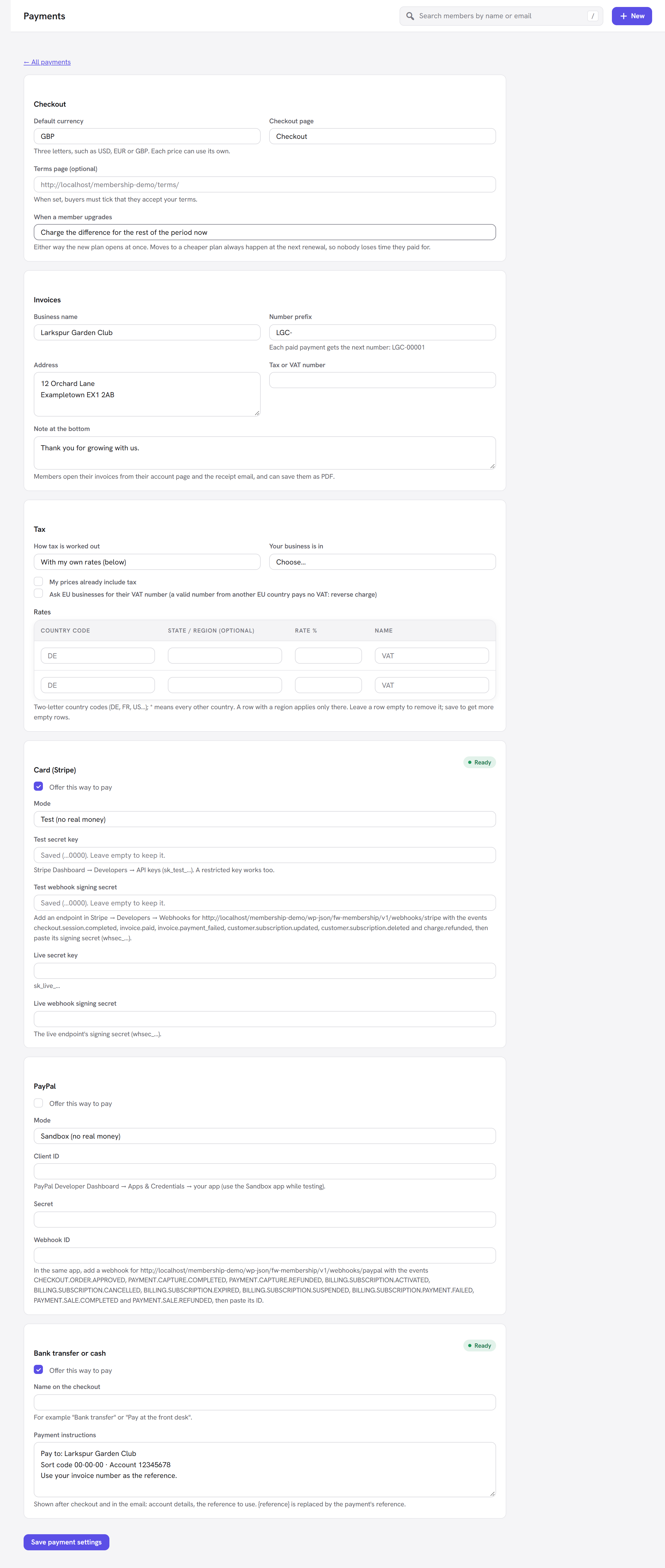
- Open Membership → Payments → Payment settings and scroll to the Tax panel.
- How tax is worked out: With my own rates (below).
- Your business is in: Germany.
- Tick My prices already include tax if your prices are the final price people pay (common for consumer prices in Europe). Leave it unticked if tax should be added on top.
- Tick Ask EU businesses for their VAT number… if you sell to businesses in other EU countries.
- Under Rates, fill in a row: Country code
DE, Rate %19, NameVAT. - Add more rows for other countries, or a row with
*as the country code for "every other country". - Click Save payment settings.
Every option explained
| Field | What it does | Default | When to change it |
|---|---|---|---|
| How tax is worked out | With my own rates (below): your rate table decides. By Stripe Tax (card payments; set it up in Stripe first): Stripe works the tax out on its payment page. | With my own rates | Choose Stripe Tax if you sell to many places and already use Stripe Tax. |
| Your business is in | Your own country. Used for the EU reverse charge: a buyer in your own country always pays VAT, even with a VAT number. | Choose… | Set it whenever you use the VAT number option. |
| My prices already include tax | When ticked, the price you set is the final price; the tax inside it is shown as "Includes VAT (19%)" and the total stays the same. When unticked, the tax is added on top. | Off | Tick it for tax-inclusive consumer pricing. |
| Ask EU businesses for their VAT number (a valid number from another EU country pays no VAT: reverse charge) | Adds an EU VAT number (businesses, optional) field to the checkout and checks numbers with the EU's VIES service. | Off | Tick it if you sell to EU businesses. |
| Rates: Country code | A two-letter country code (DE, FR, US…), or * for every country without a row of its own. | Empty | |
| Rates: State / region (optional) | Limits the row to one state or region, for example CA. The buyer's entry must match it (capitals do not matter). | Empty | Use it for sales tax that differs by state. |
| Rates: Rate % | The rate, from 0 to 100, up to three decimals (for example 7.25). | Empty | |
| Rates: Name | The tax's name at the checkout and on the invoice, for example VAT, GST or Sales tax. Shown with the rate: "VAT (19%)". | Tax |
The rate table always shows two empty rows. To add more than two at a time, save, and two new empty rows appear. To remove a row, empty its fields and save (a row needs a country code and a rate to be kept).
Which rate is used
For each buyer, the most specific matching row wins:
- a row for their country and region;
- otherwise a row for their country with no region;
- otherwise the
*row; - otherwise no tax.
For example, with rows US + CA at 7.25, US at 0 and * at 0, a buyer in California pays 7.25%, the
rest of the US pays nothing, and so does everyone else.
What the buyer sees
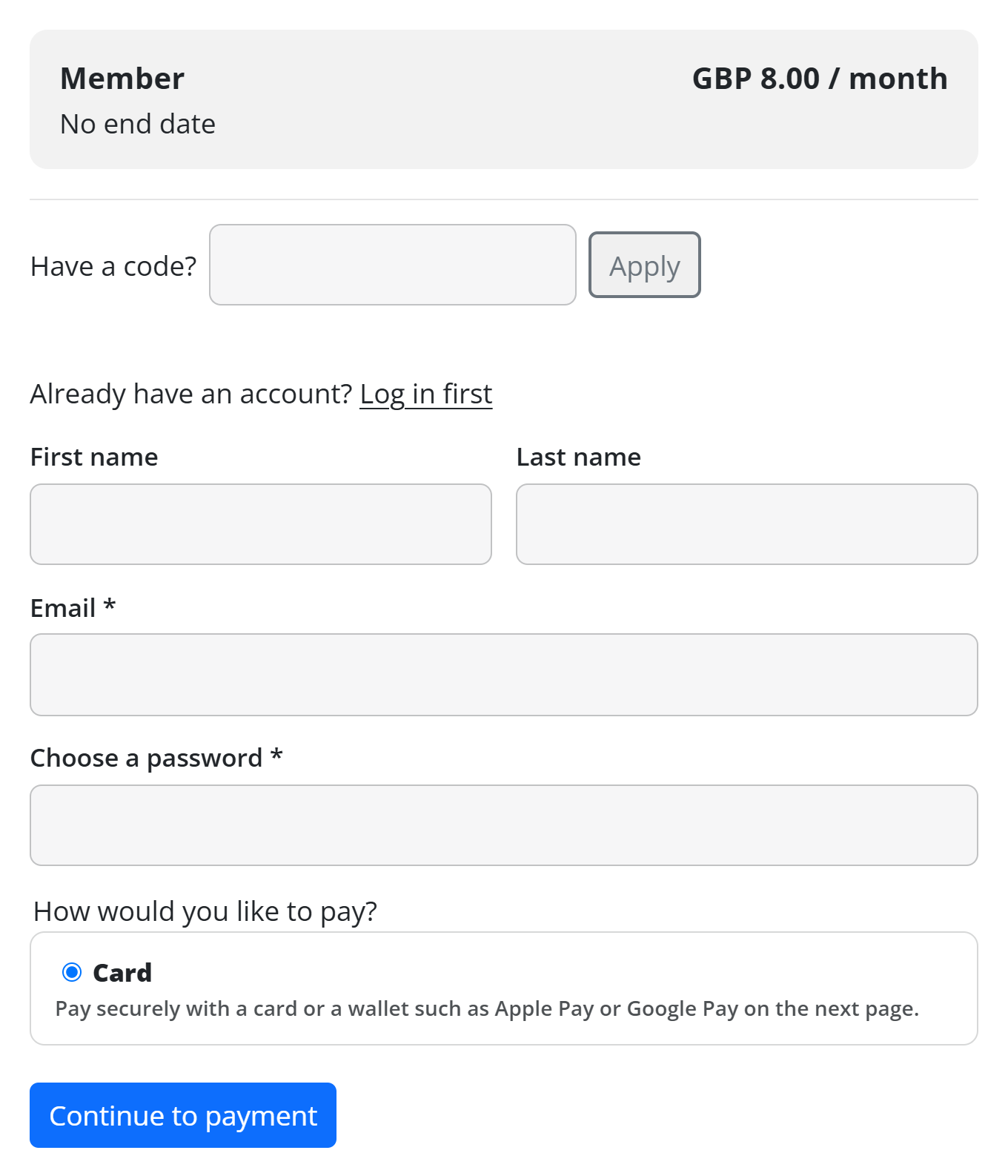
When you use your own rates and have at least one rate, the checkout asks for the buyer's Country (required), plus State / region if any of your rows has a region, and EU VAT number (businesses, optional) if you ticked that option. The button next to the coupon field becomes Update the price.
- Until a country is chosen, the checkout says "Choose your country and update the price to see any tax before you pay." Trying to pay without one gives "Please choose your country (it decides the tax), then update the price."
- After Update the price, the price lines show the tax: "VAT (19%)" added to the total, or "Includes VAT (19%)" when your prices include tax, then Due today and Then each renewal (renewals include the same tax).
- The country is remembered on the member's account for their next purchase.
Tax is worked out on the price after any coupon discount.
EU VAT numbers and the reverse charge
With Ask EU businesses for their VAT number ticked:
- A buyer in an EU country other than yours who enters a valid VAT number pays no VAT. The tax line reads "Reverse charge: VAT to be accounted for by the buyer".
- An invalid number: "That VAT number is not valid, so VAT is charged."
- If the EU's VIES service cannot be reached just then: "The VAT number could not be checked just now, so VAT is charged."
- A buyer in your own country, or outside the EU, is charged as usual whatever they enter.
Numbers can be typed with or without the country prefix (DE123456789 or 123456789); Greek numbers use
EL. Each check is remembered for a day. The VAT number is printed on the buyer's invoice.
Automatic tax by Stripe Tax
Choose By Stripe Tax (card payments; set it up in Stripe first) to let Stripe decide the tax:
- The checkout shows no country fields and no tax line. Stripe asks for the billing address on its page and adds the right tax there.
- With the VAT number option ticked, Stripe's page also asks businesses for their tax ID.
- The amount Stripe actually charged, tax included, is what your site records and prints on the invoice.
Set up Stripe Tax in your Stripe Dashboard first (your business address and where you are registered to collect tax). Stripe Tax only covers card payments through Stripe; PayPal and bank transfer payments get no tax in this mode.
How tax reaches the payment service
- Card (Stripe) with your own rates: a matching tax rate is created in your Stripe account (once per rate, name, inclusive setting and country) and added to each line, so Stripe's receipts show it too.
- PayPal: the rate is part of the PayPal plan for a subscription, and included in the amount for a one-off payment.
- Bank transfer: the amount to pay already includes the tax.
What appears on the invoice
The invoice lists the plan, any discount, then the tax line ("VAT (19%)" with the amount, or "Includes VAT (19%)" for tax-inclusive prices) and the Total. Billed to shows the buyer's region and country and "VAT number: …" when one was given. Your own Tax or VAT number from the Invoices panel shows under your address as "Tax number: …". See Invoices.
Good to know
- No rates, no tax. With your own rates and an empty table, the checkout asks for nothing and adds no tax.
- A rate of 0 is a valid row: use it to say "no tax here" for a country, so the
*row does not apply. - Changing a rate affects new purchases. A running PayPal subscription keeps the tax it started with; new buyers get a PayPal plan with the new rate.
- WooCommerce country names. With WooCommerce active, the country list uses WooCommerce's translated country names.
Next steps
- Payments: currency, invoices and the ways to pay.
- Pricing table and checkout: what the buyer sees.
- Coupons: discounts before tax.
- Back to the Membership overview.