Search Console
Your own data from Google, shown where you can act on it. Which searches bring people to the site, which pages they land on, and — most usefully — which pages are seen often and clicked rarely, because that is a title and description problem, which is precisely what this extension fixes.
It is read-only, and the site talks to Google directly. There is no account with us, no subscription, and nothing about your site passes through our servers. The credentials are yours, created in your own Google Cloud project, and they stay on your site.
:::note What this is not Search Console reports an average position across everyone who saw the result, which varies by location, device and personalisation. It is a useful trend; it is not a rank tracker. It also only covers searches you have already appeared for — a keyword you have never shown up for produces no impressions, so there is no row and nothing to report. :::
Connecting it
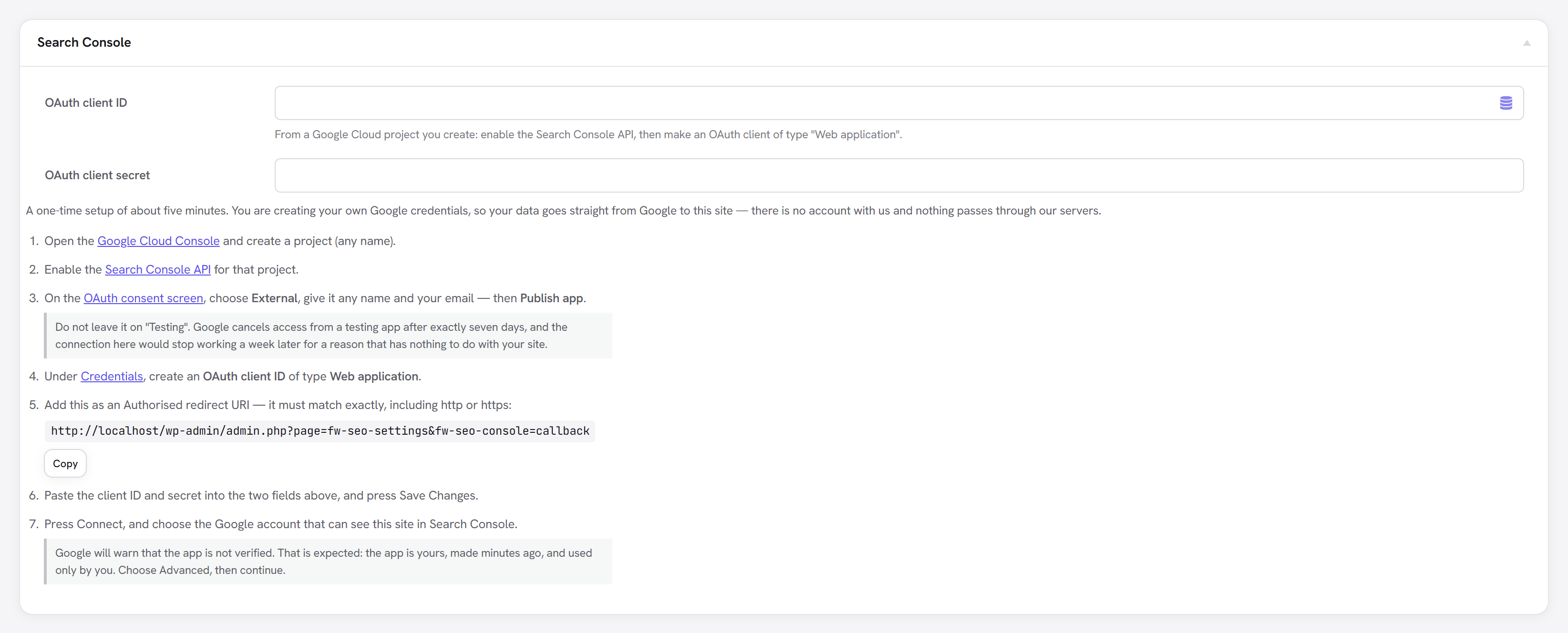
A one-time setup of about five minutes. You are creating your own Google credentials, which is why there are more steps than a single button — and why your data goes straight from Google to your site.
Go to Unyson+ → SEO → Search Console, where the same seven steps are listed beside the fields, with the redirect URI ready to copy.
- Open the Google Cloud Console and create a project. Any name will do.
- Enable the Search Console API for that project.
- On the OAuth consent screen, choose External, give it any name and your email address — then press Publish app.
- Under Credentials, create an OAuth client ID of type Web application.
- Add the redirect URI shown on the settings screen as an Authorised redirect URI. It must
match exactly, including
httporhttps. There is a copy button next to it. - Paste the client ID and secret into the two fields, and press Save Changes.
- Press Connect, and choose the Google account that can see this site in Search Console.
:::danger Do not leave the app on "Testing" This is the one step that costs people a week. Google cancels access from an app left on "Testing" after exactly seven days. The connection here works perfectly, and then stops a week later for a reason that has nothing to do with your site.
Press Publish app on the OAuth consent screen at step 3. If a connection has already expired this way, the settings screen recognises the signature and says so — publish the app, connect again, and it will not expire after that. :::
:::info Google will warn that the app is unverified That is expected. The app is yours, you made it minutes ago, and you are the only person who will ever use it. Choose Advanced, then continue.
Verification exists for apps asking the public for access to their data. It is not required for an app that only ever reads your own property. :::
What it shows
Clicks and impressions
The last 28 days, against the 28 before them, so the number comes with a direction rather than sitting there on its own.
:::note Why the dates are not today Search Console data lags by about three days, so the window ends three days ago rather than this morning. That is Google's lag, not a delay here — the dates the report is built from are printed above the figures so you always know what you are looking at. :::
The pages bringing traffic
Which pages earn the clicks, with impressions and average position. Each row links straight to the editor for that page, because the point of knowing is changing something.
Pages people see but never click
The most actionable view, and the reason this report is worth connecting at all.
A page with four thousand impressions and a 0.9% click-through rate is not a ranking problem — it already ranks, and people are choosing not to click. The title is not telling them what they would get. That is a twenty-minute fix with an immediate effect, and nothing else in WordPress will ever point it out.
Rows with fewer than 100 impressions are left out. Below that, a click-through rate is noise rather than a signal, and acting on it would mean rewriting titles on the strength of three visitors.
Keeping it working
- The connection refreshes itself. You will not be asked to reconnect under normal use.
- Results are cached for six hours, so opening the screen repeatedly does not re-query Google.
- If access stops roughly a week after connecting, see the "Testing" warning above — that is almost always the cause.
- Disconnecting removes the stored tokens from your site. It does not change anything in your Google account, and the credentials remain valid should you want to connect again.
What else runs on this connection
Index coverage asks Google whether each page is indexed at all, which canonical it chose against the one you declared, and when it was last crawled. It uses this same connection, so once you are connected there is nothing further to set up.